Developing in the Scratchpad
This page guides you through the execution of q and Python code and APIs using the Scratchpad.
The Scratchpad offers a unique, self-contained location where you can assign variables and create analyses that are visible only to you. You can develop in either q or Python. Select the q or Python tab in each example below to see the equivalent code.
The following sections describe how to:
- Execute code in the Scratchpad
- Interact with custom code using Packages
- Develop machine learning workflows using the Machine Learning Core APIs
- Integrate q and Python using PyKX and embedPy
- Develop Stream Processor pipelines using the Stream Processor API
- Debug pipelines
For information on data visualization and console output in the Scratchpad see here.
The Scratchpad is available in the Query Window of the kdb Insights Enterprise Web Interface and through the kdb VS Code extension.
Execute code
When executing code in the Scratchpad, keep these key points in mind:
- The selected language (q or Python) is highlighted within the Scratchpad to indicate which language version you are using. Use the tabs at the top right-hand corner of the editor to toggle between the q and Python editors.
- Use Ctrl + Enter or Ctrl + D on Windows, and Cmd + Return or Cmd + D on macOS, to execute the current line or selection. You can execute the current line without selecting it.
- Click Run Scratchpad to execute everything in the editor.
Available Python libraries
The Scratchpad supports the libraries currently installed within the Scratchpad image. The following is a selection of the most important data-science libraries included:
- Machine learning libraries: keras, scikit-learn, tensorflow-cpu, xgboost
- Data science libraries: numpy, pandas, scipy, statsmodels, h5py (numerical data storage), pytz (for working with timezones)
- Natural language processing: spacy (parsing, tokenizing, named entity recognition), beautifulsoup4 (HTML and XML parsing)
- Insights and kdb+ integration: kxi (the stream processor and assorted Insights-specific functionality), pykx (allows running q and Python code in the same process)
For the complete list, with versions, run the following in a scratchpad:
import pkg_resources
print("\n".join(sorted([package.key + "==" + package.version for package in pkg_resources.working_set])))
The Scratchpad does not currently support the integration of your own Python library.
Namespaces and contexts in q
When developing in q, you can change the current namespace by adding a line such as \d .myNamespace above the code you want to run. When you execute a line or selection, the Scratchpad determines its namespace from the \d directives in the preceding lines. This means you do not have to re-select the \d line each time you run a later line, as it applies automatically based on its position in the editor.
As an example, running just the second line (result: 1 2 3) in the following code assigns 1 2 3 to .test.result, because the \d .test line above it sets the namespace.
The result variable on the last line is in the global context, and is undefined.
\d .test
result: 1 2 3

// The namespace remains ".test" on all subsequent lines until it is changed by another `\d` command
.test.result ~ 1 2 3

\d .
// This variable is in the global context, and is undefined
result
Interact with custom code
By using Packages you can add custom code to kdb Insights Enterprise for use in:
- The Stream Processor when adding custom streaming analytics.
- The Database for adding custom queries.
The Scratchpad also has access to these APIs allowing you to load custom code and access user-defined functions when prototyping workflows for the Stream Processor or developing analytics for custom query APIs.
The example below demonstrates a Scratchpad workflow that utilizes both the packages and UDF APIs available within the Scratchpad.
These examples use UDFs named py_udf and map_udf from a hypothetical ml package. These need to be updated to point to existing UDFs before they could actually be called.
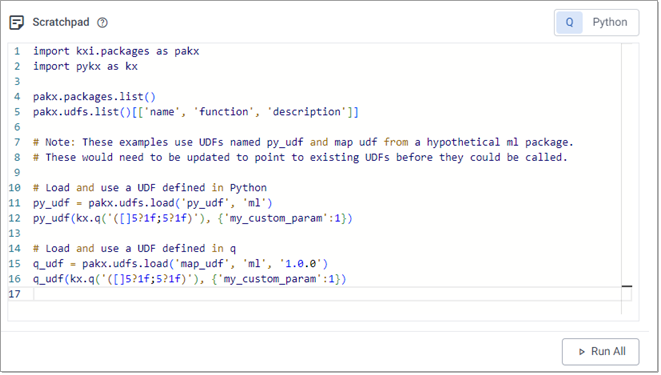
Code snippet for ML Scratchpad example
Use the following code to replicate the behavior illustrated in the screenshot above:
import kxi.packages as pakx
import pykx as kx

pakx.packages.list()
pakx.udfs.list()[['name', 'function', 'description']]

# Note: These examples use UDFs named py_udf and map udf from a hypothetical ml package.
# These would need to be updated to point to existing UDFs before they could be called.

# Load and use a UDF defined in Python
py_udf = pakx.udfs.load('py_udf', 'ml')
py_udf(kx.q('([]5?1f;5?1f)'), {'my_custom_param':1})

# Load and use a UDF defined in q
q_udf = pakx.udfs.load('map_udf', 'ml', '1.0.0')
q_udf(kx.q('([]5?1f;5?1f)'), {'my_custom_param':1})
This example shows a package named ml, containing a function filter_udf that returns any rows where the first value is greater than 0.5. Passing the pipeline a table of 50 rows, containing random values between 0 and 1, it is expected that about half the rows pass through the filter node and are written to test_filter.
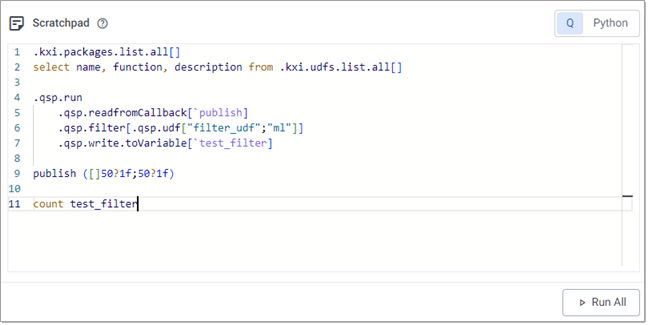
Code snippet for ML Scratchpad example
Use the following code to replicate the behavior illustrated in the screenshot above:
.kxi.packages.list.all[]
select name, function, description from .kxi.udfs.list.all[]

.qsp.run
    .qsp.readfromCallback[`publish]
    .qsp.filter[.qsp.udf["filter_udf";"ml"]]
    .qsp.write.toVariable[`test_filter]

publish ([]50?1f;50?1f)

count test_filter
Develop machine learning workflows
The Scratchpad has access to a variety of machine learning libraries developed by the Python community and by KX. You can use the Machine Learning Core APIs, included with all running Scratchpads, to preprocess data, fit machine learning models, and store them ephemerally within your Scratchpad session using the ML Model Registry.
Storing models in this manner results in them being lost upon restarting the Scratchpad pod.
In Python, you can also use the KX ML Python library to access its Model Registry functionality, alongside the machine learning and NLP libraries listed in Available Python libraries.
The example below shows how you can use this functionality to preprocess data, fit a machine learning model, and store this ephemerally within your Scratchpad session.
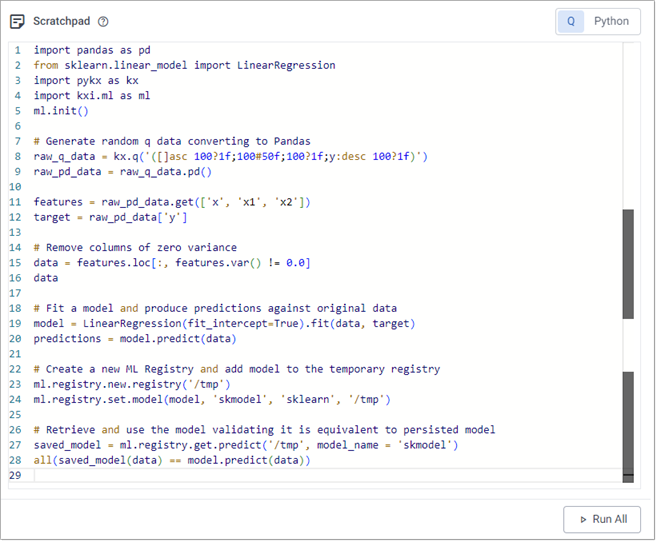
Code snippet for ML Scratchpad example
Use the following code to replicate the behavior illustrated in the screenshot above:
import pandas as pd
from sklearn.linear_model import LinearRegression
import pykx as kx
import kxi.ml as ml
ml.init()

# Generate random q data converting to Pandas
raw_q_data = kx.q('([]asc 100?1f;100#50f;100?1f;y:desc 100?1f)')
raw_pd_data = raw_q_data.pd()

features = raw_pd_data.get(['x', 'x1', 'x2'])
target = raw_pd_data['y']

# Remove columns of zero variance
data = features.loc[:, features.var() != 0.0]
data

# Fit a model and produce predictions against original data
model = LinearRegression(fit_intercept=True).fit(data, target)
predictions = model.predict(data)

# Create a new ML Registry and add model to the temporary registry
ml.registry.new.registry('/tmp')
ml.registry.set.model(model, 'skmodel', 'sklearn', '/tmp')

# Retrieve and use the model validating it is equivalent to persisted model
saved_model = ml.registry.get.predict('/tmp', model_name = 'skmodel')
all(saved_model(data) == model.predict(data))
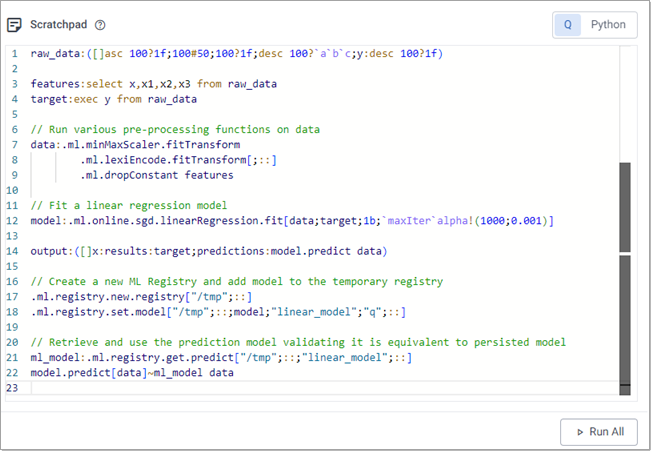
Code snippet for ML Scratchpad example
Use the following code to replicate the behavior illustrated in the screenshot above:
raw_data:([]asc 100?1f;100#50;100?1f;desc 100?`a`b`c;y:desc 100?1f)

features:select x,x1,x2,x3 from raw_data
target:exec y from raw_data

// Run various pre-processing functions on data
data:.ml.minMaxScaler.fitTransform
        .ml.lexiEncode.fitTransform[;::]
        .ml.dropConstant features

// Fit a linear regression model
model:.ml.online.sgd.linearRegression.fit[data;target;1b;`maxIter`alpha!(1000;0.001)]

output:([]x:results:target;predictions:model.predict data)

// Create a new ML Registry and add model to the temporary registry
.ml.registry.new.registry["/tmp";::]
.ml.registry.set.model["/tmp";::;model;"linear_model";"q";::]

// Retrieve and use the prediction model validating it is equivalent to persisted model
ml_model:.ml.registry.get.predict["/tmp";::;"linear_model";::]
model.predict[data]~ml_model data
Integrate q and Python
You can tightly integrate q and Python within the Scratchpad, allowing you to mix languages within a single workflow.
When your workflow requires it, you can integrate q code and analytics within your Python code using PyKX. This library, included in the Scratchpad, allows you to develop analytics in q to operate on your Python or q data.
By default, database queries following the querying databases guide return data as a PyKX object rather than a Pandas DataFrame. Therefore, it may be more efficient to perform data transformations and analysis using q in PyKX before converting to Pandas/Numpy for further development.
The following basic example shows usage of the PyKX interface to interrogate data prior to conversion to Pandas:
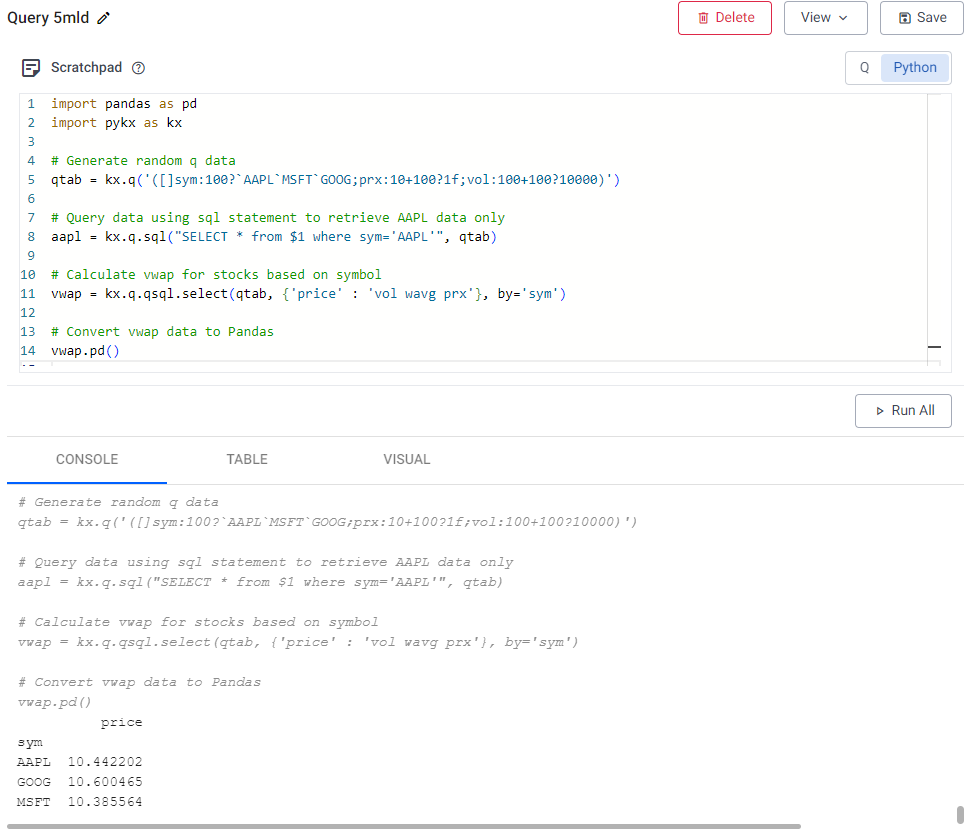
Code snippet for PyKX usage within Python Scratchpad
Use the following code to replicate the behavior illustrated in the screenshot above:
import pandas as pd
import pykx as kx

# Generate random q data
qtab = kx.q('([]sym:100?`AAPL`MSFT`GOOG;prx:10+100?1f;vol:100+100?10000)')

# Query data using sql statement to retrieve AAPL data only
aapl = kx.q.sql("SELECT * from $1 where sym='AAPL'", qtab)

# Calculate vwap for stocks based on symbol
vwap = kx.q.qsql.select(qtab, {'price' : 'vol wavg prx'}, by='sym')

# Convert vwap data to Pandas
vwap.pd()
You can include Python functionality within your q code using embedPy or PyKX. Depending on your use-case or familiarity with these APIs you are free to use and interchange both APIs, however it is strongly suggested that usage of the embedPy functionality be reserved for historical code integration while any new code development targets the PyKX equivalent API.
The following basic example shows usage of both the embedPy and PyKX q APIs to generate and use callable Python objects.
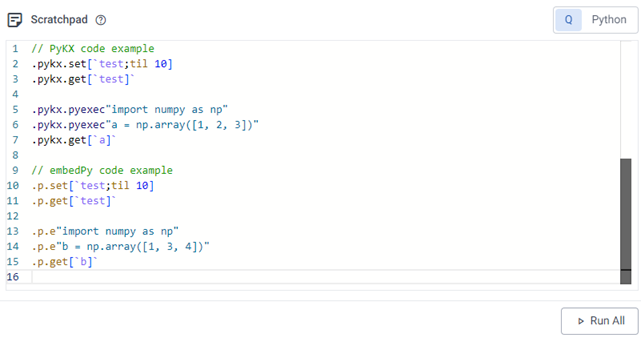
Code snippet for Python DSL use in Scratchpad
Use the following code to replicate the behavior illustrated in the screenshot above:
// PyKX code example
.pykx.set[`test;til 10]
.pykx.get[`test]`

.pykx.pyexec"import numpy as np"
.pykx.pyexec"a = np.array([1, 2, 3])"
.pykx.get[`a]`

// embedPy code example
.p.set[`test;til 10]
.p.get[`test]`

.p.e"import numpy as np"
.p.e"b = np.array([1, 3, 4])"
.p.get[`b]`
Develop Stream Processor pipelines
The Scratchpad can be used as a prototyping environment for Stream Processor pipelines, allowing you to easily publish batches to a pipeline, capture intermediate result, and step through your functions. Access to the pipeline API gives you the ability to simulate production workflows and test code logic prior to moving development work to production environments. This is facilitated through use of the Stream Processor API.
Enable data tracing to inspect the output of each operator in your pipeline. This makes debugging much easier.
Pipelines that run in the scratchpad are not listed under Pipelines on the Overview page, so you must manage them from within the scratchpad. They run in the scratchpad process, in the same way as pipelines deployed using the pipeline Test feature.
The following example creates a pipeline for enriching weather data. It contains an error that can easily be debugged in the scratchpad.
Copy the following code to your Scratchpad to create the pipeline:
# PyKX and sp are required for all pipelines
import pykx as kx
from kxi import sp

# This pipeline will be enriching a stream of temperature and humidity records
# with the dew point and apparent temperature.
# The input to this function is a q table, which can be read and modified from Python.
def enrich_weather(data):
    data['dewpoint'] = data['temp'] - .2 * (100 - data['humidity'])
    data['heatIndex'] = .5 * (data('temp') + 61 + (1.2 * (data['temp'] - 68)) + data['humidity'] * .094)
    return data

# Only one pipeline can be run at once, so the `teardown` is called before running a new pipeline
# Because the scratchpad process hosting the pipeline is already running, there is no deployment step needed, just a call to sp.run
sp.teardown(); sp.run(
    # While developing a pipeline, the fromCallback reader lets you send batches one at a time
    # This creates a q function `publish` to accept incoming batches.
    sp.read.from_callback("publish")
        # Pipeline nodes are strung together using the | operator
        # To decode a CSV, strings coming from Python must be cast to q strings
        | sp.map(lambda x: kx.CharVector(x))
        # This parses a CSV file from a string to a q table.
        # The argument maps each column to a q data type
        | sp.decode.csv({
            'time': 'timestamp',
            'temp': 'float',
            'humidity': 'float'
        })
        | sp.map(enrich_weather)
        # The result is written to a variable called `out` in the q namespace
        | sp.write.to_variable('out'))

# Send a batch of data to the pipeline.
# As this is an example of how to debug a pipeline, running this will throw an error.
# Note: kx.q is used to evaluate q from Python. In this case, getting a reference to the function `publish`, and passing it an argument.
kx.q('publish', (
    "time,temp,humidity\n"
    "2024.07.01T12:00,81,74\n"
    "2024.07.01T13:00,\"82\",70\n"
    "2024.07.01T14:00,83,70"
))
Publishing to the pipeline throws the error shown below:
Error: Executing code using (Python) raised - QError('TypeError("\'Table\' object is not callable") - error in operator: map_1')
The last part, error in operator: map_1, indicates the error is in the map node. To debug the function, cache the incoming batch to a global, then redefine the function, rerun the pipeline, and resend the batch.
def enrich_weather(data):
    global cache
    cache = data
    data['dewpoint'] = data['temp'] - .2 * (100 - data['humidity'])
    data['heatIndex'] = .5 * (data('temp') + 61 + (1.2 * (data['temp'] - 68)) + data['humidity'] * .094)
    return data
After resending the batch, evaluating cache displays the batch to the console. It looks correct so far.
time                          temp humidity dewpoint
----------------------------------------------------
2024.07.01D12:00:00.000000000 81   74       75.8
2024.07.01D13:00:00.000000000 82   70       76
2024.07.01D14:00:00.000000000 83   70       77
After assigning data = cache, it's possible to step through the code. The error occurs when evaluating the last line, and selecting and evaluating sections of that line. The error comes from data('temp'). Updating this to data['temp'] resolves the error.
data = cache
data['dewpoint'] = data['temp'] - .2 * (100 - data['humidity'])
data['heatIndex'] = .5 * (data('temp') + 61 + (1.2 * (data['temp'] - 68)) + data['humidity'] * .094)
You can now redefine the corrected function, rerun the pipeline, pass it multiple batches, and inspect the output.
kx.q('publish', (
    "time,temp,humidity\n"
    "2024.07.01T12:00,81,74\n"
    "2024.07.01T13:00,\"82\",70\n"
    "2024.07.01T14:00,83,70"
))

kx.q('publish', (
    "time,temp,humidity\n"
    "2024.07.02T12:00,87,73\n"
    "2024.07.02T13:00,90,74\n"
))

# The output is a q variable in the global namespace,
# so it must be referenced via kx.q
kx.q('out')
time                          temp humidity dewpoint heatIndex
--------------------------------------------------------------
2024.07.01D12:00:00.000000000 81   74       75.8     82.278
2024.07.01D13:00:00.000000000 82   70       76       83.19
2024.07.01D14:00:00.000000000 83   70       77       84.29
2024.07.02D12:00:00.000000000 87   73       81.6     88.831
2024.07.02D13:00:00.000000000 90   74       84.8     92.178
Copy the following code to your Scratchpad to create the pipeline:
// Only one pipeline can be run at once, so `teardown` is called before running a new pipeline.
// Because the scratchpad process hosting the pipeline is already running, there is no deployment step needed, just a call to .qsp.run
.qsp.teardown[]; .qsp.run
    // While developing a pipeline, the `fromCallback` reader lets you send batches one at a time.
    // This creates a function called `publish` to accept incoming batches.
    .qsp.read.fromCallback[`publish]

    .qsp.decode.csv[([] time:`timestamp$(); temp:`float$(); humidity:`float$())]
    .qsp.map[{[op; md; data]
        data: update dewpoint: temp - .2 * (100 - humidity) from data;
        data: update heatIndex: .5 * temp + 61 + (1.2 * temp - 68) + humidity * .094 from data;

        state: .qsp.get[op; md];
        state[`recordHigh]: max data[`heatIndex] , state`recordHigh;
        state[`recordLow]: min data[`heatIndex] , state`recordLow;
        .qsp.set[op; md; state];

        : update recordHigh: state`recordHigh, recordLow: state`recordLow from data
        }; .qsp.use ``state!(::; `recordHigh`recordLow!(::; ::))]

    // The toVariable writer appends each batch to a variable in the current (scratchpad) process,
    // making it very convenient for debugging
    .qsp.write.toVariable[`out]

// Send a batch to the pipeline
publish
    "time,temp,humidity\n",
    "2024.07.01T12:00,81,74\n",
    "2024.07.01T12:00,82,70\n"
This example is throwing the error type - error in operator: map, so you can cache the parameters in the map node, then step through the code.
First, update the map node to write the parameters to a global variable, then re-run the pipeline definition and call to publish.
.qsp.map[{[data]
        `op`md`data set' .test.cache;
        update dewpoint: temp - .2 * (100 - humidity) from data;
        update heatIndex: .5 * temp + 61 + (1.2 * tmp - 68) + humidity * .094 from data
        }]
Next, run the following code to define the parameters while stepping through the map node.
`op`md`data set' .test.cache
Run each line individually until you get the error on this line.
state[`recordHigh]: max data[`heatIndex] , state`recordHigh;
Because recordHigh is a generic null, it can't be passed to max. Rewrite the initial state so the records start as negative and positive float infinity.
}; .qsp.use ``state!(::; `recordHigh`recordLow!(-0w; 0w))]
You can now redefine the pipeline, pass it multiple batches, and inspect the output.
publish
    "time,temp,humidity\n",
    "2024.07.01T12:00,81,74\n",
    "2024.07.01T13:00,82,70\n"

publish
    "2024.07.02T12:00,87,73\n",
    "2024.07.02T13:00,90,74\n"

out
time                          temp humidity dewpoint heatIndex recordHigh recordLow
-----------------------------------------------------------------------------------
2024.07.01D12:00:00.000000000 81   74       75.8     82.278    83.19      82.278
2024.07.01D13:00:00.000000000 82   70       76       83.19     83.19      82.278
2024.07.02D12:00:00.000000000 87   73       81.6     88.831    92.178     82.278
2024.07.02D13:00:00.000000000 90   74       84.8     92.178    92.178     82.278
Debugging pipelines
Pipelines written in the web interface and run via the Test feature are evaluated in the Scratchpad process. Therefore, any global variables cached in a web interface during the test are available in the Scratchpad, and any global variables defined in a Scratchpad are available as part of the test process.
Because the hotkeys for evaluating code are available in the pipeline editors, you can also step through web interface pipeline functions in-place.
Known issues
- Statements that open a prompt, like
help()orimport pdb; pdb.set_trace(), make the Scratchpad unresponsive.