Using the kdb Insights Enterprise Language Interfaces
This page provides an example which demonstrates how to deploy the kxi-db package, publish data to it, and query the data through secure, authenticated endpoints within kdb Insights Enterprise.
The goal is to deploy the package to the kdb Insights Enterprise base application to enable data ingestion, persistence, and querying.
Deploying the package
Deploy the package on top of the base instance of the kdb Insights Enterprise in your cluster.
To deploy the package, download the kxi-db-1.0.0.kxi from the release repository and deploy it to your cluster using the following command:
version=1.0.0
kxi pm push kxi-db-$version.kxi
kxi pm deploy kxi-db
Client integration
After deployment, kdb Insights Enterprise and kxi-db are ready to ingest data.
A client must be enrolled to allow data to be published through the authenticated and secure RT entry-point. Clients can be either users or service accounts. Users and service accounts are created in Keycloak. For more information, refer to the Keycloak documentation.
The diagram below highlights the key components that allow the flow of data into the system from external sources. To do this securely it's necessary to utilize the Information Service to register clients and to allow them to understand the endpoints. It must also authorize itself and publish the data to the appropriate location.
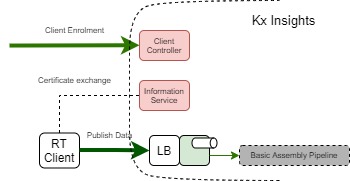
Client enrollment
Prerequisite
A service account or user account must be created in Keycloak and assigned the necessary roles. Your system administrator can set up the user or service account.
Keycloak roles
Here is more information on the relevant Keycloak roles. To enroll a client to publish data to an RT stream, the insights.client.create and insights.client.delete roles are necessary for the user or service account.
Authenticating as a user
Your system administrator can use the below commands to create a user:
kxi user create demouser --password demoUserPassword --admin-password myAdminPassword
INSIGHTS_ROLES="insights.client.create,insights.client.delete"
kxi user assign-roles demouser --roles $INSIGHTS_ROLES --admin-password myAdminPassword
This user can now authenticate with the KXI CLI.
kxi auth login # This command launches the browser where demouser can authenticate
Authenticating as service account
Your system administrator can use the below commands to create a service account:
CLIENT_ID=svc1
INSIGHTS_ROLES="insights.client.create,insights.client.delete"
kxi user create-client $CLIENT_ID --admin-password myAdminPassword
kxi user assign-roles service-account-$CLIENT_ID --roles $INSIGHTS_ROLES --admin-password myAdminPassword
CLIENT_SECRET=$(kxi user get-client-secret $CLIENT_ID --admin-password myAdminPassword)
The admin can provide the above CLIENT_ID and CLIENT_SECRET to any user for configuring their KXI CLI using the below commands.
Service account ID and secret
Your $CLIENT_ID and $CLIENT_SECRET should be inputted to the 'Service account ID' and 'Service account Secret' fields.
kxi configure
Profile type (enterprise, microservices) [enterprise]:
Hostname []: https://{INSIGHTS_HOSTNAME}/
Namespace []: namespace
Service account ID []:
Service account Secret (input hidden):
Re-enter to confirm (input hidden):
Encryption enabled (true/false) [true]:
CLI successfully configured, configuration stored in /home/username/.insights/cli-config
After configuring the kxi with the service account credentials, any user can authenticate as a service account
kxi auth login --serviceaccount
For further details on authentication, refer to the Authentication documentation.
Enroll
Users who want to publish or subscribe to a RT stream from outside of their kdb Insights Enterprise cluster must enroll in order to obtain endpoints to connect to. Details on how you can enroll as a publisher or subscriber are provided below.
External Reference ID
As part of the enrollment step an external reference ID must be provided.
In this example, using the kxi-db package, the external reference ID is ext-mystream.
From the kxi-db package.
sequencers:
  mystream:
    external: true
    ...
    topicConfig:
      subTopic: ext-mystream
      extSubStream: ext-sub-mystream
External Reference IDs
The reference ID can be identified from one of two places:
-
When using the
kxi pmcommand to define a package, you can find the reference ID under thesubTopicfield in thesequencerssection of thekxi-db/databases/mydb/shards/mydb-shard.yamlfile. -
For web interface deployments, locate the reference ID under the Database's Stream Settings tab. The external reference is displayed in the External data ingress setting. In the example below, the reference ID is
mystream-ingr.
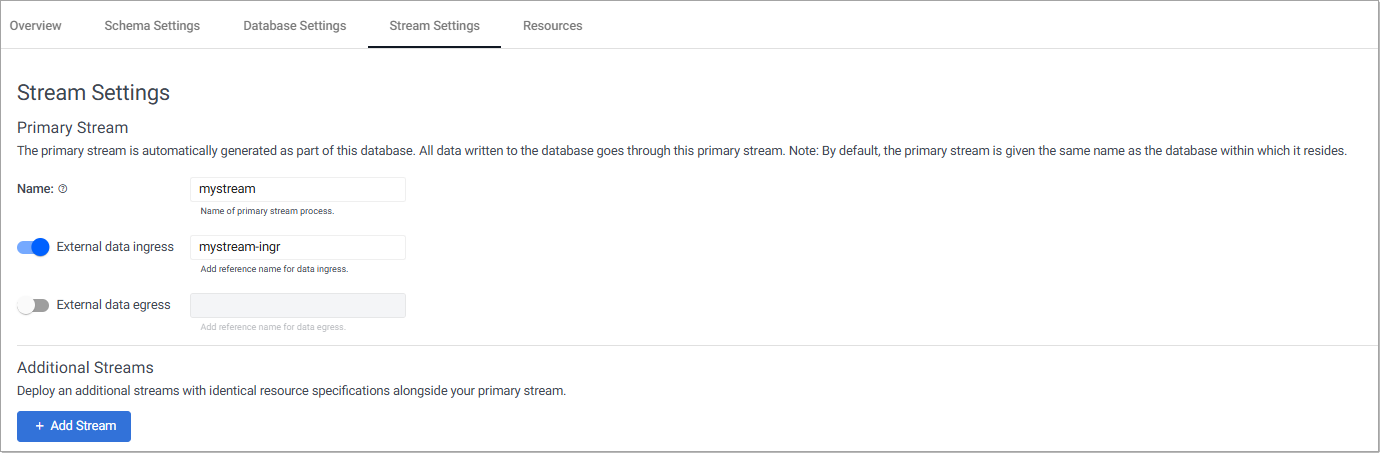
In this example, using the kxi-db package, the data ingress external reference ID used for publishing to the stream is ext-mystream.
Publish
-
Enroll the client using the external reference ID.
kxi client enrol --name publisherName --insert-topic ext-mystream

```shell-session
{
  "message": "success",
  "detail": "Client enrolled",
  "url": "5ed6e5b7c80c8e35d07249d12f32d9eb",
  "config_url": "https://{INSIGHTS_HOSTNAME}/informationservice/details/5ed6e5b7c80c8e35d07249d12f32d9eb"
}
The config_url field must be stored as it'ss used by the publisher to get publish endpoints. The config_url is unique to the publisherName above.
Subscribe
-
Enroll the client using the external reference ID.
kxi client enrol --name subscriberName --subscribe ext-sub-mystream

```shell-session
{
  "message": "success",
  "detail": "Client enrolled",
  "url": "5ed6e5b7c80c8e35d07249d12f32d9eb",
  "config_url": "https://{INSIGHTS_HOSTNAME}/informationservice/details/5ed6e5b7c80c8e35d07249d12f32d9eb"
}
The config_url field must be stored as it is used by the subscriber to get subscription endpoints. This is unique to the subscriberName above.
Removing a client
Authentication with the CLI is a pre-requisite for this step, as described here.
A client can be removed by running the CLI command below:
kxi client remove --name publisherName
{
  "message": "success",
  "detail": "Client removed"
}