Deploy a Kubernetes cluster on GCP
This page provides instructions for setting up and configuring a Kubernetes (GKE) cluster on Google Cloud Platform (GCP) using Terraform-based deployment scripts.
The goal is to prepare the infrastructure required to install kdb Insights Enterprise, ensuring that:
-
Key components, such as the VPC network, bastion host, firewall rules, node pools, and supporting services are provisioned automatically.
-
Both new VPC creation and integration with existing VPCs are supported.
-
Configuration is controlled through environment variables and architectural profiles, allowing flexibility for different deployment scenarios.
The scripts are packaged in the kxi-terraform bundle and executed inside a Docker container, providing a consistent setup experience across environments.
The configuration and deployment of your Infrastructure to support kdb Insights Enterprise should take approx 20 minutes to complete.
Terraform artifacts
If you have a full commercial license, kdb Insights Enterprise provides default Terraform modules packaged as a TGZ artifact. These modules are available through the KX Downloads Portal.
You need to download the artifact and extract it as explained in the following sections.
Prerequisites
For this tutorial you need:
-
A Google Cloud account.
-
A Google Cloud user with admin privileges.
-
A Google Cloud project with the following APIs enabled:
- Cloud Resource Manager API
- Compute Engine API
- Kubernetes Engine API
- Cloud Filestore API
-
Sufficient Quotas to deploy the cluster.
-
Access to an Authoritative DNS Service (for example, Google Cloud DNS) to create a DNS record for your kdb Insights Enterprise external URL exposed through the clusters Ingress Controller.
-
CA-signed certificate (cert.pem and cert.key files) for your clusters desired Hostname or a wilcard certifate for your DNS sub-domain, for example, *.foo.kx.com
-
A client machine with Google Cloud SDK.
A client machine with Docker.
Important
When running the scripts from a bastion host, ensure ports 1174 and 443 are open for outbound access, or enable full outbound access with a 0.0.0.0/0 security group rule.
Note
-
On Linux, additional steps are required to manage Docker as a non-root user.
-
These scripts also support deployment to an existing VPC (Virtual Private Cloud) on GCP. If you already have a VPC, you must have access to the associated project to retrieve the necessary network details. Additionally, ensure that your environment meets the prerequisites outlined in the following section before proceeding with deployment to an existing VPC.
Prerequisites for existing VPC
A VPC (Virtual Private Cloud) with the following:
-
One Subnet in the selected region
-
The subnet must have associated firewall rules allowing inbound HTTP (80) and HTTPS (443) traffic from CIDRs that require access to Insights
-
The subnet must also have two secondary IPv4 ranges, one used for pods and one used for services.
-
A bastion host within the subnet to run the Terraform deployment and install Insights
Billable GCP services
The following Google Cloud services incur charges for this configuration:
-
Google Kubernetes Engine (GKE) — Standard (zonal) cluster control plane fee.
-
Compute Engine —
-
Bastion VM instance.
-
GKE node pool VM instances.
-
-
Persistent Disk — PD-SSD for node pool and VM boot disks (plus PDs dynamically provisioned by Rook-Ceph for OSD PVCs).
-
Cloud Router — hourly charge for the router resource.
-
Cloud NAT — NAT gateway processing and egress charges.
-
Cloud Load Balancing — external L4 load balancer created by the ingress-nginx Service.
-
Public IPv4 addresses — external IP usage (bastion, Cloud NAT, and load balancer).
-
Cloud Logging & Cloud Monitoring — ingestion for GKE control plane and system components.
-
Network egress — internet egress via NAT/LB and inter-zone traffic may incur charges.
Environment setup
To extract the artifact, execute the following:
tar xzvf kxi-terraform-*.tgz
This command creates the kxi-terraform directory. The commands below are executed within this directory and thus use relative paths.
To change to this directory execute the following:
cd kxi-terraform
The deployment process is performed within a Docker container which includes all tools needed by the provided scripts. A Dockerfile is provided in the config directory that can be used to build the Docker image.
The image name is versioned based on the value specified in the version.txt file at the root of the kxi-terraform directory.
To build the Docker image using the correct version tag, execute one of the following scripts:
./scripts/build-image.sh
.\scripts\build-image.bat
Service Account setup
The Terraform scripts require a Service Account with appropriate permissions which are defined in the kxi-gcp-tf-policy.txt file. The service account should already exist.
Note
The below commands should be run by a user with admin privileges.
Create a json key file for service account:
gcloud iam service-accounts keys create "${SERVICE_ACCOUNT}.json" --iam-account="${SERVICE_ACCOUNT_EMAIL}" --no-user-output-enabled
where:
SERVICE_ACCOUNTis the name of an existing service accountSERVICE_ACCOUNT_EMAILis the email address of an existing service account
This command creates the json file in the base directory. You need to use the filename later when updating the configuration file.
Grant roles to service account:
while IFS= read -r role
do
  gcloud projects add-iam-policy-binding "${PROJECT}" --member="serviceAccount:${SERVICE_ACCOUNT_EMAIL}" --role="${role}" --condition=None --no-user-output-enabled
done < config/kxi-gcp-tf-policy.txt
where:
PROJECTis the GCP project used for deploymentSERVICE_ACCOUNT_EMAILis the email address of the service account
Configuration
The Terraform scripts are driven by environment variables, which configure how the Kubernetes cluster is deployed. These variables are populated by running the configure.sh script as follows.
./scripts/configure.sh
.\scripts\configure.bat
-
Select
GCPand enter your project name and credentials file name.Select Cloud Provider Choose: AWS Azure > GCPSet GCP Project > myprojectSet GCP Credentials JSON filename (should exist on the current directory) > credentials.json -
Select the Region to deploy into:
Select Region asia-northeast2 asia-northeast3 asia-south1 asia-south2 asia-southeast1 asia-southeast2 australia-southeast1 australia-southeast2 europe-central2 europe-north1 europe-southwest1 europe-west1 europe-west10 europe-west12 europe-west2 europe-west3 europe-west4 europe-west6 europe-west8 europe-west9 me-central1 me-central2 me-west1 northamerica-northeast1 northamerica-northeast2 northamerica-south1 southamerica-east1 southamerica-west1 us-central1 us-east1 us-east4 us-east5 us-south1 us-west1 us-west2 us-west3 us-west4 -
Select the Architecture Profile:
Select Architecture Profile Choose: > HA Performance Cost-Optimised -
Select if you are deploying to an existing VPC or want to create one:
Are you using an existing VPC or wish to create one?
Choose:
> New VPC
Existing VPC
If you choose
Existing VPC, you are asked the following questions; if you selectNew VPC, skip ahead to the next part.Please enter the name of the existing VPC network: > gcp-kx-network Please enter the name of the subnet to use: > gcp-kx-subnet Please enter the name of the pods IP range: > gcp-kx-ip-range-pods Please enter the name of the services IP range: > gcp-kx-ip-range-svc Please enter the internal IP of the bastion host: > 10.0.50.2 -
Select the
Storage Option:Please select the Storage Option Choose: > Rook-Ceph Managed Lustre -
If you are using
Rook-Cephwith either thePerformanceorHAprofiles, you must enter which storage type to use for rook-ceph.Performance uses rook-ceph storage type of standard-rwo by default. Press **Enter** to use this or select another storage type: Choose: > standard-rwo pd-ssd -
If you are using
Rook-CephwithCost-Optimisedyou see the following:Cost-Optimised uses rook-ceph storage type of standard-rwo. If you wish to change this please refer to the docs. -
If you are using
Rook-Ceph, you need to enter how much capacity you require. If you press Enter this uses the default of100Gi.Set how much capacity you require for rook-ceph, press Enter to use the default of 100Gi Please note this is will be the usable storage with replication > Enter rook-ceph disk space (default: 100) -
If you are using
Managed Lustrewith theHAprofile, the following is displayed:HA uses Managed Lustre with Minimum Capacity 1.2TiB and Throughput 1000MBps/TiB. You can update a Lustre Filesystem after it's created on the AWS console. -
If you are using
Managed Lustrewith thePerformanceprofile, the following is displayed:Performance uses Managed Lustre with Minimum Capacity 1.2TiB and Throughput 1000MBps/TiB. You can update a Lustre Filesystem after it's created on the AWS console. -
If you are using
Managed Lustrewith theCost-Optimizedprofile, the following is displayed:Cost-Optimised uses Managed Lustre with Minimum Capacity 1.2TiB and Throughput 125MBps/TiB. You can update a Lustre Filesystem after it's created on the AWS console. -
Enter the environment name, which acts as an identifier for all resources:
Set the environment name (up to 8 characters and can only contain lowercase letters and numbers)
> insights
Note
When you are deploying to an existing VNET, the following step is not required.
-
Enter IPs/Subnets in CIDR notation to allow access to the Bastion Host and VPN:
Set Network CIDR that will be allowed VPN access as well as SSH access to the bastion host For convenience, this is pre-populated with your public IP address (using command: curl -s ipinfo.io/ip). To specify multiple CIDRs, use a comma-separated list (for example, 192.1.1.1/32,192.1.1.2/32). Do not include quotation marks around the input. For unrestricted access, set to 0.0.0.0/0. Ensure your network team allows such access. > 0.0.0.0/0 -
Enter IPs/Subnets in CIDR notation to allow HTTP/HTTPS access to the cluster's ingress.
Set Network CIDR that will be allowed VPN access as well as SSH access to the bastion host For convenience, this is pre-populated with your public IP address (using command: curl -s ipinfo.io/ip). To specify multiple CIDRs, use a comma-separated list (for example, 192.1.1.1/32,192.1.1.2/32). Do not include quotation marks around the input. For unrestricted access, set to 0.0.0.0/0. Ensure your network team allows such access. > 0.0.0.0/0 -
SSL certificate configuration
Choose method for managing SSL certificates
----------------------------------------------
Existing Certificates: Requires the SSL certificate to be stored on a Kubernetes Secret on the same namespace where Insights is deployed.
Cert-Manager HTTP Validation: Issues Let's Encrypt Certificates; fully automated but requires unrestricted HTTP access to the cluster.
Choose:
> Existing Certificates
Cert-Manager HTTP Validation
Custom Tags
The config/default_tags.json file includes the tags that are applied to all resources. You can add your own tags in this file to customize your environment.
Note
Only hyphens (-), underscores (_), lowercase characters, and numbers are allowed. Keys must start with a lowercase character. International characters are allowed.
Deployment
To deploy the cluster and apply configuration, execute the following:
./scripts/deploy-cluster.sh
.\scripts\deploy-cluster.bat
Note
A pre-deployment check is performed before proceeding further. If the check fails, the script exits immediately to avoid deployment failures. You should resolve all issues before executing the command again.
This script executes a series of Terraform and custom commands and may take some time to run. If the command fails at any point due to network issues/timeouts, you can execute again until it completes without errors. If the error is related with the Cloud Provider account, for example limits, you should resolve them first before executing the command again.
If any variable in the configuration file needs to be changed, the cluster should be destroyed first and then re-deployed.
For easier searching and filtering, the created resources are named/tagged using the gcp-${ENV} prefix. For example, if the ENV is set to demo, all resource names/tags include the gcp-demo prefix.
Cluster access
To access the cluster, execute the following:
./scripts/manage-cluster.sh
.\scripts\manage-cluster.bat
The above command starts a Shell session on a Docker container, generates a kubeconfig entry, and connects to the VPN. Once the command completes, you can manage the cluster through helm/kubectl.
Note
-
The
kxi-terraformdirectory on the host is mounted on the container on/terraform. Files and directories created while using this container will be persisted if they are created under/terraformdirectory even after the container is stopped. -
If other users require access to the cluster, they need to download and extract the artifact, build the Docker container and copy the
kxi-terraform.envfile as well as theterraform/gcp/client.ovpnfile (generated during deployment) to their own extracted artifact directory on the same paths. Once these two files are copied, the above script can be used to access the cluster.
Below you can find kubectl commands to retrieve information about the installed components.
-
List Kubernetes Worker Nodes
kubectl get nodes -
List Kubernetes namespaces
kubectl get namespaces -
List cert-manager pods running on cert-manager namespace
kubectl get pods --namespace=cert-manager -
List nginx ingress controller pod running on ingress-nginx namespace
kubectl get pods --namespace=ingress-nginx -
List rook-ceph pods running on rook-ceph namespace
kubectl get pods --namespace=rook-ceph
DNS Record
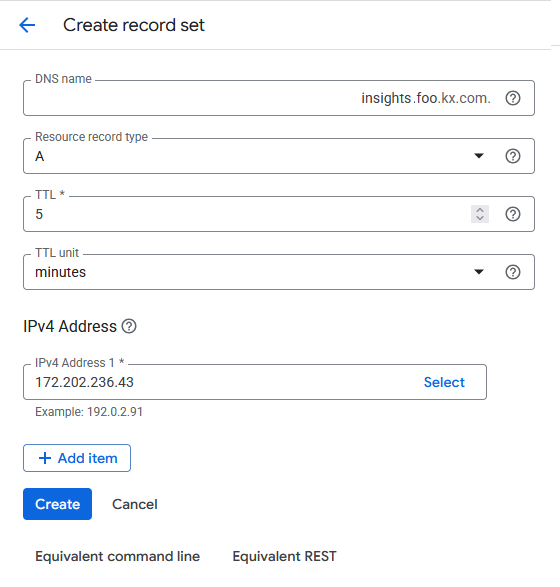
When creating your DNS record, the Record name should match the Hostname that you configured when deploying kdb Insights Enterprise (refer to the previous section), and the Value must be the External IP address of the cluster's ingress LoadBalancer as described below. In GCP, the Record type must be set to A.
You can get the cluster's ingress LoadBalancer's External IP by running the following command:
NAME                       TYPE           CLUSTER-IP     EXTERNAL-IP      PORT(S)                      AGE
ingress-nginx-controller   LoadBalancer   10.1.253.109   172.202.236.43   80:30941/TCP,443:31437/TCP   110s
Using the output above, create an A record for your hostname which has the value 172.202.236.43.
For example, if your hostname was insights.foo.kx.com, you would create a record in Google Cloud DNS like this:
Ingress Certificate
The hostname used for your kdb Insights Enterprise deployment is required to be covered by a CA-signed certificate.
Note
Self-signed certificates are not supported.
The Terraform scripts support Existing Certificates and Cert-Manager with HTTP Validation.
Existing Certificate
You can generate a certificate for your chosen hostname and pass the cert.pem and cert.key files during the installation of kdb Insights Enterprise.
Cert-Manager with HTTP Validation
Another option for meeting the requirement of a CA-signed coverage is to use cert-manager and Let's Encrypt with HTTP validation. This feature can be enabled by selecting this option during the DNS configuration.
Note
This option introduces a security consideration, because Let's Encrypt must connect to your ingress to verify domain ownership, which necessitates unrestricted access to your ingress LoadBalancer.
Advanced Configuration
There are other automated approaches which are outside the scope of the Terraform scripts. One such approach is to use cert-manager and Let's Encrypt with DNS validation. This option can be configured to work with AWS Route53.
Next steps
Once you have the DNS configured and have chosen your approach to the Certification of your hostname, you can proceed to the kdb Insights Enterprise installation.
Environment destroy
Before you destroy the environment, make sure you don't have any active shell sessions on the Docker container. You can close the session by executing the following:
exit
To destroy the cluster, execute the following:
./scripts/destroy-cluster.sh
.\scripts\destroy-cluster.bat
If the command fails at any point due to network issues/timeouts you can execute again until it completes without errors.
Note
-
In some cases, the command may fail due to the VPN being unavailable or GCP resources not cleaned up properly. To resolve this, delete
terraform/gcp/client.ovpnfile and execute it again. -
Even after the cluster is destroyed, the disks created dynamically by the application may still be present and incur additional costs. You should review the GCE Disks to verify if the data is still needed.
Uploading and Sharing Cluster Artifacts
To support collaboration, reproducibility, and environment recovery, this Terraform client script provides built-in functionality to upload key configuration artifacts to the cloud backend storage associated with your deployment. These artifacts allow other users or automation systems to connect to the environment securely and consistently.
What Gets Uploaded?
The following files are uploaded to your backend storage under the path ENV which is defined within kxi-terraform.env:
-
version.txt: Contains version metadata for the deployment. -
terraform/aws/client.ovpn: VPN configuration for secure access. -
kxi-terraform.env: The environment file with sensitive credentials removed.
When Are Files Uploaded?
The upload is automatically triggered at the end of the deployment process by:
./scripts/deploy-cluster.sh
.\scripts\deploy-cluster.bat
The internal upload_artifacts function performs the upload to the following backend:
- Cloud Storage bucket
(gs://${KX_STATE_BUCKET_NAME}/${ENV}/)
These files can then be downloaded by teammates or automation scripts to replicate access and configuration.
You can also run this command manually within the manage-cluster.sh script by running:
./scripts/terraform.sh upload-artifacts
.\scripts\terraform.bat upload-artifacts
Cleaning Up Artifacts
To ensure artifacts don’t persist unnecessarily in your backend storage, the system also supports automatic cleanup. These files are deleted at the end of the cluster teardown with the following command:
./scripts/destroy-cluster.sh
.\scripts\destroy-cluster.bat
The cleanup is performed by the delete_uploaded_artifacts function and removes the same files from the corresponding ENV location in your backend (stored in kxi-terraform.env).
This keeps your backend clean and prevents the reuse of stale or outdated configuration files.
Advanced configuration
It is possible to further configure your cluster by editing the newly generated kxi-terraform.env file in the current directory. These edits should be made prior to running the deploy-cluster.sh script. The list of variables which can be edited are given below:
| Environment Variable | Details | Default Value | Possible Values |
|---|---|---|---|
| TF_VAR_enable_metrics | Enables forwarding of container metrics to Cloud-Native monitoring tools | false | true / false |
| TF_VAR_enable_logging | Enables forwarding of container metrics to Cloud-Native monitoring tools | false | true / false |
| TF_VAR_default_node_type | Node type for default node pool | Depends on profile | VM Instance Type |
| TF_VAR_rook_ceph_pool_node_type | Node type for Rook-Ceph node pool (when configured) | Depends on profile | VM Instance Type |
| TF_VAR_letsencrypt_account | If you intend to use cert-manager to issue certificates, then you need to provide a valid email address if you wish to receive notifications related to certificate expiration | root@emaildomain.com | email address |
| TF_VAR_bastion_whitelist_ips | The list of IPs/Subnets in CIDR notation that are allowed VPN/SSH access to the bastion host. | N/A | IP CIDRs |
| TF_VAR_insights_whitelist_ips | The list of IPs/Subnets in CIDR notation that are allowed HTTP/HTTPS access to the VPC | N/A | IP CIDRs |
| TF_VAR_letsencrypt_enable_http_validation | Enables issuing of Let's Encrypt certificates using cert-manager HTTP validation. This is disabled by default to allow only pre-existing certificates. | false | true / false |
| TF_VAR_rook_ceph_storage_size | Size of usable data provided by rook-ceph. | 100Gi | XXXGi |
| TF_VAR_enable_cert_manager | Deploy Cert Manager | true | true / false |
| TF_VAR_enable_ingress_nginx | Deploy Ingress NGINX | true | true / false |
| TF_VAR_enable_filestore_csi_driver | Deploy Filestore CSI Driver | true | true / false |
| TF_VAR_enable_sharedfiles_storage_class | Create storage class for shared files | true | true / false |
| TF_VAR_rook_ceph_mds_resources_memory_limit | The default resource limit is 8Gi. You can override this to change the resource limit of the metadataServer of rook-ceph. NOTE: The MDS Cache uses 50%, so with the default setting, the MDS Cache is set to 4Gi. | 8Gi | XXGi |
Update whitelisted CIDRs
To modify the whitelisted CIDRs for HTTPS or SSH access, update the following variables in the kxi-terraform.env file:
# List of IPs or Subnets that will be allowed VPN access as well as SSH access
# to the bastion host for troubleshooting VPN issues.
TF_VAR_bastion_whitelist_ips=["192.168.0.1/32", "192.168.0.2/32"]

# List of IPs or Subnets that will be allowed HTTPS access
TF_VAR_insights_whitelist_ips=["192.168.0.1/32", "192.168.0.2/32"]
Once you have updated these with the correct CIDRs, run the deploy script:
./scripts/deploy-cluster.sh
.\scripts\deploy-cluster.bat
Note
You can specify up to three CIDRs, as this is the default limit imposed by the maximum number of allowed NACL rules. To use more than three, you must request a quota increase from AWS for the relevant account.
Existing VPC notes
If you're deploying to an existing VPC, ensure that the subnet that is used does not restrict traffic over http (80) and https (443) from the sources you intend to use to access kdb Insights.