Configuration Manager
KX Dashboards Platform
This page applies to KX Dashboards on Platform and is not applicable to KX Dashboards Direct deployments.
This page describes how to set up and configure the Configuration Manager component, an event configuration editor.
The Configuration Manager allows users to manage View State Parameters; for example for alerts.
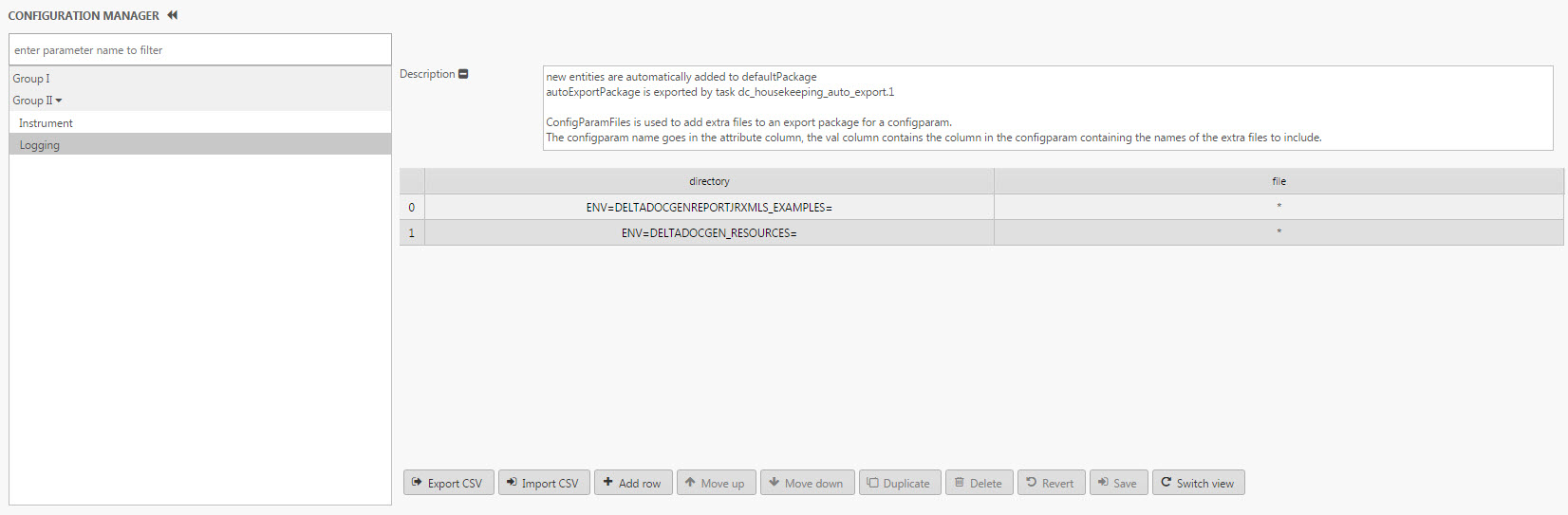
The Manager has a navigation panel on the left and displays selected parameters in the Data Grid on the right.
Users double-click a cell to edit a parameter.
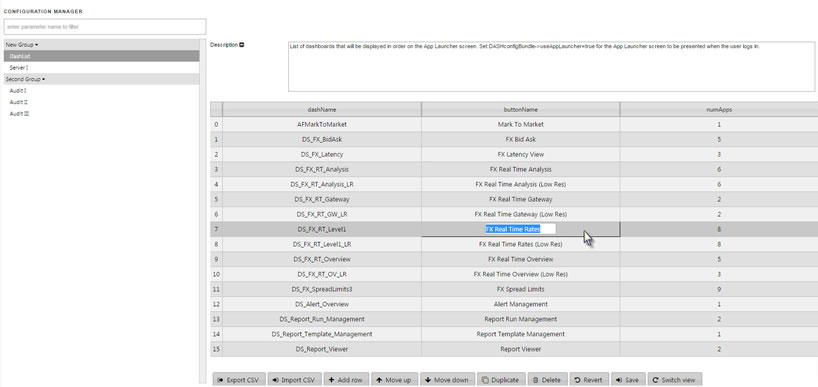
Save description
When adding a description to your parameter remember to save the description before switching to another view to ensure updates are not lost.
Set Up a Config Manager Component
To set up a Configuration Manager component, click-and-drag the component into the workspace and configure the following:
Before proceeding, choose whether you want to build and manage view state parameters using the component properties panel or with a data source.
Set Up Using the Properties Panel
- Create a parameter group.
- Add a parameter to the group from available listings (in KX Control).
- Go to View on Web to make changes to parameters.
Set Up Using a Data Source
Create a kdb function that returns:
groupDisplayName— string — display name for each parameter group.loadExpanded— boolean — for each parameter group, when set to true, the associated parameters display in the navigation panel when the Configuration Manager is not in the tabbed view.parameters— a list of parameters for each parameter group. Each parameter must have the following properties defined:parameterName— symbol — a parameter from available listings (in KX Control).displayName— string — display name of the parameter.dictionaryView— boolean — when set to true, displays the parameter as a dictionary.
The following kdb example, using a data source, returns two parameter groups; the first group has 2 parameters and the second group has 1 parameter:
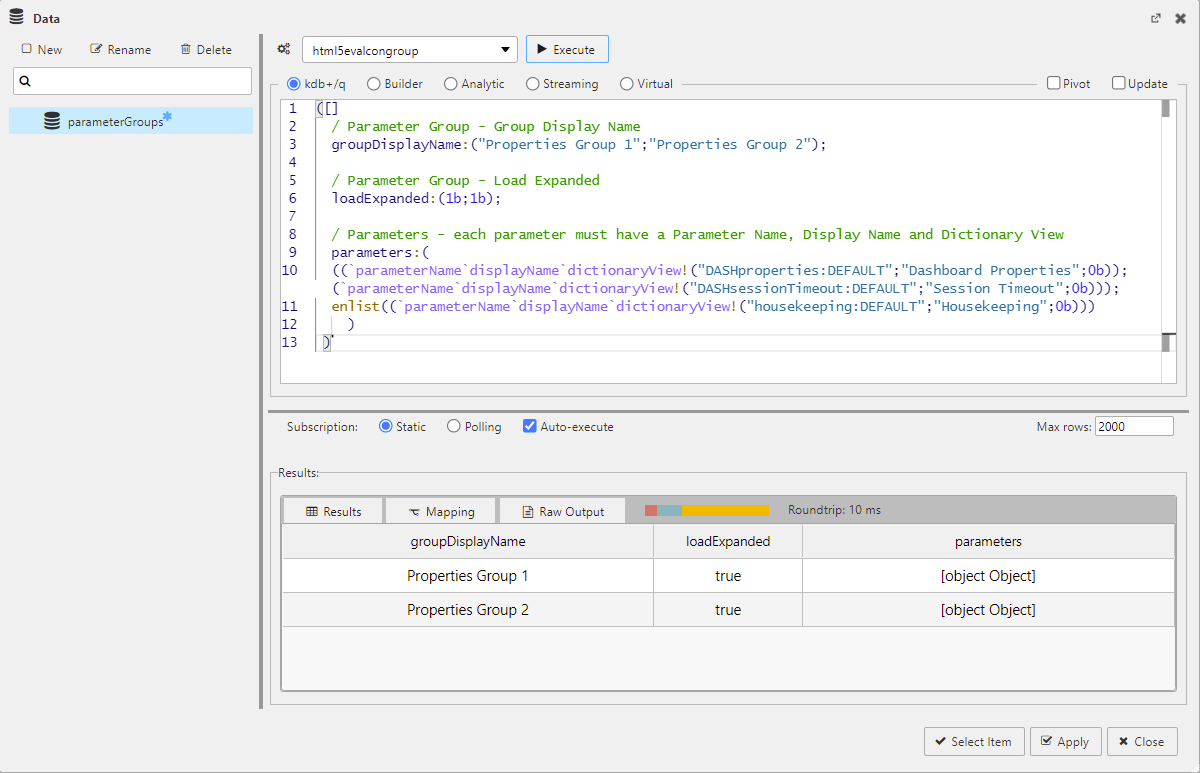
([]
    / Parameter Group - Group Display Name
    groupDisplayName:("Properties Group 1";"Properties Group 2");

    / Parameter Group - Load Expanded
    loadExpanded:(1b;1b);

    / Parameters - each parameter must have a Parameter Name, Display Name and Dictionary View
    parameters:(
    ((`parameterName`displayName`dictionaryView!("DASHproperties:DEFAULT";"Dashboard Properties";0b));
    (`parameterName`displayName`dictionaryView!("DASHsessionTimeout:DEFAULT";"Session Timeout";0b)));
    enlist((`parameterName`displayName`dictionaryView!("housekeeping:DEFAULT";"Housekeeping";0b)))
    )
 )
This is the same example setup using the property panel.
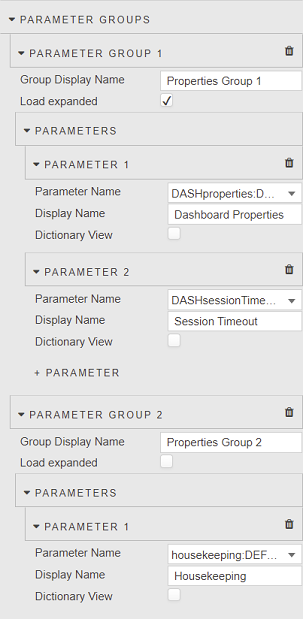
Configuration Manager Properties
The following sections describe the properties of the Configuration Manager component.
Basics
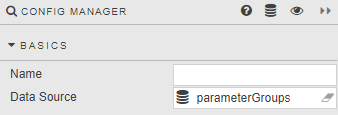
Open the Basics properties on the right and configure the properties described in the following table.
| Field | Description |
|---|---|
| Name | Enter a name for the component. |
| Data Source | Refer to Set up using a Data source for details. |
Parameter Groups
Configure the properties, described in the following table.
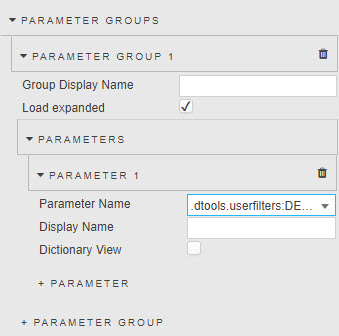
| Field | Description |
|---|---|
| Group Display Name | Enter a name for the Parameter Group. |
| Load expanded | When enabled, the Alert Group auto-displays associated parameters on load.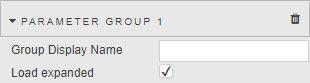 |
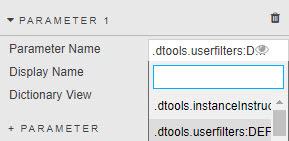
Parameter
Select a parameter to configure.
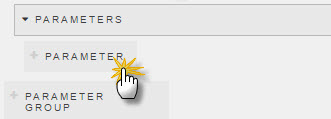
| Field | Description |
|---|---|
| Display Name | Enter a name to be displayed in the navigation panel. |
| Dictionary View | When checked, the parameter is displayed as a dictionary.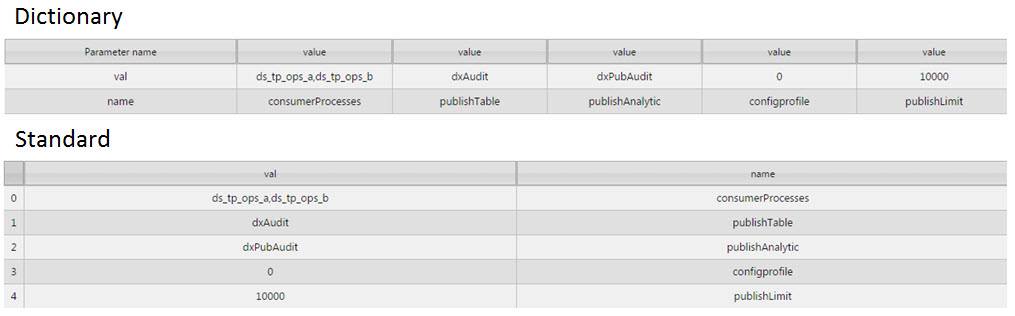 |
View
The View dialog customizes the appearance of the Configuration Manager.
| Field | Description |
|---|---|
| Tabbed View | When checked a tabbed view is displayed, as shown below. |
| Tab Source | Depending on the Tab Source selected, orders either the Parameter Groups or nested Parameters into tabs, listing the nested Parameters or Parameter Groups in the left-hand navigation panel. |
| Show Description by Default | This toggles the display of the description for the Parameter. |
| Selected Parameter Group | A literal value or View State Parameter, of type string, that can determine which parameter group is selected. If the Selected Parameter Group does not exist, a message will appear informing the user that it was not found, and the first parameter group will be selected by default. Changing the Data Source property will reset the Selected Parameter Group to a new default value unless it points to a view state. In addition, the Selected Parameter Group value is set to the parameter group selected by the user in the Configuration Manager. |
Grid Options
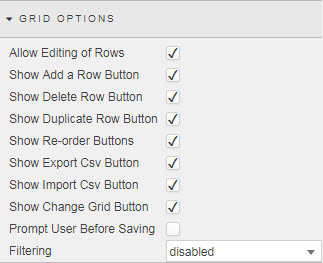
Set the controls you want to make available to the user.
| Setting | Button | Effect/Action |
|---|---|---|
| Allow Editing of Rows | User click-and-edit of a row. | |
| Revert | Undo last parameter change. | |
| Save | Save changes made to the Parameters. | |
| Show Add a Row Button |  |
Add an additional row for content to the selected parameter. |
| Show Delete Row Button |  |
Delete selected row in the parameter grid. |
| Show Duplicate Row Button |  |
Duplicate selected row in the parameter grid. |
| Show Re-order Buttons |  |
Move the selected row up or down one step. |
| Show Export CSV Button |  |
Exports contents of the grid as a CSV. |
| Show Import CSV Button |  |
Imports CSV content to the selected parameter. |
| Show Change Grid Button |  |
Transposes the table view columns-to-rows; rows-to-columns. |
| Prompt User Before Saving | Prompt | Reminds user to save content changes. |
| Filtering | Column Filters, Quick Search, Advanced Column Filters, Disabled |
Toggle column filter options. |
Style, Margins & Format
Refer to Style for common settings.
Actions
Refer to Actions for details.