Publish & Export
This page describes how to publish dashboards, how to install and configure the PDF server, and how to configure file export properties for use on published dashboards.
Once a dashboard is saved and published, anyone with the appropriate permission can view or edit it.
Tip
A screenshot of a dashboard can be taken using the PDF button:  . See PDF server for more details.
Publish Dashboards
New dashboards are published by checking the box to the right of the Name; to convert a dashboard into draft form, uncheck this selection.
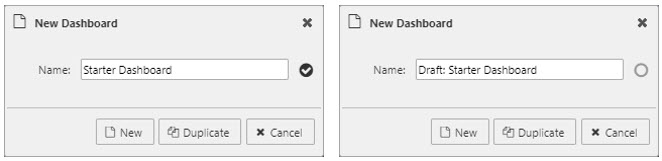
Draft dashboards are prefixed 'Draft' in the Document List. Draft dashboards are not visible in the Viewer.
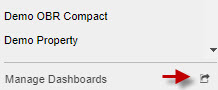
Draft dashboards show in the Manage dialog with no selection check; click the check to publish the dashboard. The Manage dialog is accessible at the end of the Document List.
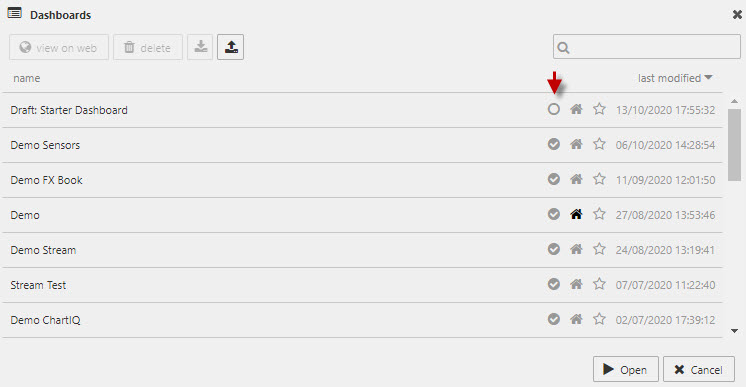
To view a dashboard, select a dashboard and click  . This opens the dashboard Viewer in a new tab.
Social Share Link
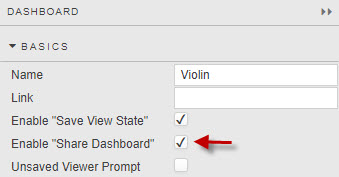
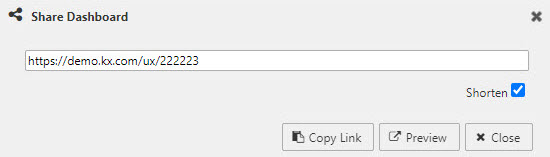
Enable "Share Dashboard" in the Dashboard menu.
Share Dashboard State
KX Dashboards can be shared to include active states, allowing users to reproduce a view using specific user selections and inputs. This information is stored as part of the shared link.

Shorten Link
The share dashboard option also includes a link shortener.
File Export
The following charts and grids have File Export properties which can be used to export data as a CSV, XLS file, or screenshot: - ChartGL - Canvas Charts - Pie Chart - Radar Chart - Treemap - Bipartite Chart - Data Grid - Pivot Grid.
The options available vary depending on the component type. The full set of properties are described in the tables below.
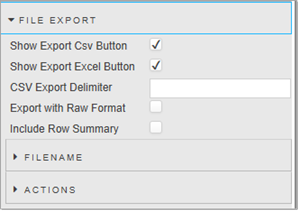
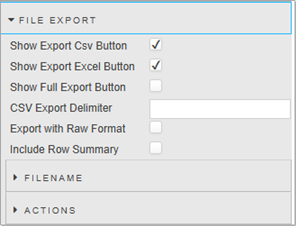
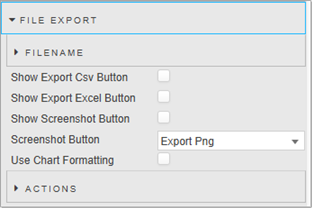
The following screenshots show an example of the File Export properties for a Data Grid, followed by the properties for a ChartGL component.
| Property | Description |
|---|---|
| Filename | Set a variable to be used as a filename for the exported file, or a View State Parameter which can be linked to a Text Input for user-defined file names.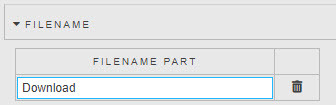 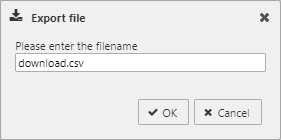 |
| Show Export CSV Button | When enabled, clicking the CSV button exports the displayed values as a CSV file. This can be set for all components that support File Export. |
| Show Export Excel Button | When enabled, clicking the Excel button exports the displayed values as an XLS file. This can be set for all components that support File Export. |
| CSV Export Delimiter | Specify the delimiter to be used in a CSV export. If none is specified a comma is used by default. Only valid for Data Grids. |
| Full Export Override | Only valid for Pivot Grids. Overrides the pivot query dataset with an alternative dataset. |
| Export with raw format | When enabled, the raw format of the data is exported. Only valid for Data Grids and Pivot Grids. |
| Show Screenshot Button | When enabled, clicking the PNG button takes the action set in the Screenshot Button parameter. Not applicable to Pivot Grid or Data Grid components. |
| Screenshot Button | Only valid when Show Screenshot Button is enabled. Sets the action taken when users click the PNG button: Export PNG, Copy to Clipboard, or Export PNG & Copy to Clipboard. When the image is copied to the clipboard a notification is displayed, unless notifications are blocked in the user's browser. Copying to clipboard is not supported in Internet Explorer. |
| Use Chart Formatting | When checked, the formatting used by the chart axes is applied to the exported data. Only applies to the ChartGL component. |
| Include Row Summary | When checked, includes any footers defined in the Data Grid. Footer detail is set in the Column properties and could be used to add a total to a column. Only applies to the Data Grid component. |
| Show Full Export Button | Available for Pivot Grids and Data Grids. Exports the data set, including display and hidden columns, as a zipped Excel file. For Pivot Grids, creates a zip file of breakdown and aggregate columns with complete drill-down details. Note! Applicable to KX Dashboards on Platform only. This property is not available in KX Dashboards Direct. |
| Field | Description |
|---|---|
| Actions | Outputs details of the file export. fileType — the type of file exported e.g. xlsx, csv, png. fileName — the exported name of the file. dashboardName — name of the dashboard. dashboardId — the ID used in the dashboard. timestamp — the time of the export. isSuccess — whether the export was successful or failed. username — username of the person who exported data. component — the component data being exported. meta* — the meta used by the datasource of the exported data. fileRowLength* — the row length of the datasource used by the exported data.* not applicable to all components. |
PDF Server
Configuration & Installation
-
Ensure all prerequisites are installed:
- Node.js v16.20.0+ (use LTS)
-
Install Puppeteer
- Run
npm installin the/pdffolder. - If installation fails, see the troubleshooting section in
/pdf/README.md.
- Run
-
Start the PDF server by running
pdf.qin the/pdffolder. -
Enable the PDF button.
Update the
/www/config.jsonfile and add"PdfUrl": "http://localhost:5011/":{ "NewPdf": true, "pushStateBase": "", "PdfUrl": "http://localhost:5011/" }The enabled PDF Server adds the PDF icon in the Toolbar menu of KX Dashboards.

Additional Information:
Dashboard Printable Area - The PDF prints the viewable area. If the Dashboard scrolls off-screen, click Fill Height in Dashboard Properties to make the dashboard view a single page.
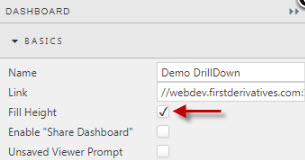
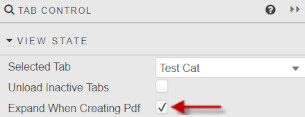
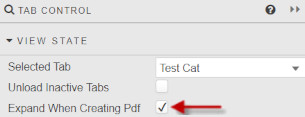
Expand Tab Component Content While Publishing - To enable the Tab Control component to expand while creating a PDF, click Expand When Creating Pdf in Tab Control Properties.
PDF Menu:
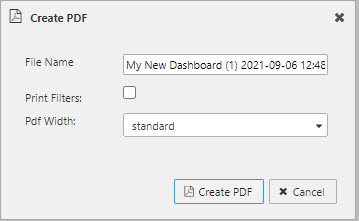
File Name — Exported PDF file.
Print Filters — When enabled, the PDF includes details of shared view states from the URL.
PDF Width — Select between standard or snapshot current preview (1920px).
Requirements
- Red Hat 7+
- Node.js v16.20.0+ (use LTS)
Installation:
Step 1:
- Ensure all requirements are installed.
- Navigate to
YOUR_INSTALL_DIRECTORY/delta-bin/software/HTML5Dashboards_X_X_X/PdfServerand install dependencies by runningnpm install. - If installation fails, see the troubleshooting section in
PdfServer/README.md.
Step 2: Switch the pdf_enabled attribute value of DASHproperties:DEFAULT to TRUE in KX Control, DeltaCore.
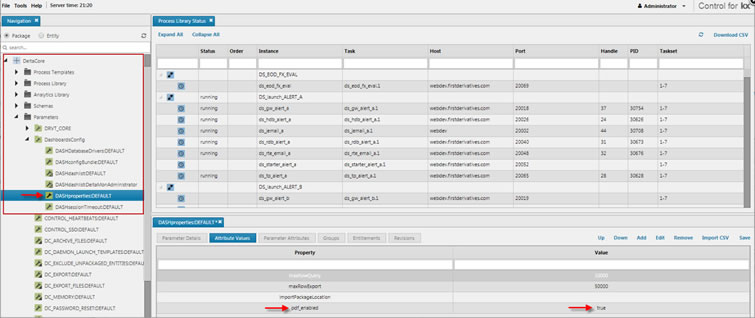
Step 3: The enabled PDF Server adds the PDF icon in the Toolbar menu of KX Dashboards.

Step 4: The PDF prints the viewable area. If the Dashboard scrolls off-screen, click Fill Height in Dashboard Properties to make the dashboard view a single page.
Step 5: To enable the Tab Control component to expand while creating a PDF, click Expand When Creating Pdf in Tab Control Properties.
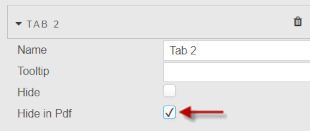
Step 6: To hide a tab while creating a PDF, click Hide Pdf When Creating Pdf in Tab Control Properties.
Documentation
Contact your KX representative for supporting documentation.