Actions
This page describes Actions which are a common property set used to configure a view state, run a query or open a URL.
This section provides information on:
Add an Action
To add an action, click  in one of the following components which support Actions:
- Data Grid
- Pivot Grid
- ChartGL
- Pie Chart
- Radar Chart
- Canvas Chart
- Data Form
- Form Builder
- Drop Down List
- Button
- Text Input
- Selection Controls
- Date Picker
- Date Range Picker
- Tree View
- Upload
- Map
- Map (External APIs)
- Treemap
- Graph
- Bipartite Chart
- Navigation Menu.
Action Types
The following types of actions are supported:
- View State Mapping
- Open Dashboard/Screen
- Run Query, Open URL
- Apply Rolling Syntax/View State Default
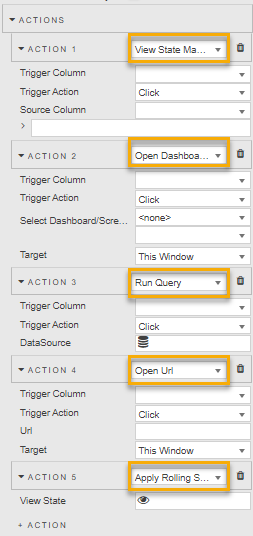
Additional component-specific actions are available for each component that supports Actions. See Action execution for details on the order of execution.
View State Mapping
The View State Mapping action maps values of View State parameters from the source dashboard to View State parameters in the destination Dashboard.
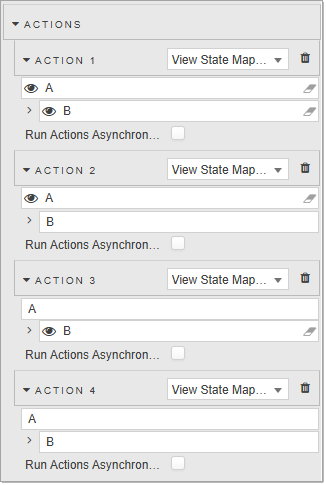
Supported view state mapping actions include:
| Action | Description |
|---|---|
| 1 | Map value of view state A to view state B in the current dashboard. |
| 2 | Map value of view state A to view state B in the target dashboard, where "B" is the name of the view state in the destination dashboard (case sensitive). |
| 3 | Map the literal string 'A' to view state B in the current dashboard. |
| 4 | Map the literal string 'A' to view state B in the target dashboard, where "B" is the name of the view state in the destination dashboard (case sensitive). |
Tip
Before mapping View State parameters across dashboards, create the target View State Parameter in the destination dashboard. View State Mapping can only map to existing View State Parameters; mapping actions do not create them.
Open Dashboard/Screen
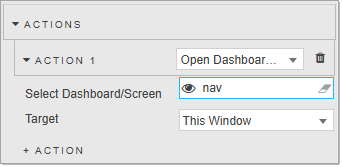
The Open dashboard/screen action lets you specify a dashboard and screen to open on button click.
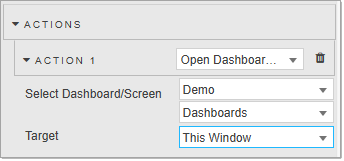
Dashboard names can be assigned to a viewstate. If assigned to a text variable (for example of type String), it navigates to the dashboard with that name.
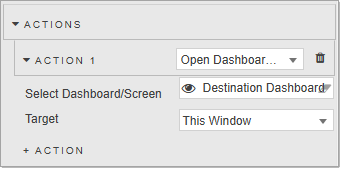
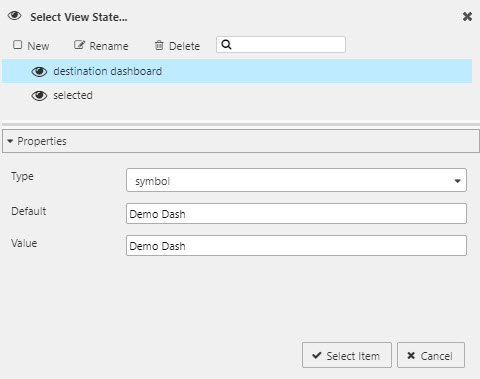
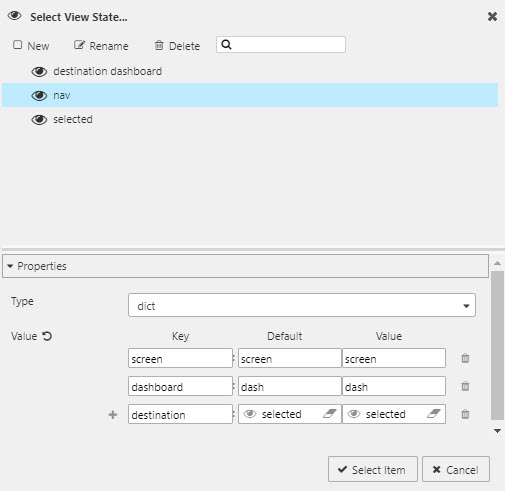
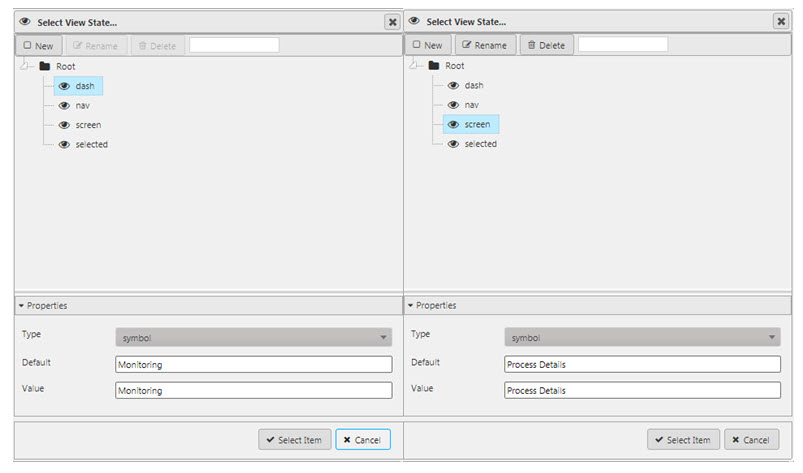
Dashboard and screen references can also be set using view states.
Run Query
The Run Query action means the linked query is executed on click.
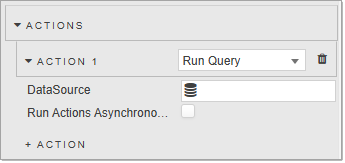
Set the following property:
| Name | Description |
|---|---|
| Data Source | Select the data source to run on action click. |
| Run Actions Asynchronously | Refer to Action execution for details. |
Open URL
The Open URL action means a click redirects to a new web page.
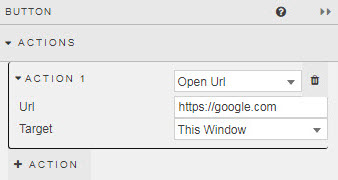
Set the following properties:
| Name | Description |
|---|---|
| Url | The destination site. |
| Target | Open in current tab (This Window) or new tab (New Window). |
Apply Rolling Syntax/View State Default
If a view state has rolling syntax, this action updates the view state's value using the rolling syntax. Otherwise, it updates the view state's value with the value specified in the view state's Default attribute.
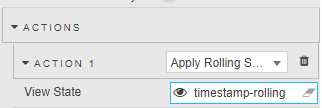
Set the following property:
| Name | Description |
|---|---|
| View State | The View State containing the rolling syntax. |
For example:
-
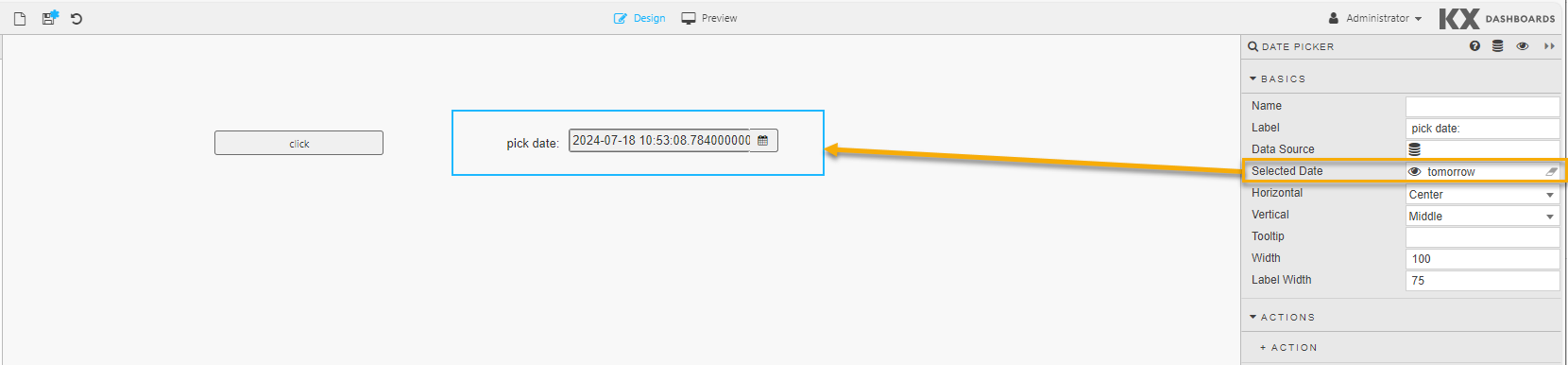
Create a view state called tomorrow with rolling syntax set to
NOW+24:00.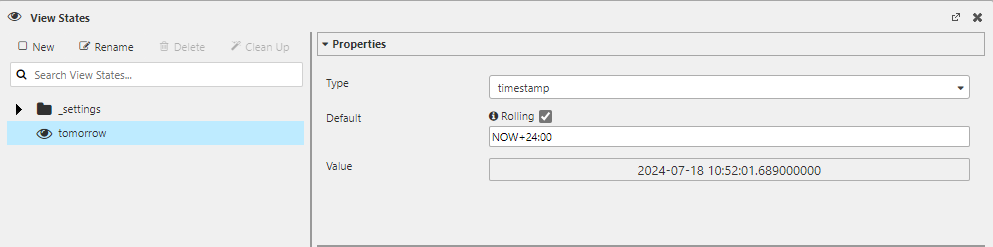
-
Add a Date Picker component to a Dashboard and set its Selected Date to the tomorrow view state. This shows the current value of the view state and allows you to change it.
-
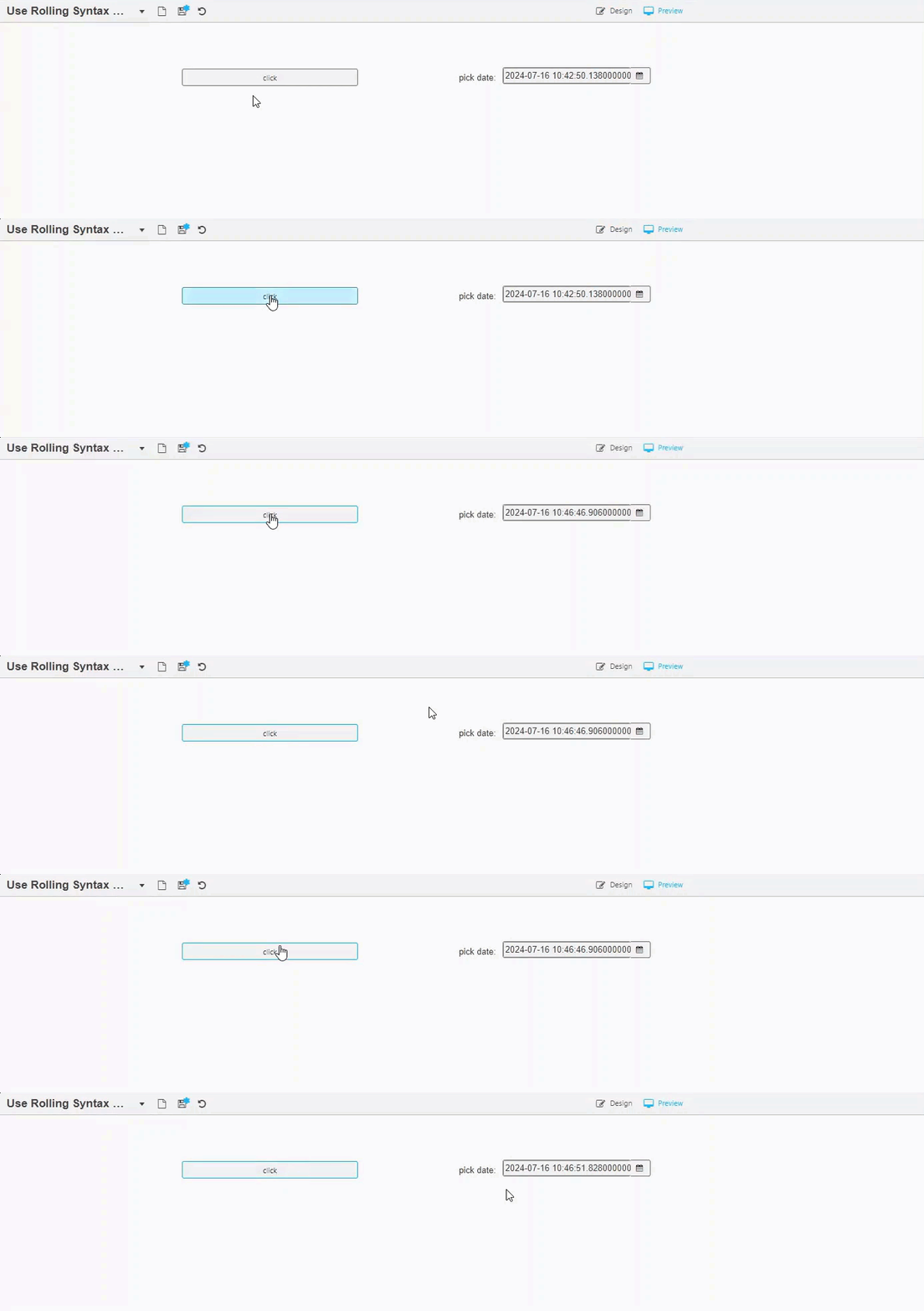
Add a Button component to a dashboard and add an Action so that the tomorrow view state is updated using the rolling syntax every time the button is clicked.

-
Switch to Preview mode and click the Button. Every time the button is clicked it either applies the rolling syntax to the view state's value or resets the value of the view state using its default value when there is no rolling syntax.
Component Configuration
The following sections describe component-specific actions for Canvas Chart, Data Grid, Pivot Grid, Navigation, Pie Chart, and Upload.
Canvas Chart
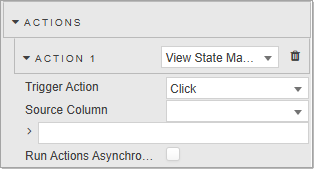
Canvas chart actions include Trigger Action and Source Column.
| Name | Description |
|---|---|
| Trigger Action | Select either Click or Hover as the event to trigger the action. |
| Source Column | For View State Mapping, determine which value is mapped; either <thisX>, <thisY>, <thisName>, or from the data source. |
| Run Actions Asynchronously | Refer to Action execution for details. |
Data Grid
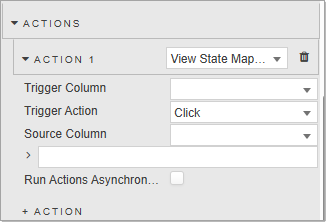
Actions for Data Grid include Trigger Column and Trigger Action.
| Name | Description |
|---|---|
| Trigger Column | Column on which Trigger Action executes the action. |
| Trigger Action | Select one of the following as the event to trigger the action: mouse in, mouse out, click, double-click, right-click or hover. |
| Source Column | For View State Mapping, determine which value is mapped; either ,, **, or from the data source. |
| Run Actions Asynchronously | Refer to Action execution for details. |
Pivot Grid
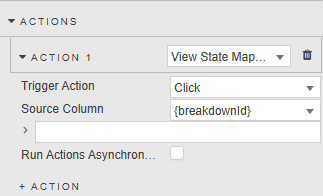
Actions for Pivot Grid include Trigger Action and Source Column.
| Name | Description |
|---|---|
| Trigger Action | Specifies the event associated with the Action. The supported events are: Click, Double Click, Right-Click or Hover. |
| Source Column | For View State Mapping, specifies where the value to be mapped into a view state comes from. Options include the identified column or {breakdownId} (from left to right, value from the last visible breakdown column). |
| Run Actions Asynchronously | Refer to Action execution for details. |
Navigation
Only view state mapping is tied to Actions; opening dashboards and URLs is done by buttons.
Pie Chart
| Name | Description |
|---|---|
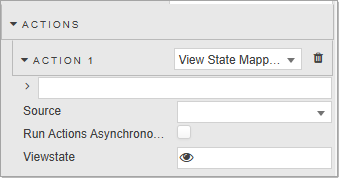
| Source | For View State Mapping, determine which value is mapped from the data source. |
| Run Actions Asynchronously | Refer to Action execution for details. |
| Viewstate |
Upload
| Name | Description |
|---|---|
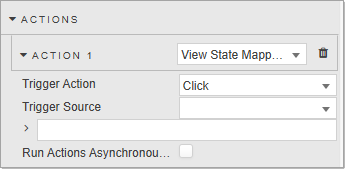
| Trigger Action | Select the event to trigger the action. Options are Click or Double-click. |
| Trigger Source | |
| Run Actions Asynchronously | Refer to Action execution for details. |
Action Execution
The Run Actions Asynchronously property controls whether actions are executed in parallel or sequentially.
When enabled, it improves performance and flexibility by separating actions into two execution groups:
Asynchronous — actions marked to run asynchronously are grouped together and executed asynchronously in the order they appear in the action list. Useful for non-blocking operations like API calls, UI updates, or delayed animations. There is a maximum of 10 seconds allowed for each action before the next action is called.
Synchronous — all other actions (not marked asynchronous) continue to run synchronously, one after the other, before or after the asynchronous group depending on their position in the list. These actions are blocking — each one finishes before the next starts.
When disabled (the default), actions are run in their listed order with the exception of Navigation actions, which are executed last irrespective of their position in the sequence. If there is more than one navigation action, only the last of those navigation actions is executed.
While actions are run in order, each action does not require the prior one to finish before starting the next.