Manage View States
This section describes view states which are used to store values accessible to all components of the dashboard. They can be used to pass values like user selections or preferences between components and into queries.
This section provides information on:
- View State dialog
- Creating View States
- Rolling View States
- View States in Query Editor
- View State routing
- Linking components using View States
- System View States
- Cleaning up View States
- View State Persistence.
View State Dialog
The View State dialog is used to create and manage view states. The following screenshot shows a View State dialog with a selected view state, its properties, and a graphical representation of its relationship to data sources and components.

To open the View State dialog, use one of the following methods:
-
Click on the eye icon
 at the top of the Properties Panel.
-
Click inside any input box showing the eye icon
.
Tip
Some inputs offer View States, but the icon is hidden. For some it's to the left of the  Clear button. If a View State is available, a rollover of the input displays the eye icon.
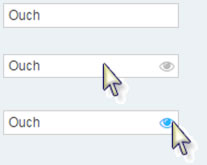
With a View State paired to a Text Input or Drop Down component, a user's input can be passed to any dashboard component.
Tip
To prevent errors, it may be necessary to include a text prompt to help the user put information in the correct form.
View State Dialog Layout
At the top of the dialog are buttons to create, edit, and delete or clean up view states that are not used.
The body of the dialog consists of 3 main sections: a list of view states and folders on the left, a Properties panel for specifying the type and values for the selected view state, and a view state Graph which depicts the selected view state and all data sources or components that reference it.

Component Names in the View State Graph
Each Dashboard component is given an internal name by default, which is displayed in the view state graph.

Any component in your Dashboard can be given a user-defined name by assigning a value to its Name property.

If present, the view state graph displays the user-defined name instead of its internal name.

Tip
Assigning a user-defined name to a component can help identify components in the view state graph.

Create a View State
-
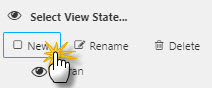
In the Select View State dialog, click New to create a new View State.
-
Enter a Name for the new parameter.
-
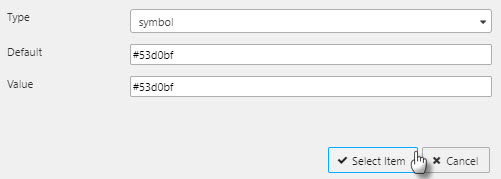
Set the field values described in the following table.
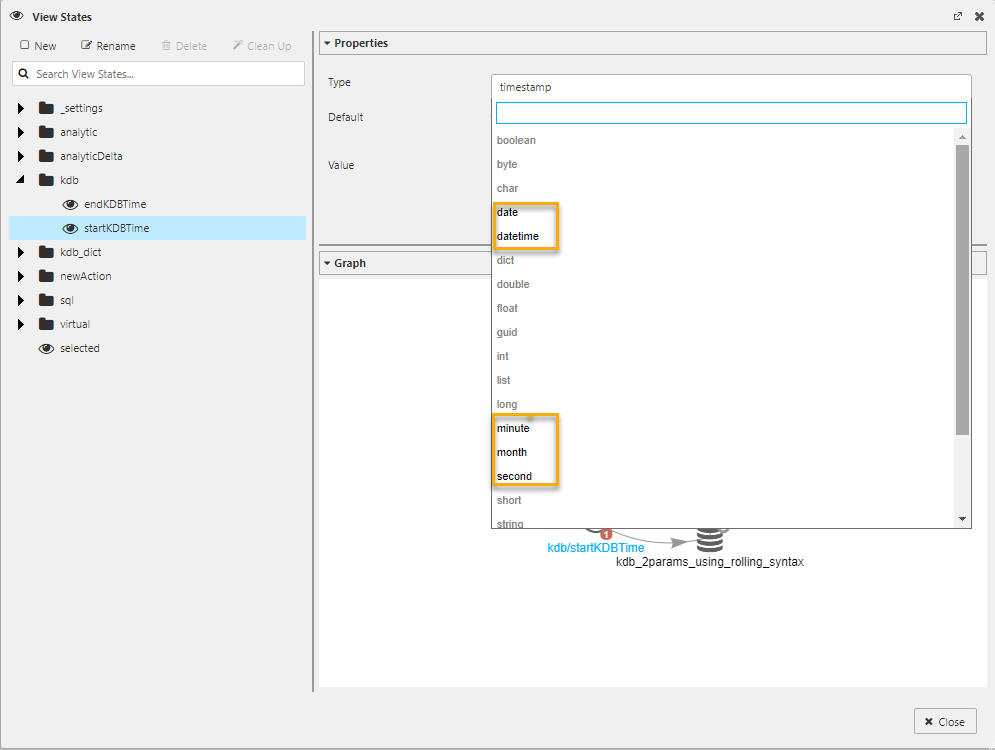
Field name Description Type Choose from one of the options in the Type drop-down list: boolean,byte,char,date,datetime,dict,double,float,guid,int,list,long,minute,month,second,short,string,symbol,time,timespan,timestamp.Rolling The Rolling checkbox is displayed when the Type is set to one of the following: date, datetime, minute, month, second, time, timestamp. See Rolling for details. Default You have the option to enter a default value for the new view state. Components and queries referencing this view state use the default value when: the Reset View State button  is clicked; the Dashboard is loaded, has not been previously saved by the user, and the view state value has not been passed to the Dashboard; or the Dashboard is loaded with Save Viewer State disabled and the view state value has not been passed to the Dashboard.
Value Represents the current value of the view state. If a component is using a view state and the user changes the value, the Value attribute of that view state is updated. -
Click Select Item.
Rolling
The Rolling feature allows you to specify a default value that is dynamic. This feature uses syntax that is evaluated in the same circumstances as a view state's Default field, when a KX Dashboards component refers to it as an Action, and when a data source parameter is configured to use the rolling syntax from a view state.
To create a Rolling view state:
- Create a new view state as described above.
- Choose one of the following data types from the Type drop-down list: date, datetime, minute, month, second, time, timestamp. For each of these types, a checkbox labelled Rolling is visible above the Default field.
- Check Rolling to enable the Default field for data entry.
- In the Default field, enter a value using the appropriate rolling syntax. For example, using
NOW+24:00causes the view state's value to be set to tomorrow's date and time whenever a default value is needed. Notice that when you set this value as the Default it automatically updates the Value field. - Click Close.

Persistent State for Rolling View States
You can remove rolling syntax from a View State by unchecking Rolling above the Default field. However, it is not possible to remove the rolling syntax from a view state if it is in use by a data source committed to the Dashboard. Therefore, when the rolling syntax of a view state is being used by a data source, the Rolling checkbox is disabled in the view state dialog.
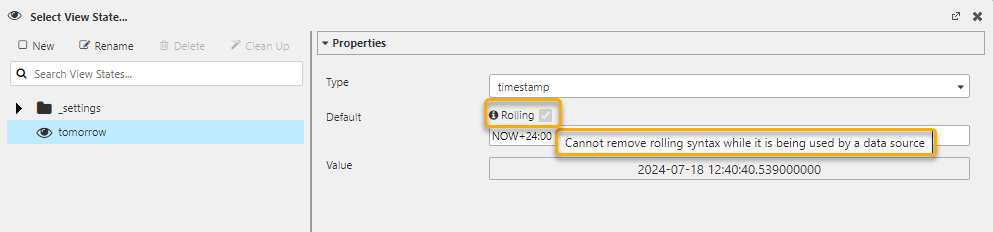
When the rolling syntax of a view state is being used by a data source, only data types that support rolling syntax can be selected in the View States dialog.
Rolling Syntax
The following table describes the valid syntax for Rolling view states.
| Syntax | Description |
|---|---|
NOW |
Refers to the current moment in time. Can be used alone or as part of an expression, immediately followed by an operator (+ or -) and an operand. |
NOW+x / NOW-x |
x is a number provided by the user. Its value is a multiple of a duration based on the data type: second — seconds; minute, time — minutes; date, datetime, timestamp — days; month — months.Examples: second + NOW+10 = Adds 10 seconds to NOW. time + NOW+30 = Adds 30 minutes to NOW. date + NOW-5 = Subtracts 5 days from NOW. month + NOW-10 = Subtracts 10 months from NOW.For datetime and timestamp, using NOW+x or NOW-x sets the time value to 00:00:00. To advance or reverse while retaining the current time, use the time format with multiples of 24 hours (e.g. NOW+24:00, NOW+48:00). |
NOW+hh:mm:ss.sss / NOW-hh:mm:ss.sss |
Adds or subtracts the specified time duration to/from NOW. The number of hours can exceed 24. Examples: NOW+00:30 = Adds 30 minutes to NOW. NOW-48:00 = Subtracts 48 hours from NOW. NOW+1:30:10 = Adds 1 hour, 30 minutes and 10 seconds to NOW.When using the month data type, this expression may result in a different month. |
NOW+x@hh:mm:ss.sss / NOW-x@hh:mm:ss.sss |
Adds or subtracts a specified number of days (x) to/from NOW, and sets the time to the value after the @ sign. Works with datetime and timestamp types. Examples: NOW+1@12:00 = Adds 1 day to NOW and sets time to 12:00. NOW-1@23:59:59 = Subtracts 1 day from NOW and sets time to 23:59:59.The rolling syntax expression must have no spaces. If Rolling is checked and no syntax is provided, NOW is used. The T keyword remains functional but is deprecated; use NOW instead. |
| Weekdays (WD) | See Weekdays for details. |
| Business days (BD) | See Business Days for details. |
Weekdays
A weekday is any day within the week except Saturday and Sunday. WD can be used with date, datetime, timestamp data types.
| Syntax | Description |
|---|---|
NOW+xWD |
Adds a specified number of weekdays to NOW. |
NOW-xWD |
Subtracts a specified number of weekdays from NOW. |
NOW+xWD@hh:mm:ss.sss |
Adds a specified number of weekdays to NOW, and sets the time to the value after the @ sign. |
NOW-xWD@hh:mm:ss.sss |
Subtracts a specified number of weekdays from NOW, and sets the time to the value after the @ sign. |
Examples:
| Expression | Result |
|---|---|
NOW+2WD |
Adds 2 weekdays to NOW. |
NOW-7WD@1:59:59 |
Subtracts 7 weekdays from NOW and sets time to 1:59:59. |
NOW+1WD |
When NOW refers to Friday, the resulting day is next Monday. |
Business Days
A business day is a day within the week where normal business operations are conducted, defined by which days of the week are work days and which dates are excluded (e.g. holidays). BD can be used with date, datetime, timestamp data types.
| Syntax | Description |
|---|---|
NOW+xBD |
Adds a specified number of business days to NOW. |
NOW-xBD |
Subtracts a specified number of business days from NOW. |
NOW+xBD@hh:mm:ss.sss |
Adds a specified number of business days to NOW, and sets the time to the value after the @ sign. |
NOW-xBD@hh:mm:ss.sss |
Subtracts a specified number of business days from NOW, and sets the time to the value after the @ sign. |
Examples:
| Expression | Result |
|---|---|
NOW+2BD |
Adds 2 business days to NOW. |
NOW-7BD@9:00 |
Subtracts 7 business days from NOW and sets time to 9:00. |
NOW+1BD |
When NOW refers to December 31, and January 1 is not a business day, the result is January 2. |
Defining the Workweek and Holidays
When calculating business days, the rolling feature uses 2 files located on the web server. The website reference to these files is:
http(s)://<website>/modules/<QuickBase Version>/calendar
Where <QuickBase Version> is the text that appears to the right of the QuickBase UI Component when viewing the User Menu's About page.

| File | Description |
|---|---|
workweek.csv |
Defines which days of the week are considered work days. Each day is represented by a number where 1 = Sun, 2 = Mon, etc. Only the first 7 valid entries are used. Entries can be separated by a new line or a comma. The initial version defines Monday through Friday as work days: 2,3,4,5,6. |
holidayCalendar.csv |
Contains a list of exclusionary dates (e.g. business holidays). Dates can be formatted as YYYY-MM-DD or MM-DD-YYYY. Leading zeroes are optional. Acceptable delimiters are hyphen, dot and forward slash (e.g. 2024-01-01, 2024.01.01, 2024/01/01). Entries can be separated by a new line or a comma. The initial version defines Jan 1, 2024 as a holiday: 2024-01-01. |
Warning
If the work week is not defined (i.e. workweek.csv does not exist, cannot be read, or is empty), business days are not calculated.
View States in Query Editor
kdb+/q Query Editor
View state parameters can be referenced from within the kdb+/q editor.
Function Parameters
For a kdb+/q function, view states can be defined at the start of the function. Add the required view state parameter enclosed in square brackets. Multiple view states can be defined by separating parameters with semicolons.
Note
The maximum number of parameters permitted is 8; specifying more than eight causes an error. You can avoid this by encapsulating multiple parameters in a list or dictionary.
{[x]
    select from table where (column1 = x)
 }
This causes the supplied view state to be substituted for all occurrences of parameter x, the expression to be evaluated, and the result returned as the output value.
In-Query Parameters
An alternative approach is to define an in-query parameter using the syntax <%param%>:
select from table where column1 = <%x%>
This causes the supplied view state to be substituted for all occurrences of parameter x.
SQL Query Editor
View state parameters can be referenced from within the SQL editor using double curly brackets, e.g. {{trader}}:
SELECT * FROM table WHERE column1 = {{x}}
This causes the supplied view state to be substituted for all occurrences of parameter x.
Map View States in Query Editor
As new data sources are defined in the kdb+/q Query Editor, it is often convenient to map them immediately to View States. This can be done with a single click on the eye-and-gear button.
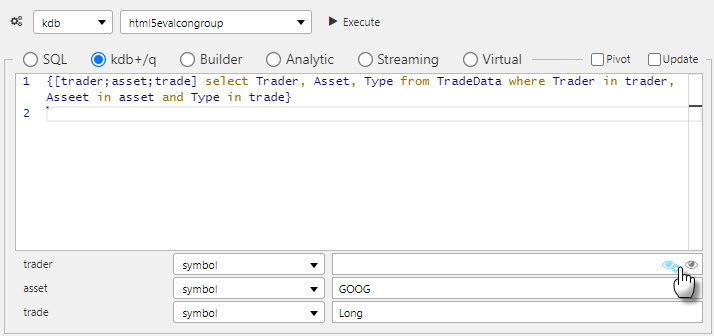
This updates Value to reflect the mapped View State, for example <%Query/value%>:

To edit the View State, click on the eye button to summon the Select View State dialog.

Warning
Parameter types must match. A parameter's type is defined in the View State dialog. Check to ensure the same type is assigned in the Query Editor.
If there is an assigned value prior to creating a View State, the created View State will adopt the assigned value as the default, ensuring the query will run when executed.
Selected Values
Selected Values are available in chart components. Values are captured using:
| Name | Description |
|---|---|
| Selected Value | A View State — 'publishing' the selection for other components. |
| Selected Value Attribute | A column from the component's Data Source. |
Warning
When mapping Selected Values to Selected Value Attribute, ensure the data type of the View State matches the data type of the Data Source column; for example, integer for numbered data.
View State Routing
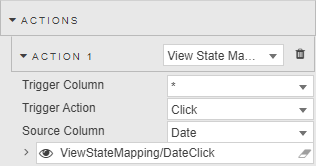
When a user selects a data row in Data Grid, or a line point in Charts, the represented value(s) can be assigned to view state parameters in the Actions section.
Sharing View States Across Dashboards
When sharing View States between different dashboards, matching View States (case sensitive) must be created on both the host and destination dashboard. This is relevant when creating Buttons to switch between dashboards.
Linking Components
Components can be linked so that changes in one component are reflected in another.
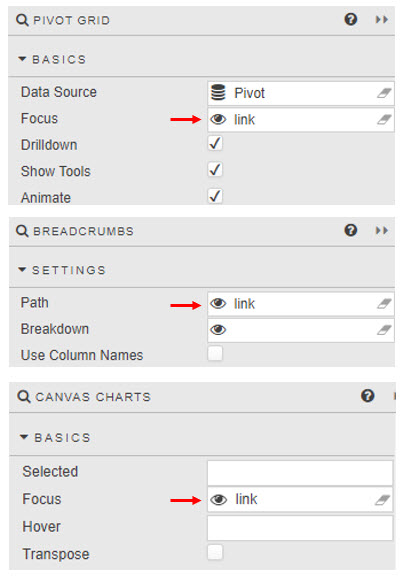
For example, drilling down on the Pivot Grid below results in changes to the linked Breadcrumbs and Canvas Chart.

Drill-down on the data grid also updates breadcrumbs and canvas bar chart, as shown here.
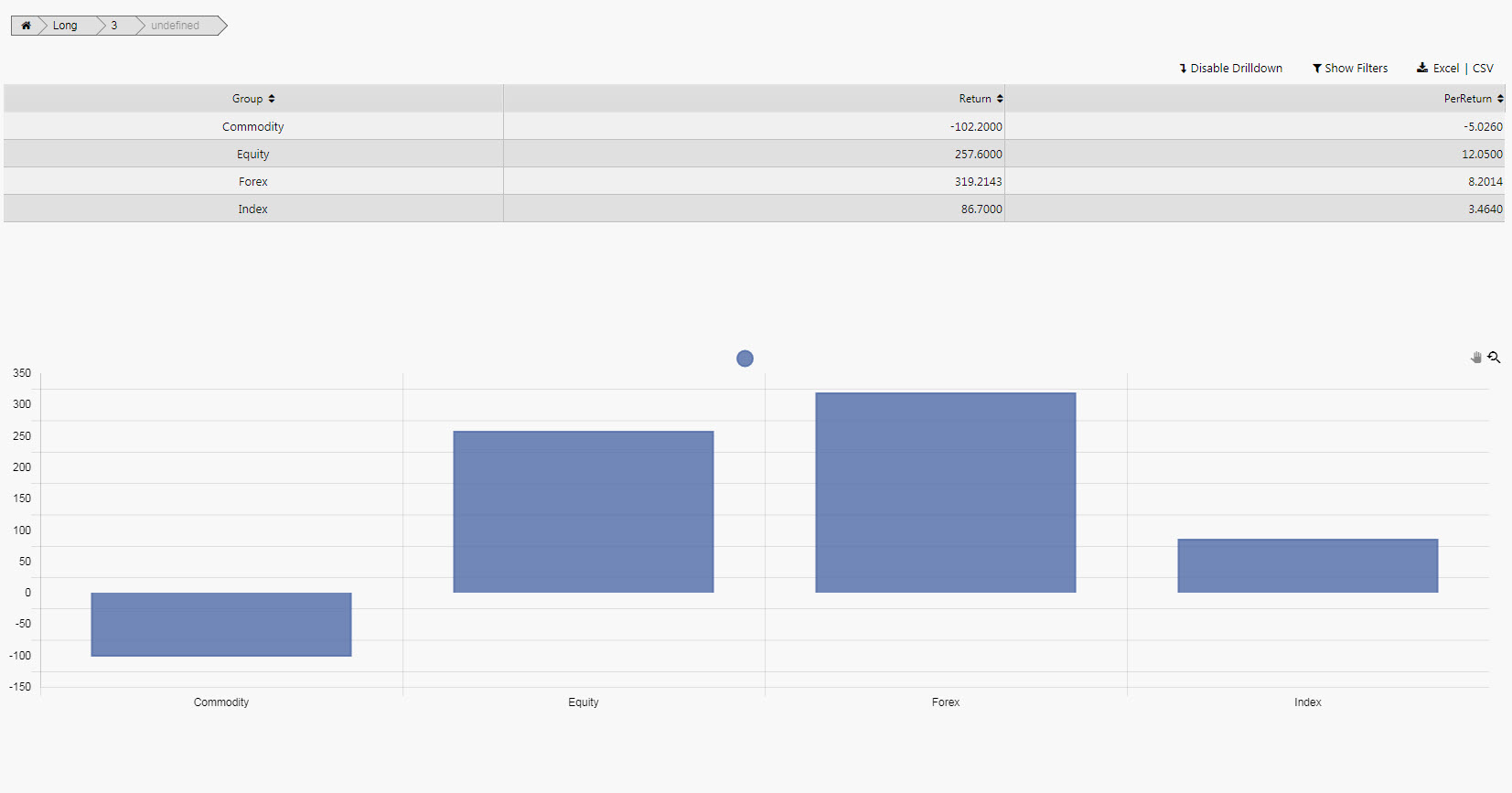
Link components by creating a View State and setting it as the Focus property of the linked components.
System View States
System view states contain information about the current Dashboard session and are accessible to all components of the dashboard.

The Settings folder contains the system view states. Users cannot edit this folder or the view states within it.
| View state | Description |
|---|---|
dashboardStartTimestamp |
Provides the date and time for when the dashboard was opened (in UTC format). |
dashboardTimezone |
Provides the timezone associated with the Dashboard session. The Dashboard User Menu provides a dialog to access this timezone setting. |
dashboardTitle |
Provides the title of the current dashboard. The Name property in the Dashboard Basics section can be used to maintain this value. |
dashboardUrl |
Provides the URL of the current dashboard. |
dashboardUser |
Identifies the user currently logged in to the KX Dashboards session. |
Clean Up
Clicking on Clean Up opens the Unused View States dialog.

The Unused View States dialog shows a list of view states not used by the Dashboard. To remove one or more view states, check the checkbox next to its name and click Delete Selected. To select the entire list, check the topmost checkbox labelled View States.

Viewstate Persistence
Viewstates represent the user's dashboard layout, selections, filters, panel states, and other UI-driven configuration choices. Dashboards support two persistence mechanisms:
- Local Storage — Used when the user is in QuickView mode without a
sessionIDin the URL. - Server-side File Storage — Used when the dashboard is accessed with a
sessionIDURL parameter.
1. QuickView Mode (No sessionID in URL)
Saving Viewstates
When a user is in QuickView mode and clicks the Save button, the current viewstate is serialized and written to Local Storage on the user's device, stored under a dashboard-specific key.
Applying Saved Viewstates
When the dashboard is reopened without a sessionID, the app will check Local Storage for a saved viewstate for that dashboard and, if found, automatically apply the stored configuration.
Characteristics
- Saved only for the local user.
- Does not sync across browsers or devices.
2. Opening Dashboard with a sessionID Parameter
When a dashboard is loaded using a URL like /dashboard?sessionID=<ID>, persistence is handled via server-side files.
Saving Viewstates
The viewstate is serialized when the user clicks Save and written to a server-side file associated with the provided sessionID.
Loading Viewstates
When any user opens a dashboard with the same sessionID, the system will attempt to load the viewstate file for that sessionID and, if it exists, apply the saved viewstate automatically.
Characteristics
- Viewstate persists across users and devices that use the same
sessionID. - Useful for sharing configurations.
Viewstate Loading Logic Summary
| Scenario | Save Location | Loaded From | Scope |
|---|---|---|---|
QuickView (no sessionID) |
Local Storage | Local Storage | Per-user, per-device |
QuickView + sessionID |
Server-side file | Server-side file | Shared across users with the same sessionID |
Example Workflow
User Without sessionID
- User opens dashboard normally.
- Enters QuickView mode → clicks Save.
- Viewstate saved to Local Storage.
- User reloads page → dashboard loads saved viewstate automatically.
User With sessionID
- User opens:
/dashboard?sessionID=abc-123. - Enters QuickView mode → clicks Save.
- Viewstate saved to server as a file for
abc-123. - Another user opens
/dashboard?sessionID=abc-123.