Text
This page describes how to set up and configure the Text component, a container for text and images.
A Text component can contain everything from a short string, through HTML tables, to entire web pages. Content may include values from the component's data source.
Text Properties
The following sections provides details on how to configure the properties of the Text component.
Basics
Open the Basics properties on the right and configure the properties described in the following table.
These properties also apply to the Text to Speech component.
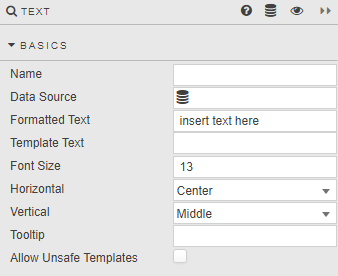
| Field | Description |
|---|---|
| Name | Enter a name for the component. |
| Data Source | Select a data source. Refer to data source for details. |
| Formatted Text | Clicking on the field opens the Text Editor, which toggles between WYSIWYG and HTML modes. |
| Template Text | Template text can include data from the Data Source. Clicking on the field opens the Template Editor. |
| Font Size | Default type size, in pixels. |
| Horizontal | Horizontal alignment of text. |
| Vertical | Vertical alignment of text. |
| Tooltip | Display text information on mouse rollover. |
| Allow Unsafe Templates | Click when using third party embedded code. |
Script is not supported
It is not possible to embed third-party JavaScript code into the HTML editor. All script code is removed on application.
Text Editor
Click inside the Formatted Text property in Basics to open the Text Editor.
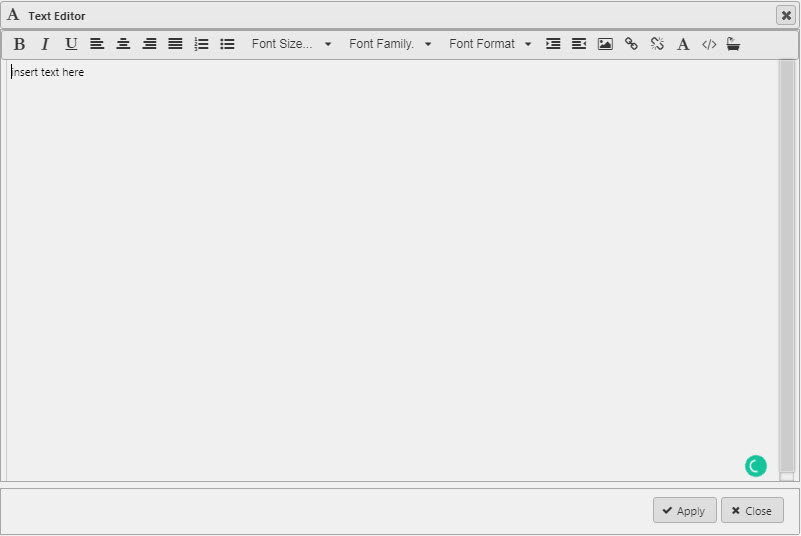
The following example shows the Text Editor in WYSIWYG mode.
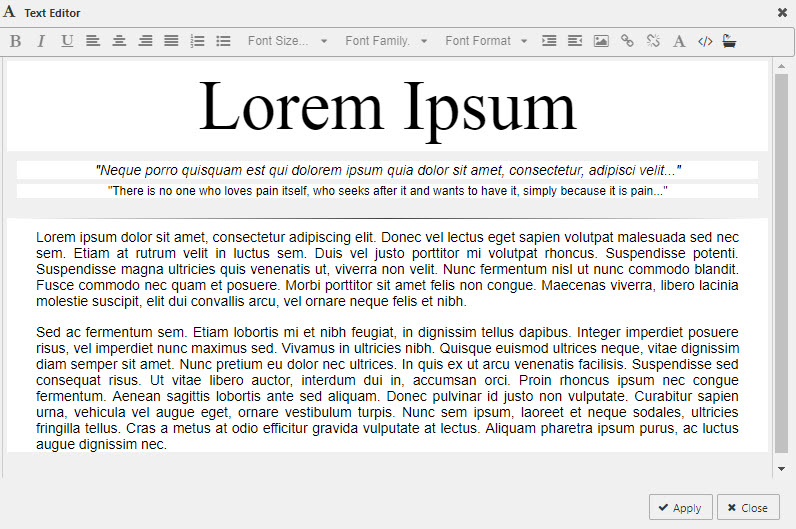
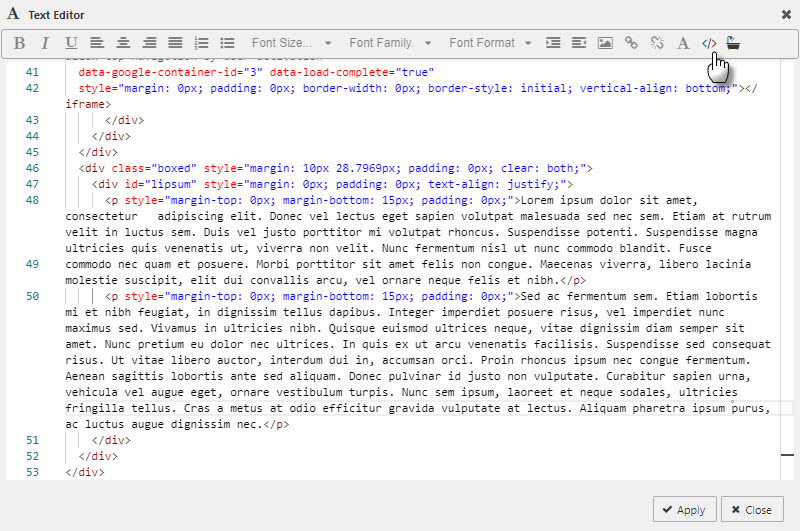
The following example shows the Text Editor in HTML mode, displayed when you click the Edit raw HTML icon on the toolbar.
Toolbar
This table describes the purpose of each of the icons on the Text Editor toolbar.
| Button | Function |
|---|---|
 |
Bold, italic or underline |
 |
Left, center, right and justify alignment |
 |
Numbering or bullet points |
| Font Size | 8pt, 10pt, 12pt, 14pt, 18pt, 24pt |
| Font Family | Arial, Comic Sans, Courier New, Georgia, Helvetica, Impact, Times, Trebuchet, Verdana |
| Font Format | Paragraph, Pre, Heading 6, Heading 5, Heading 4, Heading 3, Heading 2, Heading 1 |
 |
Increase or decrease paragraph indent |
 |
Insert an image. Includes options to set width, height, Alt Text and image alignment. Click Upload Image to locate and upload an image. |
 |
Add or remove URL links. Define the URL, give the URL a descriptive Title, and configure whether the link should open in the current window or a new window. |
 |
Text color |
 |
Toggle between HTML and WYSIWYG mode |
 |
HTML formatter |
Style, Margins, Format
Refer to Style for common settings.