Radar Chart
This page describes how to set up and configure the Radar Chart component used to display multivariate data in the form of a two-dimensional chart.
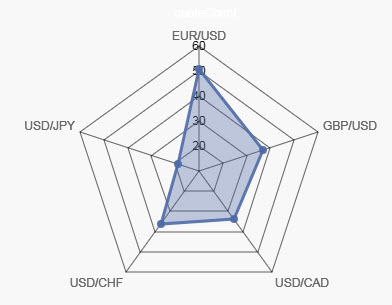
Set Up a Radar Chart
To set up a Radar Chart component, click-and-drag the component into the workspace and configure the following:
- Define a data source and select chart type to create.
- Select Radar Columns for the category data.
- Add a Layer and define the Series Data to plot.
Refer to Radar Chart properties described in the next section for details on additional properties.
Radar Chart Properties
The following sections provides details on how to configure the properties of the Radar Chart component.
Basics
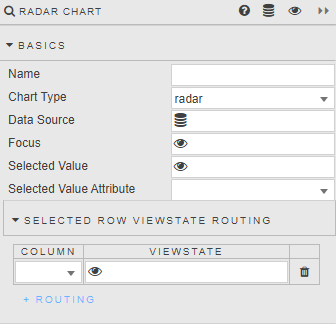
Open the Basics properties on the right and configure the properties described in the following table.
| Field | Description |
|---|---|
| Name | Enter a name for the component. |
| Chart Type | Dropdown selection between: radar, polarArea and pie. |
| Data Source | Select a data source. |
| Focus | A View State Parameter for linking components. |
| Selected Value / Selected Value Attribute / Selected Row ViewState Routing | Set these fields to capture clicks on the chart. Refer to Selected values for details. |
Data
Configure the properties described in the following table.

| Field | Description |
|---|---|
| Radar Columns | Select from data source or view state parameter; values represent radar labels. |
| GridLine color / AngleLine color / Gridline Opacity / AngleLine Opacity | Use these fields to define radar color and line opacity. Opacity is a value between 0 and 100. |
Layers
Configure the properties described in the following table for each Layer. Click + Layer to add additional layers.
| Field | Description |
|---|---|
| Data | Determine which data column is charted. |
| Color / Border Color / Use color Palette / Radar Color Opacity | Use these fields to set the area and border color of the radar. |
| Display Name | Enter a descriptive name of the data layer (label in chart). |
| Point Style / Point Radius | Define criteria of radar points. Select from circle, cross, crossRot, dash, line, rect, rectRounded, rectRot, star, and triangle. |
Legend
Configure the properties described in the following table.
| Field | Description |
|---|---|
| Show | Toggle display of legend. |
| LabelColor | Set legend font color. |
| Position | Place legend top, bottom, left or right. |
Chart Padding
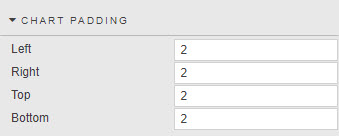
Configure the properties described in the following table.
| Field | Description |
|---|---|
| Left / Right / Top / Bottom | Assigns internal pixel padding. |
Ticks
Ticks properties control radar internal grid labels.
| Field | Description |
|---|---|
| Display | Toggle display of tick labels. |
| Font Color | Define the color of tick labels. |
| Font Size | Define the size of tick labels. |
| Show Label Backdrop | Adds white space around labels, improving clarity. |
| Backdrop Color | Set the radar tick label color padding. |
| Backdrop Padding X and Y | Set the radar tick label area padding. |
| Max Ticks Limit | Sets the number of radar zones.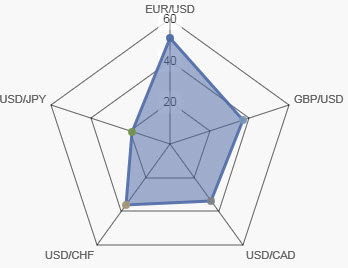 |
| Begin at Zero | Central point of radar starts at zero versus best fit. |
| Format | Select from General, Number, Smart Number, Formatted Number, Datetime. |
| Decimal Places | When Format is set to Number, Smart Number, or Formatted Number, sets the number of decimal places to use. |
| Hide Trailing Zeroes | When checked, trailing zeroes in a number are not displayed. |
| Date/Time Format | Set date type when the selected Format is Datetime. |
| Prefix / Suffix | Apply text label as a prefix or suffix. For example, %, £, $. |
| Radar Labels Size | Set font size of outer radar labels. |
Tooltip
Configure the properties described in the following table.

| Field | Description |
|---|---|
| Custom Tooltip | Refer to Custom tooltips for details. |
| Stack Tooltip Data | When checked, subtracts the current level from the previous level to return a differential. |
Color Palette
Define the color palette to be used when the radar chart uses OLAP/Pivot data.
Animations

| Field | Description |
|---|---|
| Enabled | When checked, offers smoothing render animation. |
File Export
Refer to Export for details.
Style, Format, Margins
Refer to Style for common settings.