Code Editor
This page describes how to set up and configure the Code Editor component.
The Code Editor, a text and code editor, is illustrated below. Its content can be assigned to view state parameters.
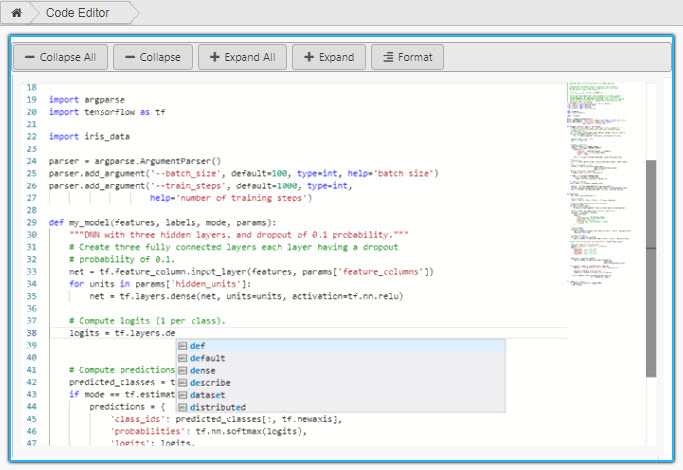
Set Up a Code Editor
To set up a Code Editor, click-and-drag the component into the workspace and configure the Basics, Editor Configuration and Style properties described in the following sections.
Code Editor Properties
The following sections provides details on how to configure the properties of the Code Editor component.
Basics
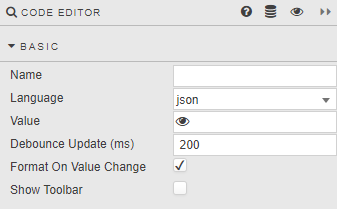
Open the Basics properties on the right and configure the properties described in the following table.
| Field | Description |
|---|---|
| Name | Enter a name for the component. |
| Language | Select from json, plaintext, handlebars, html, java, javascript, markdown, python, r, sql, typescript, xml, and q. |
| Value | Assign the content of the editor to a view state parameter. |
| Debounce Update (ms) | Set the frequency of validity checks. |
| Format on Value Change | When checked, every change in the Value reformats the document if a formatter is available for the selected Language. |
| Show Toolbar | When checked, button shortcuts are displayed as shown. |
Editor Configuration
Configure the properties defined in the following table.
| Field | Description |
|---|---|
| Show Minimap | When checked, the content map is displayed.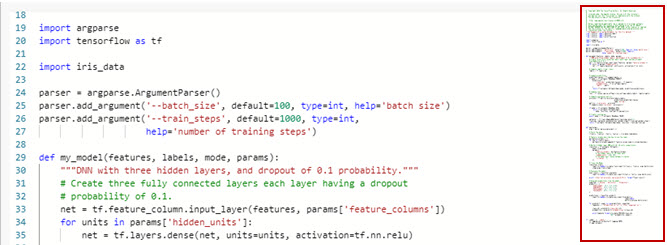 |
| Show Line Numbers | When checked line numbers are displayed in the left-hand column. |
| Read only | When checked editing of content is not allowed. |
Style, Margins and Format
Refer to Style for common settings.