Bitmap
This page explains how to set up and configure a Bitmap component which renders bitmap images in the dashboard.
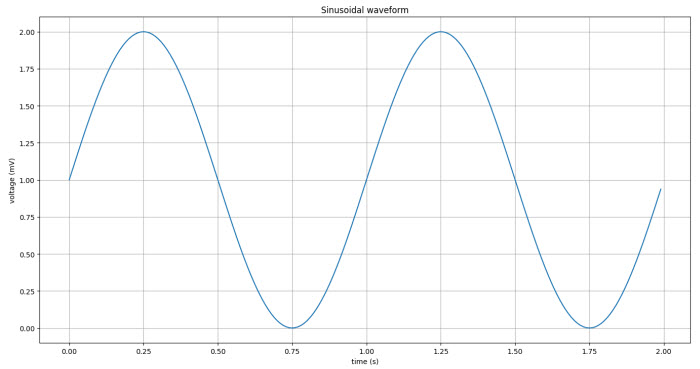
Set Up a Bitmap
To set up a Bitmap component:
- Click-and-drag the component into the workspace and configure the properties described in the following sections.
Bitmap Component Properties
The following sections provides details on how to configure the properties of the Bitmap component.
Settings
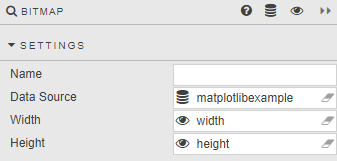
Configure the properties, described in the following table.
| Field | Description |
|---|---|
| Name | A name for the component provided by the user. |
| Data Source | Details of the bitmap image are stored in a query; included are view state parameters for title, height and width of image. Axes labels must be included as part of query if required.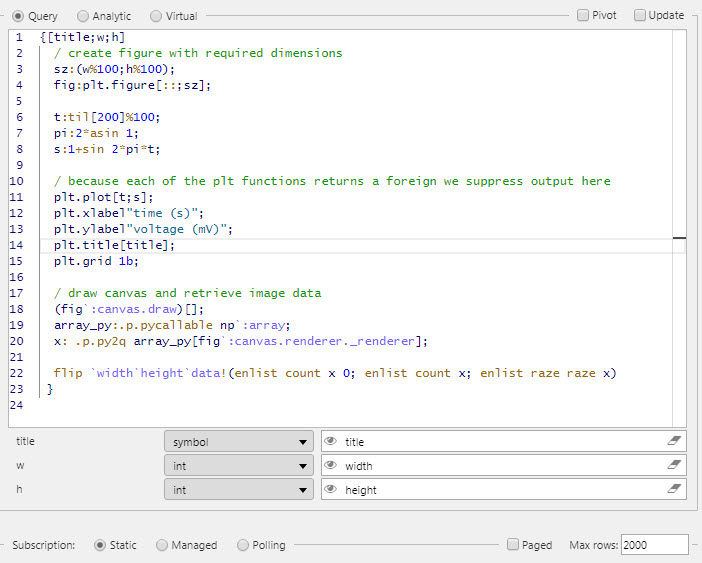 Refer to Data sources for further details. Note if you're deploying KX Dashboards on Platform! In order to run a data source with plt function, the EmbedPy library must be installed on the app server.> |
| Width | Auto assigned view state parameter storing bitmap image width in pixels. Value updates on browser resize. |
| Height | Auto assigned view state parameter storing bitmap image height in pixels. Value updates on browser resize. |
Style, Margins and Format
Refer to Style for details.