Canvas Chart
This page describes how to set up and configure the Canvas Chart component, a custom chart builder using HTML Canvas.
Set Up a Canvas Chart
To set up a Canvas Chart, click-and-drag the component into the workspace and configure the following:
- Add a layer, select the chart type from the drop-down.
- Assign the data source to use.
- Define the X-Axis ID and Y-Axis ID to plot from your data source.
- Add x axis and y axis labels, and set the Format for each axis.
- Uncheck OffsetGridLines to position a line at the zero value of the y-axis.
- Use highlight rules to create a color differential in your displayed values; e.g. between positive and negative values.
- Map view states to Min and Max Viewstate to track the viewable range of the chart.
Refer to Canvas Chart properties, described in the next section, for details on additional properties.
Canvas Chart Properties
The following sections provides details on how to configure the properties of the Canvas Chart component.
Basics
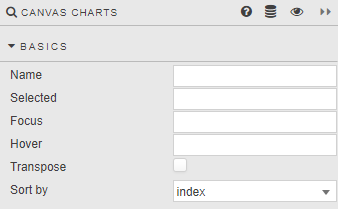
Open the Basics properties on the right and configure the properties described in the following table.
| Field | Description |
|---|---|
| Name | A name for the component provided by the user. |
| Selected | A View State Parameter to store the X-axis value at the selected position; for example time or date. |
| Focus | Refer to Linking for details. |
| Hover | A View State Parameter which stores the X-axis value contingent on where the hover bar is on the chart; e.g. time or date. |
| Transpose | Check to switch data from Y- to X-axis and X- to Y-axis. Tip: To create a Horizontal Bar Chart, create a standard Bar Chart and check Transpose. Note that there is no zoom support for Horizontal Bar Charts. 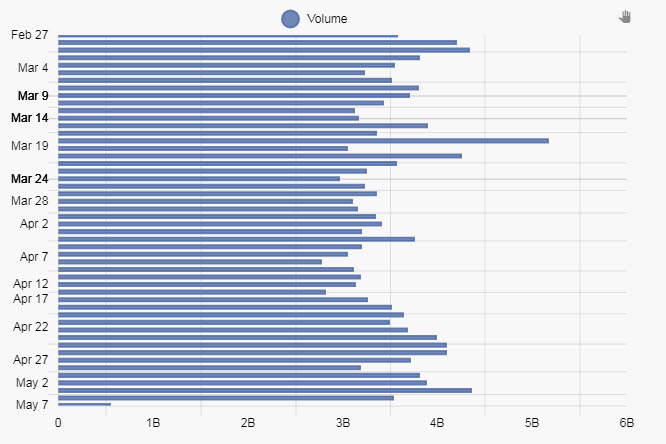 |
| Sort By | Defines the sort order for the x-axis, by either the data source index or the x-axis values. |
| Show Error when no Data | Use this to display an error message when there is no data to be displayed. - When checked, an error message is displayed if there is no data. - When unchecked, no error message is displayed if there is no data. This is the default. |
| Add Patterns to Bars | Adds patterns to bars for accessibility and visual differentiation. |
Layers
-
Select a Layer Type from the drop-down list;
Line,Bar,Bubble,Violin,Box Plot,WaterfallorCandlestick chart.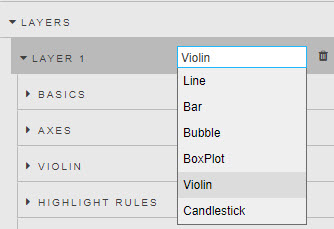
Configure the properties for the Layer; Basics, Axes, Highlight Rules, Actions, Labels as well as the settings specific to the selected layer type: Line, Bar, Bubble, BoxPlot, Violin, Waterfall, Candlestick.
-
Click + LAYER to add another layer.
Basics
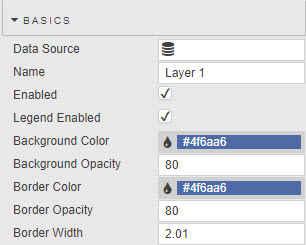
Configure the properties, described in the following table.
| Field | Description |
|---|---|
| Data Source | Data sources. |
| Name | Name used as the chart legend label. |
| Enabled | Toggles display of the data layer on the chart. Can be tied to a View State Parameter. |
| Legend Enabled | Toggles display of data legend. |
| Background Color / Background Opacity / Border Color / Border Opacity / Border Width | Set the color, opacity and width for Line, Bar or Bubble charts. - Opacity has a value between 0 (transparent) and 100 (full opacity). - Border Width is in pixels. - Line charts do not require Background Color or Background Opacity. Tio: Change layer order. Click-and-drag to rearrange the orders of the layer on the chart. The last layer is the top layer. 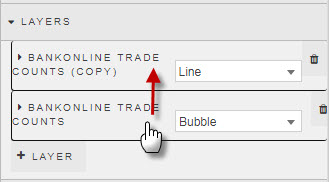 |
Axes
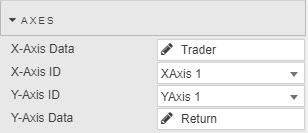
Configure the properties, described in the following table.
| Field | Description |
|---|---|
| X-Axis ID | Select from the defined Axes. |
| X-Axis Data | Select from the Data source defined in Basics. |
| Y-Axis ID | Select from the defined Axes. |
| Y-Axis Data | Select from the Data Source defined in Basics. |
| Radius Data / Radius Scaling | These fields are only used by Bubble Charts. From the Data Source select the variable to define the attribute to use for bubble scaling, then adjust the scaling variable to define bubble size. Values less than zero are not displayed on the chart.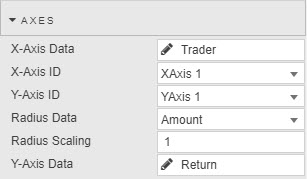 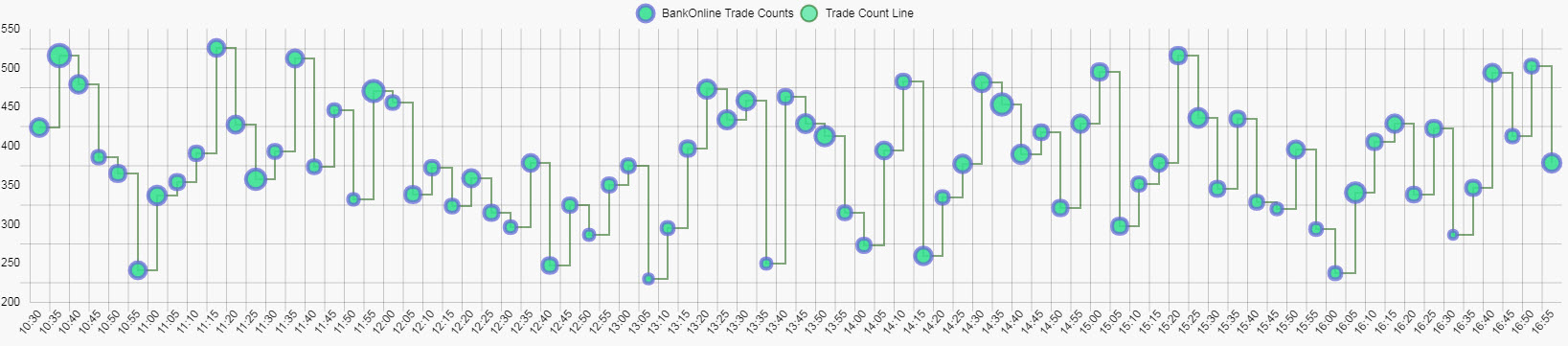 |
| Min / Q1 / Median / Q3 / Max | These fields are used for Box Plots. Set the column variables in order from lowest Min to highest Max.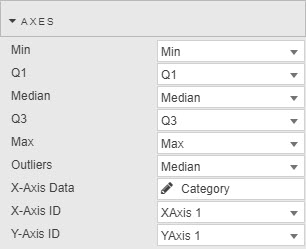 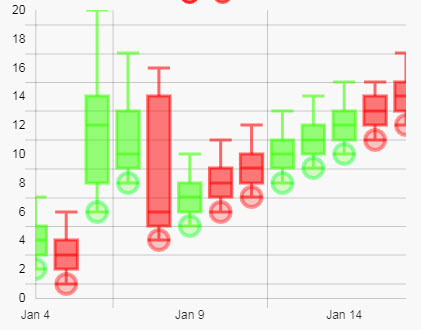 |
| Open / Close / High / Low | These fields are only used by Candlestick charts. Select the data columns that correspond to each. |
Interpolation
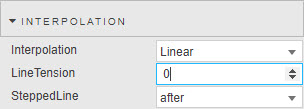
These fields are only relevant to Line layers. Configure the properties, described in the following table.
| Field | Description |
|---|---|
| Interpolation | Select one of the following from the drop-down. |
| Line Tension | Inbuilt algorithm used to smooth curve from discrete data points for Cubic line charts; integer value. |
| SteppedLine | Switch between Stepped chart types; before and after. |
Line
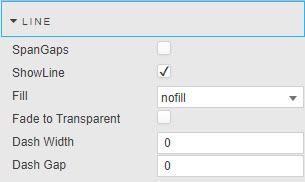
Configure the properties, described in the following table.
| Field | Description |
|---|---|
| SpanGaps | Where there is missing data, check to connect isolated points. |
| Show Line | Check to display / hide line chart. |
| Fill | Select a fill option from the drop-down.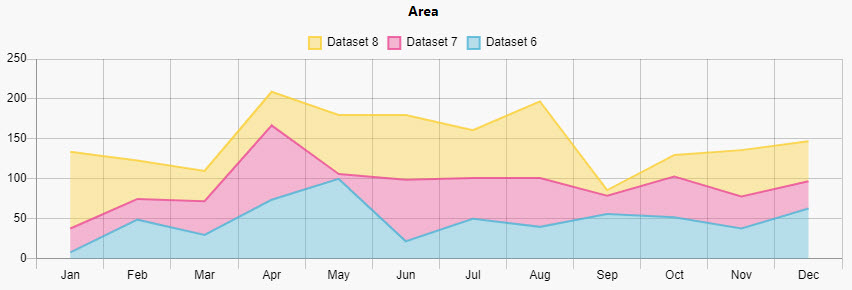 |
| Fade to Transparent | Where a fill color is employed, a transparency gradient will be applied to the layer. |
| Dash Width / Dash Gap | Use these fields to convert from a solid to a dashed line. |
Points
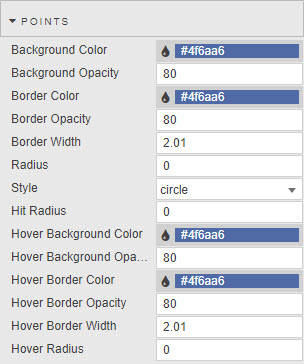
These fields are only relevant to Line Layers. Configure the properties, described in the following table.
| Field | Description |
|---|---|
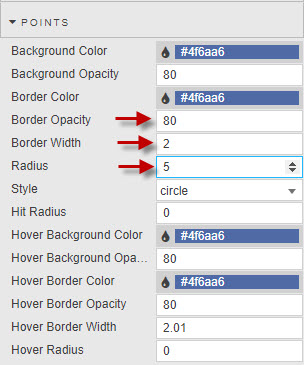
| Hit Radius / Background Color / Border Color / Border Opacity / Border Width / Radius / Background Opacity | These fields define the visual styling of line point. A PivotRadius of zero hides the point. |
| Style | Choose between cross, circle, crossRot, dash, line, rect, rectRounded, rectRot, star, triangle, downTriangle. |
| Hover Background Color / Hover Background Opacity / Hover Border Color / Hover Border Opacity / Hover Border Width / Hover Radius | These fields define visual style of line point rollover. |
Bars
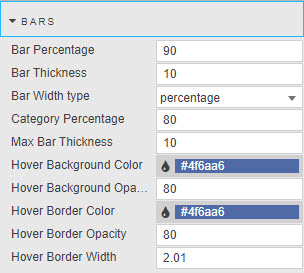
Configure the properties, described in the following table.
| Field | Description |
|---|---|
| BarPercentage | Defines width of bars, and intra-bar space when percentage is selected. |
| Bar Thickness | Defines width of bars (in pixels) when manual bar thickness is selected. |
| Bar Width Type | Select either percentage or manual bar thickness. |
| Category Percentage | Defines width of bars, and intra-bar space when percentage is selected. |
| Max Bar Thickness | Defines the maximum width of bars (in pixels) when manual bar thickness is selected. |
| Hover Background Color / Hover Background Opacity / Hover Border Color / Hover Border Opacity / Hover Border Width | These fields define the visual style of bar rollover. |
Bubbles
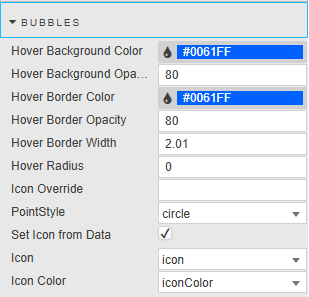
Configure the properties, as described in the following table.
| Field | Description |
|---|---|
| Hover Background Color / Hover Background Opacity / Hover Border Color / Hover Border Opacity / Hover Border Width / Hover Radius | These fields define the visual style of bubble rollover. |
| Icon Override | Define the point style from a list of icons.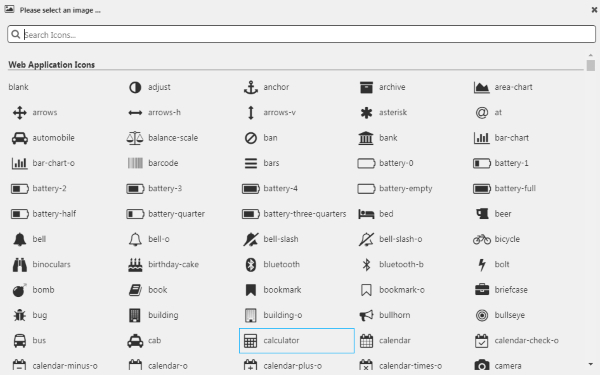 |
| PointStyle | Choose the point style; cross, circle, crossRot, dash, line, rect, rectRounded, rectRot, star, triangle.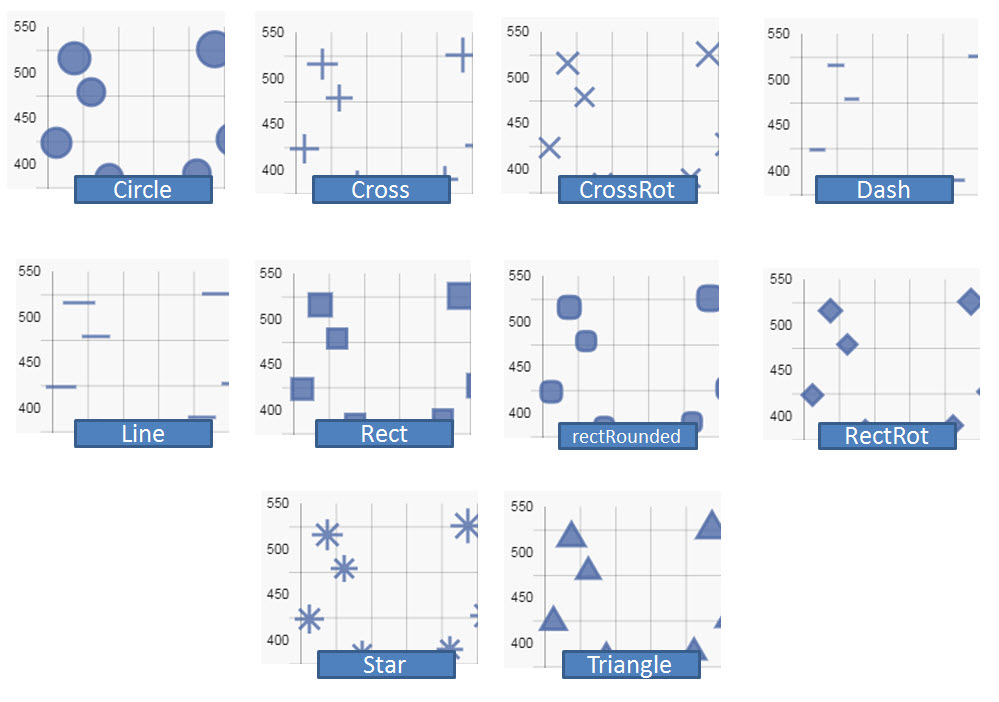 |
| Set Icon from Data | Check this to assign different icons and colors to bubbles based on their data source. This visual differentiation allows viewers to quickly identify and distinguish between multiple data layers or origins within the same chart. It is particularly useful when overlaying several datasets for comparison or correlation. When Set Icon from Data is enabled, the Icon and Icon Color properties are displayed. When icons are taken from the data source they must be specified as shown in the following example: - icon:("fa-caret-up";"fa-caret-down";"fa-caret-up"); — where fa-xxx indicates a font awesome icon.- iconColor:("green";"red";"green") |
| Icon | When Set Icon from Data is enabled, this property displays a dropdown list of columns from your datasource. Select the column representing the icon to be used. Note: Canvas Charts data icons support point styles. They don't support base64-encoded icons. |
| Icon Color | Set the color of bubbles when using a Line or Bubble layer that has Set Icon from Data enabled. Select the data source column to be used for the color of the icon. |
Box Plot
Configure the properties, described in the following table.
| Field | Description |
|---|---|
| Hover Background Color / Hover Background Opacity / Hover Border Color / Hover Border Opacity / Hover Border Width | Use these fields to define the visual style of Box plot rollover. |
| Bar Width Type | Select either percentage or manual bar thickness. |
| BarPercentage / Category Percentage | Defines width of bars, and intra-bar space when percentage is selected. |
| Bar Thickness / Max Bar Thickness | Defines the width of bar, and the maximum width of bars (in pixels) when manual bar thickness is selected. |
Violin
Configure the properties, described in the following table.
| Field | Description |
|---|---|
| Hover Background Color / Hover Background Opacity / Hover Border Color / Hover Border Opacity / Hover Border Width | These fields define the visual style of Violin rollover. |
| Bar Width Type | Select either percentage or manual bar thickness. |
| BarPercentage / Category Percentage | These fields define the width of bars, and intra-bar space when percentage is selected. |
| Bar Thickness / Max Bar Thickness | These fields define the width of bar, and the maximum width of bars (in pixels) when manual bar thickness is selected.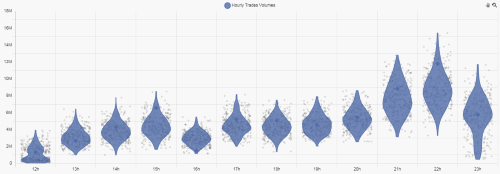 |
Candlestick
Configure the properties, described in the following table.
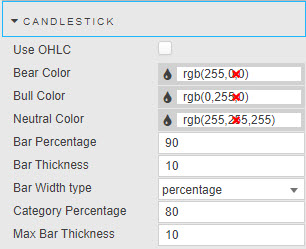
| Field | Description |
|---|---|
| Use OHLC | Sets OHLC bar or candlestick.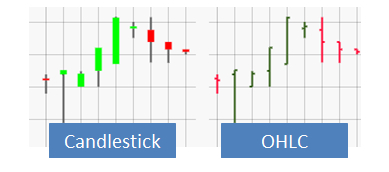 |
| Bear Color | Set color for down day candles. |
| Bull Color | Set color for up day candles. |
| Neutral Color | Set color for flat days. |
| Border Color | Set color of candlestick sides.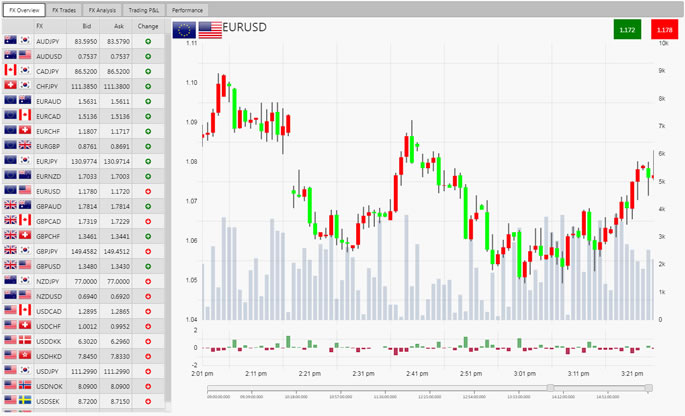 |
| Bar Width Type | Select one of the options; percentage, manual bar thickness. |
| BarPercentage / Category Percentage | These fields define the width of bars, and the intra-bar space when percentage is selected. |
| Bar Thickness / Max Bar Thickness | These fields define the width of bar, and the maximum width of bars (in pixels) when manual bar thickness is selected. |
Waterfall
Configure the properties, described in the following table.
| Field | Description |
|---|---|
| Bar Increase Color / Bar Decrease Color | These fields define the visual style of the Waterfall bar increase and decrease colors based on the previous bar value.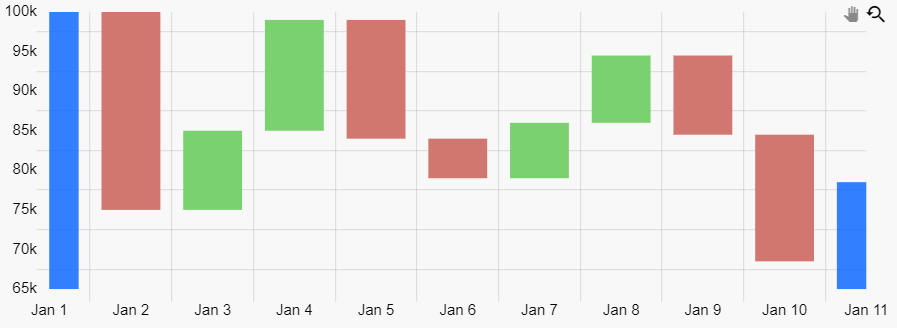 |
Regex for Data
Regular Expressions can be used to define Axes instead of a data source column. For example, a Y-axis plot to show all column data except the Date column.
Highlight Rules
Refer to Highlight Rules for details.
To display a Highlight Rule for a Canvas Line Chart, first set Radius above zero, then adjust Border Width. Highlights will only occur at points.
Action
Refer to Actions for details.
Labels
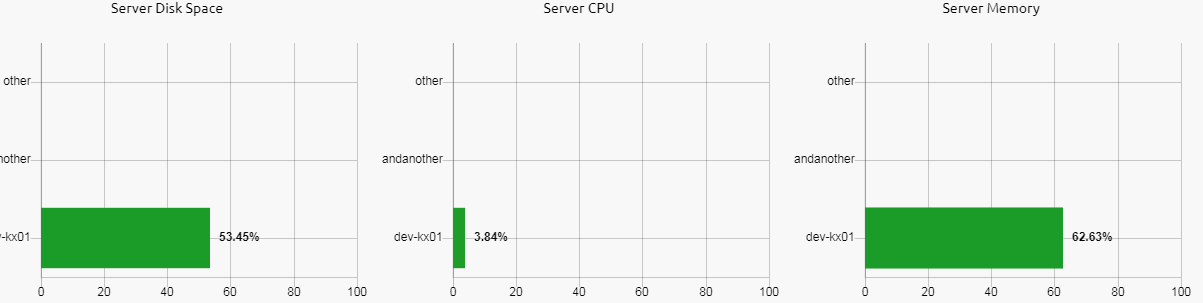
Data labels can be added to any layers to place labels next to datapoints/bars. The options are described in the following table.
| Field | Description |
|---|---|
| Enabled | Turns on or off data labels. This can be tied to viewstate. |
| Label Color | The color of Label Text. |
| Label Frequency | Labels are applied to every nth data point where n is the label frequency. |
| Align | The align option defines the position of the label relative to the anchor point position and orientation. Its value can be expressed either by a number representing the clockwise angle (in degree) or by one of the following string presets: |
| Anchor | An anchor point is defined by an orientation vector and a position on the data element. The orientation depends on the scale type (vertical, horizontal or radial). The position is calculated based on the anchor option and the orientation vector. Supported values for anchor: |
| Offset | The offset represents the distance (in pixels) to pull the label away from the anchor point. This can be specified as a single number, for example 4 or an x,y coordinate for example 4,10. |
| Label Rotation | This option controls the clockwise rotation angle (in degrees) of the label, the rotation center point being the label center. The default value is 0 (no rotation). |
| Label Show Overlap | The display option can be used to prevent overlapping labels. |
| Label Template | Define data to display. Warning! Must return a string, HTML not supported: Select data to display with the Template Editor - Basic or Advanced mode. Existing data and view states can be displayed. Handlebar helpers can be used for formats. 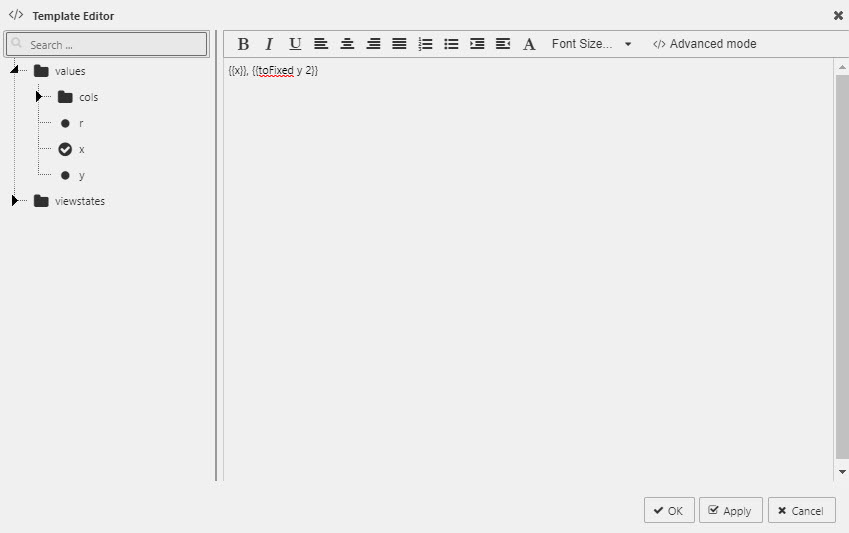 |
| Font -> Bold | Makes Label bold. |
| Font -> Size | Adjust font size in px. |
X Axes
Configure properties for the X Axes. These properties vary depending on the axis type selected.
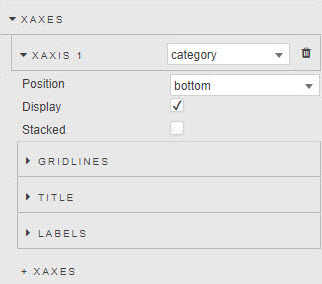
- Configure the XAxes common properties; XAxis n, Gridlines, Title and Labels.
- If the x axis type is
linearorlogarithmicconfigure the Range properties. - If the x axis type is
timeconfigure the Time properties. - Click + XAXES to add additional X-axis labels.
XAxis n
Select the axes type from the drop-down list; category, linear, logarithmic and time. The available properties are contingent on the selected axis type.
| Field | Description |
|---|---|
| Display | Check to display X-axis labels. |
| Stacked | When using a bar chart, bars will be stacked.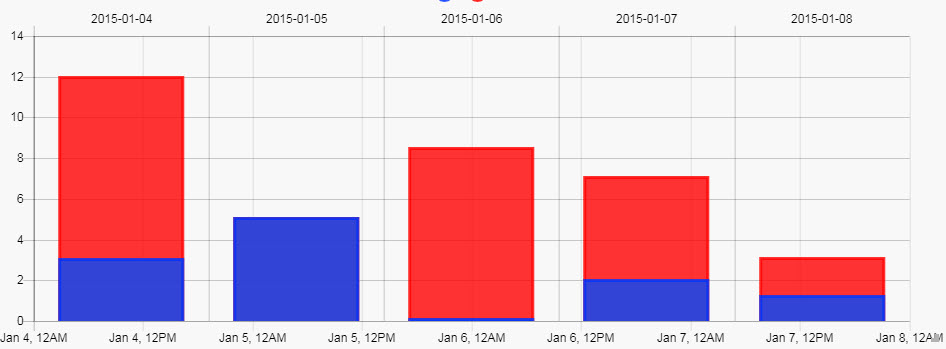 |
| Position | Defines the axes position; select between top and bottom of the chart area for X axes. |
| Center | For linear selection, this centers the axis at a defined value. |
Gridlines
Configure the properties, described in the following table.
| Field | Description |
|---|---|
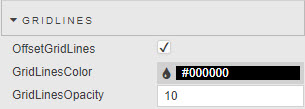
| OffsetGridLines | Check to shift charted category data from center alignment to left-alignment. |
| GridLinesColor / GridLinesOpacity | These fields define the visual style of chart gridlines; opacity has a value between 0 (transparent) and 100 (opaque). |
Title
Configure the properties, described in the following table.
| Field | Description |
|---|---|
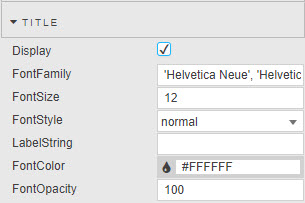
| Display | Check to display X-axis description label. |
| LabelString | Descriptive label for X axis. |
| FontFamily / FontSize / FontStyle / FontColor / Font Opacity | These fields set font styling parameters for X-axis label. Opacity has a value between 0 (transparent) and 100 (opaque). |
Labels
Configure the X-axis tick labels properties, described in the following table.
| Field | Description |
|---|---|
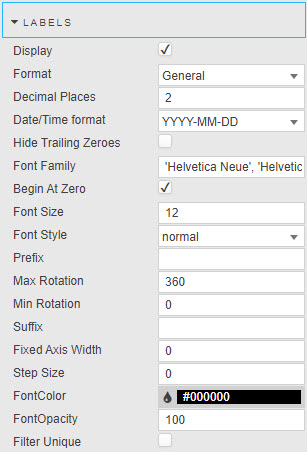
| Display | Check to display X-axis labels. |
| Begin at Zero | X-axis includes zero when enabled. If disabled the chart fits the available data. This is available for non-time axis selections. |
| Reverse | Reverses the order of chart axis. This is available for linear and logarithmic axis selections. |
| Offset | For linear and time selection, this adds a buffer to the start and end of chart to display in full, the first and last data point. |
| Hide Trailing Zeroes | Do not display zeroes at the end of numeric data. Available for linear and logarithmic axis selections. |
| Format | Format of Y axis: General, Number, Smart Number, or Datetime. Available for non-time axis selections. |
| Decimal Places | Precision of numeric data for Number and Smart Number. Available for non-time axis selections. |
| Date/Time Format | Where Datetime is selected, define time format to use: YYYY-MM-DD, YYYY-MMM-DD, YYYY-MMMM-DD, YYYY-MM, YYY-MMM, YYYY-MMMM, MMM-DD, MMM Do, YYY-MM-DD HH:mm:ss, YYYY-MM-DD hh:mm:ss, YYYY-MM-DD kk:mm:ss, hh:mm:ss, kk:mm:ss, hh:mm:ss:SS, mm:ss or mm:ss:SS. Available for non-time axis selections. |
| Min Rotation / Max Rotation | These fields adjust the alignment of tick labels. |
| Fixed Axis Width | Defines distance between Canvas Chart component edge and axis. Useful when aligning neighboring charts. |
| Step Size | Sets the grid-line distance between tick labels (numeric). |
| Prefix / Suffix | These set the character text to be added before or after each label. For example, a $ prefix or a % suffix. Available for non-time axis selections. |
| Font Family / Font Size / Font Style / Font Color / Font Opacity | Use these fields to set the font for use in axis labels. Choose from; normal, italic, oblique, initial and inherit. Opacity is a value between 0 (transparent) and 100 (opaque). |
| Filter Unique | Removes duplicate labels when present in the data for category data. |
Time Formats
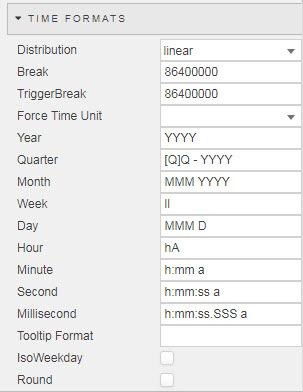
These properties only apply when X-Axis is set to time. Configure the properties, described in the following table.
| Field | Description |
|---|---|
| Distribution / Break / TriggerBreak | Choose the distribution type as either; Smart, Linear or Series definition. Distribution collapses time to remove null time intervals, for example between marked trading hours. |
| Force Time Unit | Select from year, quarter, month, week, day, hour, minute, second, millisecond, as defined in the following parameters. |
| Tooltip Format | This is currently not in use as it has been replaced by aforementioned options. |
| IsoWeekday | Use ISO weekday format for X-axis time display. |
| Round | Round time to the nearest Force Time Unit scale. |
| Show Major units | If true, major ticks are generated. Each major tick represents a new parent time period (based on the child minor ticks). Minor ticks are shown by default. |
Range
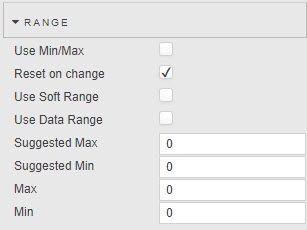
These properties are only available for linear and logarithmic axis types. Configure the data range properties, described in the following table.
| Field | Description |
|---|---|
| Use Min/Max | Defines axis range by minimum and maximum values in plotted data. |
| Reset on Change | When Min/Max is set as a boolean control and Soft Range is enabled, will re-scale axis when Min/Max is true. |
| Use Soft Range | Best fit within a suggested Min and Max value; e.g. for dynamic range charts. |
| Use Data Range | Use existing data to define Min/Max range. Uncheck to manually set. |
| Suggested Min / Suggested Max | Best fits chart by Suggested Min/Max values. |
| Min / Max | Define minimum and maximum values to chart. Warning! Hard Range: Charted data outside of the set Min and Max range is not displayed. If all data falls outside the set range, the chart will be blank. |
Y Axes
Configure properties for the Y Axes. These properties vary depending on the axis type selected.
- Configure the Y Axes common properties; YAxis, Gridlines, Title, and Gridlines.
- For y axes
linear,logarithmictype specify the Range properties. - Click + YAXES to add additional Y-axis labels.
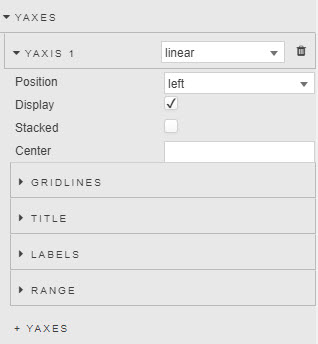
YAxis n
Select the axes type from the drop-down and choose from; category, linear, logarithmic and time. The properties displayed are contingent on the selected axis type.
| Field | Description |
|---|---|
| Display | Check control to display Y-axis labels. |
| Stacked | Check control to parse bars in a Y-axis stack.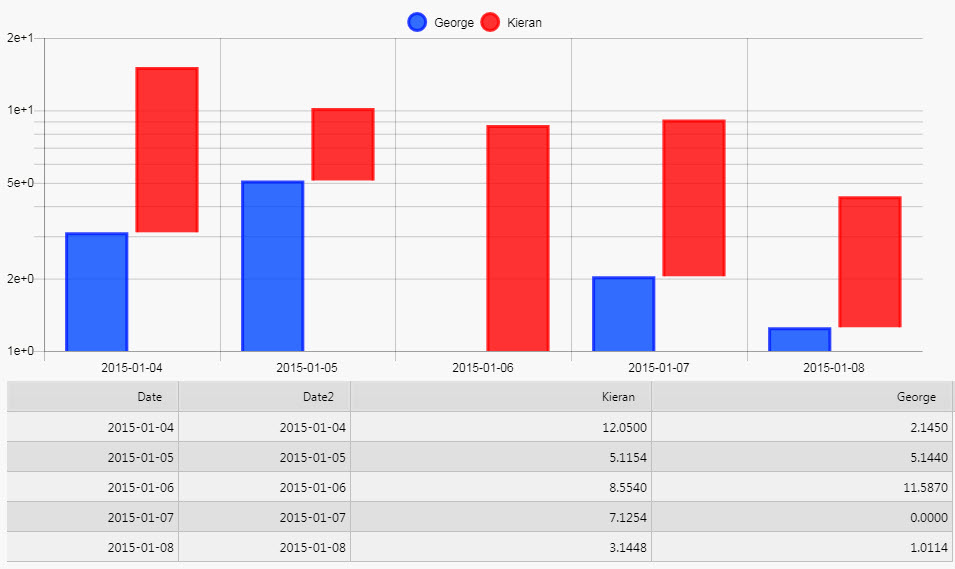 Note on Stacked Y-axis with Line Fill: Stacking stacks lines in numeric order. Line 1 is the first (highest) line down to the last and lowest line, closest to origin X-axis. Line fill changes accordingly. 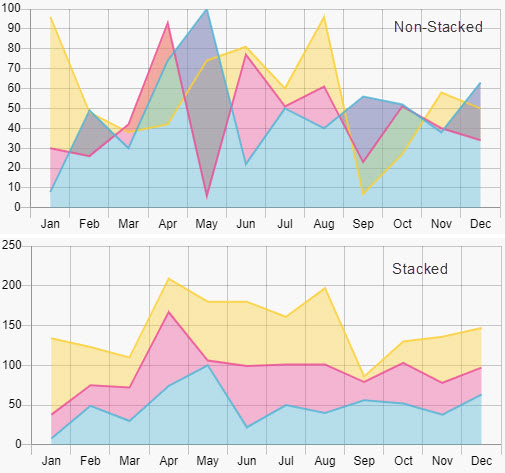 |
| Position | Position Y-axis label to the left or right of chart area. |
| Center | Set center value for linear Y-axis. |
Gridlines
Configure the properties, described in the following table.
| Field | Description |
|---|---|
| OffsetGridLines | Shift charted category data from center alignment to left-alignment. |
| GridLinesColor / GridLinesOpacity | Define the visual style of gridlines. |
Title
Configure the properties, described in the following table.
| Field | Description |
|---|---|
| Display | Check to display X-axis description label. |
| LabelString | Label description. |
| Font Family / Font Size / Font Style / Font Color / Font Opacity | Select the font for use in axis labels. Choice of font style between normal, italic, oblique, initial and inherit. Opacity has a value between 0 (transparent) and 100 (opaque). |
Labels
Configure the properties, described in the following table.
| Field | Description |
|---|---|
| Display | Display Y-axis labels. |
| Format | Format of Y axis: General, Number, Smart Number, or Datetime. Available for non-time axis selections. |
| Decimal Places | Precision of numeric data for Number and Smart Number. Available for non-time axis selections. |
| Date/Time Format | Where Datetime is selected, define time format to use: YYYY-MM-DD, YYYY-MMM-DD, YYYY-MMMM-DD, YYYY-MM, YYY-MMM, YYYY-MMMM, MMM-DD, MMM Do, YYY-MM-DD HH:mm:ss, YYYY-MM-DD hh:mm:ss, YYYY-MM-DD kk:mm:ss, hh:mm:ss, kk:mm:ss, hh:mm:ss:SS, mm:ss or mm:ss:SS. Available for non-time axis selections. |
| Hide Trailing Zeroes | Do not display zeroes at the end of numeric data. |
| Begin at Zero | Axis data starts at zero. Available for non-time axis selections. |
| Reverse | Reverse order of labels from bottom-up to top-down. Available for linear and logarithmic axis selections.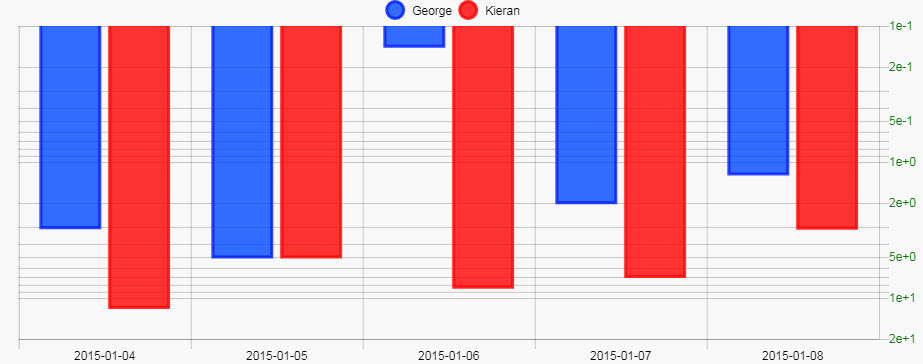 |
| Offset | For linear and time selection, adds buffer to start and end of chart to display in full, the first and last data point. |
| Min Rotation | — |
| Max Rotation | Rotation of y-axis labels. |
| Fixed Axis Width | Distance between Y axis and the edge of the component (used when making room for Y-axis labels). |
| Step Size | Sets the grid-line distance between tick labels (numeric). |
| Prefix / Suffix | Specify the character text to be added before or after each label. For example; a $ prefix or a % suffix. Available for non-time axis selections. |
| Font Family / Font Size / Font Style / Font Color / Font Opacity | Specify the font qualities; style, size, color and opacity for the axis label. |
Range
These properties are only available for linear and logarithmic axis types. Configure the properties, described in the following table.
Use data boundaries to define the X-axis range.
| Field | Description |
|---|---|
| Use Min/Max | Defines the axis range by minimum and maximum values in plotted data. |
| Reset on Change | When Min/Max is set as a boolean control and Soft Range is enabled, the axis re-scales when Min/Max is true. |
| Use Soft Range | Best fit within a suggested Min and Max value, for example; for dynamic range charts. |
| Use Data Range | Use existing data to define Min/Max range. Uncheck to manually set. |
| Suggested Min / Suggested Max | Best-fits the chart by the Suggested Min/Max values. |
| Min / Max | Define the minimum and maximum values to chart. Warning! Hard Range: Charted data outside of the set Min and Max range is not displayed. If all data falls outside the set range, the chart is blank. |
Animations
Configure transition animations to be applied when switching data in the chart. Configure the properties in the following table.
| Field | Description |
|---|---|
| Enable | Check to enable animations. |
| Hover Events | By default the chart highlights all bubbles, points and bars that lie along the same x-axis. You can toggle this setting to disable highlighting on the chart. Crosshairs and Tooltips still function the same. This option must be checked in charts with large amounts of data, as it decreases the number of times the chart has to update while hovering. |
| Interaction Mode | Hovering Mode gives you the option of changing the way the chart highlights points. The options are: - x — By default, points with the same x value are also highlighted.- y — Points with the same y value get highlighted.- point — Only points you are hovering over are highlighted.- dataset — The entire dataset is highlighted. |
Overlay
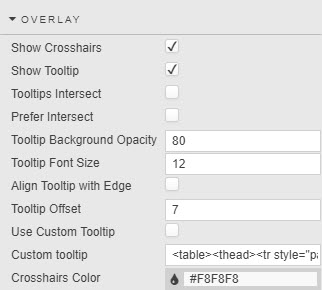
Configure the Overlay properties, which define the use of tooltips and their positioning.
| Field | Description |
|---|---|
| Show Crosshairs | Check to show crosshair on chart. |
| Show Tooltip | Check to show tooltip on chart. |
| Tooltips Intersect | When intersect is selected, only bubbles, points or bars that are hovered over are shown in a potential tooltip. Lines do not count as points and will not trigger a tooltip, therefore line points must have a radius in order to be hoverable. Note: Due to limitation of the chart engine, highlight always appears based on the x-axis location. |
| Tooltips Prefer Intersect | When tooltip prefer intersect is selected, the tooltip will try populate itself with things that are being hovered on. If nothing is being hovered on, the tooltip will populate with items in the closest x-value. Set visual criteria for tooltip; intersect places tooltip at crosshair. |
| Crosshairs Color | Define the color for crosshair line. |
| Tooltip Background Opacity | Define the opacity of the Tooltip Background. |
| Tooltip Font Size | Set the fontsize in px of the Tooltip Text. |
| Align Tooltip with Edge | Enable to position tooltip along left chart axis. |
| Use Custom Tooltip | Check to enable use of a custom Tooltip, which is specified in the following field. |
| Custom Tooltip | Examples:html<br><table><br> <thead><br> <tr style="padding-right: 10px;"><br> <th> {{xLabel}} </th><br> <th/><br> </tr><br> </thead><br> {{#each points}}<br> <tr><br> <td><br> <svg height="12" width="12"><br> <rect height="12" width="12"<br> style="fill: {{colors.backgroundColor}};<br> stroke-width: 3; stroke: {{colors.borderColor}};" /><br> </svg><br> {{layerName}}:<br> </td><br> <td style="padding-right: 10px; text-align: left;"><br> {{layerData}}<br> </td><br> </tr><br> {{/each}}<br></table><br>To group together layers with the same name, modify the template as follows: html<br><table><br> <thead><br> <tr style="padding-right: 10px;"><br> <th>{{ xLabel }}</th><br> </tr><br> </thead><br> {{#groupByLayer}}<br> {{#each layers }}<br> <tr><br> <td><br> <svg height="12" width="12"><br> <rect height="12" width="12"<br> style="fill: {{colors.backgroundColor}};<br> stroke-width:3; stroke: {{colors.borderColor}};"> /><br> </svg><br> {{ layerName }}:<br> </td><br> {{#each layerPoints}}<br> <td style="text-align: left;"><br> {{data}}<br> </td><br> {{/each}}<br> </tr><br> {{/each}}<br> {{/groupByLayer}}<br></table><br>To display selected layers, set the names attribute in #filterLayers to a comma-separated list of layers to display; for example, to show Layer 1 and Layer 3 use:html<br><table><br> <thead><br> <tr style="padding-right: 10px;"><br> <th> {{xLabel}} </th><br> <th/><br> </tr><br> </thead><br> {{#filterLayers names="Layer 1,Layer 3"}}<br> {{#each points}}<br> <tr><br> ...<br> </tr><br> {{/each}}<br> {{/filterLayers}}<br></table><br> |
| Crosshairs Color | Define hex color code reference for crosshair color. |
Refer to Templates for further information on configuring templates.
Zoom & Pan
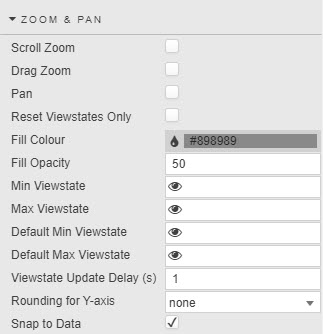
Configure the properties as defined in the following table.
| Field | Description |
|---|---|
| Scroll Zoom / Drag Zoom / Pan | Check to enable respective behaviors. Pan and Drag Zoom are both triggered by mouse movement, therefore icons in the top right corner of the chart appear allowing you to toggle between the two. Scroll zoom is activated with mouse wheel movement. Note: A pan is typically done after a zoom when there is data 'off screen' to see. To pan, click on the hand icon in the top-right of the chart. 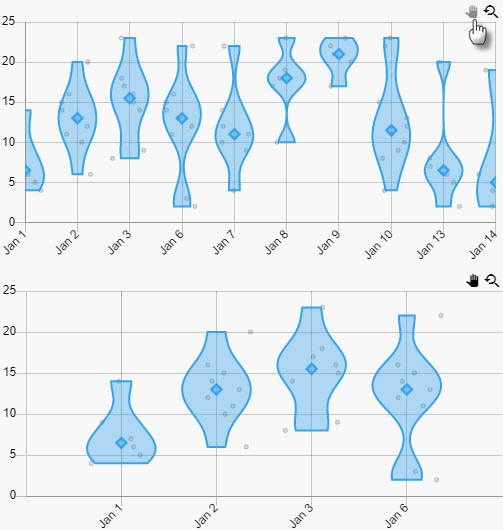 |
| Reset Viewstates Only | Check to reset only Min/Max Viewstates — this prevents the values of the viewstates being passed into the chart. This can be used for server side zooming, where additional aggregation occurs on the server to return the correct resolution of data. |
| Fill color / Fill Opacity | Set the color and opacity of highlight zoom region. |
| Min Viewstate / Max Viewstate | Specify View State Parameters for range values made on adjustment in the chart. |
| Default Min Viewstate / Default Max Viewstate | Set the default View State Parameters min and max range for when a chart loads. |
| Viewstate Update Delay | Set the length of time (in seconds) between when an adjustment in chart viewable area is then passed to Min/Max Viewstates. This only occurs for panning and scroll zooming; drag zoom values are passed to the viewstates instantaneously. |
| Snap to Data | When set, the selection moves to the nearest valid data point. |
| Rounding for Y-axis | Select none, nice or min/max. Best fits y-axis scale according to data range of zoomed data. |
Legend
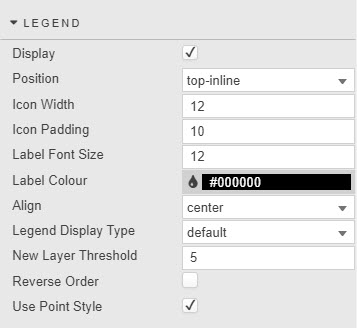
Configure the properties, to define the data legend labels, as per the following table.
| Field | Description |
|---|---|
| Display | Toggle to display chart labels. |
| Position | Define where Legends are set: bottom, top, left, right or top-inline. |
| Icon Width / Icon Padding | Set the parameters of the area used to display Legends; width controls point size. |
| Label color / Label Font Size | Define the style of the Legend text. |
| Align | Set the position of Legends, choose between start, center or end. |
| Legend Display Type | Select between default, scroll, layer group or layer new line; layer groups and lines aggregate legends where wild card is used in the layer. |
| New Layer Threshold | Define the number of items to display per layer new line of Legend Display Type. |
| Reverse Order | Reverses order of labels from left-to-right to right-to-left. |
| Use Point Style | Enable use of chart points or use block color. |
Legends toggle display
Users can click on legends to toggle display of the corresponding chart data. Hidden data is marked with strikethrough on its legend.
File Export
Refer to Export for details.
Style, Format, Margins
Refer to Style for details.