Action Tracker
KX Dashboards Platform
This page applies to KX Dashboards on Platform and is not applicable to KX Dashboards Direct deployments.
This page describes how to configure the Action Tracker component.
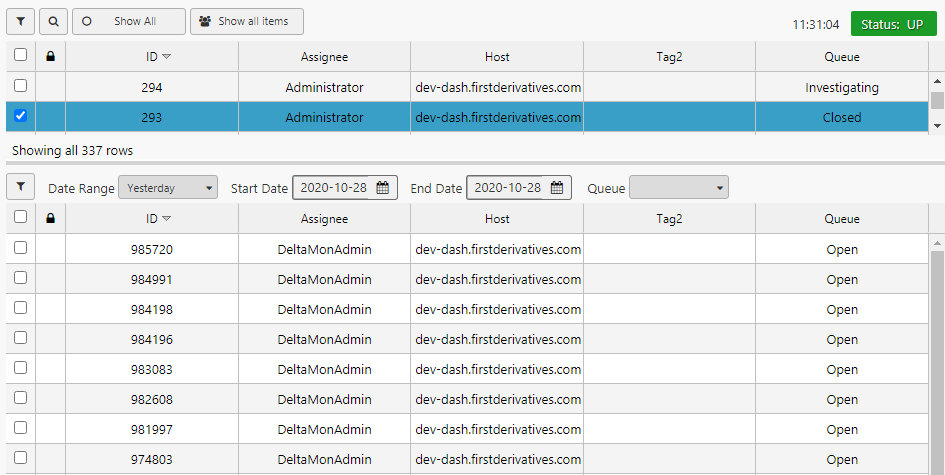
The Action Tracker is a self-contained alerting application used by KX Stream. The following screenshot illustrates an Action Tracker with horizontal layout.
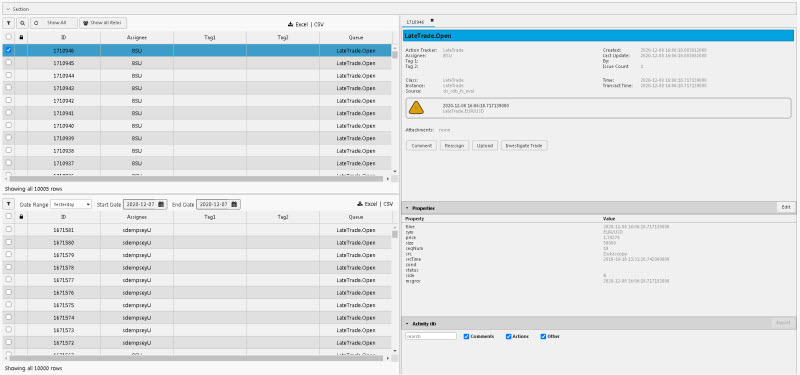
Set Up an Action Tracker
To set up an Action Tracker, click-and-drag the component into the workspace and configure the Action Tracker properties described in the next section.
Action Tracker Properties
The following sections provides details on how to configure the properties of the Action Tracker component.
Basics
Open the Basics properties on the right and configure the properties described in the following table.
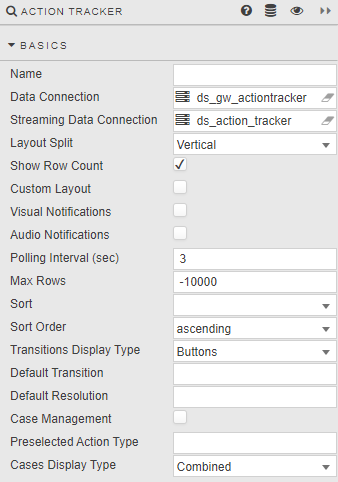
| Field | Description |
|---|---|
| Name | A name for the component provided by the user. |
| Data Connection/Streaming Data Connection | Refer to Data sources for details about setting up a connection. Note: Data Connection: The connection is a very specific alert gateway process, querying real-time and historical alerts. Alerts are published into a fixed table dxATAlert and the displayed table is kept in dxATItemCurrent. A Data Source is not needed as all modification of the view lies within KX Dashboards.You can tick/untick the visible columns in the Style editor. There are some miscellaneous columns ( tag1, tag2, etc.) that you can populate freely and then change the column header within KX Dashboards if you want more customised information in your alert table. |
| Layout split | Select either Vertical or Horizontal. |
| Show Row Count | Displays the number of data rows. |
| Custom Layout | Select display columns from available data columns. Hidden columns are excluded from the list of available columns. |
| Visual Notifications | Check for pop-up notification when a new item is added. |
| Audio Notifications | Check for aural notification when a new item is added. |
| Polling Interval (sec) | Set time check for new items. |
| Max Rows | Set maximum display rows of items; default value of "0" shows all rows. |
| Transitions Display Type | Set the way transitions are displayed. There are three options, as illustrated below:Buttons Grouped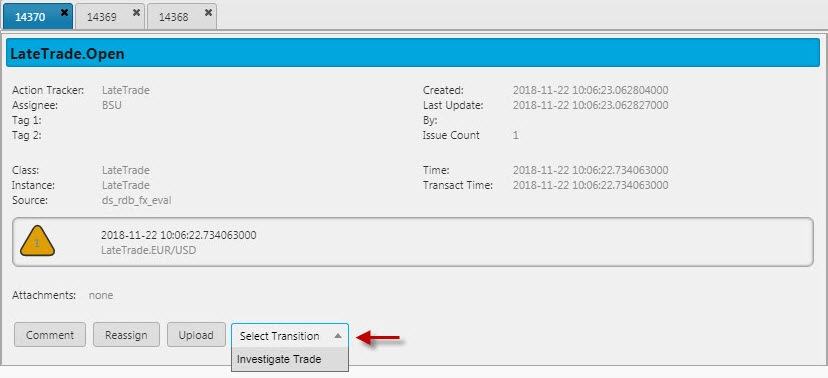 Popup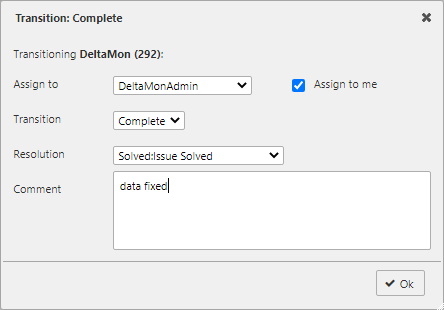 |
| Default Transition/Default Resolution | The value to be selected (if available) when selecting transition. |
| Case Management | When enabled, users can create an action case. Actions are defined by Action Type Cases. Users can then configure the individual action. The name of the action button is controlled by the Case Button Text property. 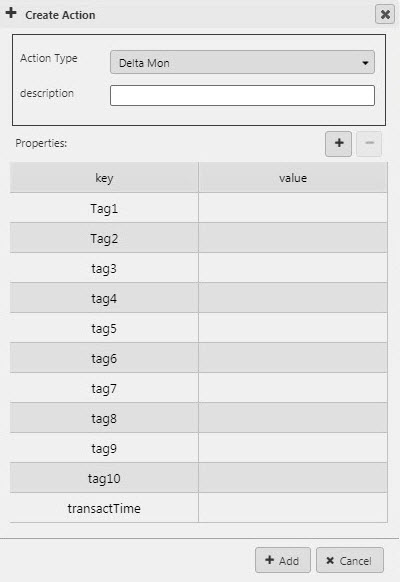 !!! note "Case configuration" Ensure cases are specified in Action Type Cases. |
| Preselected Action Type | Selected Action Type value when creating a case. |
| Cases Display Type | Sets the way alerts and cases are displayed: - Combined — Data Grid displays both alerts and cases.- Tabs — Alerts and cases are displayed in separate tabs. When selected, the Selected Tab option will be available. |
| Selected Tab | This determines the default Tab to be displayed when the Action Tracker is launched. This property is only available when the Cases Display Type property is set to a value of Tabs. - Alerts — Displays Alerts tab when Action Tracker is launched. This is the default.- Cases — Displays Cases tab when Action Tracker is launched. |
Columns
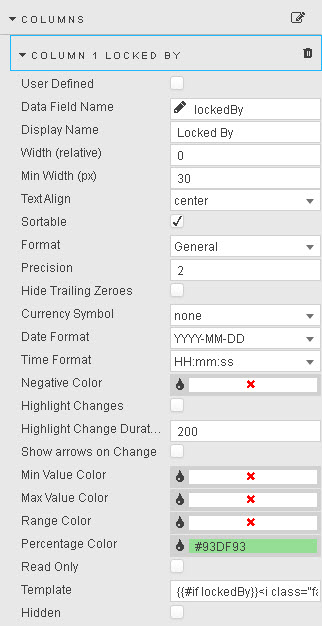
Configure the properties, described in the following table.
| Field | Description |
|---|---|
| User Defined | When checked, the selected column will remain in the Data Grid if the selected column variable is removed from the query. A user-defined query is effectively a 'lock' on the column. !!! warning "Missing User Defined column variable" If the User Defined column variable is missing in the query, the User Defined column shows as an empty column in the Data Grid. |
| Data Field Name | A Data Source column or a wildcard column.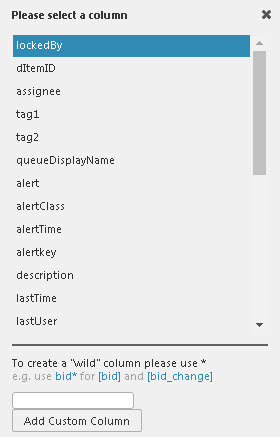 When using a wildcard, all dynamic columns derived from a query will use the wildcard column format. The wildcard can be used in conjunction with text headers; e.g. bid* for both bid and bid_update.Select the Data Field Name from data columns in the Data Source query. Additional columns can be added, including wildcard columns. If a wildcard is used, any undefined columns will adopt the properties of the wildcard column; e.g. data alignment, decimal precision etc. |
| Display Name |  |
| Width (relative) | Relative to the width of the Data Grid. The scale is contingent on the values of each column; for example, columns with a relative width of 20, 10, 5, 1 will scale at a column width of 55% (i.e. 20/(20+10+5+1)), 28%, 14% and 3%. Relative columns will scale according to the browser size. 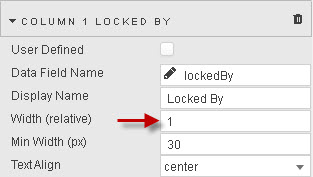  |
| Minimum Width (pixels) | Minimum width in pixels for a column. Columns with this set will scale according to browser size. |
| Text Align | Horizontal alignment of values within cells. |
| Sortable | When checked, users clicking on a column header will toggle between ascending and descending sort.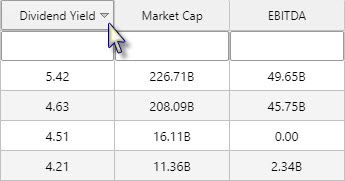 |
| Format | Format for column data. If DateTime is selected, then either a Date Format or Time Format must also be selected. |
| Precision | The number of decimal places to display for numeric data. |
| Hide Trailing Zeroes | When checked, suppresses the display of trailing zeroes. |
| Currency Symbol | Select the currency symbol to be used. The following example shows columns with currency symbol prefixes.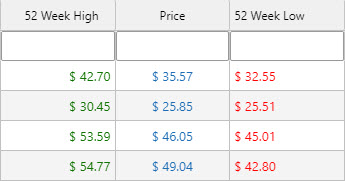 |
| Date and time formats | Where Format is DateTime, >Date and/or >Time specify the display format. Date Format and Time Format combine to format a column of date time data. 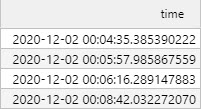 |
| Negative Color | Define color for negative values. |
| Highlight Changes / Highlight Change Duration / Show arrows on Change | When column cell value changes, these properties control how changes are highlighted. When this is enabled upward changes are highlighted green and/or an up arrow (if Show arrows on Change is set) and down in red and/or down arrow. |
| Min Value Color | A color for a border highlight around the lowest value in the column.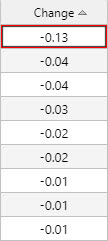 |
| Max Value Color | A color for a border highlight around the highest value in the column.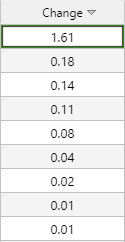 |
| Range Color | A color to be applied as a value gradient across all cells in a column.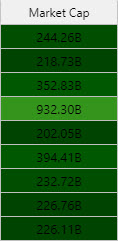 |
| Percentage Color | A color to be applied as a mini-bar, where Format is Percentage.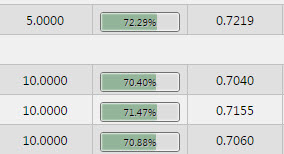 !!! tip "View state parameters as colors" A view state parameter can be used for the following properties; Min Color, Max Color, Range Color and Percentage Color. To assign a View State Parameter, roll over the end of the input bar until  appears, then click to assign. appears, then click to assign. |
| Read Only | When checked, the column cannot be edited. |
| Template | Refer to Templates for details. |
| Hidden | When checked, hides column. |
Selection & Routing
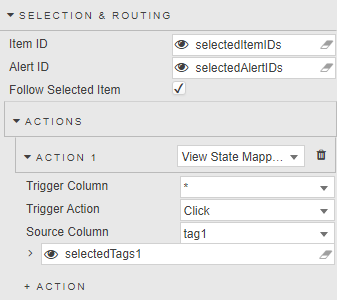
Configure the properties, described in the following table.
| Field | Description |
|---|---|
| Item ID | A View State Parameter of type list; supports multiple item selection in tabs. !!! note "New Action Tracker Instance" Ensure view state parameter is assigned. |
| Alert ID | A View State Parameter of type GUID; populated with selected event content from Alerts dialog.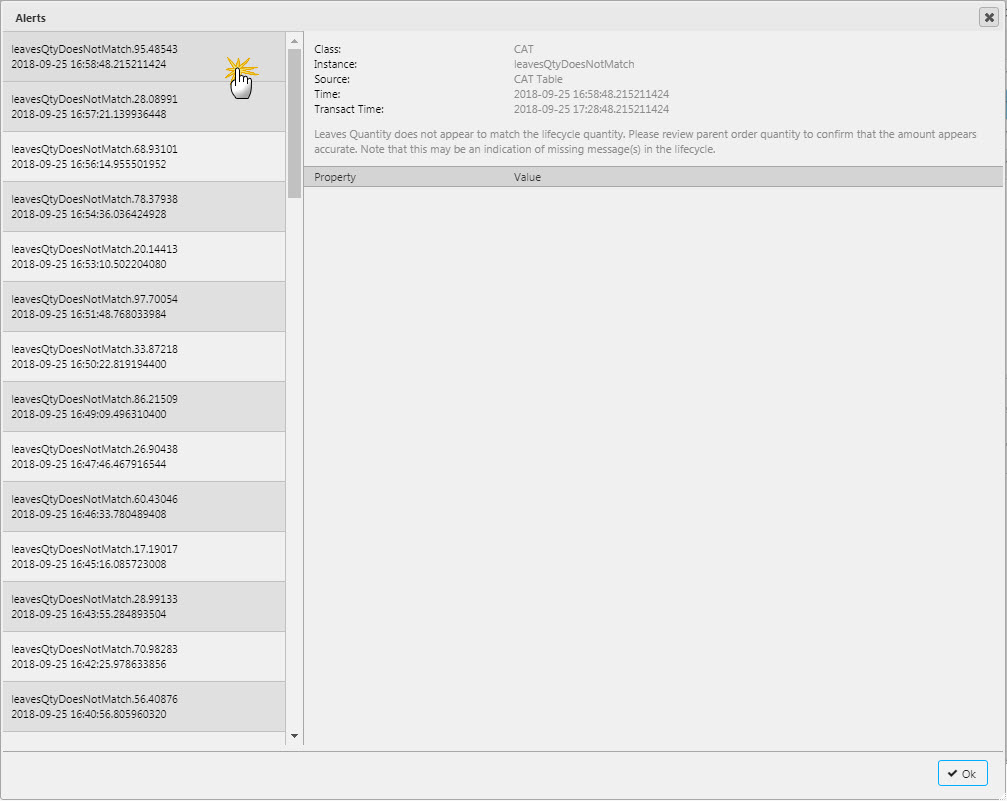 !!! note "New Action Tracker Instance" Ensure view state parameter is assigned. |
| Follow Selected Value | Focuses grid selection to ItemID. |
Action
Refer to Actions for details.
File Export
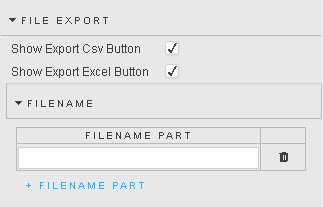
Configure the properties, described in the following table.
| Field | Description |
|---|---|
| Show Export CSV Button | When checked, this enables export of content as CSV. |
| Show Export Excel Button | When checked, this enables export of content in Excel format. |
| Filename | The filename for export of CSV/Excel files. |
Filters
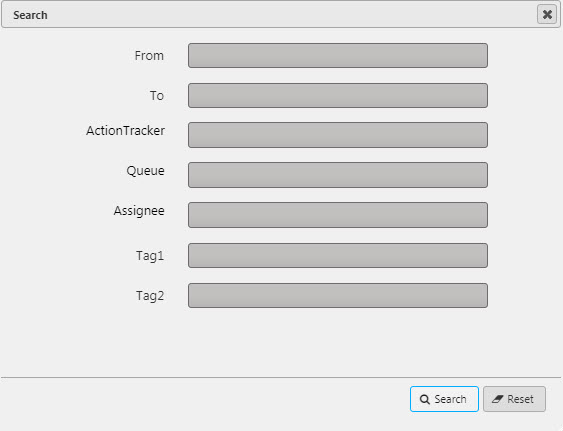
This defines which of the Action Tracker data columns (visible and hidden) are available to the user in Search. Values can be mapped to View State Parameters.

Filter
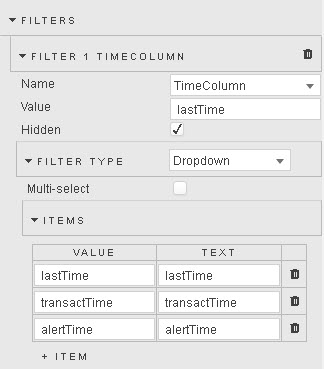
Define the characteristics for each search filter.
| Field | Description |
|---|---|
| Name | The name of the selected Action Tracker data column. |
| Value | Set value; for example, if using time use "lastTime". Can be linked to a View State Parameter. |
| Hidden | Filter not available to user. |
| Filter Type | Sets the input; Text, Dropdown and Data Source.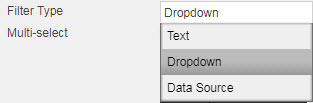 If using a Data Source remember to assign Value and Text variables for the dropdown selection.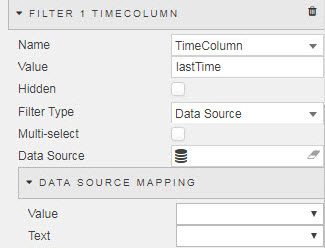 |
| Multi-select | Allows for multiple input selections. |
History
Configure the properties, described in the following table. These properties are used to display historical alerts in separate panel.
| Field | Description |
|---|---|
| Show History | When checked, enables historical panel. |
| Row Height | Set the row height. |
| Start Date/End Date | Date range to be applied at startup, use rolling View State Parameter of type Date (e.g. T-1). |
Overrides
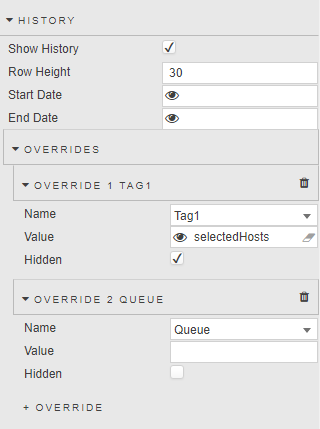
Filters applied to the main grid are also by default applied to the historical grid. This section helps to override those filters.
| Field | Description |
|---|---|
| Name | Selected Action Tracker data column of filter to override. |
| Value | Set value; for example, keep value empty for "Assignee" to not apply the filter for assignee column (that is used in main grid). Value can be linked to a View State Parameter ("Tag1"-value can be bound to a list of values selected and set via "Actions" in main grid). |
| Hidden | Filter override not displayed. |
Highlight Rules
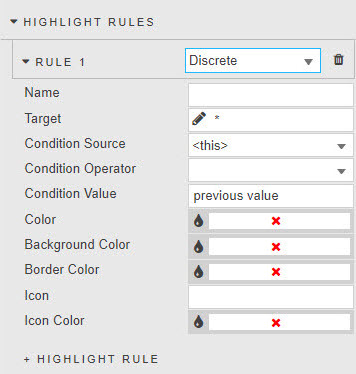
These properties are used to apply color updates to notify users of changes in grid values, as shown below.

Configure the properties, described in the following table.
| Field | Description |
|---|---|
| Name | Name of the rule. |
| Target | The grid column to which the rule will apply. It can be any column; it does not have to be the Condition Source. |
| Condition Source/Condition Operator | Data from the Condition Source (a Data Source column) is tested with the Condition Operator against the Condition Value – typically previous value.The Condition Operator may be a numeric comparison, but can also test for strings in text values. |
| Color | The cell text color when the Condition rule is true. |
| Background Color | The cell background color when the Condition rule is true. |
| Border Color | The cell border-color when the Condition rule is true. |
| Icon | An icon to appear when rule is true. |
| Icon Color | The color for the icon (if used) when rule is true. |
Action Type Cases
Users can create individual actions, which can be (optionally) associated/linked with other actions to form a case. Action creation requires Case Management in the Basics properties to be enabled. The Case Management UI calls dxATCreateItem with 3 parameters, these are:
- The Action Tracker
- Action Tracker Parameter Dictionary
-
Action Tracker Payload Dictionary (that is, any new columns added to the properties section)
Example:
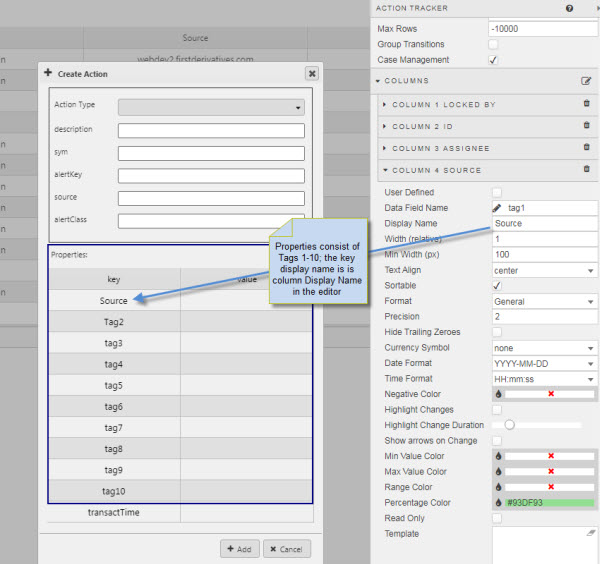
If the following parameters are specified in the UI: description, sym, alertkey, source, alertClass, tag1, tag2 and tag10, then the dictionary key look like:
`sym`alertkey`source`description`alertClass`tag1`tag2`tag10
Create a Case
-
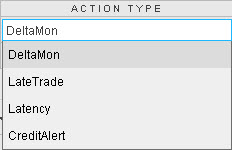
Select an Action Type from the dropdown. This is a list of available Action Trackers and is the only required parameter.
-
Standard editable actions are:
descriptionsymalertkeysourcealertClass, but these are not required parameters. -
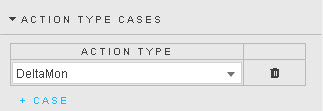
Add each supported Action Type for a case. More than one Action Tracker can be added.
-
Click
Create Action(or the name defined in the Case Button Text property) to add an action.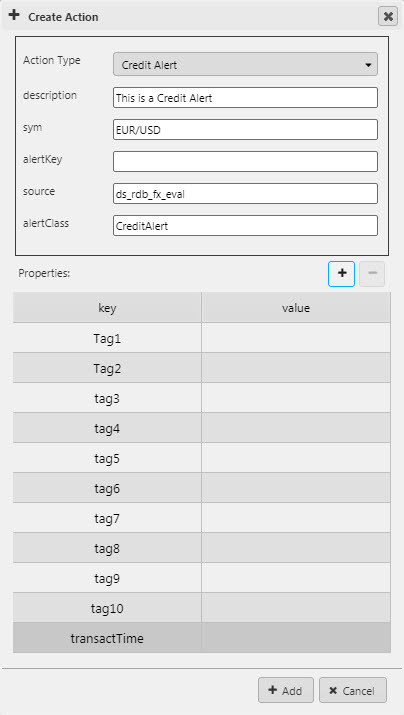
-
Click + to add additional properties to a case. Added properties appear in the case property panel.

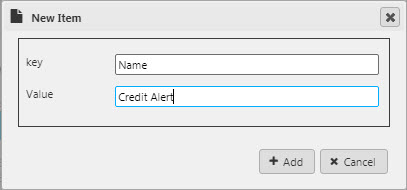
New column items are added to
dxATAlert.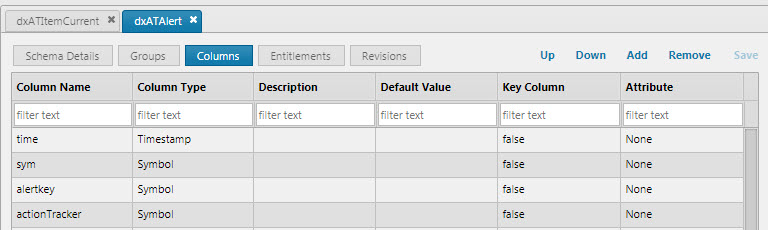
Tags can be used and renamed in Dashboard Column Properties.
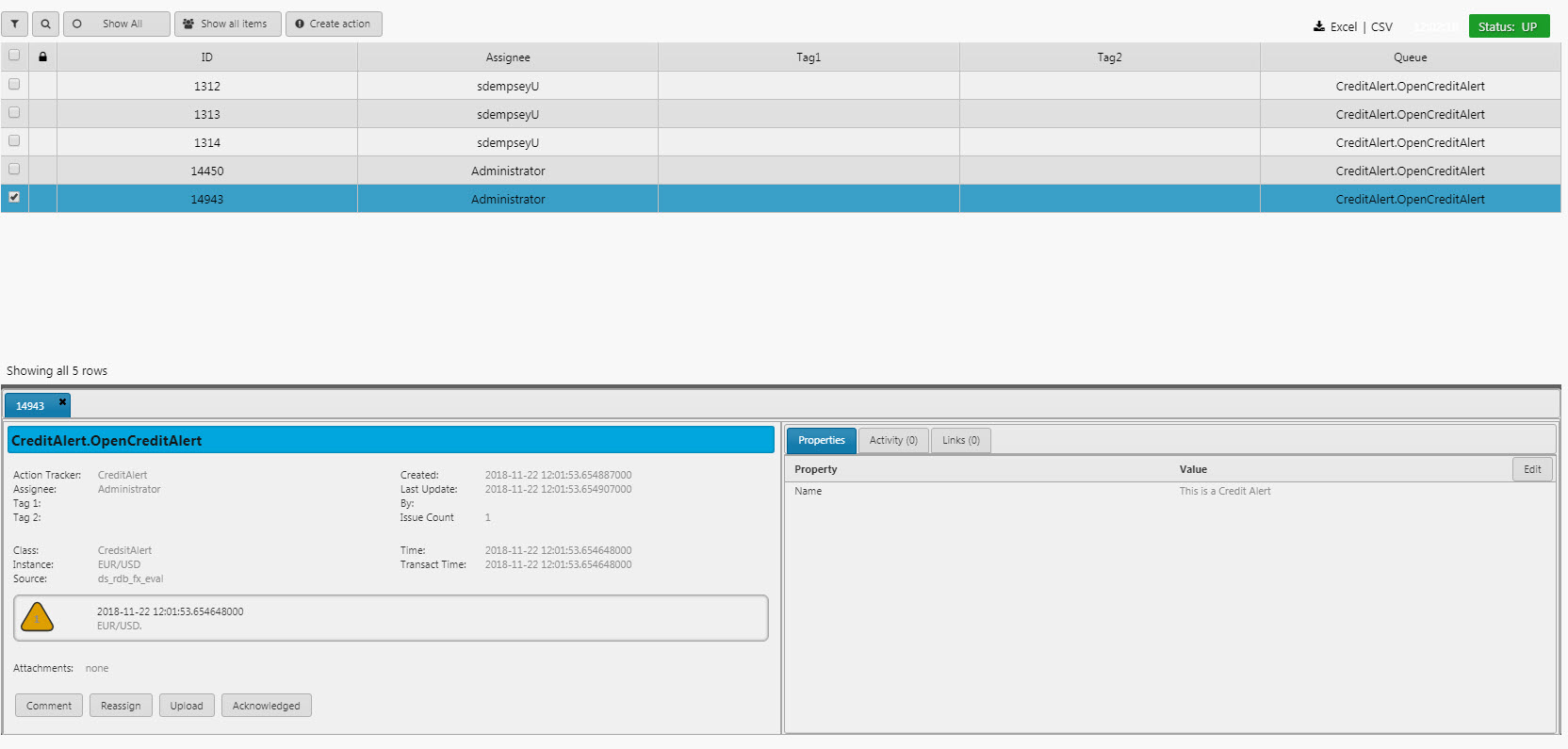
View action (use filters if necessary); it will have its own unique ID.
An option to link the created action with other actions is available as a tab.
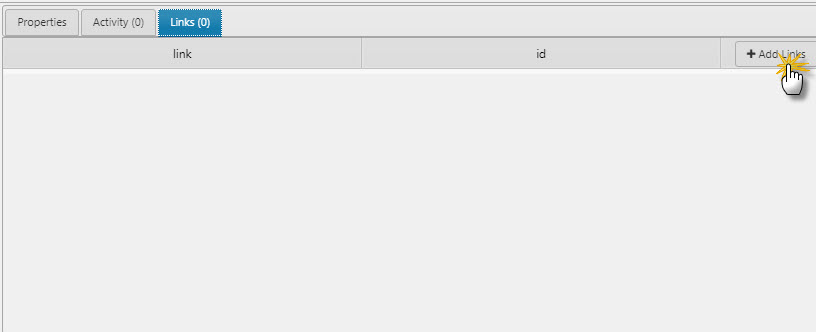
Linking Actions
Actions can only be linked when Case Management in Basics is enabled, otherwise this panel will be hidden.
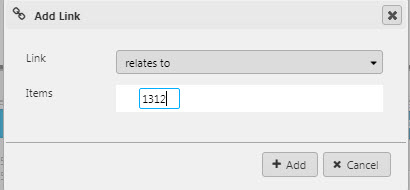
When adding a link, select from Link type and Items (Action ID). Available link options are relates to, derives to, is derived from, is dependent to, depends on, is blocked by, blocks, duplicates, is duplicated by.
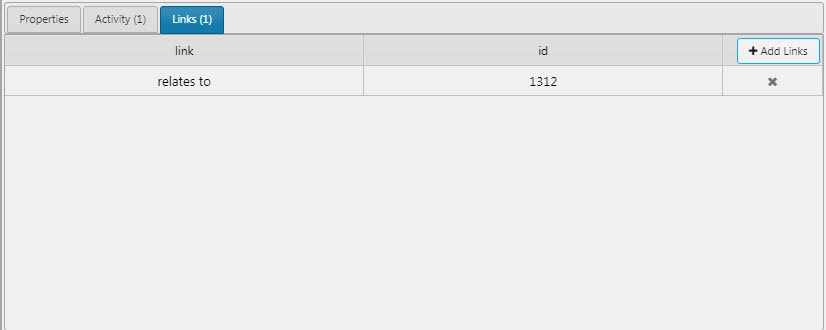
Linked actions can be viewed with a double-click. This also opens a tab for linked actions.
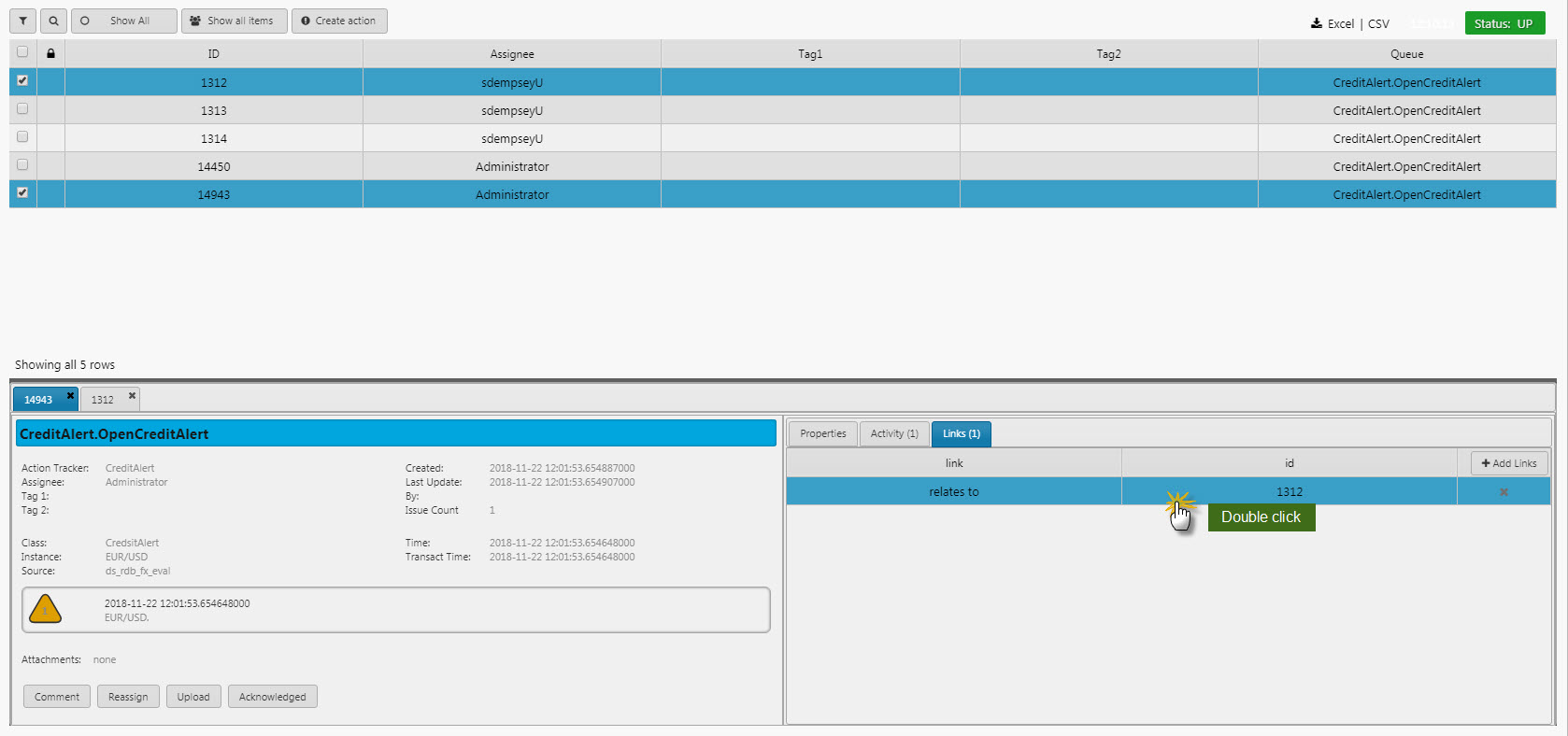
All linking activity is recorded in the Activity tab.

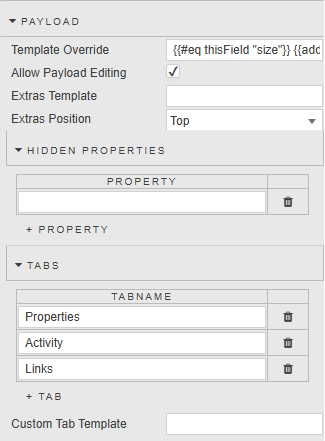
Payload
Configure the content and layout of the payload panel. The properties are described in the following table.
| Field | Description |
|---|---|
| Template Override | When unchecked, the Action Tracker displays payload values as strings received from the server. When checked, you can apply a handlebar template to control how each row is displayed. Click in this field to open the Template Editor. For example, the template below checks whether the field being rendered. If it is size, the value is formatted with commas; otherwise, the raw value is displayed.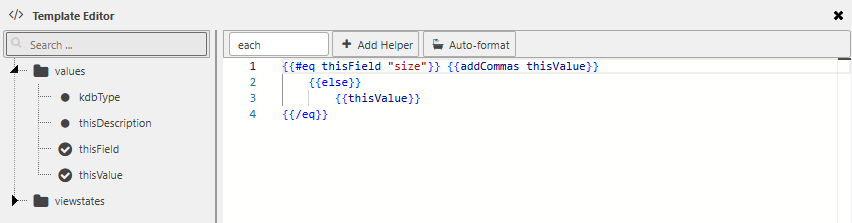 <br>{{#eq thisField "size"}}<br> {{addCommas thisValue}}<br>{{else}}<br> {{thisValue}}<br>{{/eq}}<br> |
| Allow Payload Editing | When checked, this allows users to edit the details of the Alert.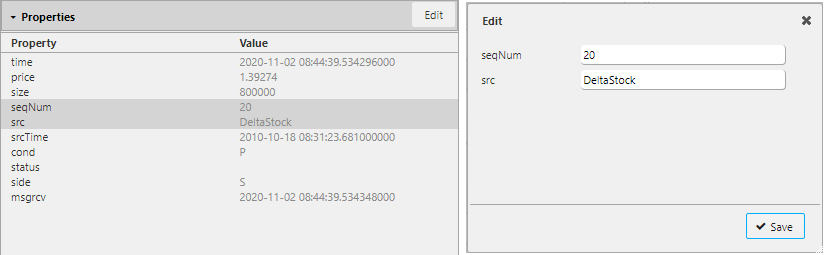 |
| Extras Template | This allows you to apply HTML customizations with Handlebar helpers. For example:html<br><div><span>{{payload.breachLevel}}</span><span>{{payload.sym}}</span></div><br>Refer to Templates for details on template configuration. 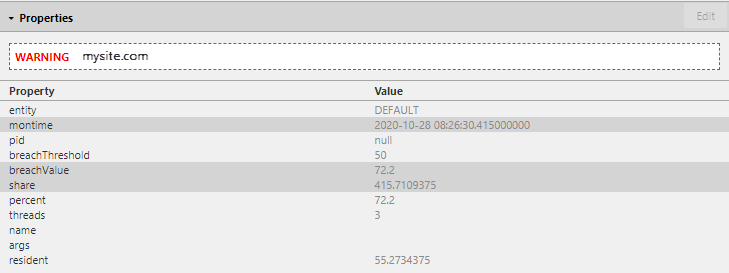 |
| Extras Position | Select from Top, Bottom. |
Hidden Properties
Configure the properties to hide (hidden properties remain available in the template).
Tabs
Configure which tabs are active and their order. Supported options are Properties, Activity, Links and one custom/user-defined tab. The first tab on the list is opened by default.
| Field | Description |
|---|---|
| Custom Tab Template | Template for custom tab.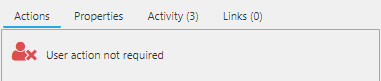 |
Style, Format, Margins
Configure the properties, described in the following table.

| Field | Description |
|---|---|
| Alert Title Template | Enter the HTML templates for Alert Title, Alert Details and Alert Dialog, and Handlebar helpers to map data into the template. |
| Alert Title Templ. (Case) / Alert Details Template / Alert Details Templ. (Case) / Alert Dialog Template / Alert Dialog Templ. (Case) | Specify HTML Templates for Alert Title, Alert Details and Alert Dialog, and Handlebar helpers to map data into the template. The Action Tracker has the following HandleBars helper function: formatTimeStampsThis finds all kdb timestamps in a given string and converts them to a different format. If the date format parameter is omitted, the default conversion format is YYYY-MM-DD HH:mm:ss.SSSSSSSSS. The resulting value outputs the date and time based on the timezone setting in the Dashboard.Parameters: - string {String}: The string containing kdb timestamps.- date format {String}: Optional. The date format used for conversion. Refer to moment for available formats.Returns {String}: The string containing the converted date formats. Example: handlebars<br>{{formatTimeStamps "Sample date: 2019.12.31D15:30:11.000000000" "MM-DD-YYYY HH:mm:ss.SS"}}<br><!-- results in: "Sample date: 12-31-2019 15:30:11.00" if timezone is set to UTC --><br><!-- results in: "Sample date: 12-31-2019 10:30:11.00" if timezone is set to New York --><br><!-- results in: "Sample date: 01-01-2020 00:30:11.00" if timezone is set to Tokyo --><br> |
| Custom Comment (default) | The default custom comment. |
| Case Button Text | This property defines the text displayed on the button used to create an action case, when Case Management is enabled. The default text is Create Action. |
| Activity Character Limit | Specify character limit in activity logs record.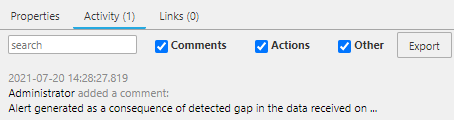 |
Refer to Format for common settings and Templates for configuring property panels.
Virus Scanning
Files uploaded via the Upload component, and attachments uploaded via the Action Tracker, may be screened for viruses.
For virus scanning to work you need:
-
ClamAV installed on the appserver box with up-to-date definitions.
-
Virus scanning enabled in delta.profile as follows.
DELTAAPPSERVER_VIRUS_SCAN_ENABLED=true -
To check the status of virus scanning: Use the following command to check the status of the running Tomcat process. From the output displayed check if
DdeltaAppServerVirusScanEnabledis eithertrueorfalse.ps -ef | grep tomcatWith virus scanning enabled (set to True), uploaded files are automatically scanned. If they fail the virus check, the upload is aborted and an error is reported on the dashboard.
-
Restart the appserver to pick up any changes to the above environment variable.