Trade
This page describes how to set up and configure the Trade component which displays the book depth for a specific asset symbol.
This includes a graphical/vertical bar chart view that shows market data and calculated statistics, and an option to highlight price tick changes.
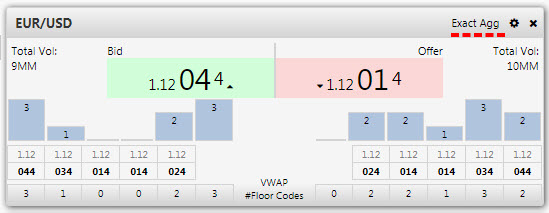
Set Up Trade
To set up a Trade component, click-and-drag the component into the workspace and configure the following:
-
Assign a Data Connection configured for streaming. Use the
html5evalconnection as a sample if available.If deploying KX Dashboards on Platform
Assign a Data Connection that implements the streaming book api. Use the
html5evalconnection as a sample if available. -
Assign a list of asset Symbols for the trade panel dropdown.
Sample query:
([] sym:`$("EUR/USD";"EUR/CHF";"EUR/GBP"); pipsize:(0.0001 0.0001 0.0001) ) -
Set up Panels options.
Sample JSON:
[{"aggregation":"Exact","highlight":"On","id":1,"order":0,"priceLevel":6,"pipSize":0.0001,"sym":"EUR/USD"}]
Refer to Trade properties described in the next section for details on additional properties.
Trade Properties
The following sections provides details on how to configure the properties of the Trade component.
Settings
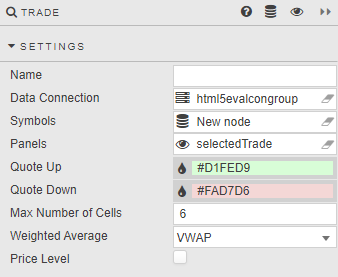
Open the Settings properties on the right and configure the properties described in the following table.
| Field | Description |
|---|---|
| Name | A name for the component provided by the user. |
| Data Connection | Connection for Trading Panel Subscriptions. See Subscriptions for more details. |
| Symbols | A data source of asset symbols with sym (symbol — asset symbol) and pipsize (float — determines the pre, major and minor part of the price quote) columns. The list of asset symbols is available in the Trade panel dropdown.Sample query: q<br>([]<br> sym:`$("EUR/USD";"EUR/CHF";"EUR/GBP");<br> pipsize:(0.0001 0.0001 0.0001)<br>)<br> |
| Panels | Stores user settings as JSON in a view state parameter.json<br>[{"aggregation":"Exact","highlight":"On","id":1,"order":0,"priceLevel":6,"pipSize":0.0001,"sym":"EUR/USD"},<br> {"aggregation":"Exact","highlight":"On","id":2,"order":0,"priceLevel":6,"pipSize":0.0001,"sym":"EUR/CHF"},<br> {"aggregation":"Exact","highlight":"On","id":3,"order":0,"priceLevel":6,"pipSize":0.0001,"sym":"EUR/GBP"}<br>]<br>aggregation — 'Exact', 'One Level' or 'Two Level'. highlight — 'On' or 'Off' for color highlight. id — Numeric reference. order — Listing order starting from 0 for top left, then across. pipsize — Determines the pre, major and minor part of the price quote. priceLevel — Number of prices returned from the API. sym — Corresponds to sym from Symbol data source. |
| Quote Up | Define highlight color for price rise. |
| Quote Down | Define highlight color for price drops. |
| Number of Cells | The number of cells/bars displayed on the bid and ask side of the books. |
| Weighted Average | Displays either the VWAP (Volume Weighted Average Price) or TWAP (Time Weighted Average Price). |
Style
Refer to Style for common settings.
| Field | Description |
|---|---|
| Bar Color | Define background color for graph bars. |
| Bar Text Color | Define font color for graph bars. |
| Bar Font Size | Define font size for graph bars. |
| Default Text Color | Define font color for price table. |
| Default Font Size | Define font size for price table. |
| Minor Price Font Size | Define font size for minor Price font in the quote box. |
| Major Price Font | Define font size for major Price font in the quote box. |
| Pre-Major Price Font Size | Define font size for pre major Price font in the quote box. |
| Number of cells | The maximum number of trading panel cells. For an infinite number of panels, set this property to 0. |
| Highlight Change Duration | The length of time for the highlight (in milliseconds). |
Configure a Trade Panel
Once you have set up your trade panel, switch to Preview mode to display the panel.
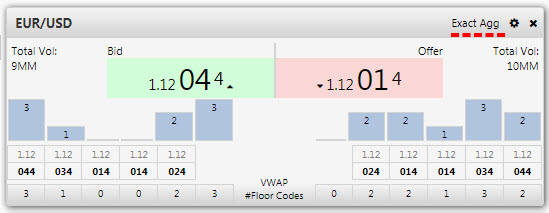
-
Select a symbol from the dropdown.
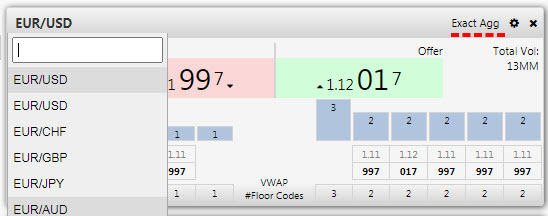
-
Click on the Settings icon to define a price aggregation level, use of highlight, and price level (default: 6).
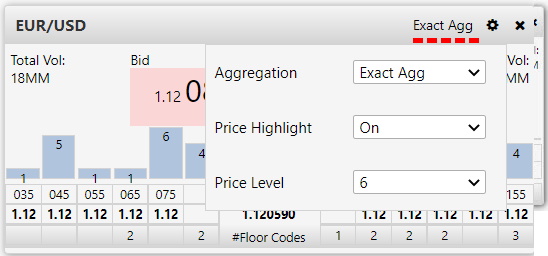
Aggregation
| Setting | Description |
|---|---|
Exact |
Default. Uses the lowest pip granularity. Each price level/vertical bar represents the next pip. |
One-Level |
Aggregates pips into sets of 10. For example, if best bid is 1.38497, the price level is reflected as 1.38490 and all available prices between 1.38490 and 1.38497 aggregate at that level. The next bid level would be 1.38480, and if the best ask is 1.38498, prices from 1.38498–1.38500 aggregate at 1.38500. |
Two-level |
Aggregates pips into sets of 100. A best bid of 1.38497 aggregates into the 1.38400 level, including all prices between 1.38400 and 1.38497. A best offer at 1.38498 aggregates 1.38498–1.38500 at 1.38500. The next offer level is 1.38600. |
Subscriptions
Each trade panel requires a subscription to a streaming analytic. The analytic returns a detailed book depth for a specific asset symbol.
Overview
The trading panel can subscribe to one of the following streaming analytics: book, book1Agg, book2Agg.
Analytic Parameters
| Type | Description |
|---|---|
| list | List of subscribing syms. |
| level | The price level for the subscribing sym. |
Analytic Type
Streaming.
Analytics Description
| Analytics | Description |
|---|---|
book (Exact) |
Lowest pip granularity and default option. Each price level/vertical bar represents the next pip. |
book1Agg (One-Level) |
Aggregates prices into sets of 10 pips. Best bid of 1.38497 reflects as 1.38490; prices between 1.38490–1.38497 aggregate to that level. Best offer of 1.38498 aggregates to 1.38500. |
book2Agg (Two-Level) |
Aggregates prices into sets of 100 pips. Best bid of 1.38497 reflects as 1.38400; prices between 1.38400–1.38497 aggregate to that level. Best offer of 1.38498 aggregates to 1.38500. |
Subscription Key
For each trading panel subscription, the key is defined as: [aggregationType]_[sym]_[panelId]
aggregationType— type of aggregation (book,book1Aggorbook2Agg)sym— the asset symbolpanelId— the unique ID of the panel
Return Type
| Column | Type | Description |
|---|---|---|
| sym | symbol | Asset symbol. |
| MDEntrySize | long | Market Data Entry Size. |
| MDEntryPx | float | Market Data Entry Price. |
| MDEntryType | byte | Market Data Entry Type (0 = Bid, 1 = Offer). |
| FloorCode | int | Floor codes participating at each price level. |
| MDVWAP | float | Market Data VWAP (Volume Weighted Average Price). |
| float | Market Data TWAP (Time Weighted Average Price). |