Flex Panel
This page describes how to set up and configure the Flex Panel component.
The Flex Panel configures two components (A & B); one to fill a panel between min and max size of the Flex panel, the second fills the remaining space of the Flex panel.
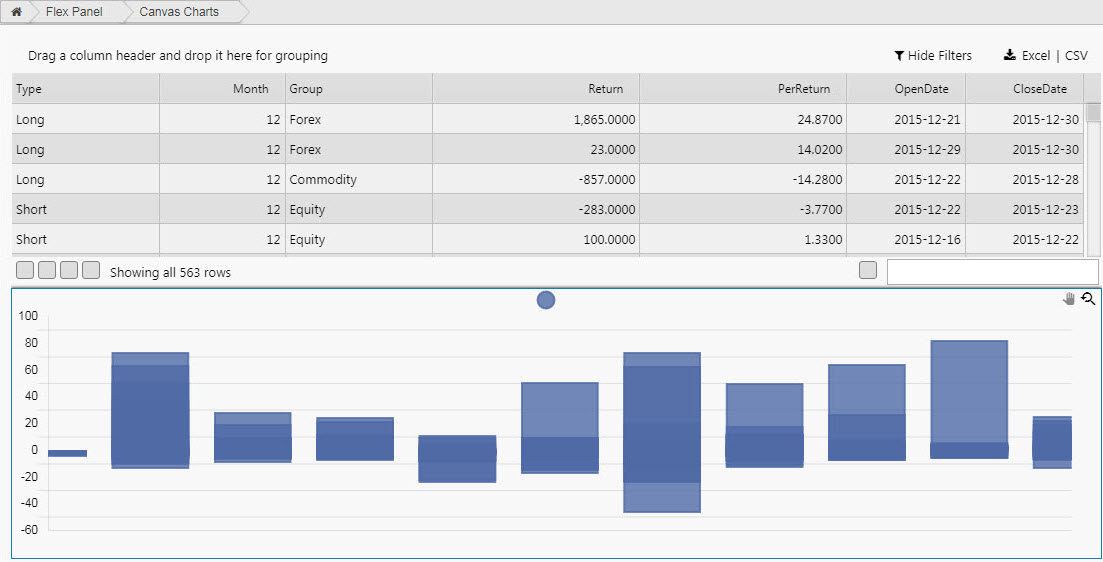
Set Up a Flex Panel
To set up a Flex Panel component, click-and-drag the component into the workspace and configure the following:
- Define the orientation of the Flex Panel with Layout, and set min and/or max size for the non-flex part of the panel.
- Add individual components or Layout Panel to each section of the flex panel.
Refer to Flex Panel properties described in the next section for details on additional properties.
Flex Panel Properties
The following sections provides details on how to configure the properties of the Flex Panel component.
Basics
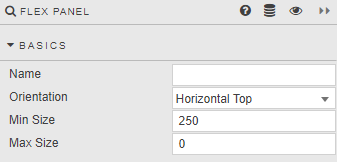
Open the Basics properties on the right and configure the properties described in the following table.
| Field | Description |
|---|---|
| Name | A name for the component provided by the user. |
| Layout | Select from horizontal top, horizontal bottom, vertical left, vertical right.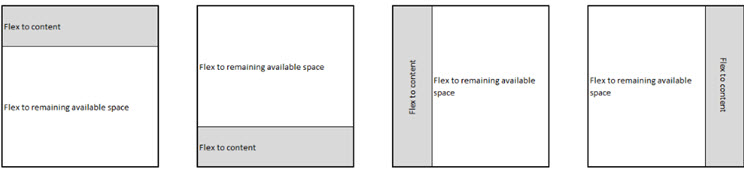 |
| Min Size | Defines the size of component A in pixels. Component B fills the remaining space inside the panel. |
| Max Size | Defines the maximum size component A will occupy in the panel. The default is 0.!!! note "Max Size less than Min Size" When maximum size is less than minimum size, only minimum size is used. |
Style
Refer to Style for common style settings.