Configure and Use the Chat Agent
This page describes how to configure and use the Dashboard Builder (chat agent) to create and edit dashboards using natural language.
The Dashboard Builder (also referred to as the chat agent) lets you generate and modify dashboards by describing what you want in plain language. Before it can be used, an administrator must configure an AI provider via Global Properties.
For a conceptual overview, see Natural Language Chat Agent.
Prerequisites
You must have administrator access to configure the chat agent. End users can use the chat agent once it has been configured.
Windows
Run dash.bat as normal. It automatically installs Express v4 if not already present and starts the NLX proxy — no additional steps required.
Linux and macOS
No shell launcher is provided, so you set up and start the NLX proxy manually from the Dashboards Direct root directory.
Install Express v4 (one-time):
npm install --save express@4
Start the NLX proxy before launching KX Dashboards, and leave it running in its own terminal:
node nlx-proxy.js
Warning
Do not install Express v5. The NLX proxy script is not compatible with it and fails with a PathError. Use Express v4 (for example, 4.22.2).
No additional setup is required. Proceed to Configure the chat agent.
Configure the chat agent
Configuration is done via Global Properties, which is accessible from the main menu in Edit Mode.
- Click the hamburger menu icon (☰) in the top-left corner of the application.
- Select Global Properties.
- Select the NLX tab.
- Configure the settings described in the table below.
- Click Save to apply your changes.
The following video shows how to configure the NLX Global Properties.
Warning
Changes made in Global Properties affect all users. Ensure the AI provider and API key you configure are appropriate for your organization's data and security requirements.
NLX settings
| Setting | Description |
|---|---|
| NLX Provider | The AI provider to use. Supported options are OpenAI, Claude (Anthropic), and Gemini. |
| Model | The specific model to use for the selected provider. |
| API Key | Your API key for the selected provider. This is stored and used to authenticate requests. |
| Base URL | The base URL for the provider's API. Updated automatically when the provider changes. Override this only if you are using a custom or self-hosted endpoint. |
| Max Tokens | Maximum number of tokens in the model's response. Must be a positive number. Default is 16000. |
| Table schemas and descriptions | A JSON definition of the backend data structures the agent will use — tables, schemas, metadata, column descriptions, and any client-specific instructions. This guides the agent when generating queries and dashboard definitions. See the example below. |
Table schemas and descriptions example:
{
  "type": "kdb",
  "connection": { "name": "connectionName" },
  "tables": [
    {
      "name": "TableName",
      "description": "Brief description of the table and its intended use. Note any type quirks or recommended components. Subscription: static | polling | streaming.",
      "columns": [
        { "name": "id",          "type": "long",    "description": "Unique record identifier." },
        { "name": "name",        "type": "string",  "description": "Display name or label." },
        { "name": "value",       "type": "float",   "description": "Numeric measure." },
        { "name": "category",    "type": "symbol",  "description": "Grouping or filter dimension." },
        { "name": "date",        "type": "date",    "description": "Date field. Note any casting requirements." },
        { "name": "latitude",    "type": "float",   "description": "Latitude (decimal degrees). Use for map Latitude binding." },
        { "name": "longitude",   "type": "float",   "description": "Longitude (decimal degrees). Use for map Longitude binding." }
      ]
    }
  ]
}
Access the chat agent
Once configured, the chat agent is available to all users from the main menu.
- Click the hamburger menu icon (☰) in the top-left corner of the application.
- Select Chat with AI Builder.
The Dashboard Builder dialog opens.
The following video shows a run-through of how to use the chat box to generate and edit dashboards.
Create a dashboard
-
Open the Dashboard Builder dialog and type a natural language description of the dashboard you want to create.
For example: "Create a dashboard showing trade data with a line chart and link FX symbols with a dropdown."
Be as specific as you can about component types, groupings, and how components should interact. See Tips for good prompts for examples.
-
Optionally, specify a table name if you want the agent to generate the dashboard against a specific data source.
If you don't specify one, the agent infers the most relevant table from your description. For best results, name it explicitly when you know it — for example, "using the TradeData table."
-
Select Generate (selected by default).
This tells the agent that you want to create a new dashboard, as opposed to editing the currently open one.
-
Click Send, or press Enter, to submit the prompt.
The agent creates a new dashboard configuration based on your description, and KX Dashboards loads it automatically.
Edit an existing dashboard
You can use the chat agent to modify a dashboard that is already open. The chat agent always acts on the currently open dashboard.
-
Open the dashboard you want to edit.
Navigate to it from the dashboard list or open it directly using its URL.
-
Open the Dashboard Builder Chat dialog from the main menu.
This is accessible from the top-level menu bar, not a right-click (context) menu. If the dashboard is in view-only mode, the option doesn't appear — switch to edit mode first.
-
Select Edit mode.
Generate mode is selected by default. To edit your existing dashboard, select the Edit option.
-
Describe the changes you want to make.
Type your request in natural language in the input field. The more specific you are, the better the result. For example: "Add a dropdown to filter by currency and link it to the existing chart."
-
Click the Send icon, or press Enter.
The request is sent to the AI provider, which automatically updates the dashboard.
Scope edits to reduce token usage
By default, the chat agent includes the full dashboard configuration as context, which can use a lot of tokens on larger dashboards. To reduce this, click the specific component you want to change before entering your prompt. The agent then scopes its context to that component only.
For example, instead of prompting "change the SharePrice chart to a bar chart" against the whole dashboard, select the chart first, then prompt "change this to a bar chart."
See High token usage or slow responses for more ways to reduce token usage.
Generation details
Each response in the chat history includes details that show metadata about the generation. Click Details to expand it.
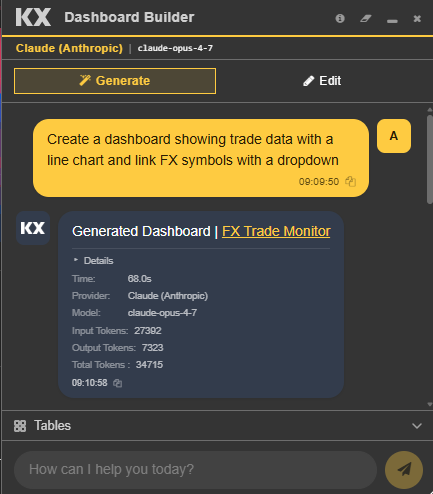
| Field | Description |
|---|---|
| Time | How long the generation took, in seconds. |
| Provider | The AI provider used for the request. |
| Model | The specific model used. |
| Input Tokens | The number of tokens sent to the provider, including your prompt and the dashboard context. |
| Output Tokens | The number of tokens returned by the provider. |
| Total Tokens | Combined input and output token count. |
Note
Token counts reflect the full context sent to the provider, which includes your prompt, data source metadata, and the dashboard generation instructions. High input token counts are expected.
Chat history
Each session is saved automatically. From the Dashboard Builder dialog you can:
-
Reopen a previous dashboard — Click the link in your chat history to load a previously generated dashboard.
-
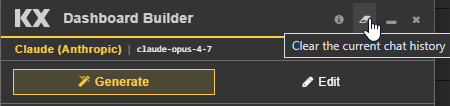
Delete your history — Use the delete option in the dialog to permanently remove your chat history.
Note
Deleting your chat history is permanent and cannot be undone.
Tips for good prompts
The chat agent works best when your prompt gives it clear, specific instructions. The more precise you are about what, where, and how, the fewer follow-up corrections you need.
General principles
- Be specific about the component type. Say datagrid, line chart, dropdown filter, or map rather than table or widget. This maps directly to the components the agent can create.
- Name your data source. Include the table name or analytic if you know it — for example, "using the SharePrice table" — so the agent doesn't have to guess or ask. Alternatively, pick the table names or analytics from the list provided in the chat agent dialog.
- Make one clear change per prompt. Chaining several unrelated changes in one prompt increases the chance of a partial or incorrect result. Prefer a short sequence of prompts over one long one.
- Reference components by name when there's more than one. "The existing chart" is ambiguous if there are three charts on the dashboard — say "the SharePrice line chart" or select the component first. See Scope edits to reduce token usage.
- State layout intent when it matters. For example: "Place it above the grid," "make it span the full width," or "put it in the top-right panel."
Prompts for generating new dashboards
| Instead of | Try |
|---|---|
| "Make me a dashboard" | "Create a dashboard showing SharePrice as a line chart, with a Town datagrid below it filtered by county" |
| "Add some filters" | "Add a dropdown to filter by currency, and a date range picker above the chart" |
| "Show sales data" | "Add a bar chart of TradeData grouped by region, with a legend" |
Include, where relevant:
- The data table to use.
- The component type — chart, grid, map, filter, and so on.
- Any grouping, filtering, or aggregation logic.
- Linking behavior — should the new component filter or interact with existing ones?
Prompts for editing existing dashboards
| Instead of | Try |
|---|---|
| "Fix the chart" | "Change the SharePrice chart to a bar chart and add a legend" |
| "Add a filter" | "Add a dropdown to filter by currency and link it to the existing chart" |
| "Make it bigger" | "Increase the height of the datagrid to fill the remaining panel space" |
- Select the component first if you're editing something specific. This scopes the agent's context and reduces token usage. See Scope edits to reduce token usage.
- Describe the linking explicitly when you want components to interact. "Link it to the existing chart" tells the agent to wire up filtering and selection behavior, not just place the component visually.
- Call out what should stay the same, if it matters. For example: "keep the existing color scheme" or "don't change the layout of the other panels."
If the result isn't what you expected
- Rephrase with more specific component names or table names rather than repeating the same prompt.
- Break a multi-part request into separate prompts.
Troubleshooting
The agent doesn't respond, or nothing happens on Send
- Check the AI provider connection. The chat agent requires a configured and reachable AI provider (Claude, ChatGPT, or Gemini). If the provider is down, misconfigured, or the API key or authentication has expired, the request fails silently or times out.
- Check your network or proxy. If dashboards are accessed through a reverse proxy — for example, behind OIDC or oauth2-proxy — confirm your session hasn't expired. An expired session can block the API call without a clear error in the chat window.
- Refresh and retry. If the dialog appears stuck, close and reopen the Dashboard Builder dialog rather than resending the same prompt.
The agent modified the wrong dashboard
- The agent always acts on the dashboard that was open when you launched the chat agent, not one selected from within the dialog. Confirm you opened the Builder dialog from the correct dashboard before prompting.
- If you have multiple dashboard tabs or windows open, double-check which one is active.
The agent added the wrong component, or misunderstood the request
- The prompt was likely ambiguous. Reference component types, table names, and existing widgets explicitly rather than using generic terms like "the chart" or "a filter." See Tips for good prompts.
- If there are multiple similar components on the dashboard, select the specific one before prompting so the agent knows which one you mean.
- Try rephrasing in a single, more specific prompt rather than repeating the same wording.
The edit only partially applied
- Multi-part prompts — for example, "add a filter, resize the grid, and change the chart color" — are more likely to apply only some of the requested changes. Split these into separate prompts and send them one at a time.
- Check the staged or preview response, if your build shows one, before it commits. Some changes may need explicit confirmation.
The Edit option is missing or grayed out
- The dashboard is likely in view-only mode. Switch to edit mode, or confirm you have edit permissions on that dashboard.
- Confirm the Dashboard Builder dialog was opened from the main menu, not a context menu. The Edit action may not be available from all entry points.
High token usage or slow responses
By default, the agent includes the full dashboard configuration as context. For large dashboards, this increases latency and cost.
- Select the specific component you want to change before prompting to scope the context. See Scope edits to reduce token usage.
- Avoid unnecessarily broad prompts like "review the whole dashboard and improve it" — target specific components and changes instead.