Map (Offline)
This page describes the offline Map component and how it can be set up and configured to create visually appealing, engaging, and performant geographic maps.
This component uses WebGL technologies, enabling maps to render quickly and smoothly, which is highly beneficial when working with large datasets. The benefit of using this Map component over the standard Map (External API) component is that you do not need external access to the internet or external APIs.
There is a wide range of customizations available including adjusting styles, colors, fonts, adding custom icons and interactive layers (Points, Circles, Lines, Animated Points, Heatmaps, and customizable Layers).
Two Map components
KX Dashboards includes two Map components, both displaying geographical data but used for different purposes. To use the Map (External API) component, you need a stable internet connection and access to external APIs. If you need to use maps offline, the Map component described on this page allows you to visualize geographical data without an internet connection or external APIs. The properties for the two maps differ, so choose based on your needs.
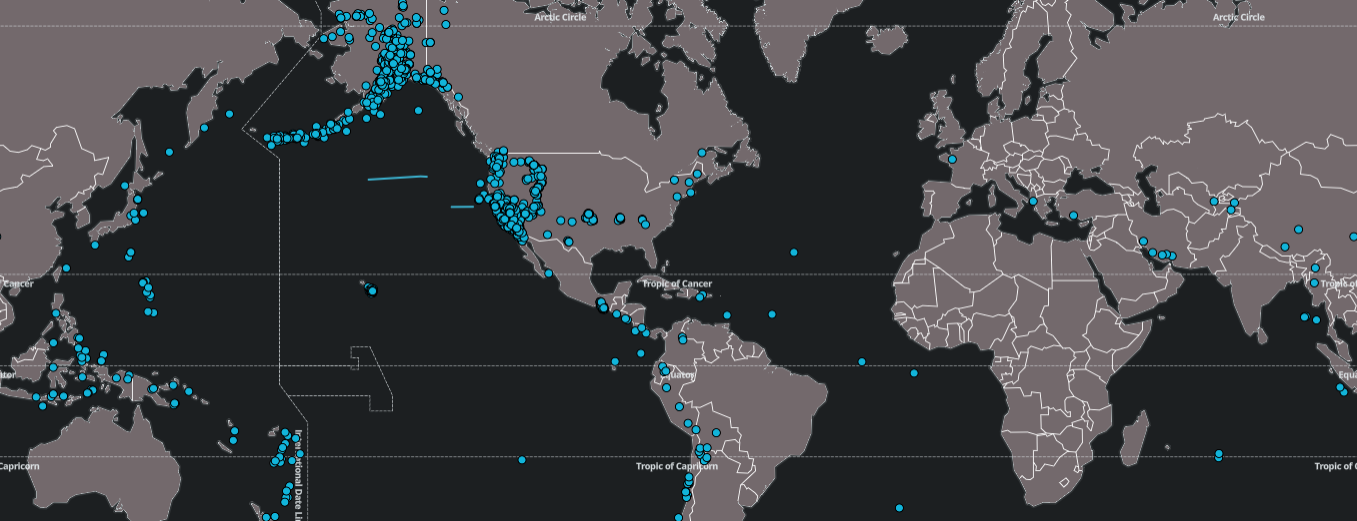
The Map has features that enable you to: visualize and animate geographic data; visualize streaming and moving data geographically; display and interact with large quantities of data; query and filter map features; dynamically display and style custom client-side data; programmatically add points, circles, lines, and popups; annotate polygons and lines and store annotated points in view states; and overlay multiple layers of data.
Note
The Map component is built using the MapLibre libraries.
Set Up an Offline Map
To set up an offline Map component, click-and-drag the component into the workspace. Refer to Offline Map properties described in the next section for details on additional properties.
Offline Map Properties
The following sections provides details on how to configure the properties of the Offline Map component.
Basics
Open the Basics properties on the right and configure the properties described in the following table.
| Property | Description |
|---|---|
| Name | Enter a name for the component. |
| Track Load Time | When checked, the time it takes to load the Map is tracked in the Load Time (ms) field below. This includes the time to load all defined layers. Monitoring load time helps identify performance issues. |
| Load Time (ms) | When Track Load Time is checked, this field is updated with the loading time in milliseconds. |
Map
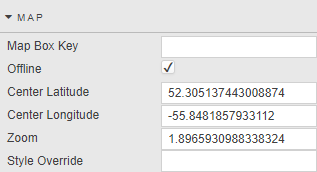
Configure the properties, described in the following table. The Map properties allow you to configure the zoom setting, latitude and longitude coordinates, and style of the map on load.
| Property | Description |
|---|---|
| Map Box Key | This key (access token) associates API requests with an external map account. Required for online mode only. |
| Offline | Click to switch between offline mode and online mode. Offline mode requires no internet access. This must be unchecked to use the Map offline. |
| Center Latitude/Longitude | Sets the map center when the dashboard loads. Defined in longitude and latitude values. |
| Zoom | The initial zoom level. |
| JSON Style Override / URL Style Override | When set, the default style is overridden with JSON/GeoJSON (Offline mode) or a URL string (Online mode). Offline Mode: The default style uses a baked-in vector and country tile server (.pbf file), a baked-in font for glyphs, and a set of countries with a color scheme. These defaults can be overridden here; no external API requests are needed. Online Mode: Default styles are "mapbox://styles/mapbox/dark-v11" (Dark Theme) and "mapbox://styles/mapbox/light-v11" (Light Theme). |
| Layer Enablement | Options: None, Quick, All. |
| Render World Copies | Choose between a single constrained map instance (minimal GPU/tile resources) or duplicating the world horizontally for seamless wrap-around past the antimeridian (at the cost of extra tiles and memory). Unchecked by default (single world view).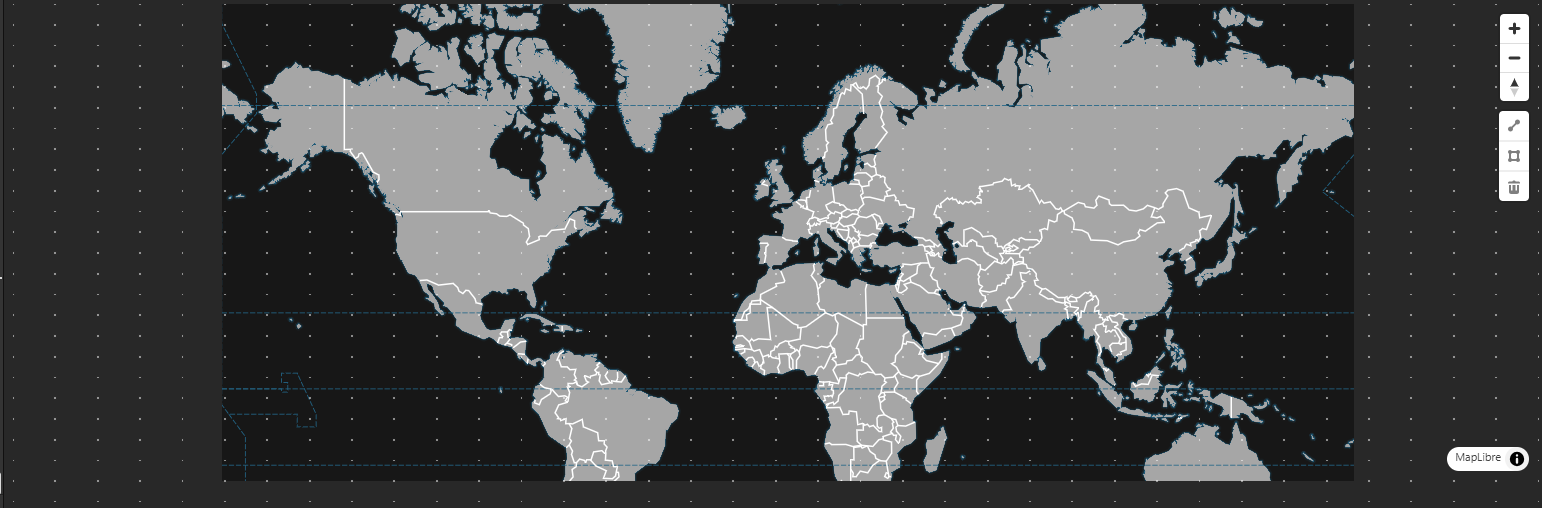 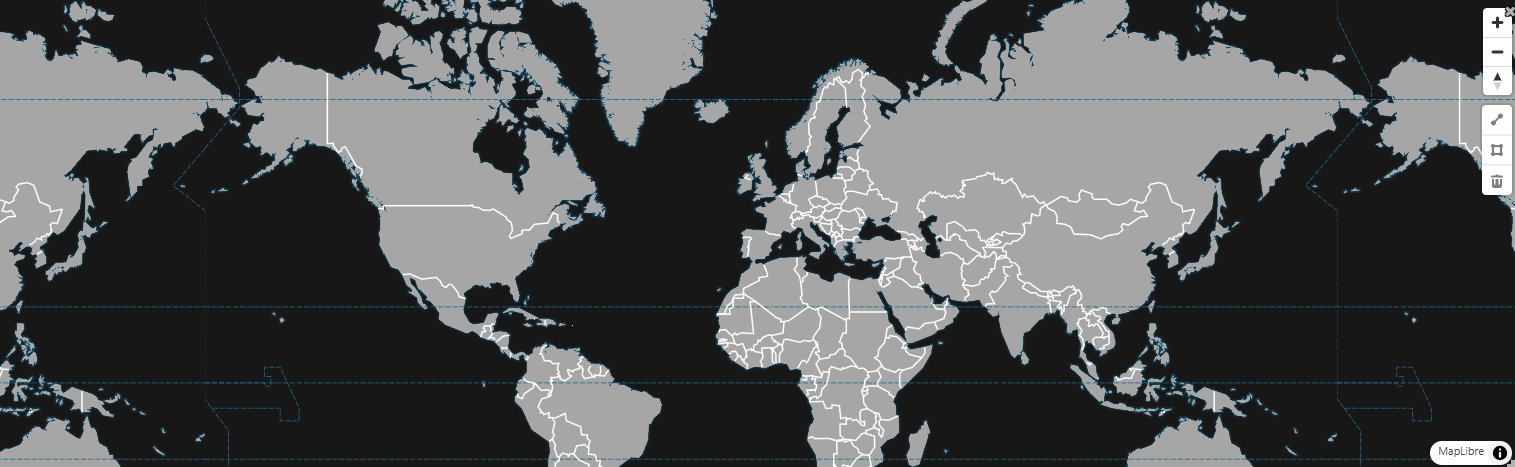 |
| Projection | Choose how geographic data is displayed. Mercator: default cylindrical projection, ideal for street-level and navigation maps. Globe: renders the earth as a 3D sphere, ideal for global overviews and animated visualizations like flight paths.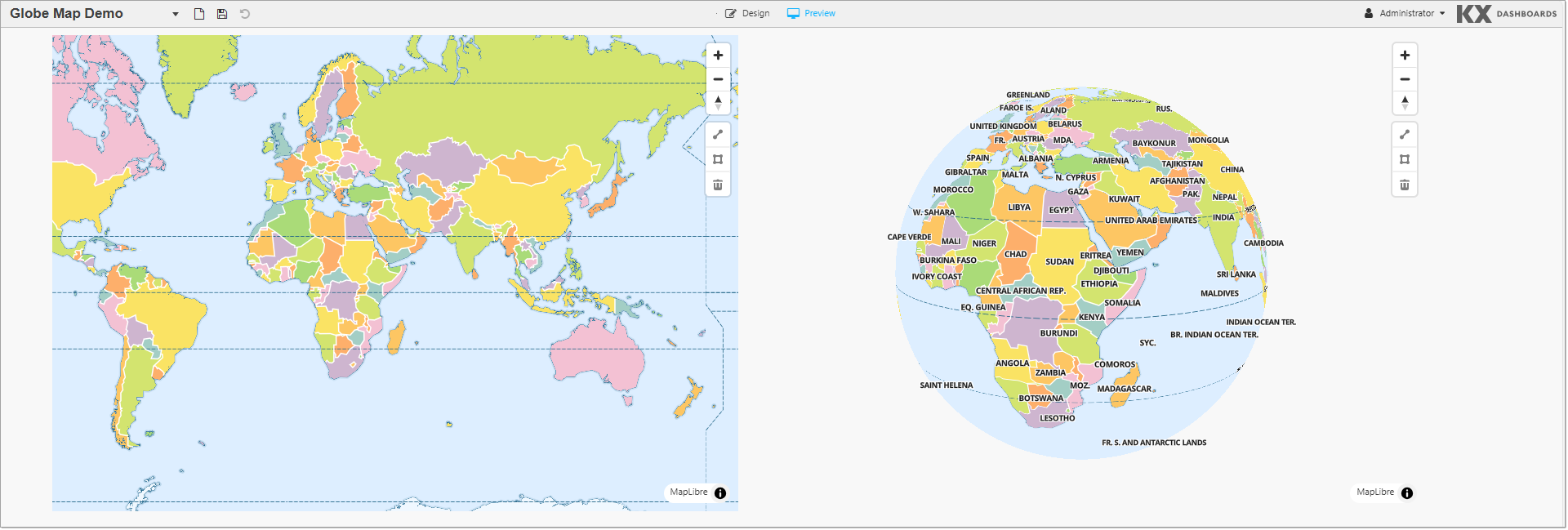 |
Points
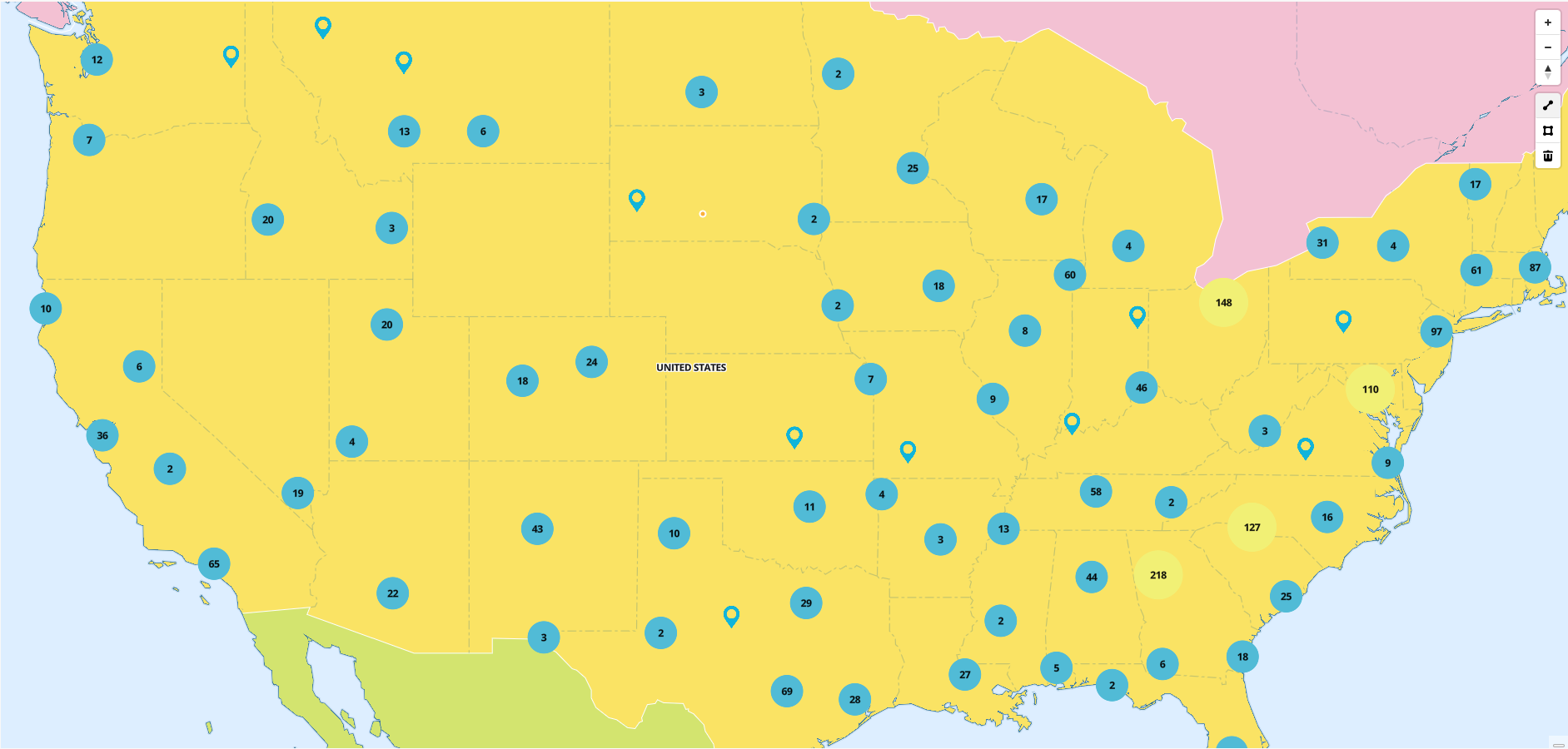
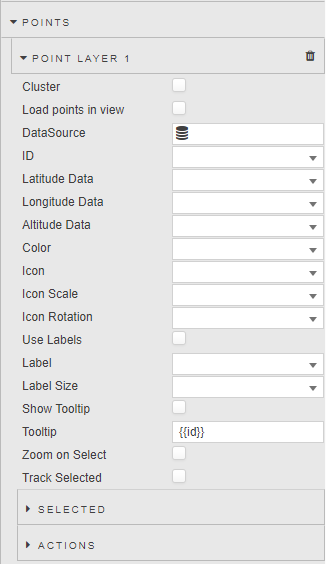
Use the Points properties to configure a custom point image at a specific geographic coordinate, with an option to add clustering.
| Property | Description |
|---|---|
| Name | Define a name for the layer. If blank, the default name (Layer Type Layer Index) is used. |
| Cluster | When checked, grouped individual points are replaced with a numeric cluster icon. Points outside the cluster remain as individual points. |
| Load points in view | When checked, the map zooms and pans to the area containing points. When unchecked, the default zoom and center point is used. |
| ID | A distinct identifier for a point. |
| Latitude / Longitude Data | The data source columns for latitude and longitude. |
| Altitude Data | The data source column for altitude. |
| Color | The color of the map point graphic. |
| Icon | The shape of the map point graphic. A pointer is used by default. |
| Icon Scale | The proportional size of the shape. A value of 1 is used by default. |
| Icon Rotation | Sets the rotation angle of the icon from 0–360. |
| Icon Opacity % | The opacity of the shape. |
| Icon Zoom Interpolate | When checked, icon sizes smoothly scale in proportion to the map's zoom level. |
| Use Labels | When checked, the Map displays a label for each of the points. |
| Label | The label displayed next to each point. |
| Label Size | The label font size. |
| Show Tooltip | When checked, displays a tooltip on points mouseover. |
| Tooltip | Set the value you want to see for tooltip at mouse-over. |
| Zoom on Select | When checked, the map is centered and zoomed in on this point when clicked. |
| Track Selected | When checked, you can link/track a selected point on the map. |
| Cluster Max Zoom | The maximum zoom level at which nearby points are grouped into clusters. Above this zoom level, individual points are displayed. |
| Cluster Radius | Defines the clustering radius in pixels. A larger radius groups points that are farther apart, resulting in fewer but larger clusters. |
Selected
The Selected properties relating to the configured Points are shown below.
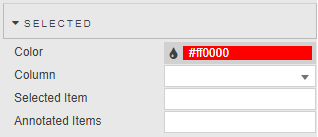
| Property | Description |
|---|---|
| Color | The color of the selected point. |
| Column | The data source column used in the selected row(s). |
| Selected Item | The current selected value. A point is highlighted with the specified color if the Selected Item value equals the value for the specified Column. |
| Annotated Items | When annotations are enabled, you can draw a polygon around a set of circles or points. The map captures the corresponding coordinates and selects all point IDs within that range, stored in this view state. These values can then be used in other components such as a data grid. |
Actions
Refer to Actions for details.
Icon Scale Interpolate
Icon scale interpolation means the map holds each property constant until you hit the next defined zoom stop, then jumps to the new value rather than smoothly scaling continuously.
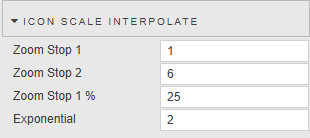
| Property | Description |
|---|---|
| Zoom Stop 1 / Zoom Stop 2 | Define the set of zoom stops. |
| Zoom Stop 1% | Defines the minimum zoom percentage (relative to icon size) at which a zoom stop occurs. |
| Exponential | Applies exponential scaling to icon sizes across zoom levels, creating a smoother and more natural growth effect compared to linear scaling. |
Circles
You can configure custom circles with clustering.
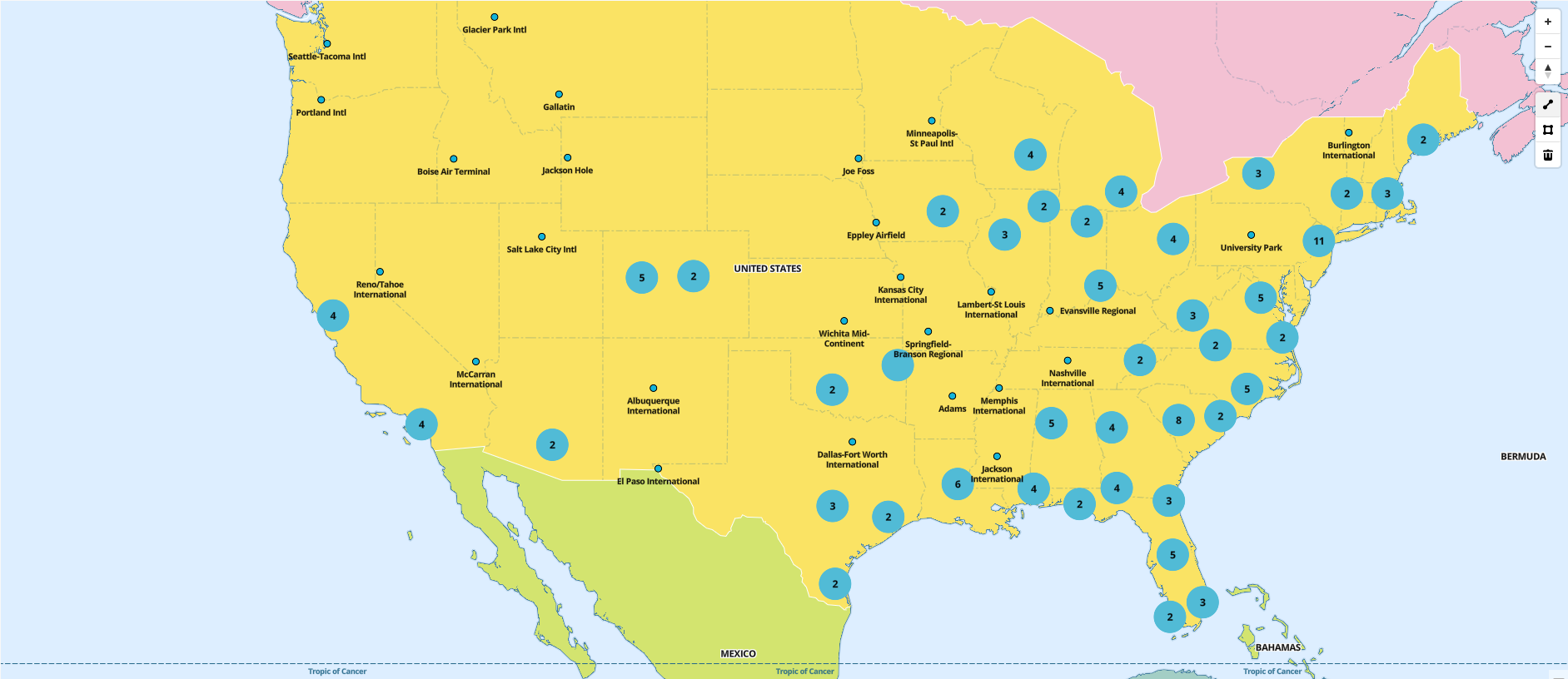
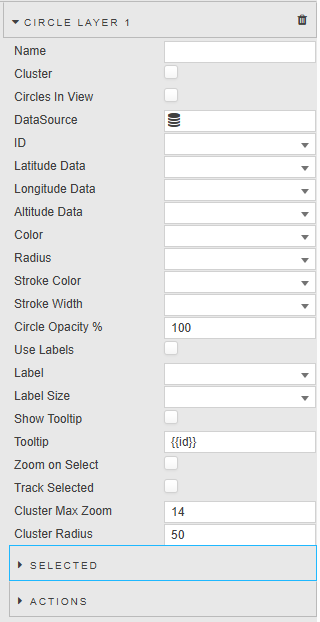
| Property | Description |
|---|---|
| Name | Define a name for the layer. If blank, the default name (Layer Type Layer Index) is used. |
| Cluster | When checked, grouped individual Circles are replaced with a numeric cluster icon. |
| Circles in View | When checked, all circles are zoomed in and in view when the map is loaded. |
| Data Source | A data source that includes geographic coordinates. |
| ID | A distinct identifier for a circle. |
| Latitude / Longitude Data | The data source columns for latitude and longitude. |
| Altitude Data | The data source column for altitude. |
| Color | The color of the map circle graphic. |
| Radius | The radius of the map circle graphic. |
| Stroke Color | The border color of the map circle graphic. |
| Stroke Width | The border width of the map circle graphic. |
| Circle Opacity % | The percentage opacity of a circle. |
| Use Labels | When checked, each circle displays a label. |
| Label | The label displayed next to each circle. |
| Label Size | The label font size. |
| Show Tooltip | When checked, circles display a tooltip on mouseover. |
| Tooltip | Set the value you want to see for tooltip at mouse-over. |
| Zoom on Select | When checked, the map is centered and zoomed in on this circle when clicked. |
| Track Selected | When checked, you can link/track a selected circle on the map. |
| Cluster Max Zoom | The maximum zoom level at which nearby circles are grouped into clusters. |
| Cluster Radius | Defines the clustering radius in pixels. |
Selected
| Property | Description |
|---|---|
| Color | The color of the selected circle. |
| Column | The Data Source column used in the selected row(s). |
| Selected Item | The current selected value. A circle is highlighted with the Color property if the Selected Item value equals the value for the specified Column. |
| Annotated Items | When annotations are enabled, you can draw a polygon around a set of Circles or Points. The map captures coordinates and selects all circle IDs within the range, stored in this view state. |
Actions
Refer to Actions for details.
Lines
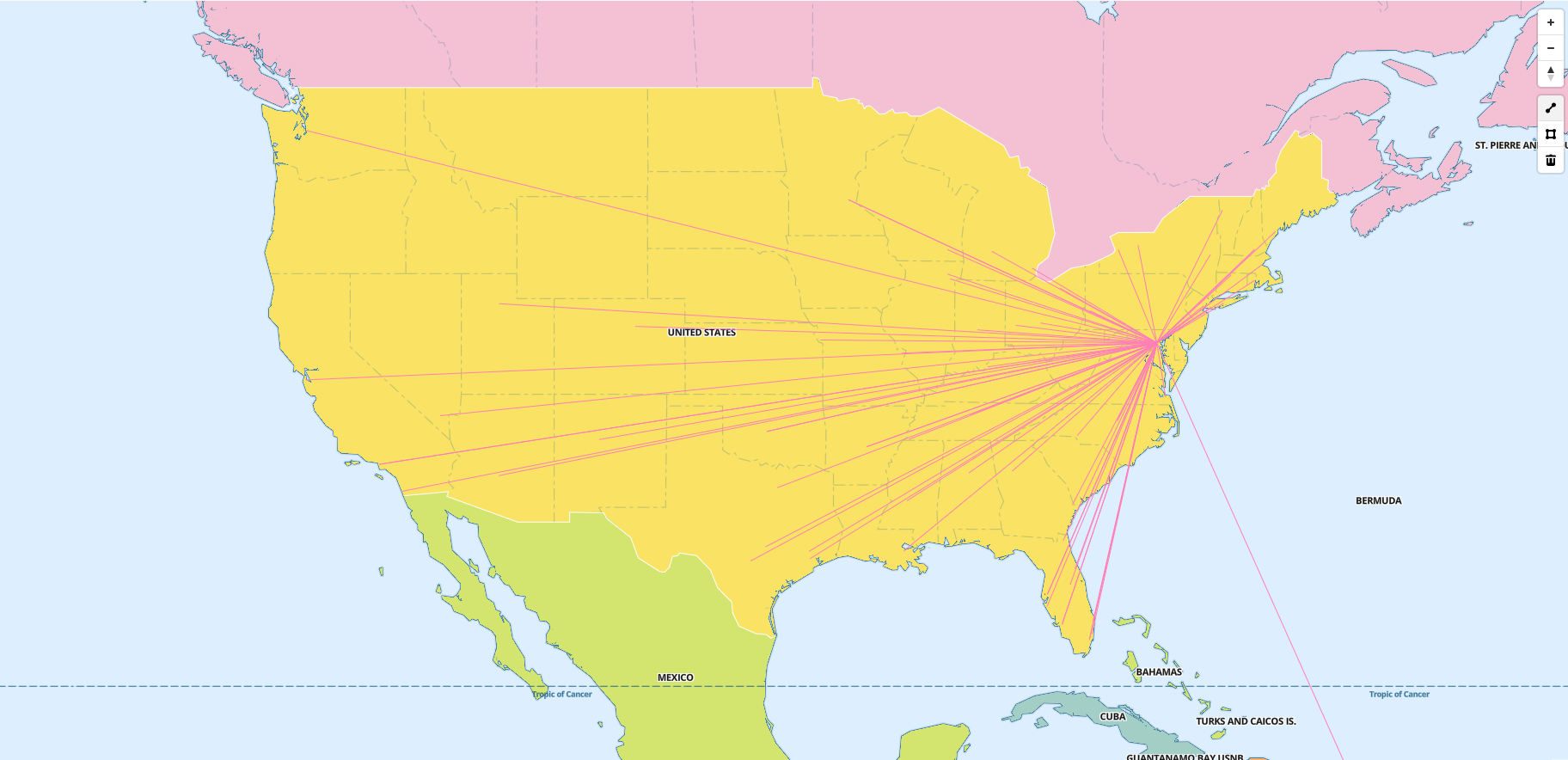
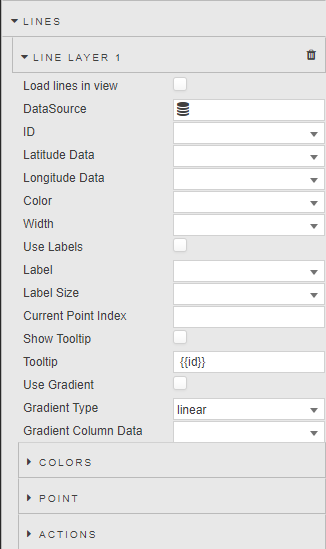
The Lines properties enable you to configure lines with customizable styling.
| Property | Description |
|---|---|
| Name | Define a name for the layer. If blank, the default name (Layer Type Layer Index) is used. |
| Load lines in view | Positions the map so that all points are zoomed in and visible when loaded. |
| Data Source | A data source that includes geographic coordinates. |
| ID | Lines are grouped by common IDs. To draw multiple lines from a single data source, group each set by the same ID. |
| Latitude / Longitude Data | The data source columns for latitude and longitude. |
| Color | The color of the map line graphic. |
| Width | The width of the map line graphic. |
| Use Labels | When checked, each line displays a label. |
| Label | The label displayed next to each line. |
| Label Size | The label font size. |
| Current Point Index | Set a value or view state with the current point index to highlight that point on the line. |
| Show Tooltip | When checked, the Map displays a tooltip when you mouse over a line. |
| Tooltip | Set the value you want to see on mouse-over from altitude, ID, latitude, or longitude. |
| Use Gradient | When checked, the color gradient indicator is shown. |
| Gradient Type | Select from linear (consistent color transition on a fixed scale) or data-driven (adapts to the data). |
| Gradient Column Data | Uses color gradients to visually represent data values within a column. |
Colors
| Property | Description |
|---|---|
| Color | Specifies the color used at a specific point in the gradient. Multiple colors can be defined for smooth transitions. |
| Percent | Position of the color stop within the gradient as a percentage (0–100%). |
Point
| Property | Description |
|---|---|
| Color | The color used by the current selected point on the line. |
| Size | The radius size of the current selected point on the line. |
Actions
Refer to Actions for details.
Concentric Circles
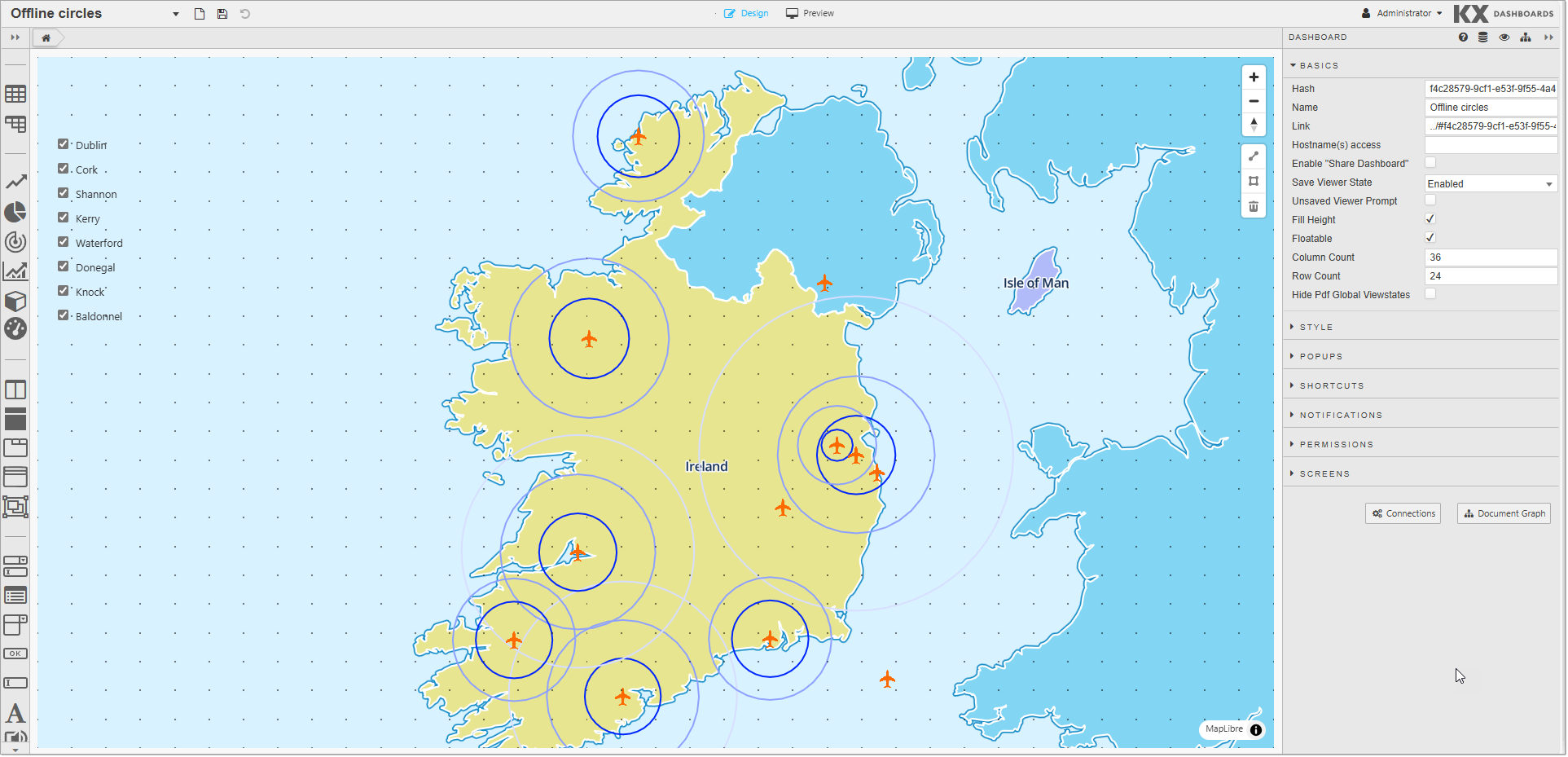
The Concentric Circles properties enable you to add concentric circle layers to maps, useful for: visualizing range (coverage areas like cell tower range); data analysis (segmenting areas for demographic or environmental studies); navigation (indicating distances for logistics and emergency planning); comparative studies; and interactive maps.
You can specify a latitude and longitude to set the center of the first circle. The radius can be defined based on a distance from this center point. Subsequent circles can be drawn from the edge of the first circle or independently.
| Property | Description |
|---|---|
| Name | Define a name for the layer. If blank, the default name (Layer Type Layer Index) is used. |
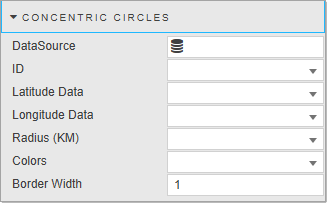
| DataSource | Specify the data source. The data source must have: Radius (KM) — a list of distances (KM) for each circle from the center point (e.g. ((25 50 100);(50 75))); Latitude and Longitude — center point coordinates (Latitude: -90 to 90, Longitude: -180 to 180); Colors — optional colors for each circle. See the sample data source query. |
| ID | A distinct identifier for each circle. |
| Latitude Data | The data source columns for latitude. |
| Longitude Data | The data source columns for longitude. |
| Radius (KM) | The radius of the concentric circle graphic. |
| Colors | The color of the concentric circle graphic. |
| Border Width | The border width of the concentric circle graphic. |
Sample Data Source
The following example shows concentric circles over Irish airports.
([]
    id:(1 2);
    location:(`Dublin`Cork);
    distance:( (25 50 100);(25 50 75));
    colors:(("#FF0000";"#FFA500";"#00FF00");("#FF0000";"#FFA500";"#00FF00"));
    latitude:( 53.2528 51.8491);
    longitude:(-6.2574 -8.4899)
    )
Heatmap
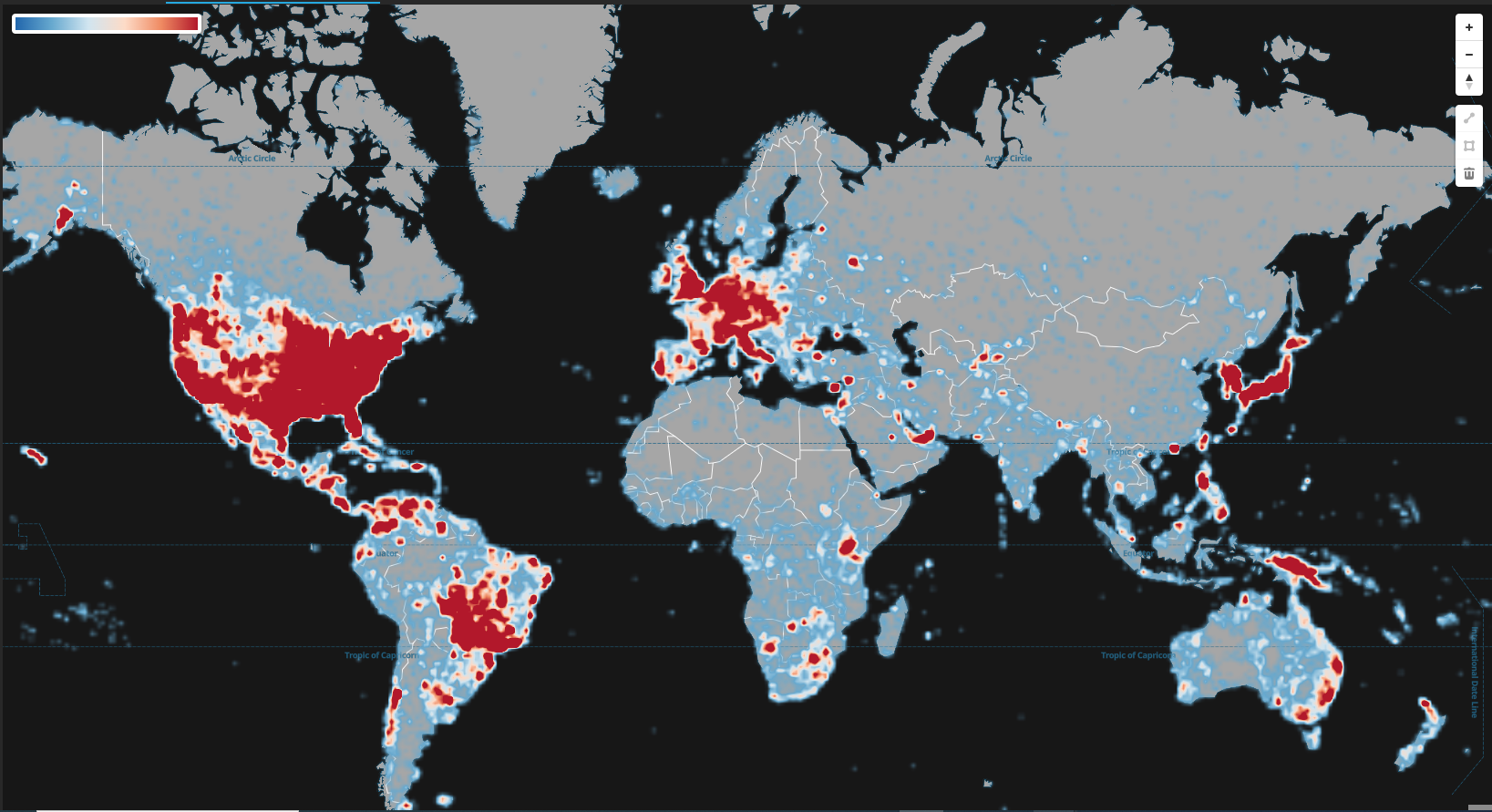
Heatmaps show the density of points over an area by displaying a continuous gradient between points. They are also useful for visualizing relative differences between those points.
| Property | Description |
|---|---|
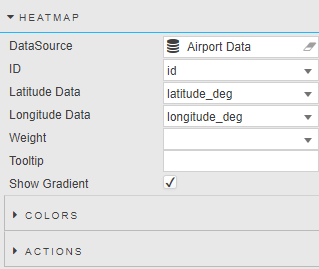
| Name | Define a name for the layer. If blank, the default name (Layer Type Layer Index) is used. |
| Data Source | A data source that includes geographic coordinates. |
| ID | A distinct identifier for a point. |
| Latitude / Longitude Data | The data source columns for latitude and longitude. |
| Weight | Determines the weight for each individual node. |
| Show Tooltip | When checked, a tooltip is displayed on mouse-over. |
| Show Base Circle | When checked, the Map displays a circle for each of the specified coordinates. |
| Tooltip | Set the value you want to see for tooltip at mouse-over. |
| Palette Theme | Define the Palette Theme for the Heatmap Colors. |
| Show Gradient | When checked, the color gradient indicator is shown. |
Colors
| Property | Description |
|---|---|
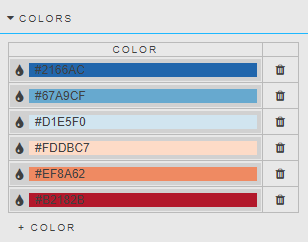
| Color | Set the gradient color from minimum density to maximum density. |
Actions
Refer to Actions for details.
Heatmap Grid
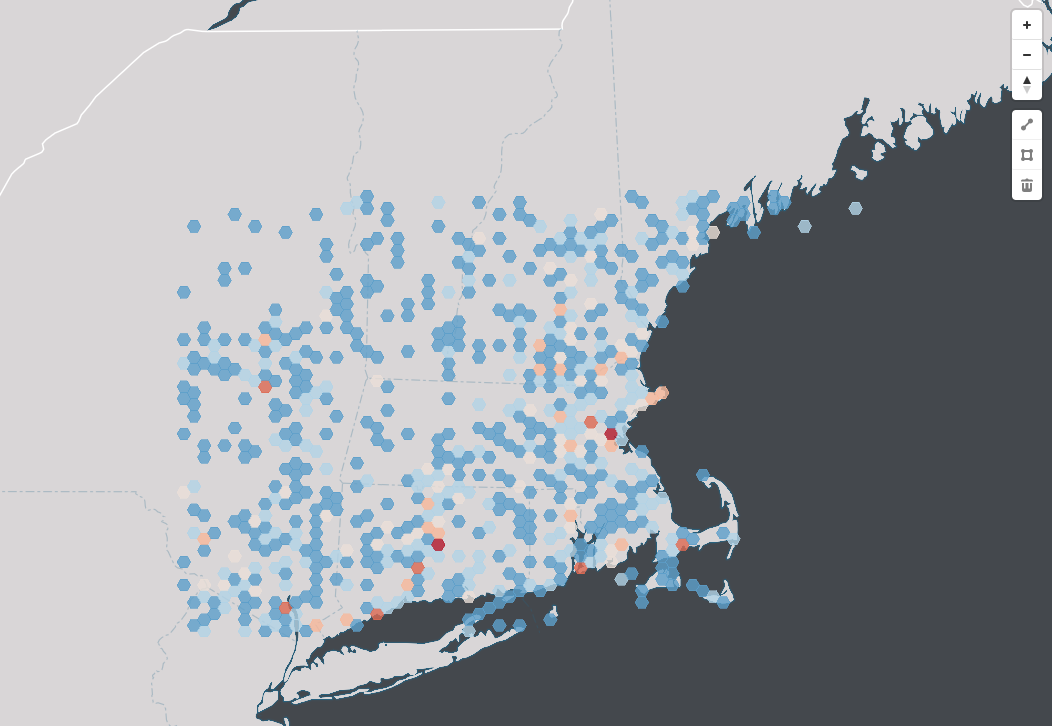
The Heatmap Grid allows you to visually represent large datasets using color gradients, making it easier to identify patterns, trends, and outliers. Each grid cell corresponds to a data point, with colors indicating values.
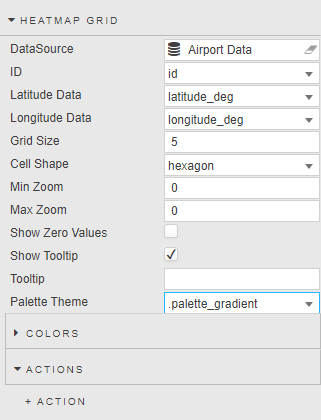
| Property | Description |
|---|---|
| Name | Define a name for the layer. If blank, the default name (Layer Type Layer Index) is used. |
| Data Source | A data source that includes geographic coordinates. |
| ID | A distinct identifier for a point. |
| Latitude / Longitude Data | The data source columns for latitude and longitude. |
| Grid Size | The length of each cell side (in kilometers). |
| Cell Shape | The shape of each cell: Square or Hexagon. |
| Min Zoom / Max Zoom | The zoom range in which the heatmap is displayed. The map provides 23 zoom levels (0 = fully zoomed out, 22 = fully zoomed in). At level 0 you see the Earth; at 3, a continent; at 4, large islands; at 6, large rivers; at 10, large roads; at 15, buildings. |
| Show Zero Values | If true, shows the color gradient for values that are zero; otherwise transparent. |
| Show Tooltip | When checked, a tooltip is displayed on mouse-over. |
| Tooltip | Set the value you want to see for tooltip at mouse-over. |
| Palette Theme | Define the Palette Theme for the Heatmap Grid Colors. |
Colors
| Property | Description |
|---|---|
| Color | Set the gradient color from minimum density to maximum density. |
Actions
Refer to Actions for details.
Bounds
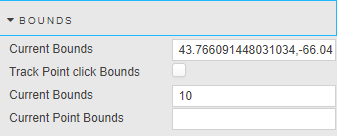
| Property | Description |
|---|---|
| Current Bounds | A bound is defined by its southwest and northeast points in longitude and latitude. Saves the current bound location when you zoom in or out. Used to map selected bounds coordinates to a View State Parameter. |
| Track Point click Bounds | When checked, you can track the bounds coordinates of a point when clicked. |
| Selected Point Bound Size | Defines a bounds around a point. Clicking on a point draws a rectangle around it, with width and height defined by this property. |
| Current Point Bounds | Displays the point bounds coordinates. |
Annotation
The Annotation properties enable you to add annotations to the map using lines or polygon shapes.
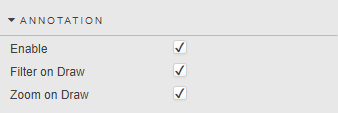
| Property | Description |
|---|---|
| Enable | When checked, you can annotate on the map using lines or polygons. A set of annotation controls appears on the left-hand side of the map, providing Line Draw, Polygon Draw, and Delete Annotation options. |
| Filter on Draw | When drawing a polygon, if checked, only the points/circles inside the drawn area remain; the rest are filtered out. |
| Zoom on Draw | When checked, the map zooms to the polygon area after you finish drawing. |
| Selected Annotation | The specific annotation currently highlighted or selected on the map. |
Animated Circles
These properties enable you to configure customized animated circles on your map.
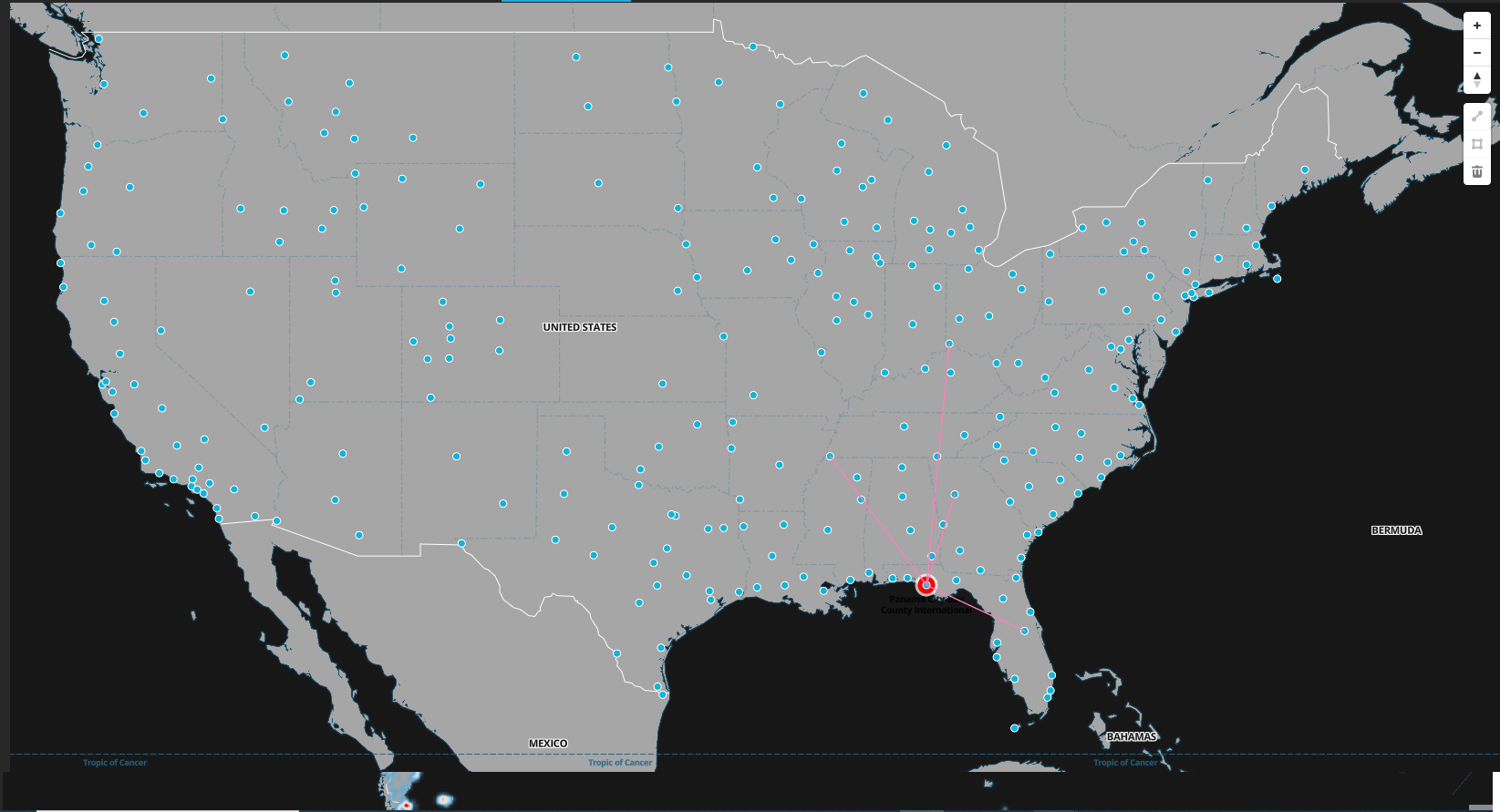
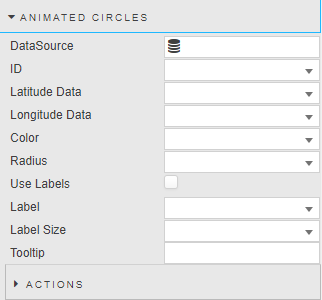
| Property | Description |
|---|---|
| Name | Define a name for the layer. If blank, the default name (Layer Type Layer Index) is used. |
| Data Source | A data source that includes geographic coordinates. |
| ID | A distinct identifier for an animated circle. |
| Latitude / Longitude Data | The data source columns for latitude and longitude. |
| Color | The color of the animated circle graphic. |
| Radius | The radius of the animated circle graphic. |
| Use Labels | When checked, the map displays a label for each animated circle. |
| Label | The label displayed next to each animated circle. |
| Label Size | The label font size. |
| Show Tooltip | When checked, the map displays a tooltip on animated circle mouseover. |
| Tooltip | Set the value you want to see for tooltip at mouse-over. |
Actions
Refer to Actions for details.
Icons
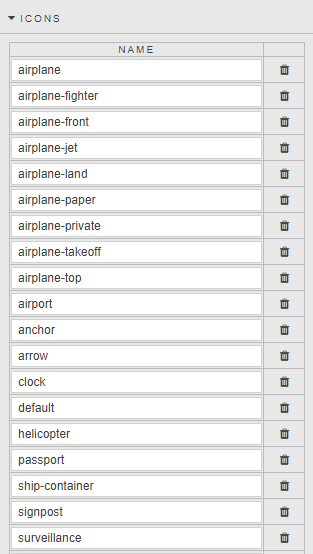
These properties present a list of icons added to the css\assets\images folder on the server. These icons can be used by the Icon property in the Points properties. Click + Icon to add more icons.
Night/Day Layer
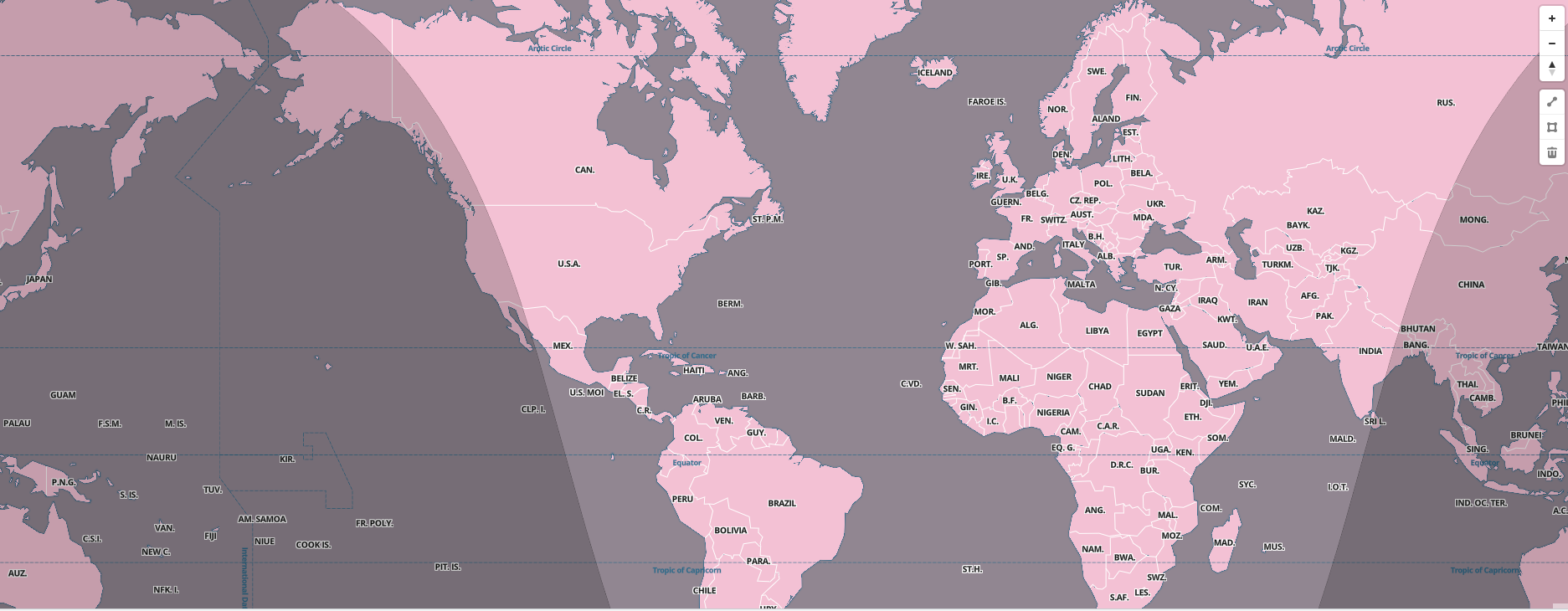
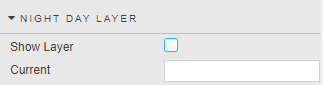
These properties enable you to add a layer to determine the region of day and night time based on a current date/time value.
| Property | Description |
|---|---|
| Show Layer | Toggle to specify whether the map shows the Night and Day layer. |
| Current | The current date/time value. |
Style
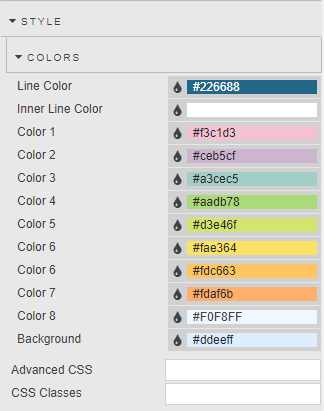
You can use the Style properties to override the default colors used in the map component.
3D Models
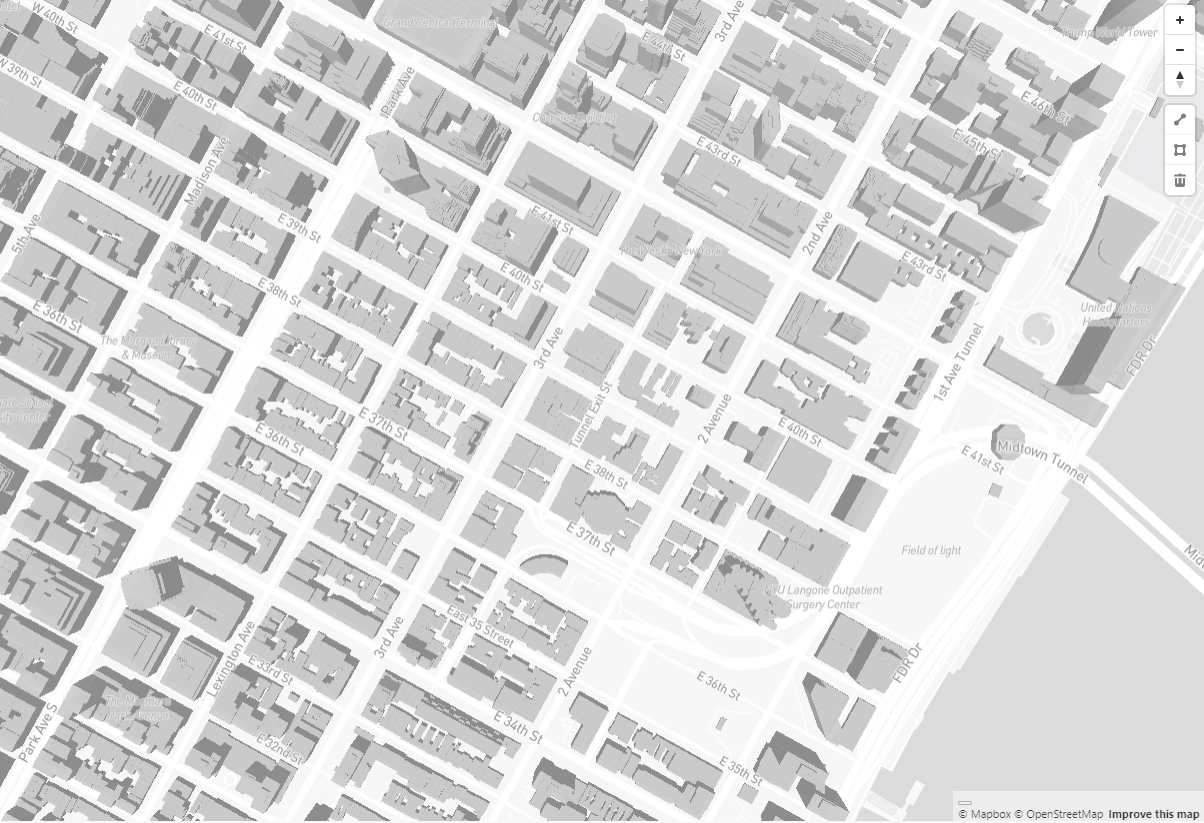
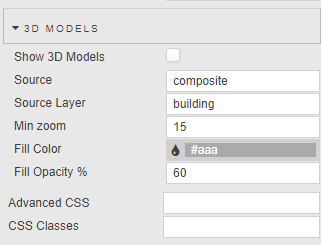
With 3D Models, you can see 3D models when you zoom into the data property.
| Property | Description |
|---|---|
| Show 3D Models | Check this box to enable the display of 3D models on the map. |
| Source | Defines the origin of the geographical data (vector tile, raster, or GeoJSON). Defaults to Composite, which combines multiple vector tile sources into a single source for efficient handling of complex maps. |
| Source Layer | Specifies a particular layer within a vector tile source. Necessary when a vector tile source contains multiple layers (like roads or buildings). |
| Min Zoom | Sets the minimum zoom level at which the 3D models are visible. |
| Fill Color | Sets the color used to fill the 3D models. |
| Fill Opacity | Controls the transparency of the fill color. |
Tile Server
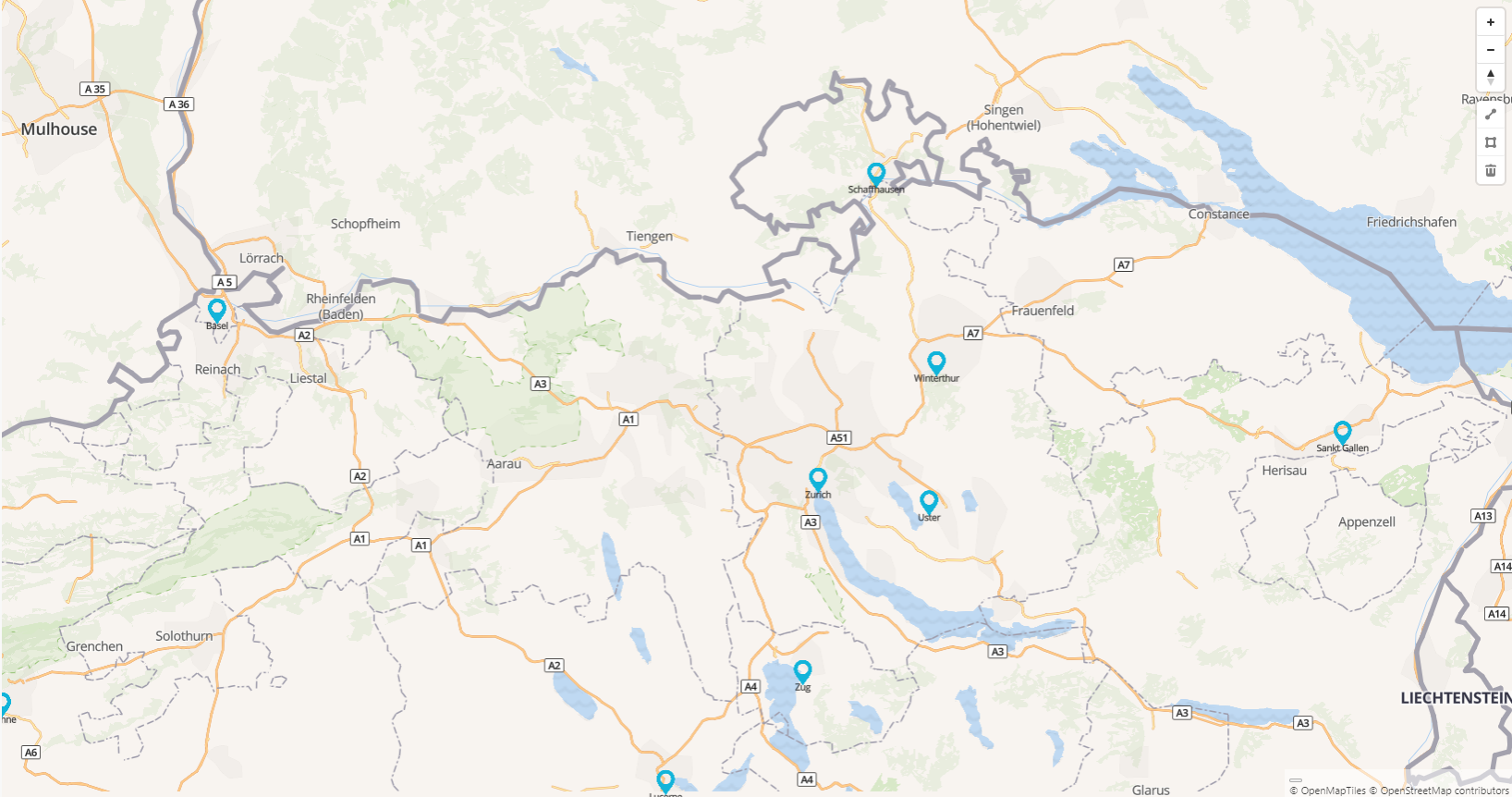
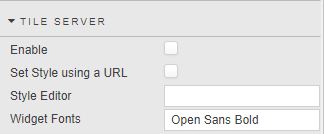
Integrating a custom-styled tile server allows you to load and display dynamic, custom-designed map layers with full control over appearance.
| Property | Description |
|---|---|
| Enable | When checked, interaction with a custom Tile Server is enabled. Note: To see the results after changing this property, the Dashboard must be saved and reloaded. |
| Set Style using a URL | Defines whether to set the style using a URL endpoint or using the editor to define JSON. |
| Style URL | Set the style of the map based on a URL endpoint. |
| Style Editor | Define the JSON style configuration. |
| Widget Fonts | Set the font name to be used by the Map Component (for example, "Open Sans Bold"). This font is stored on the tile server and will be used by point clusters and labels. |
Refer to Tile Server Installation and Setup for detailed instructions.
External API
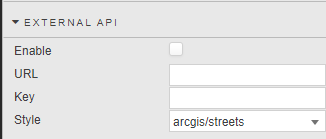
This Map component can also be used online, enabling you to set external APIs.
| Property | Description |
|---|---|
| Enable | When checked, you can use the external API on the map. |
| URL | The endpoint of the external API. |
| Key | The authentication key required to access the external API. |
| Style | Allows you to choose the visual representation of the map. |
Layers
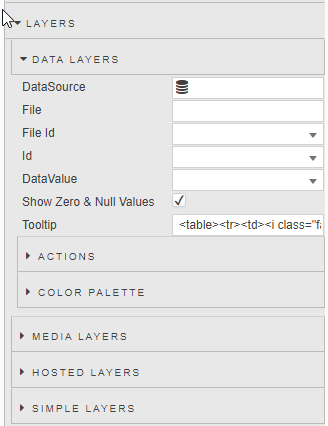
The Layers properties enable you to add the following types of layers to your map: Data Layers, Media Layers, Hosted Layers, Simple Layers, Raster Layers.
Data Layers
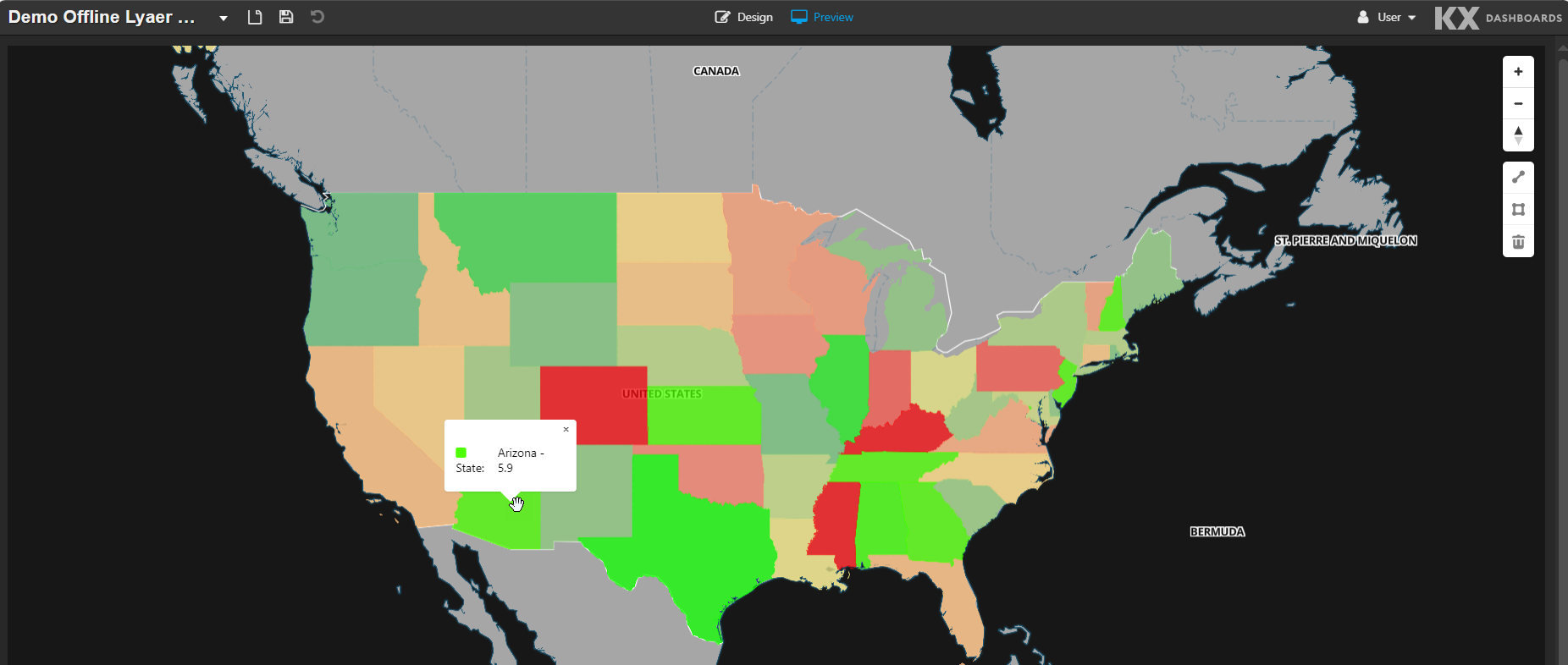
A Data layer combines GeoJSON geometric coordinates with kdb+ data. You can draw regions on the map based on GeoJSON coordinates and map kdb+ data to each region. The following example shows unemployment rate data across US states, highlighted in a color gradient from highest (bright red) to lowest (bright green).
| Property | Description |
|---|---|
| Data Source | A data source that defines the underlying dataset to be used by the Layer. |
| File | The GeoJSON file name. Files must be hosted locally in modules\OfflineMap\css\assets\layers. |
| File Id | The ID used in the GeoJSON file, used to link coordinates from the GeoJSON file with the kdb+ data. |
| Id | The ID used in the kdb+ data, used to link data with the GeoJSON file coordinates. |
| Data Value | A column from the data source used to define the color of each region. |
| Show Zero & Null Values | When checked, regions with zero or null values are displayed. |
| Show Tooltip | When checked, enables the display of a tooltip. |
| Tooltip | Displays a tooltip over each map region. By default maps the color, id and value of the region. |
| UseMinMax | When checked, Min Range and Max Range define the numeric range over which colors are mapped in the color palette gradient. |
| Min Range | The smallest data value that maps to the start of the color range. |
| MaxRange | The largest data value that maps to the end of the color range. |
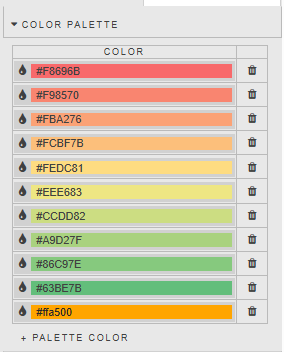
| Palette Theme | Refer to Palette Theme for details. |
Color Palette
Actions
Refer to Actions for details.
Media Layers
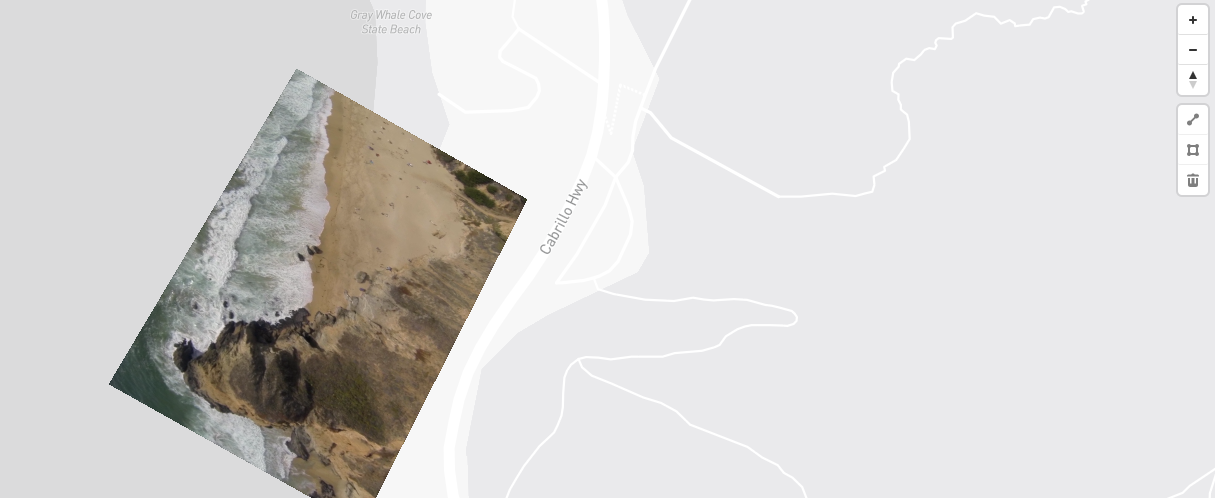
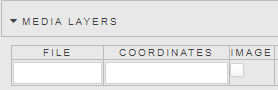
A media layer allows you to add a geo-referenced video or image on top of a map layer. Click the trash can icon to delete a layer.
| Property | Description |
|---|---|
| File | The file name. Files must be hosted locally in modules\OfflineMap\css\assets\layers. Can be either a video or image file. |
| Coordinates | Set four georeferenced coordinates (longitude, latitude) corresponding to the top-left, top-right, bottom-right, and bottom-left corners of the image. For example: [-122.516, 37.562], [-122.514, 37.564], [-122.513, 37.563], [-122.514, 37.561]. |
| Order | The order in which the media layers are applied to the map. |
| Image | Must be checked if the media file is an image. |
Hosted Layers
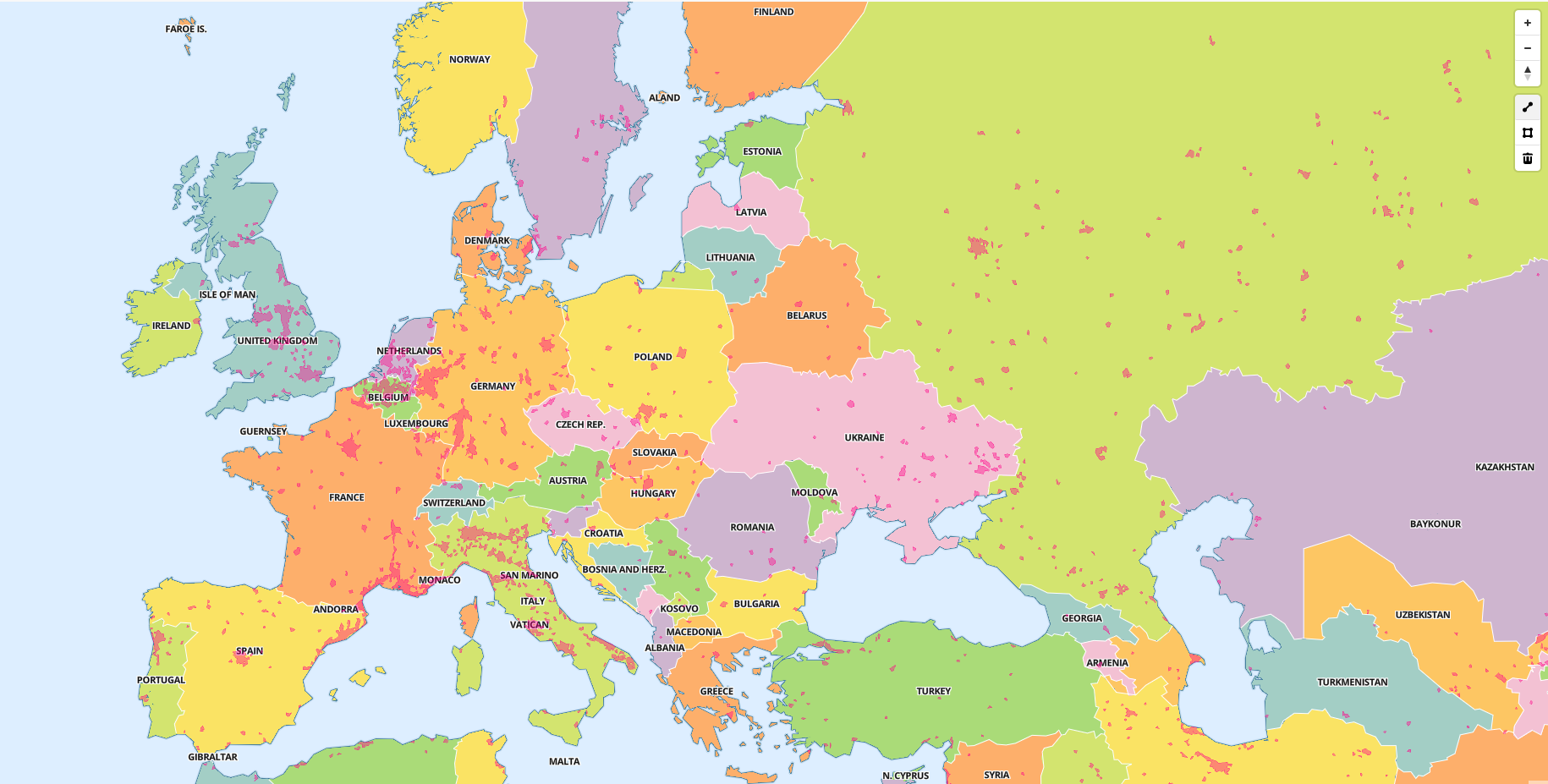
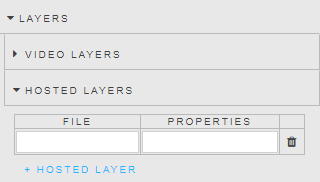
You can add a hosted GeoJSON layer to your maps. Each layer provides rules about how the renderer draws data in the browser. Click the trash can icon to delete a layer.
| Property | Description |
|---|---|
| File | The file name. Files must be hosted locally in modules\OfflineMap\css\assets\layers. |
| Name | The label for the layer, used to identify it in the map legend and settings panel. |
| Properties | Defines the colors used by the layer. For example: {"paint": {"fill-color": "#f08","fill-opacity": 0.4}}. |
| Tooltip | Defines the content shown in the tooltip. You can reference data fields using template syntax. |
| Show Tooltip | Enables or disables tooltips for this layer. |
Simple Layers
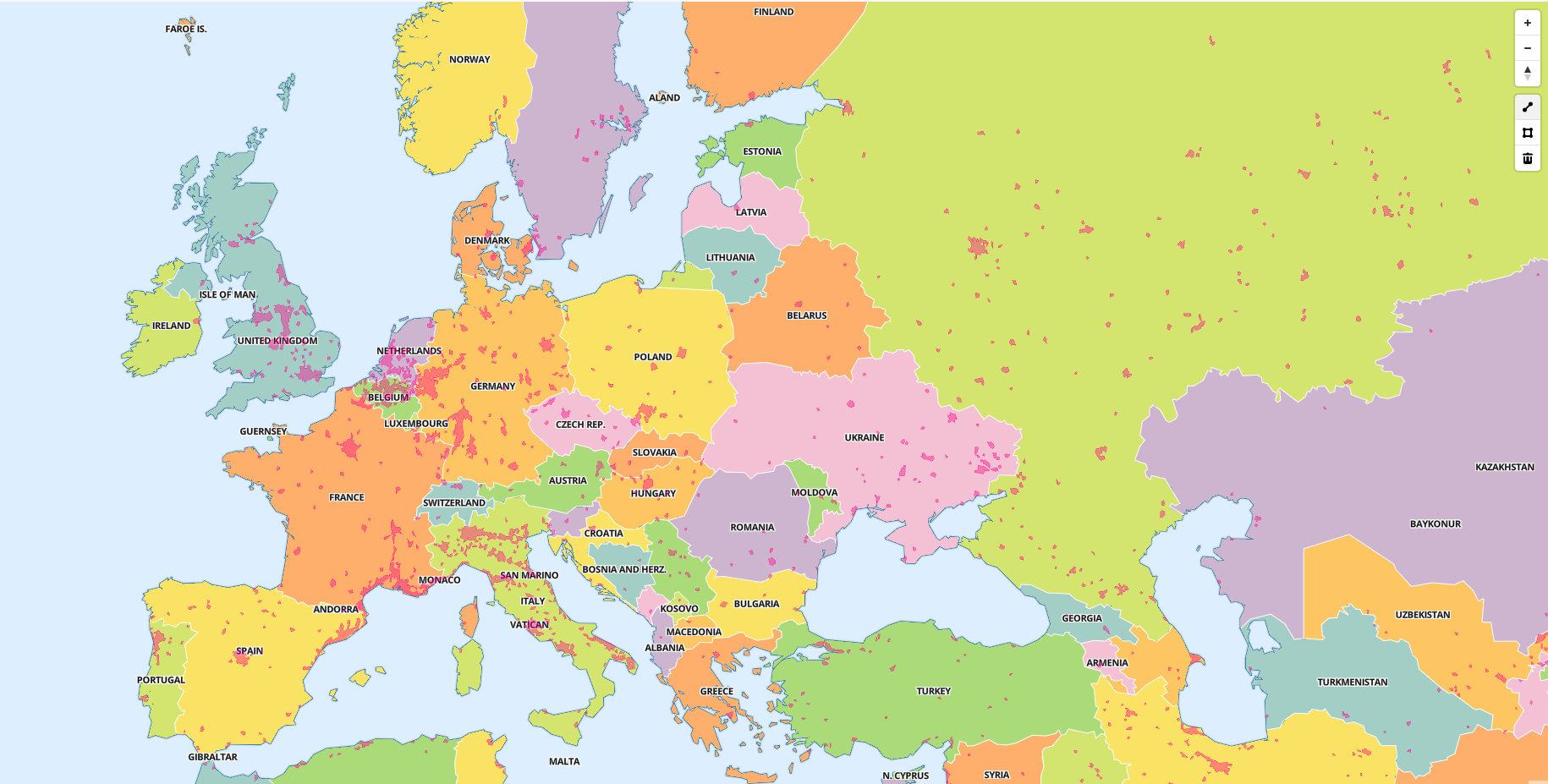
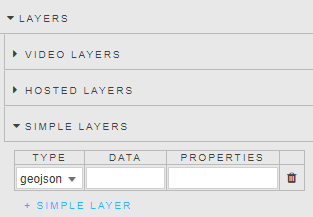
You can add a text-based GeoJSON layer to the maps.
| Property | Description |
|---|---|
| Type | Determine the layer type: GeoJSON or vector. |
| Name | Name for the layer. |
| Data | The data used by the layer (JSON or GeoJSON format). |
| Properties | The style properties used by the layer. For example: { "id": "urban-areas-fill", "type": "fill", "source": "urban-areas", "layout": {}, "paint": { "fill-color": "#f08", "fill-opacity": 0.4 } }. |
| Tooltip | Tooltip content. |
| Show Tooltip | Enables or disables tooltips. |
Asset storage
To avoid using external APIs, all assets including glyphs, images, and tiles are stored in the css\assets\ folder inside the component code.
Raster Layers
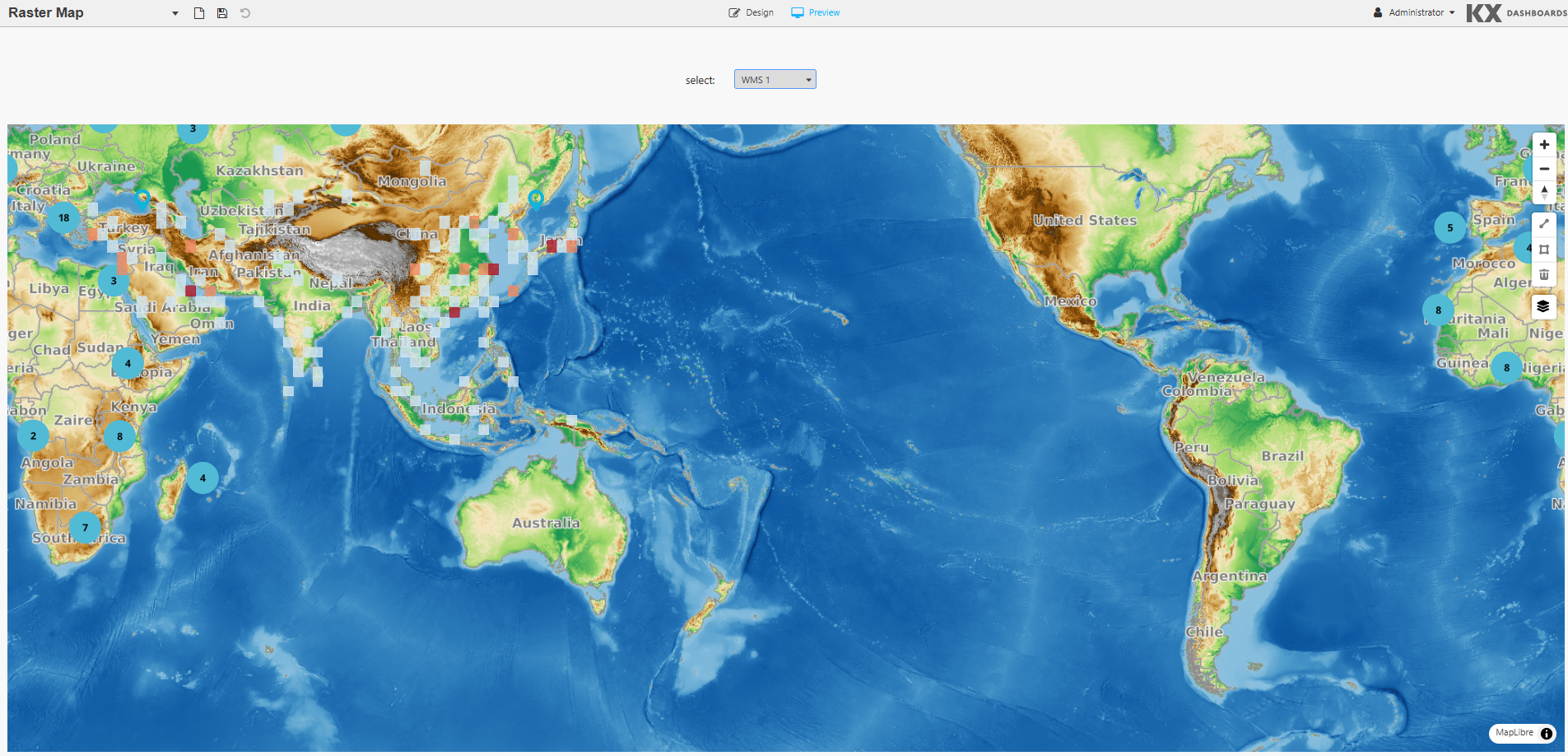
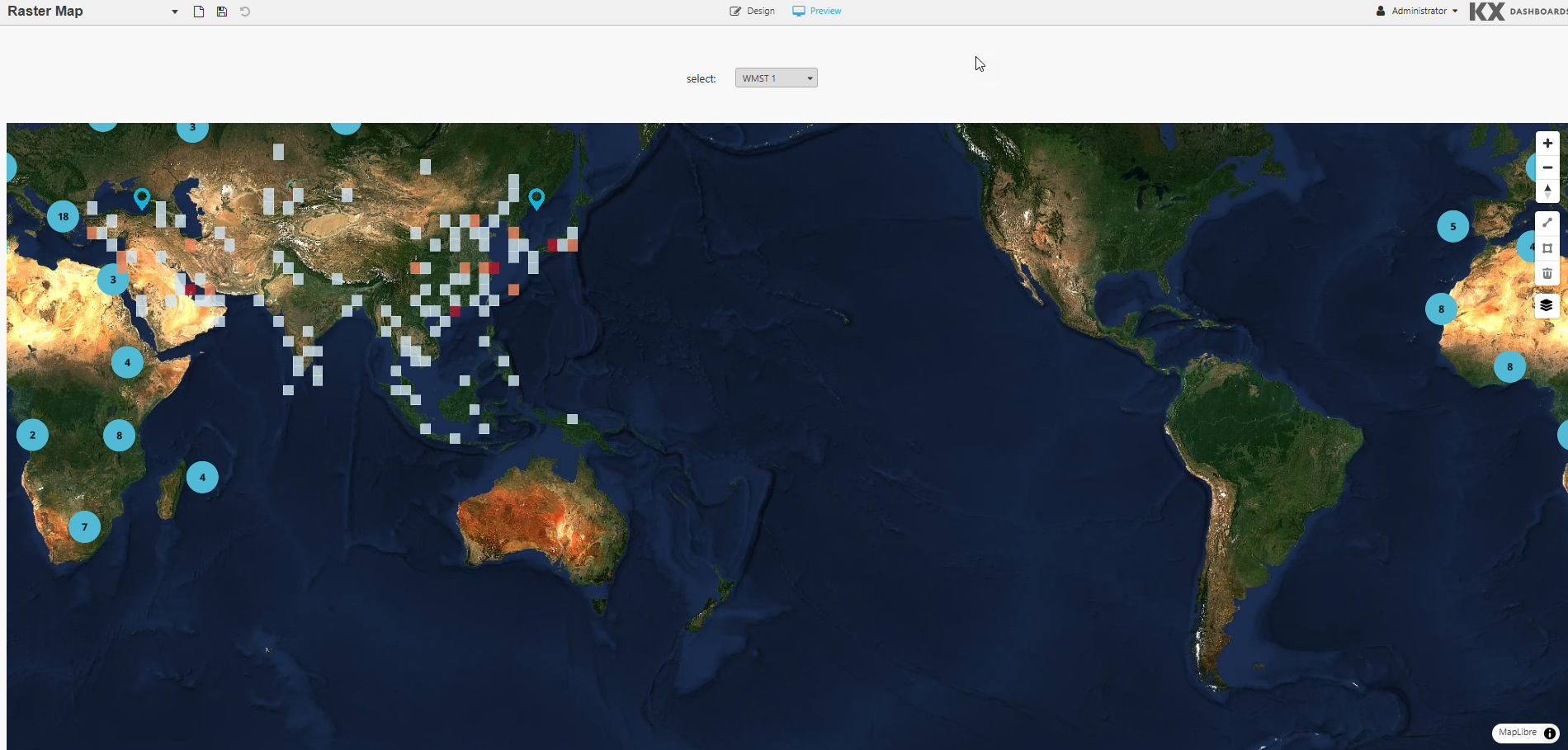
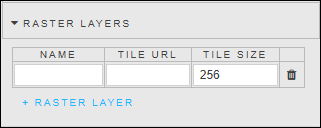
Raster layers represent data as a grid of pixels, where each pixel holds a value (temperature, elevation, satellite imagery, precipitation). The Raster Layer properties allow you to add custom layers from WMS or WMTS endpoints.
| Property | Description |
|---|---|
| Name | A descriptive label for the raster layer (for example, Weather Radar). |
| Tile URL | The URL template for requesting tiles from your WMS or WMTS service. Must include necessary parameters (for example, bbox, srs/epsg, width, height, format). A viewstate can be used to set the URL. |
| Tile Size | Defines the pixel dimensions of each map tile (typically 256 or 512). Must match the service configuration. |
Margins
Refer to Margins for details.
Format
Refer to Format for details.
Drawing a Line
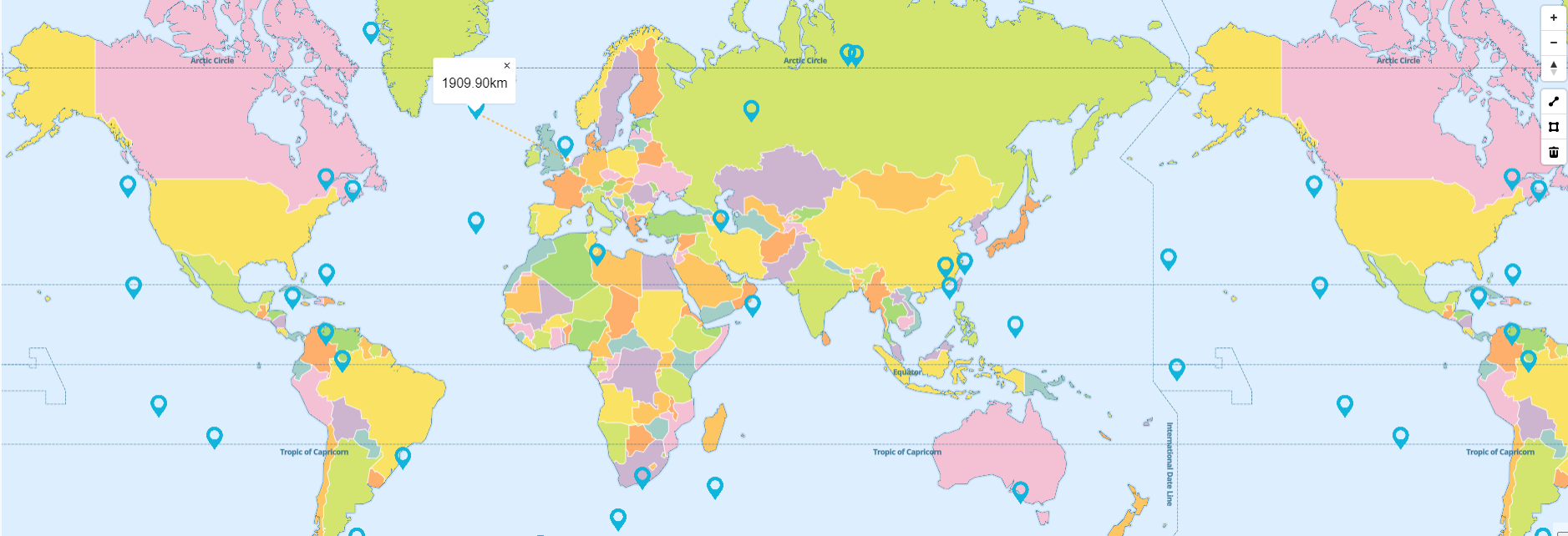
This section describes how to draw a line on a map to calculate the distance between 2 or more spots. Once drawn, the distance (in kilometers) is shown in a popup.
To draw a line annotation:
- In the annotation control, on the right-hand side of the map, click on the line icon.
- Select the starting point on the map by using a left or right mouse click.
- Click at any other point on the map to connect the line.
- The line is displayed as a yellow dashed line while editing.
- Once finished editing, click on the line to set it to blue.
To delete a line, select the line and click on the trash icon in the annotations properties on the left-hand side of the map.
Drawing a Polygon
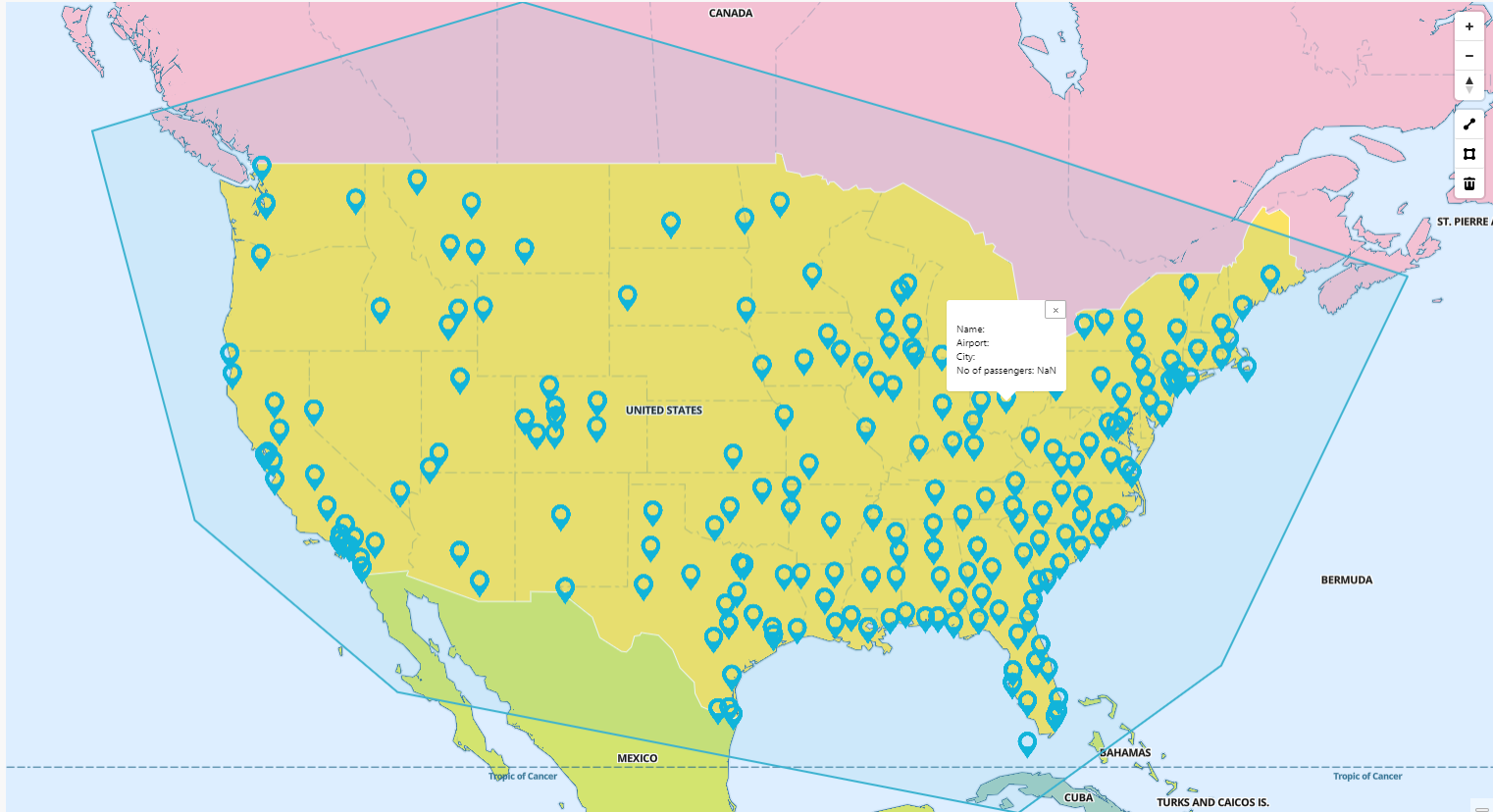
This section describes how to draw a polygon on a map by selecting a set of points/circles.
To draw a polygon:
- In Preview mode, click on the polygon icon in the annotation controls on the right-hand side of the map.
- Click on the map where you want to start the polygon, then click on multiple sections to connect the polygon points.
- The polygon is displayed as a yellow dashed line while editing.
- Once finished editing, click on the line to set the polygon to blue.
Note
If Zoom on Draw is checked, the map zooms in on the polygon after it is applied. If Filter on Draw is checked, the map only displays the points/circles inside the polygon shape after it is applied.
To delete a polygon, select the polygon and click on the trash icon in the annotations menu.
Tile Server Installation
KX Dashboards uses tileserver-GL, a self-hosted map tile server for use when leveraging web-based maps and online map tilers are unavailable in offline and air-gapped environments.
Tile Server Documentation
Tile Server GitHub guide: https://github.com/maptiler/tileserver-gl
Full documentation: https://tileserver.readthedocs.io/en/latest/
Prerequisites
- Latest Version of KX Dashboards 2.2.5 or greater, or KX platform build 4.9.2 or greater
- Node JS 18.17.0 or greater
- https://github.com/maptiler/tileserver-gl
Operating Systems
- Windows (x64) or greater
- Ubuntu 22.04 or greater
- macOS 14 (x64/arm64) or greater
Getting Started
Install from npm to the directory you wish to install to.
Option 1: Install globally from npmjs:
npm install -g tileserver-gl
Option 2: Install locally from source:
git clone https://github.com/maptiler/tileserver-gl.git
cd tileserver-gl
npm install
Using tileserver-gl-light
tileserver-gl-light can be used but is unable to handle any raster functions. If raster functions may be required in future, install the full version.
Map Data
To render data offline, an mbtiles file is required for the area of interest. It is recommended to use the mbtiles files at: https://osm.dbtc.link/mbtiles/
mbtiles Recommendation
- Recommended mbtiles file download:
2024-06-25-planet.mbtiles - This file is for OpenStreetMap Data last updated in June 2024. As this is a static file, map updates must be obtained by the user.
- KX is not responsible for providing map updates.
Adding Map Data and Styles
Once the OSM data is downloaded, copy it to the same directory as the tileserver-gl install (along with the accompanying config.json file, if present).
Sample fonts and files for the tile server can be obtained from: https://github.com/maptiler/tileserver-gl/releases/download/v1.3.0/test_data.zip
From test_data.zip, copy the styles and fonts directories to the tileserver-gl installation folder.
Tile Server Configuration File
The config.json file configures map styles, fonts, and data sources. If no config.json is defined, the server will use its default settings.
The tileserver-gl directory structure should look similar to this:
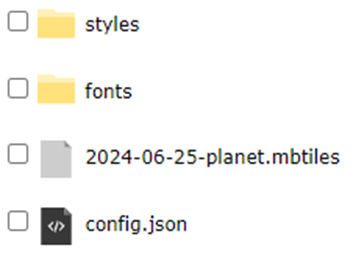
Inside the styles folder, the following styles are provided: osm-bright and klokantech-basic.
Additional styles
Additional styles can be added by following the user guide in the tileserver-gl documentation.
Before You Start the Tile Server
Tileserver-gl defaults to port 8080. Assign a new port to avoid conflicting with your KX install. Port 8082 is recommended.
tileserver-gl 2024-06-25-planet.mbtiles -p 8082
KX Dashboards Tile Server Integration
- Drag the Map component onto the canvas.
- In the Tile Server property section, check Enable.
- The Style can be specified in one of two ways:
Set the Style Using URL

- Check Set Style using a URL.
- Using a browser, navigate to the host and port for the Tile Server. Right-click the link for the chosen Style and copy the link to the clipboard.
- Paste the URL into the Style URL property in KX Dashboards.
- Save and reload/refresh the page.
Set the Style Using Editor
- Uncheck Set Style using a URL.
- Using a browser, navigate to the host and port for the Tile Server. Click the link for the chosen style and copy the contents to the clipboard.
- Paste the contents into the Style Editor property.
- Save and reload/refresh the page.