ICE Order Book Accelerator Quickstart Guide
This page provides a quickstart guide for the ICE Order Book Accelerator.
The ICE Order Book Accelerator is an FSI Accelerator package which comes with ready made Pipelines, Views, and Schemas out of the box.
Prerequisites
This quickstart guide is not intended to be a comprehensive KDB Insights Install Guide, for more information regarding KDB Insights installation refer to the kdb Insights Enterprise documentation.
This guide assumes the following pre-requisites:
- KDB Insights Enterprise is installed, and
- The following credentials have been obtained and configured for Insights users:
- GUI User
- API Client
- A KX Downloads Portal bearer token to download packages/charts (represented by BEARER in this guide).
- The following credentials have been obtained and configured for Insights users:
- ICE Credentials:
- ICE Consolidated Feed Username & Password
- ICE Consolidated Feed IP Address & Port Number
- Tools used:
- Access to *nix command-line
- KDB Insights CLI -
kxi - Kubernetes tools:
- kubectl
- K9s
- Helm installed and logged in to nexus
- VSCode plugins:
- KX kdb
- Jupyter
Quickstart guide
Warning
Before you begin, set your Accelerator and fsi-lib version, as shown below. This helps simplify the download and installation commands.
export ACCELVER=1.4.4
export FSILIBVER=1.3.7
Download package
Download the required FSI packages from the kx download portal:
# Download fsi-lib - the Core FSI Library
curl -s --fail-with-body -D /dev/stderr --oauth2-bearer ${BEARER} -L -OJ https://portal.dl.kx.com/assets/raw/kxi-accelerators/fsi/fsi-lib/packages/${FSILIBVER}/fsi-lib-${FSILIBVER}.kxi

# Download fsi-app-ice-orderbook - the ICE Orderbook Accelerator
curl -s --fail-with-body -D /dev/stderr --oauth2-bearer ${BEARER} -L -OJ https://portal.dl.kx.com/assets/raw/kxi-accelerators/fsi/fsi-ice-orderbook/packages/${ACCELVER}/fsi-app-ice-orderbook-${ACCELVER}.kxi
Unpack package
Unpack fsi-app-ice-orderbook:
kxi package unpack fsi-app-ice-orderbook-${ACCELVER}.kxi
Push package and deploy pipelines
Push the packages to Insights and deploy the fsi-ice-orderbook-assembly and realtime pipelines:
# Install the packages
kxi pm push fsi-lib-${FSILIBVER}.kxi
kxi pm push fsi-app-ice-orderbook-${ACCELVER}.kxi

# Deploy the assembly
kxi pm deploy fsi-app-ice-orderbook --db fsi-core-db

# Deploy the pipelines
kxi pm deploy  fsi-app-ice-orderbook --pipeline icerealtimel1
kxi pm deploy  fsi-app-ice-orderbook --pipeline icerealtimel2
kxi pm deploy  fsi-app-ice-orderbook --pipeline orderbook
Info
At this point you should be able to see the pipelines booting up on the GUI or on k9s.
Add the KX helm repository from the KX downloads portal.
Note
For info on how to set up your downloads bearer token, go to https://portal.dl.kx.com/auth/token
helm repo add kx https://portal.dl.kx.com/assets/helm --username <INSERT_EMAIL> --password <INSERT_BEARER_TOKEN>
Download the Feedhandler
Download the ICE Feedhandler from helm:
helm fetch kx/rt-ice-pub --version 1.0.3 --untar
Configure the Feedhandler
Add your ICE Username & Password as a kubernetes secret:
Note
The secret name, in this case my-ice-secrets, should match the ice.secrets.name value in the example config file you previously edited - fsi-app-ice-orderbook/feed/ice-orderbook-feed-values.yaml.
kubectl create secret generic my-ice-secrets --from-literal=ice-username=<INSERT_ICE_USERNAME> --from-literal=ice-password=<INSERT_ICE_PASSWORD> -n <YOUR_NAMESPACE>
To create a secret for the Helm chart to pull the feed image, use the following command:
kubectl create secret docker-registry "docker-pull" --docker-server=portal.dl.kx.com --docker-username=<INSERT_EMAIL> --docker-password=<INSERT_BEARER_TOKEN> --docker-email=<INSERT_EMAIL> -n <INSERT_YOUR_NAMESPACE>
Update the example ICE Feedhandler Config File to include your credentials and preferences.
Note
- The config file contains a lot of commonly pre-populated default values.
- Any values that are expected to require updating on a per-deployment bases have been marked with a TODO comment, for example:
- Connection Details
- Subscription List
vi fsi-app-ice-orderbook/config/feed/ice-orderbook-feed-values.yaml
Note
Starting with rt-ice-pub-1.0.3, the ICE Feedhandler supports subscription lists from two sources:
1. The ice.subscriptionList value in values.yaml, which is used to deploy the helm chart (same as previous behavior).
2. A file in the Helm chart rt-ice-pub/config/subscriptions.txt that can also be used to specify the subscription list (new option). An example file has been included in the Accelerator at fsi-app-ice-orderbook/config/feed/files/ice/subscriptions.txt.
Copy the schema.xml file from the Accelerator to the ICE Feedhandler:
cp fsi-app-ice-orderbook/config/feed/files/ice/schema.xml rt-ice-pub/config/
If using a subscriptions.txt file to specify the subscription list rather than the string in the values file, either update the default file in the ICE Feedhandler with the required subscriptions:
vi rt-ice-pub/config/subscriptions.txt
or use the example file provided with the accelerator by copying it to the ICE Feedhandler:
cp fsi-app-ice-orderbook/config/feed/files/ice/subscriptions.txt rt-ice-pub/config/
Install the ICE Feedhandler Helm Chart using our config file:
helm install rt-ice-pub ./rt-ice-pub -f fsi-app-ice-orderbook/config/feed/ice-orderbook-feed-values.yaml -n <INSERT_YOUR_NAMESPACE>
Verify the ICE FH is running using kubectl:
kubectl describe pod rt-ice-pub-0
Expected Output from above command on successful install:
Events:
  Type    Reason                  Age   From                     Message
  ----    ------                  ----  ----                     -------
  Normal  Created                 24s   kubelet                  Created container rt-ice-pub
  Normal  Started                 24s   kubelet                  Started container rt-ice-pub
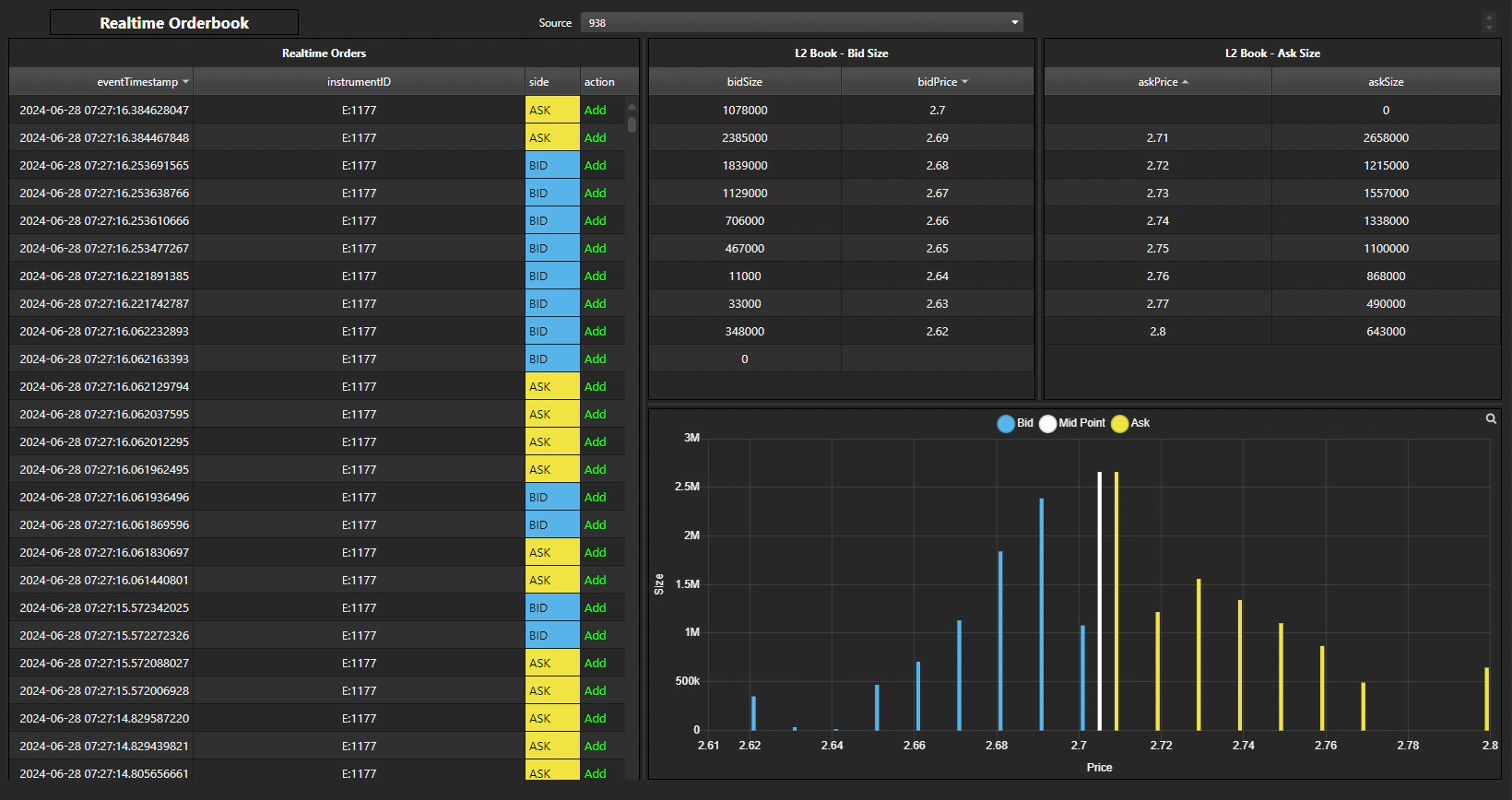
Now that you have the ICE Feedhandler running you should be able to see data flowing in realtime via the Realtime-Orderbook View: