Test Deploy
This page describes how to test pipelines before deploying them.
Pipelines are typically developed and validated before being deployed to production. During development, you may need to verify transformations, inspect intermediate data, and debug errors.
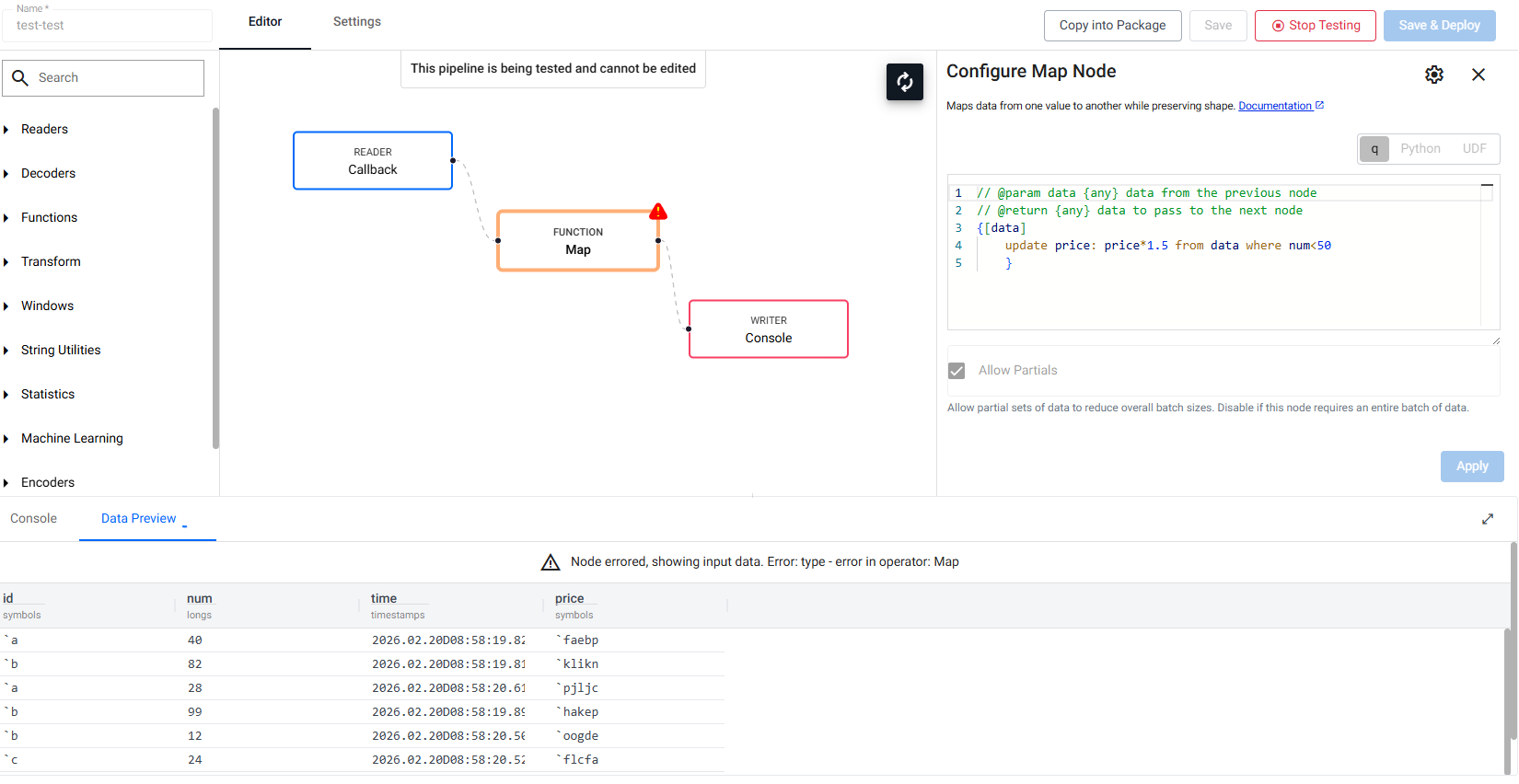
A test deploy allows you to run a pipeline in an isolated environment before deployment. It runs the pipeline with data tracing enabled, allowing you to inspect the data flowing through each node. Nodes that encounter errors are highlighted, and the data output by each node can be viewed by selecting it.
Run a test deploy before deploying a new pipeline to validate its behavior, debug issues, and ensure correctness.
Stubbed writers
In test deploys, writer nodes are "stubbed". This means they do not actually write data anywhere; instead, they validate the data passing through the node and log it for tracing.
Errors in nodes
The preview for a node shows the output of that node. However, when a node errors the input data is displayed instead.
The following screenshot shows the result of running a test deploy, with erroring nodes highlighted.
Test pipeline
To run a test deploy, click Test Pipeline.
The test pipeline enters a running state and begins sampling data. To view test data for a node, click the node and view the data in the lower panel under the Data Preview tab.

The default test runs the pipeline in the user's scratchpad with data tracing. The test does not finish until the user clicks Stop Testing. In comparison to a legacy full test, the default test is an order of magnitude faster.
Memory usage
Because this test method runs in the user's scratchpad process, large amounts of data may cause the scratchpad to run out of memory.
Additional Kubernetes resource handling
If a pipeline has additional Kubernetes resources set in the Settings section such as:
- ConfigMaps
- Secrets
- Volumes
- Environment Variables from ConfigMaps/Secrets
Then the scratchpad pod will be restarted with these resources mounted. As a result, there may be a slight delay before the test starts.
Interactive debugging
The default test runs in the user's scratchpad, which allows interactive debugging. You can use global variables within any node that executes a user-defined function and then inspect those variables from the Query tab to investigate errors. While the pipeline is running, it may continue to update data. Click Stop Testing to stop the test. Once stopped, any global variables remain static, and you can examine them.
Interactive debug walkthrough
If the map node from the example pipeline above is updated to store debug data by adding .test.data: data;:
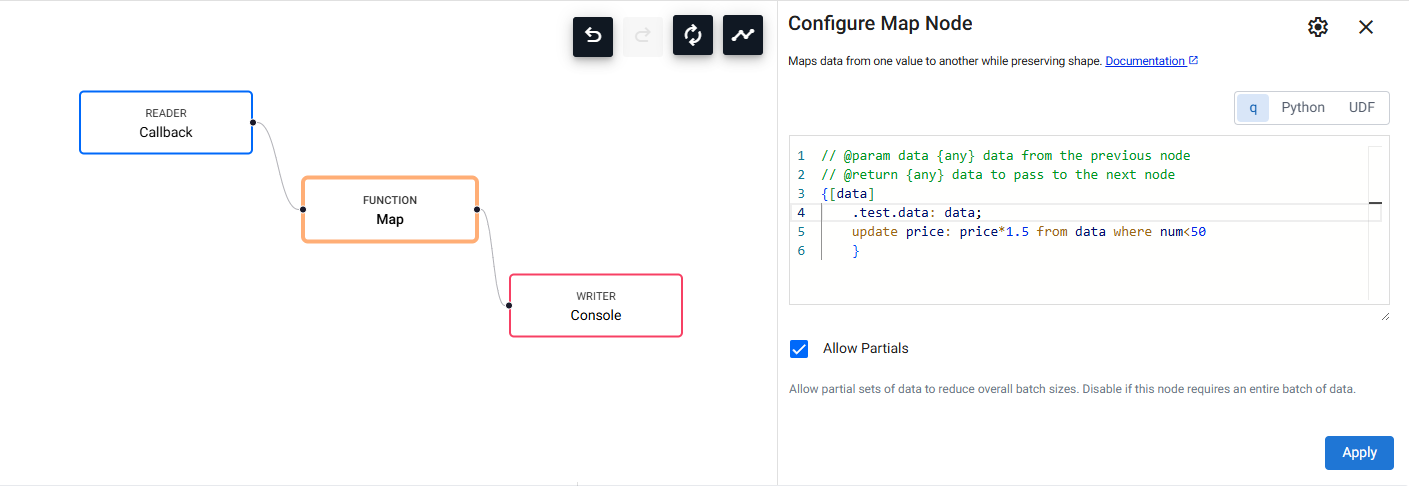
Then Apply the change, Save the pipeline and run Test Pipeline. The pipeline is now running in the scratchpad.
You can now open the Query tab and interact with the pipeline. In this example, the Callback Reader's callback function is called publish. You can can push some data through:
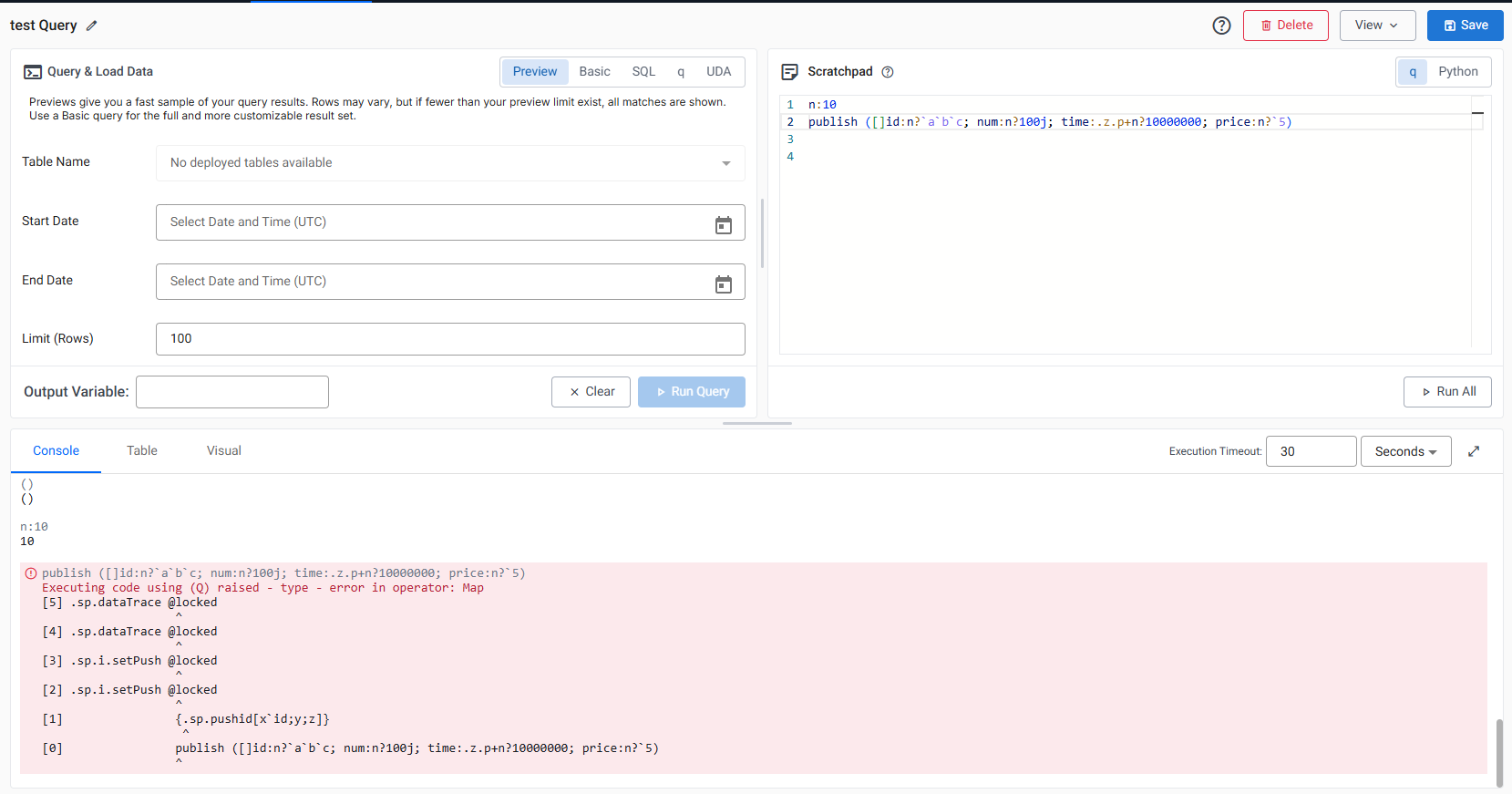
An error is displayed in the console and you can now inspect the debug variable and execute code against it to pinpoint where the error came from:
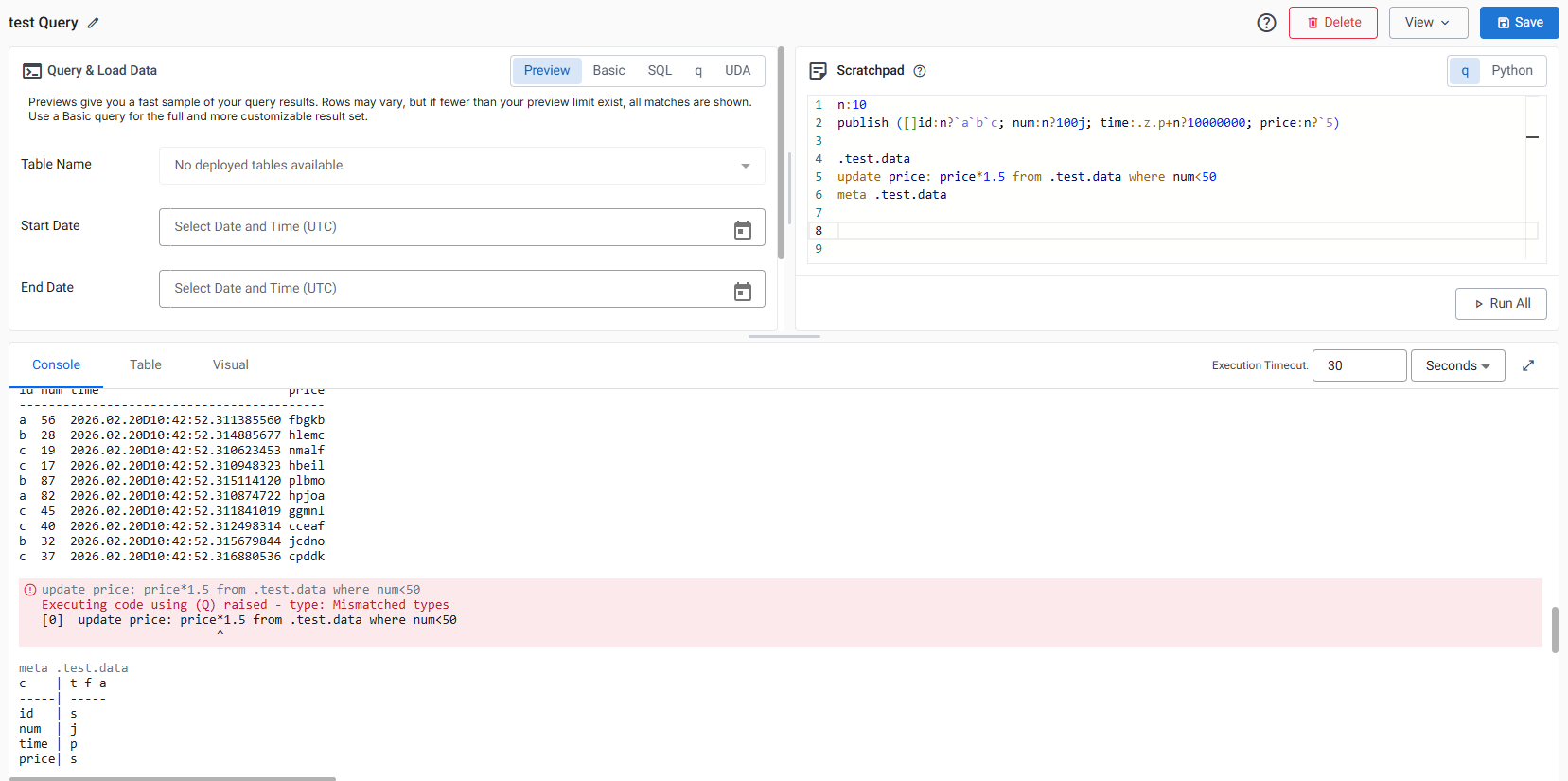
The price field is not of the expected type.
The test does not automatically stop. A user needs to click Stop Testing. Only one pipeline can be tested at a time within a scratchpad process.
Full test deploy (Legacy)
A full test deploys the pipeline into a Kubernetes cluster as it would during a normal deployment. In older versions, this was required to support pipeline configurations that needed additional resources, but these are now supported in the default test feature. The pipeline is automatically torn down when one of the following occurs:
- It errors.
- All writers receive their first batch of data.
- The Full Test Timeout is reached without receiving data.
Whichever occurs first. In comparison to the default test, a full test runs as a complete Kubernetes deployment, allowing testing of Kubernetes specific configurations and infrastructure components such as mounting Kubernetes secrets for credential management. As a result, however, this test is much slower than the default test and does not allow interactive debugging.
This test method is legacy. The default test is the recommended test method.