Azure Marketplace Billing FAQs
This page provides answers to some frequently asked questions relating to kdb Insights Enterprise billing.
- How can I find my "kdb Insights SDK or kdb Insights Enterprise License" SaaS subscription?
- Can I move my SaaS Billing resource to another Azure Subscription or Resource Group?
- Can I modify the recurring billing option after the subscription has been created?
- Can I purchase a kdb Insights Enterprise KX License with custom terms and conditions or a custom price?
How can I find my kdb Insights SDK or kdb Insights Enterprise License SaaS subscription?
There are multiple ways to navigate to your KX license subscription.
When you created the KX license subscription, you entered a name and selected a resource group.
You can search for either of those:
-
Navigate to the Azure search box and enter the subscription name or the resource group name you selected when you subscribed to the KX license.
-
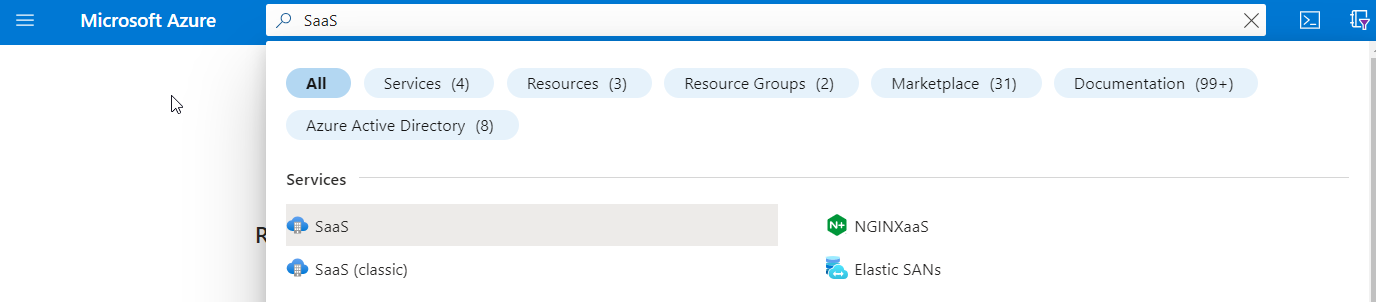
If you do not know the name of your subscription or the name of the resource group, you can search for SaaS in the search box and select SaaS under Services. This shows all of your SaaS subscriptions in your tenant:
Can I move my SaaS billing resource to another Azure Subscription or Resource Group?
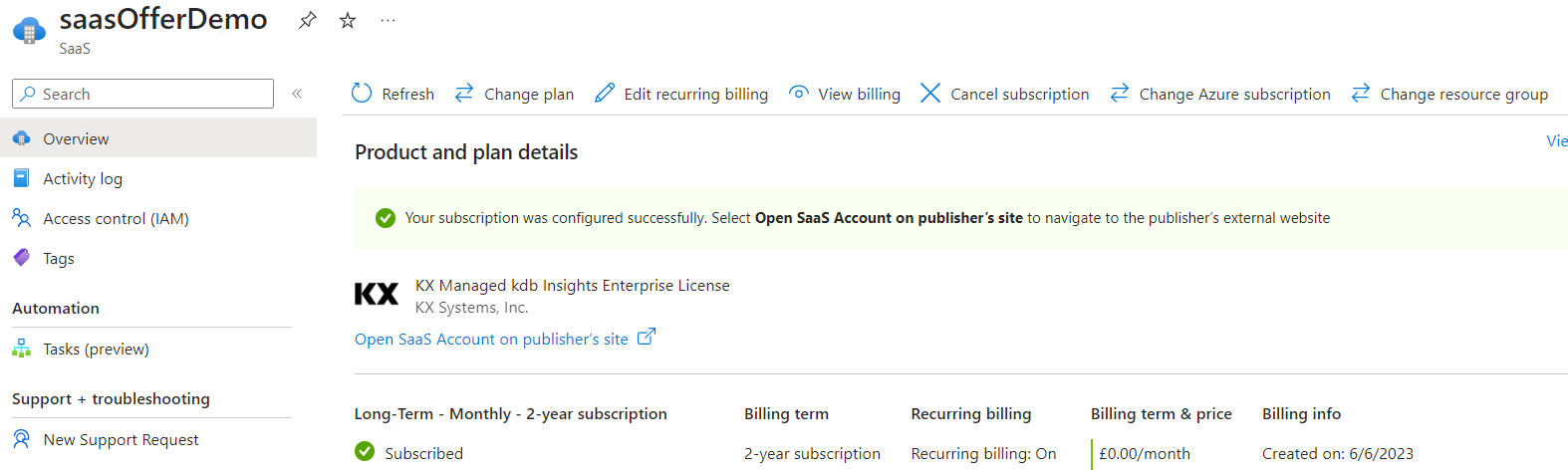
Yes, you can move your SaaS billing resource to another Azure Subscription or Resource group as long as it is funded by the same billing account.
To do so, navigate to your SaaS resource, click Change Azure subscription or Change resource group and follow the instructions.
Can I modify the recurring billing option after the subscription has been created?
Yes, navigate to your SaaS resource, click Edit recurring billing and follow the instructions.
Can I purchase a kdb Insights Enterprise License with custom terms and conditions or a custom price?
Yes, to have custom terms and conditions or custom price please contact Support through the KX Support Portal or by sending an email to ims@kx.com.
Once you agree on custom terms and conditions with KX, then KX creates a private offer for you. To do that you need to provide your Azure Billing Account Number.
You can find your billing account number under Azure > Cost Management > Billing Scopes > {Select your preferred scope} > Properties > ID field.
Once the private offer is ready KX sends you an activation link for your private offer. It contains the custom terms and conditions as well as the price that you have agreed on with KX.
To accept a private offer, follow these instructions.
Once accepted, you can view your private offer in Azure Marketplace under both the private products and private offer management.