Plot with matplotlib in a KX Notebook
This page explains how to run the matplotlib.kxnb sample KX Notebook against a local q process, so that q cells prepare your data and Python cells plot it.
The q process runs outside VS Code, and the extension connects to it over IPC as a My q connection. Python cells are evaluated with PyKX inside that process, which is why the q process must start from the same Python environment that has matplotlib installed.
Tip
This setup is only needed for a local q process. If you use an Insights connection to kdb Insights version 1.19.4 or higher, the Python environment is already in place, so you can open the notebook and run its cells without any of the setup on this page.
Everything in this procedure lives in one folder, ~/kx-matplotlib.
Note
The commands on this page use a macOS or Linux shell. They also work in WSL on Windows.
Prerequisites
-
KDB-X installed, so that the
qexecutable is available on yourPATH. You can install KDB-X from the extension.Install it in the same environment in which you run the rest of this procedure. In WSL, that means inside your Linux distribution, not on Windows. To check, run:
command -v qThis prints a path, such as
/home/<user>/.kx/bin/q. -
Python 3 with virtual environment support. On Debian and Ubuntu, including WSL,
python3 -m venvfails withensurepip is not availableuntil you install the matching package. Install the package named in the error message, for example:sudo apt update sudo apt install python3.12-venv
Set up the folder and the Python environment
You only need to do this once:
mkdir -p ~/kx-matplotlib
cd ~/kx-matplotlib
python3 -m venv venv
source venv/bin/activate
pip install --upgrade find-libpython matplotlib
pip install --upgrade pykx
python -c "import pykx;pykx.install_into_QHOME(to_local_folder='$HOME/.kx')"
Once the environment is active, your shell prompt starts with (venv).
The last command installs the PyKX q libraries into your local KDB-X folder, $HOME/.kx, so that the q process can load them. It prints only a KDB-X welcome banner, so check that it wrote the libraries:
ls ~/.kx
The listing includes pykx.q.
Download the notebook
Download the sample notebook into the same folder:
cd ~/kx-matplotlib
curl -LO https://github.com/KxSystems/kx-vscode/releases/download/v1.12.0/matplotlib.kxnb
Check that you downloaded the notebook rather than an error page:
head -c 100 matplotlib.kxnb
This prints the start of the notebook JSON, beginning with {"cells":[.
Other sample notebooks, such as ggplot.kxnb and scikit-learn.kxnb, are attached to the same release. For more examples, refer to Sample KX Notebooks.
Start q with PyKX
In its own terminal, from the same folder and the same virtual environment, start q with pykx.q and a port to listen on:
cd ~/kx-matplotlib
source venv/bin/activate
export PYKX_USE_FIND_LIBPYTHON=true
q pykx.q -p 5001
q prints a banner and stops at a q) prompt, where it holds port 5001 open. Because it does not return to the shell, give it a terminal of its own and leave that terminal running.
Warning
A q process started without -U does not require authentication, and any client that can reach the port can run q commands in it as your user. Do not use this pattern for anything beyond a local tutorial process, and stop q when you have finished: type \\ at the q) prompt, or close its terminal.
Starting q from the activated environment is what gives the Python cells access to matplotlib. To confirm the PyKX bridge before you run the notebook, enter the following at the q) prompt:
.pykx.qeval"1+1"
.pykx.pyexec"import matplotlib"
The first returns 2. The second returns nothing, which means matplotlib imported successfully.
Note
Neither the virtual environment nor PYKX_USE_FIND_LIBPYTHON persists between shell sessions. Whenever you restart q, run all four commands again, not just the last one.
Connect and run the notebook
-
Open the folder in VS Code:
code ~/kx-matplotlibThis opens a new window and leaves the q process untouched. Do not open the folder in the window that runs q: changing the folder of an existing window reloads it and closes its terminals, which stops q.
-
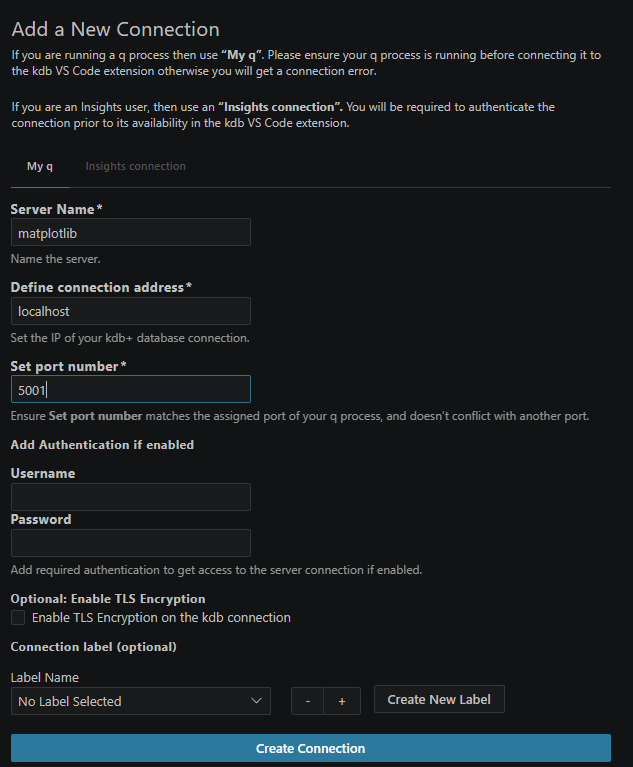
Run KX: New Connection from the Command Palette, select the My q tab, and complete the three required fields:
Field Value Server Name A name of your choice, for example matplotlib. This is the label shown under CONNECTIONS.Define connection address localhostSet port number 5001Then click Create Connection.
Warning
Server Name is the name of the connection, not the host. The host belongs in Define connection address.
-
Right-click the connection under CONNECTIONS in the primary sidebar and select Connect server.
You only need to create the connection once. It is stored in your VS Code settings, so it remains available after you reload the window or restart VS Code.
-
Open
matplotlib.kxnband select that connection in the notebook toolbar. -
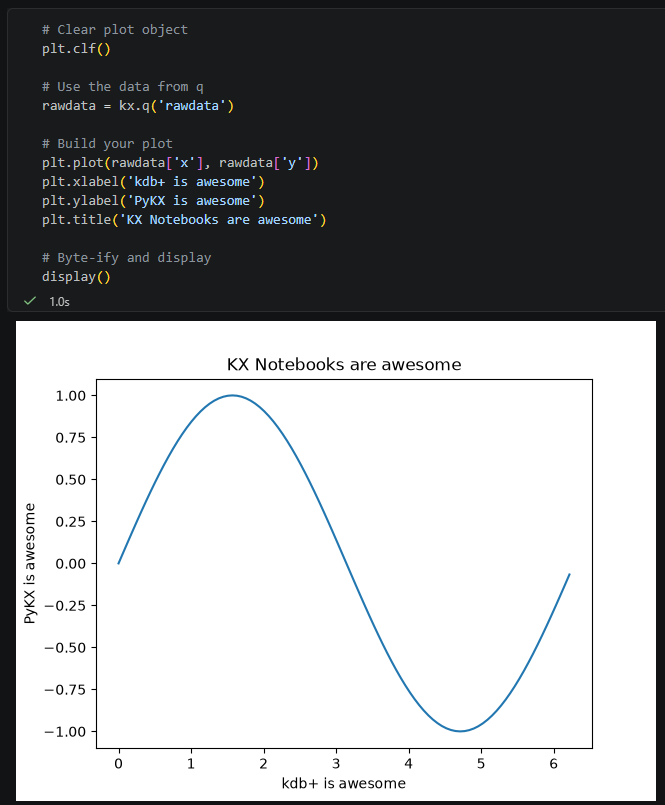
Run all cells. The q cells prepare the data, the Python cells plot it, and the figure is displayed inline as a PNG.
Plot from q and Python files
Notebooks are not the only place plots are rendered. The same approach works in .q and .py source files: any expression that returns a PNG as a byte vector is rendered as an image, rather than shown as raw bytes.
Troubleshooting
| Symptom | Cause | Solution |
|---|---|---|
ensurepip is not available when creating the virtual environment |
The Python venv package is not installed. |
Install the package named in the error message, for example sudo apt install python3.12-venv. Then delete the incomplete venv folder with rm -rf venv and create it again. |
q: command not found |
KDB-X is not installed, or q is not on the PATH of this shell. |
Install KDB-X in the same environment in which you run these commands, then check with command -v q. |
.pykx is not defined: please load pykx |
q was started without pykx.q. |
Stop q and start it again with q pykx.q -p 5001. |
A Python cell fails on import matplotlib |
q was not started from the shell with the virtual environment activated. | Stop q, run source venv/bin/activate in that terminal, and start q again. |
| The connection fails, or the notebook cannot reach the server | q is not running, or the connection details are wrong. | Check that the q terminal still shows a q) prompt, and that the connection has localhost in Define connection address and 5001 in Set port number. |
Next steps
- Learn more about KX Notebooks
- Read about executing code in the kdb Visual Studio Code Extension