kdb Insights Enterprise Connections
This page explains how to configure a kdb Insights Enterprise connection in the kdb Visual Studio Code Extension.
A kdb Insights Enterprise connection allows you to connect directly to a kdb Insights Enterprise environment. Through this connection, you can run q, SQL, and Python queries, use the query APIs, work with scratchpad processes, and explore metadata exposed by the platform.
You must have a running kdb Insights Enterprise or kdb Insights Enterprise Free Trial instance before creating an Insights connection.
Create a kdb Insights Enterprise connection
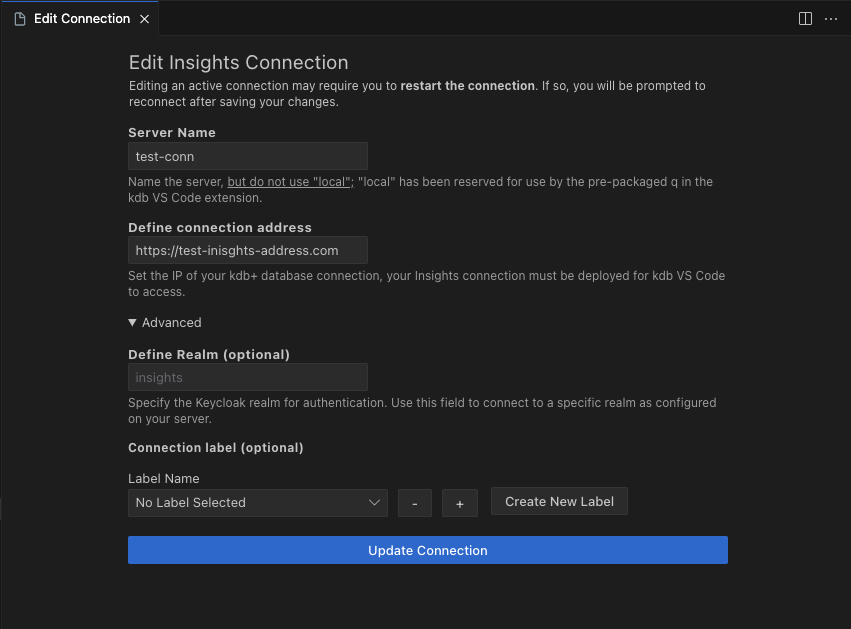
When adding a new connection, choose Insights as the connection type. This enables the extension to connect to your kdb Insights Enterprise deployment and access your user-specific scratchpad for running queries.
Required properties
Set the following properties:
| Property | Description |
|---|---|
| Server Name | The server name / alias. |
| The connection address | This is the remote address of your kdb Insights Enterprise deployment. The address must be a secure https:// URL. For example, https://mykdbinsights.cloudapp.azure.com. The field placeholder uses example.com. |
| Label Name | Select the label you want to assign the connection to. |
Note
If you enter an address that does not use https://, the extension reports a validation error and does not create the connection. Validation messages name the field they refer to, for example Port number is required.
Advanced properties
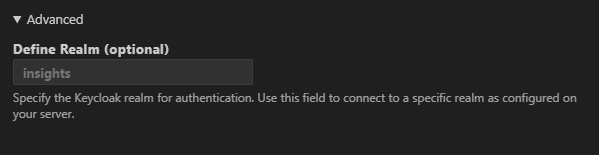
Set the following from the Advanced properties, if necessary:
| Property | Description |
|---|---|
| Define Realm | Specify the Keycloak realm for authentication. Usually the realm is set to insights, which is the default value used by the extension. You only need to change this field if a different realm has been configured on your server. |
Create the connection
-
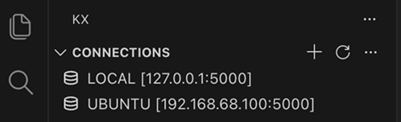
After filling in the connection properties described above, Click Create Connection and the kdb Insights Enterprise connection appears under CONNECTIONS in the primary sidebar.
-
Right-click the connection, and select Connect server.
-
The kdb Visual Studio Code Extension runs an authentication step with the remote kdb Insights Enterprise process to sign-in.
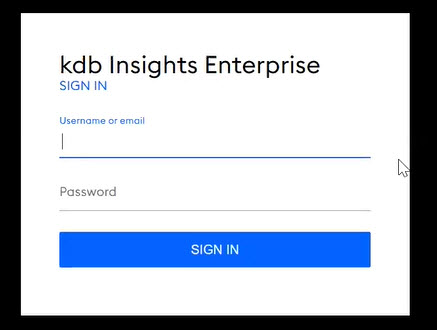
Once authenticated, the connection becomes active and can be used as an execution target for:
- REPL sessions
- Running q, SQL, or Python code
- API queries, notebooks, and workbooks
- Query history
- Metadata exploration
Note
Closing VS Code will terminate the active session. Reopen the IDE and reconnect to restore access.
View Insights metadata
When connected, kdb Insights Enterprise connections can be expanded to show the details returned by the getMeta API call, which provides information on the database schemas and all the analytics available.
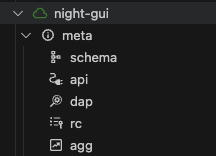
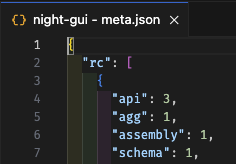
To see the results of the getMeta call, click on the meta node under the connection. A json representation of the details returned by the call is displayed with "[Connection Name] - meta" as title of the tab.
The meta node contains a child node for each of the child sections in the json. To see a json representation of a specific section, click on the child node. The json representation of this section returned by the call is displayed with "[Connection Name] - [CHILD SECTION]" as title of the tab.
You can refresh the meta data view at any time by choosing Refresh meta data from the right-click menu of a kdb Insights Enterprise connection.
Edit kdb Insights Enterprise connections
When editing a kdb Insights Enterprise connection, you can edit the following properties:
| Property | Description |
|---|---|
| Server Name | The server name / alias. |
| The connection address | This is the remote address of your kdb Insights Enterprise deployment. The address must be a secure https:// URL. For example, https://mykdbinsights.cloudapp.azure.com. |
| Define Realm | Specify the Keycloak realm for authentication. Usually the realm is set to insights, which is the default value used by the extension. You only need to change this field if a different realm has been configured on your server. |
| Label Name | Select the label you want to assign the connection to. |