Connection Labels
This page explains how to create, assign, rename, edit, and delete connection labels in the kdb Visual Studio Code Extension.
Connection labels let you group related connections under a shared name and color. Labels act as visual categories in the Connections view, making it easier to organize large sets of connections and quickly navigate between groups of connections like development, testing, and production environments.
How labeling works
The Connections view groups and sorts connections in the following order:
-
By connection type (My q, Insights)
-
By label within each type
-
Alphabetically within each label group
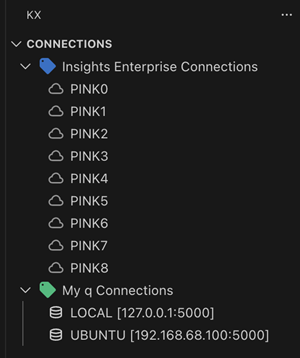
Connections that do not have a label assigned are displayed at the root of the tree, in alphabetical order. This means unlabeled connections remain visible and easy to locate, even when other connections are organized under custom labels.
When a label is removed from a connection — or when a label is deleted entirely — those connections are automatically moved at the root of the tree.
Create new labels
Labels are created from within the Connection Editor, as follows.
-
At the bottom of the form, click Create New Label.

-
A dialog opens where you define the new label:
Property Description Label Name Enter a name for the label. Label color Select a color from the list of colors for the new label. 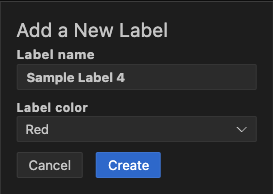
-
Click Create to create the label or Cancel to cancel the process.
Add labels to a connection
Labels are assigned while creating or editing a connection.
- Open the connection form.
- Use the Label Name dropdown to select an existing label.
- Save the connection.
| Property | Description |
|---|---|
| Label Name | Select a label from the list of labels |

Rename labels
To rename a label, right-click the label in the Connection Tree and select Rename label.
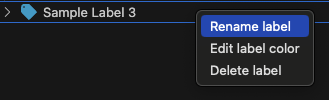
This displays a prompt at the top of the screen where you can edit the name of the label.

Edit label color
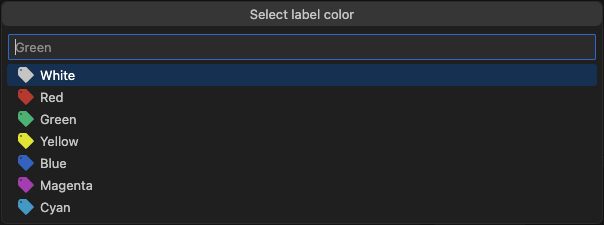
To edit a label's color, right-click the label in the Connection Tree and select Edit label color.
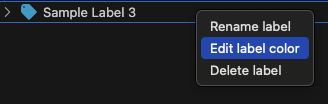
This displays a prompt at the top of the screen where you can edit the color of the label.
Delete labels
To delete a label, right-click the label in the Connection Tree and select Delete label.
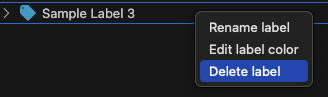
Deleting a label does not delete any connections.
Connections previously assigned to the label become unassigned and will appear at the root of the tree, sorted alphabetically.