Query Types
This page explains the types of queries that can be executed through the Query Editor in the kdb Visual Studio Code Extension, including API queries, qSQL queries, SQL queries, and User-Defined Analytics (UDAs).
kdb Insights Enterprise only
The Query Editor and .kxquery files work exclusively with kdb Insights Enterprise connections. For standalone q processes, use workbooks or source files instead.
Each query type maps to functionality available in kdb Insights Enterprise, and the Query Editor provides a form-based workflow for building, parameterizing, and running these queries. Depending on your deployment configuration, you may use one or more of these query types to retrieve or process data.
API queries
API queries provide methods of querying tables using defined sets of parameters. The Query Editor supports multiple API types, each optimized for different use cases.
getData
The getData API is the general-purpose query interface for retrieving data from kdb Insights Enterprise tables. It supports filtering, aggregation, grouping, sorting, and other data transformations.
Select getData from the API dropdown in the Query Editor.
Required parameters
| Parameter | Description |
|---|---|
table |
The table you wish to query from the Table dropdown. |
startTS |
The start timestamp for the query time range. |
endTS |
The end timestamp for the query time range. |
Optional parameters
You can add optional parameters from the + Add parameter list:
| Parameter | Description |
|---|---|
limit |
Limits the number of rows returned. Positive numbers return the first n rows, negative numbers return the last n rows. |
filter |
Filters rows based on column values (supports multiple filter rows). |
agg |
Aggregates data using functions like sum, avg, max, min (supports multiple aggregation rows). |
groupBy |
Groups results by one or more columns (supports multiple groupBy rows). |
sortCols |
Sorts results by specified columns (supports multiple sort rows). |
labels |
Targets specific data access processes by label (supports multiple label rows). |
scope |
Specifies where the request runs (database, tier, or DAP process). |
fill |
How to handle missing values in the time series. |
temporality |
Time-based data handling mode. |
columns |
Specific columns to return (multi-select). |
outputTZCols |
Columns to convert to a specific output timezone (supports multiple rows). |
inputTZ |
Timezone to interpret the input timestamps. |
outputTZ |
Timezone to convert output timestamps. |
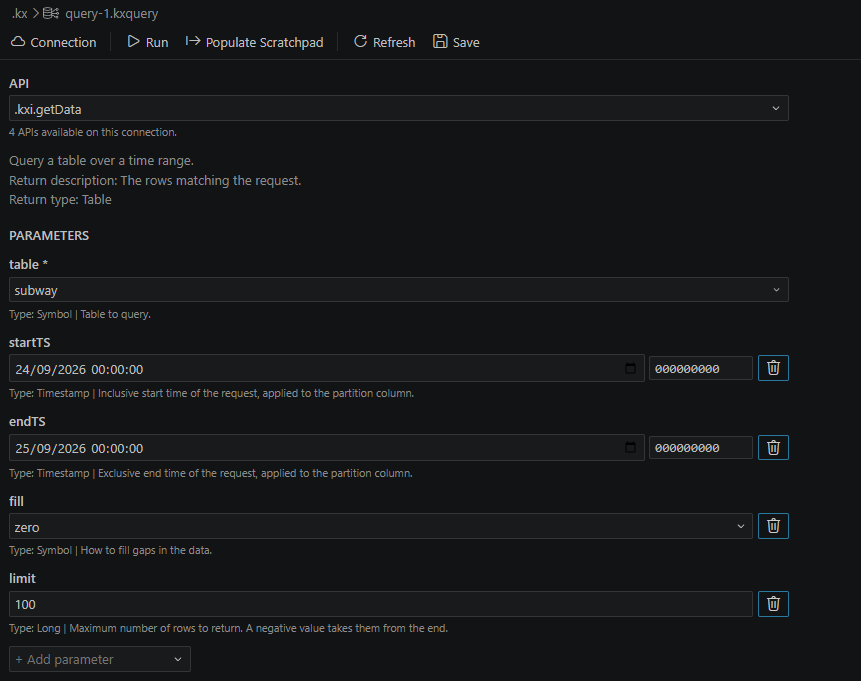
Refer to the getData API documentation for more information and a full list of available parameters.
Preview
The preview API provides a fast way to inspect table contents without specifying a full query. It returns a sample of rows from the specified table, making it ideal for quick data exploration.
Select preview from the API dropdown in the Query Editor.
Note
The preview API is only available on kdb Insights Enterprise deployments that support it (typically version 1.8 or later). If your deployment does not support preview, it will not appear in the API dropdown.
Required parameters
| Parameter | Description |
|---|---|
table |
The table you wish to preview from the Table dropdown. |
Optional parameters
You can add optional parameters from the + Add parameter list:
| Parameter | Description |
|---|---|
startTS |
The start timestamp for the preview range. If not specified, uses the beginning of available data. |
endTS |
The end timestamp for the preview range. If not specified, uses the end of available data. |
limit |
Maximum number of rows to return. Defaults to 1,000 rows if not specified. Only supports positive numbers, i.e. the first n rows. |
The preview API is optimized for speed and searches all available data for the rows it returns. However, it does not guarantee which specific rows are returned within the range.
When to use preview vs. getData
- Use preview for quick data exploration and table inspection
- Use getData when you need specific filtering, aggregation, sorting, or guaranteed row selection
Refer to the Insights preview API documentation for more details.
qSQL queries
qSQL queries provide a query builder that allows running freeform q code against a specific database tier and if required against a specific data access process (DAP). Select qSQL from the API dropdown in the Query Editor.
qSQL queries require:
- target — a dropdown listing the tiers the connection reports and the DAP processes inside them. You can select a specific tier and DAP process, or choose
distributedto fan the query out over every tier. - query — a text area for your qSQL query expression
Optional parameters that can be added from + Add parameter:
- agg — a unary function run on the aggregator over the results the processes return, defaulting to
raze - labels — targets DAPs by label instead of by tier
Note
Along with the query itself, you must specify the target database and you can optionally specify the database tier and specific data access process.
Refer to the qSQL documentation for more details.
Important
Starting with kdb Insights Enterprise version 1.13, qSQL queries and populating qSQL only work if the Query Environment (QE) is enabled. Ensure you have enabled QEs to use qSQL; they are disabled by default in kdb Insights Enterprise from version 1.13 onwards.
Refer to Query Environments for more details.
SQL queries
SQL queries allow running freeform SQL queries. Each query is distributed across all available databases. The results are then aggregated and returned as a single dataset. Select SQL from the API dropdown in the Query Editor.
SQL queries require only:
- query — a text area for your SQL query
You can run SQL queries against any kdb Insights Enterprise connections and, optionally, choose to populate the Scratchpad.
Refer to the SQL documentation for more details.
UDA queries
User-Defined Analytics (UDAs), also known as custom APIs, are essential for developers to leverage the capabilities of kdb when using kdb Insights Enterprise. These UDAs are deployed to Insights through the Data Access Processes (DAPs) and Aggregators (Aggs).
UDAs can be called directly within the VSCode extension through the Query Editor. Select your UDA from the API dropdown to access a form-based interface for populating the UDA parameters. UDAs can also be called within the kdb Insights Enterprise web interface using Queries, and Views and by running Pipelines.
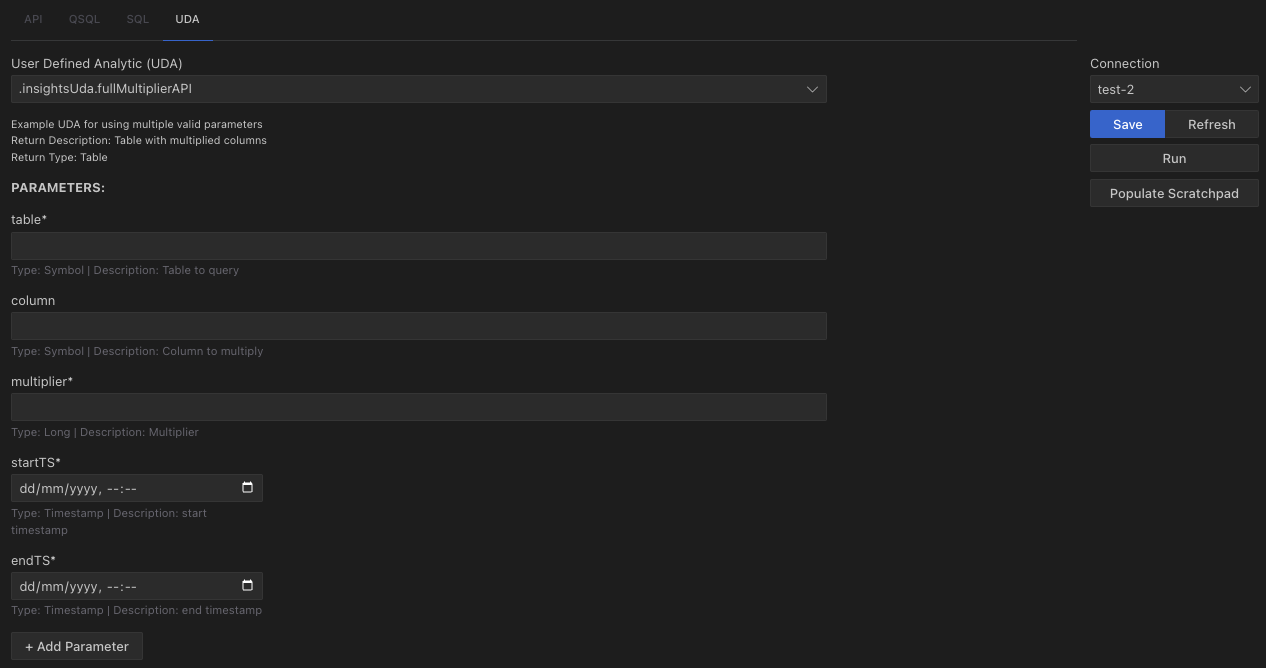
When working with UDAs, parameter fields are shown for configuration. Note the following:
- Required fields are marked with an asterisk (*).
- Optional fields are not required but may be displayed in your results, even if they are empty.
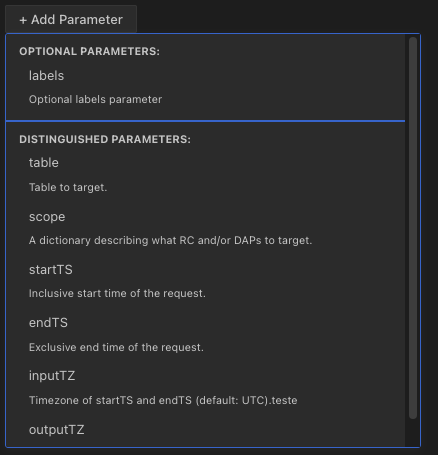
You can add new parameters by clicking + Add parameter. Both optional and distinguished parameters can be added as needed.
A UDA cannot be queried if one or more parameters are invalid
If you attempt to run a UDA with invalid parameters, an error occurs and a pop-up message appears to alert you to the issue.
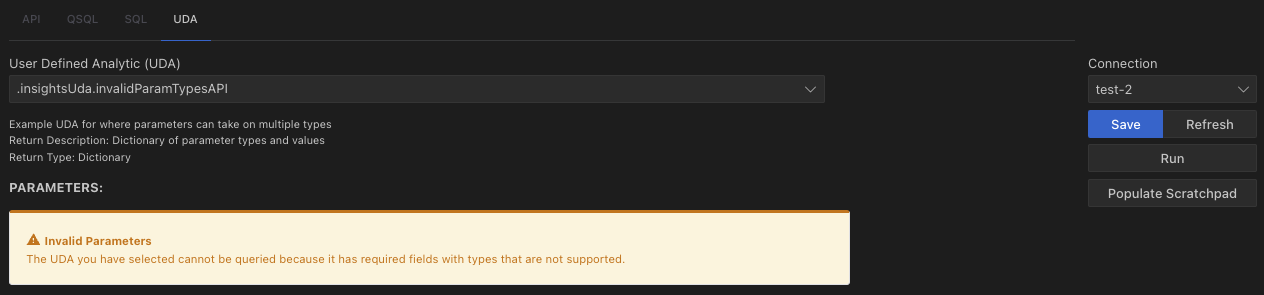
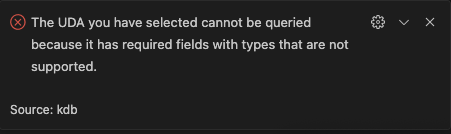
In some cases, you can successfully query UDAs without any parameters, as seen in the screenshot below.
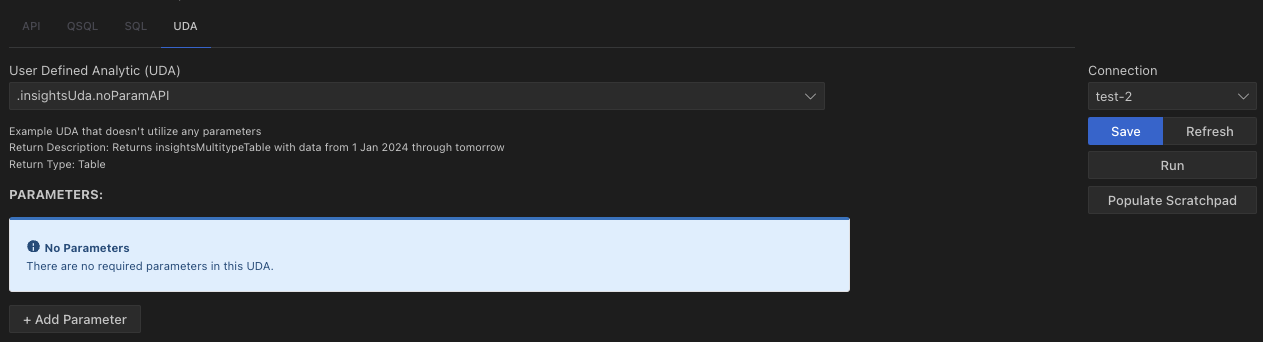
However, you can still modify the parameter list to add parameters by clicking + Add parameter or deleting parameters using the trash icon.

Distinguished parameters for UDAs
In addition to the parameters defined by your UDA, you can add distinguished parameters from the + Add parameter list. These are optional parameters that provide additional control over how the UDA executes, similar to the optional parameters available for getData.
Distinguished parameters available for UDAs include:
| Parameter | Description |
|---|---|
table |
The table to query from the Table dropdown. This parameter enables column suggestions for other parameters. |
scope |
Specifies where the UDA request runs (database, tier, or specific DAP process). |
labels |
Targets specific Data Access Processes by label instead of by tier (supports multiple label rows). |
startTS |
The start timestamp for the query time range. |
endTS |
The end timestamp for the query time range. |
inputTZ |
Timezone to interpret the input timestamps. |
outputTZ |
Timezone to convert output timestamps. |
Distinguished parameters vs. UDA-specific parameters
- UDA-specific parameters are defined by the UDA developer and are unique to each UDA
- Distinguished parameters are common optional parameters recognized by kdb Insights Enterprise that can be added to any UDA
- Adding a
tabledistinguished parameter enables the Query Editor to suggest column names for other parameters
The Query Editor automatically recognizes when a UDA parameter name matches a distinguished parameter (such as table, tableName, column, columns, etc.) and provides appropriate dropdowns and suggestions.
For more information on User-Defined Analytics, refer to the UDAs documentation.
Query timeouts
Timeouts limit how long a query can run, protecting shared resources, preventing runaway execution, and providing a reliable safeguard when cancellation cannot immediately stop backend processing.
When running queries, you can apply a timeout by clicking the timeout indicator in the status bar. This allows you to:
- Use the Default timeout (configured in VS Code settings under Extensions → kdb → Default Timeout)
- Each file can have its own timeout, selected directly from the VS Code status bar. This timeout applies only to the current file.
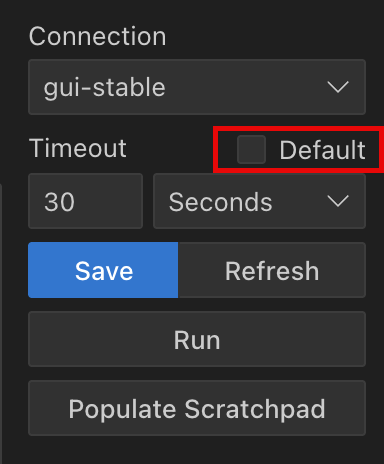
By default, the timeout is set to 30 seconds. You can customize this value to suit your workflows.
Note
You can cancel a query at any time by clicking the Cancel button while the query is running.