Quick Connections
This page explains what quick connections are and how to use them in the kdb Visual Studio Code Extension.
Quick Connections allow you to connect to a q process directly from the kdb Visual Studio Code Extension without creating a saved connection profile.
This is useful for:
- One-off connections
- Rapid testing
- Connecting to temporary or ad-hoc q processes
Quick Connections are intended for short-lived, ad-hoc access and are not a replacement for saved connections.
Using a quick connection
When prompted to choose a connection, you can enter a Quick Connection string directly into the input field.
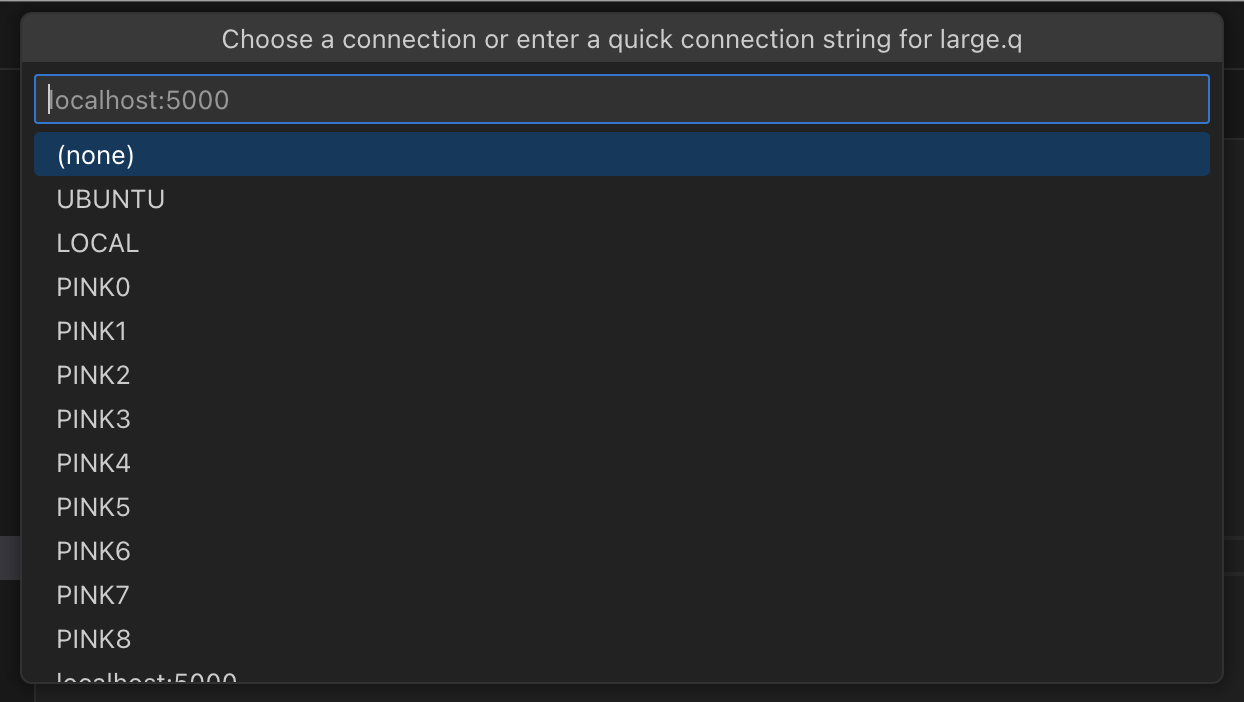
Quick connection string format
The Quick Connection string uses the following format:
host:port:username:password
Where:
| Field | Description | Required |
|---|---|---|
host |
Hostname or IP address of the q process | Yes |
port |
Port the q process is listening on | Yes |
username |
Username for authentication | No |
password |
Password for authentication | No |
Note
The fields username and password are optional. If authentication is not required, you can omit these fields.
Example strings
Connect to a q process using authentication:
localhost:5000:admin:secret
Connect to a q process without authentication:
localhost:5000
Considerations
When using a quick connection, consider the following:
- Quick Connections can be used only to connect to q processes. They are not supported for non-q endpoints.
- When a Quick Connection is active, it appears in the Connections list. However, quick connections are temporary:
- They are removed when VS Code is refreshed or closed.
- They are not persisted across VS Code sessions.
- Once established, a Quick Connection is available across other open q files in the same VS Code session. This allows reuse without re-entering the connection string while the session remains active.
- The
portvalue is validated and must be a numeric value. If theportis not a number, the connection attempt fails with a validation error.
Next steps
- Learn how to create and use a My q connection.