Queries
This page explains the purpose and structure of Queries in the kdb Visual Studio Code Extension.
kdb Insights Enterprise only
Queries (.kxquery files) are designed exclusively for kdb Insights Enterprise connections. They are not available for standalone q processes or other connection types.
Queries provide an interface for building, setting your query options, and executing queries against kdb Insights Enterprise API endpoints directly from within VS Code. They allow you to retrieve data from kdb Insights Enterprise deployments without writing full q or Python scripts, and they support qSQL, SQL, and API-driven workflows depending on the capabilities of your deployment.
Each query is represented by a .kxquery file stored in the workspace and displayed in the QUERIES panel.
Query features
A query:
- Is listed in the QUERIES view in the primary sidebar
- Must be associated with a kdb Insights Enterprise connection
- Has the .kxquery extension
- Is stored in a .kx folder at the root of your open folder
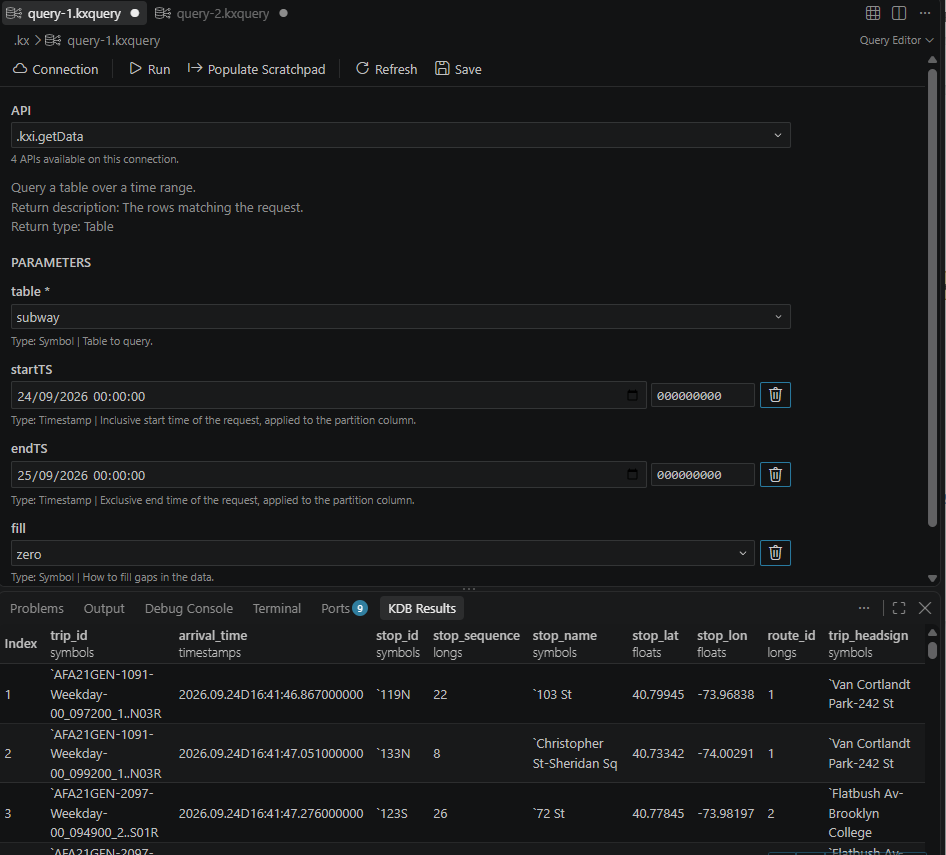
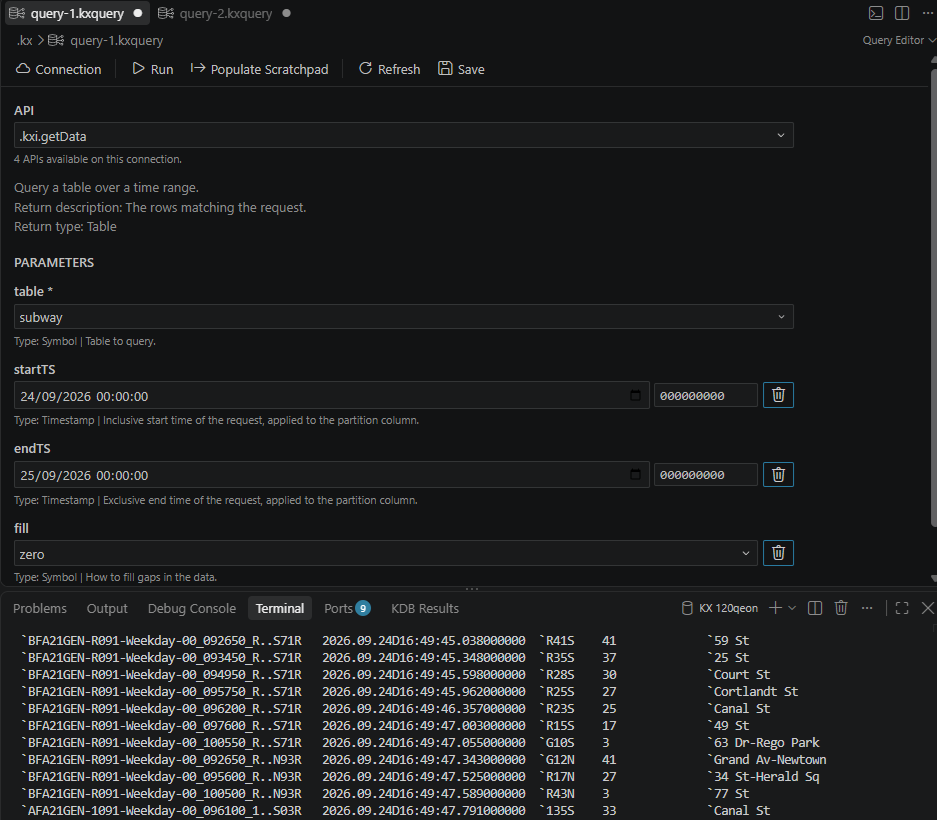
The query editor helps you to build a query, based on the available API on your instance of kdb Insights Enterprise, parameterize it and return the data results to the Terminal or the KDB RESULTS view.
Note
The QUERIES view only appears when you have at least one kdb Insights Enterprise connection configured. For standalone q processes, use workbooks, source files, or KX Notebooks instead.
Create and run a query
To create a query and run it against a kdb Insights Enterprise connection:
-
Ensure you have at least one folder open in VS Code.
-
Ensure you have a kdb Insights Enterprise connection configured.
-
In the QUERIES view, click +, or use the command KX: New Query.
-
Select a kdb Insights Enterprise connection from the Connection dropdown.
-
From the API dropdown, choose the query type to run:
- API queries:
- qSQL queries - Freeform q expressions against database tiers
- SQL queries - Standard SQL queries
- UDA queries - User-Defined Analytics deployed on your Insights instance
-
Fill in the required parameters for your chosen query type.
-
Click one of the available actions, depending on your needs:
- Save - Stores the current parameters and the associated connection so the query can be reused later.
- Refresh — Reloads metadata from the connected kdb Insights Enterprise deployment, such as updated table lists or API changes.
- Run - Executes the query.
- Populate Scratchpad - Executes the query and writes the returned dataset into a variable in your scratchpad process. This feature is available only for kdb Insights Enterprise connections.
When you click Run, the results are displayed in the destination you selected for the query file. To change it, select the Output Destination icon in the editor title bar, and then select Terminal or kdb Results View. For more information, refer to output destination.
The KDB RESULTS view displays the results as an interactive table. The output console of the connection displays them as text.
The query icon is green when its associated connection is active, and grey when the connection is disconnected or no connection is associated.
Migrating from data sources
If you have existing .kdb.json data source files, they are automatically converted to .kxquery files when you open them. The original file is left on disk. You can also convert all data sources in your workspace using the command KX: Convert datasources to queries.
Each converted query keeps the connection the original was bound to, and the conversion preserves:
- API (getData) data sources — converted to a
.kxqueryrunning getData, with the filters, aggregations, groups, sorts and labels carried over - UDA data sources — converted to a
.kxqueryrunning the same UDA - QSQL data sources — converted to a
.kxqueryrunning qSQL, with the execution target, the aggregation and the labels carried over - SQL data sources — converted to a
.kxqueryrunning SQL, with the query carried over