KX Notebooks in the kdb Visual Studio Code Extension
This page explains how to create, edit, and execute KX Notebooks in the kdb Visual Studio Code Extension.
KX Notebooks provide an interactive, multi-language environment where you compose and execute q, Python, SQL, and Markdown code blocks in a single notebook, making development and testing more straightforward. Notebooks support iterative exploration, inline results, and mixed-language workflows — similar to Jupyter notebooks but integrated directly with kdb runtimes.
KX Notebooks can execute code against:
- REPL sessions
- My q connections (standalone q processes)
- kdb Insights Enterprise connections
Some features such as Populate Scratchpad are available only for Insights connections.
Create a notebook
To create a new notebook:
- Open the Command Palette (
Ctrl+Shift+Pon Windows orCmd+Shift+Pon MacOS) - Select
KX: New Notebook. This opens a blank.kxnbnotebook in the editor.
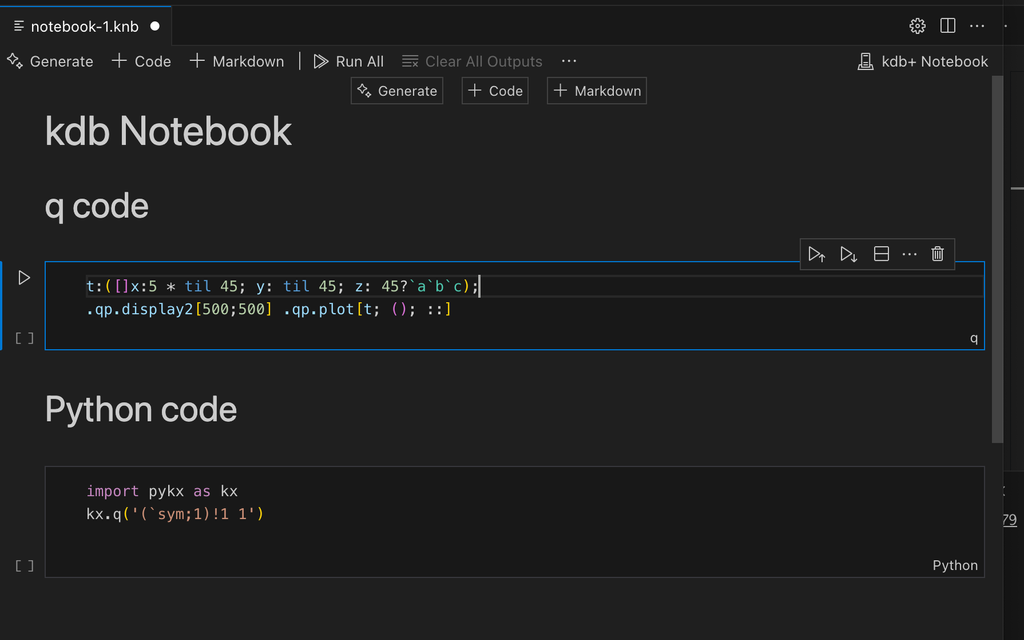
From this view, you can add either Markdown or Code blocks to the notebook by clicking the toolbar buttons.
Execute code blocks
Code blocks are executed using the any KX connection you choose, and the results are displayed inline next to the code block. The execution state is preserved across code blocks, similar to Jupyter notebooks, allowing for progressive data analysis.
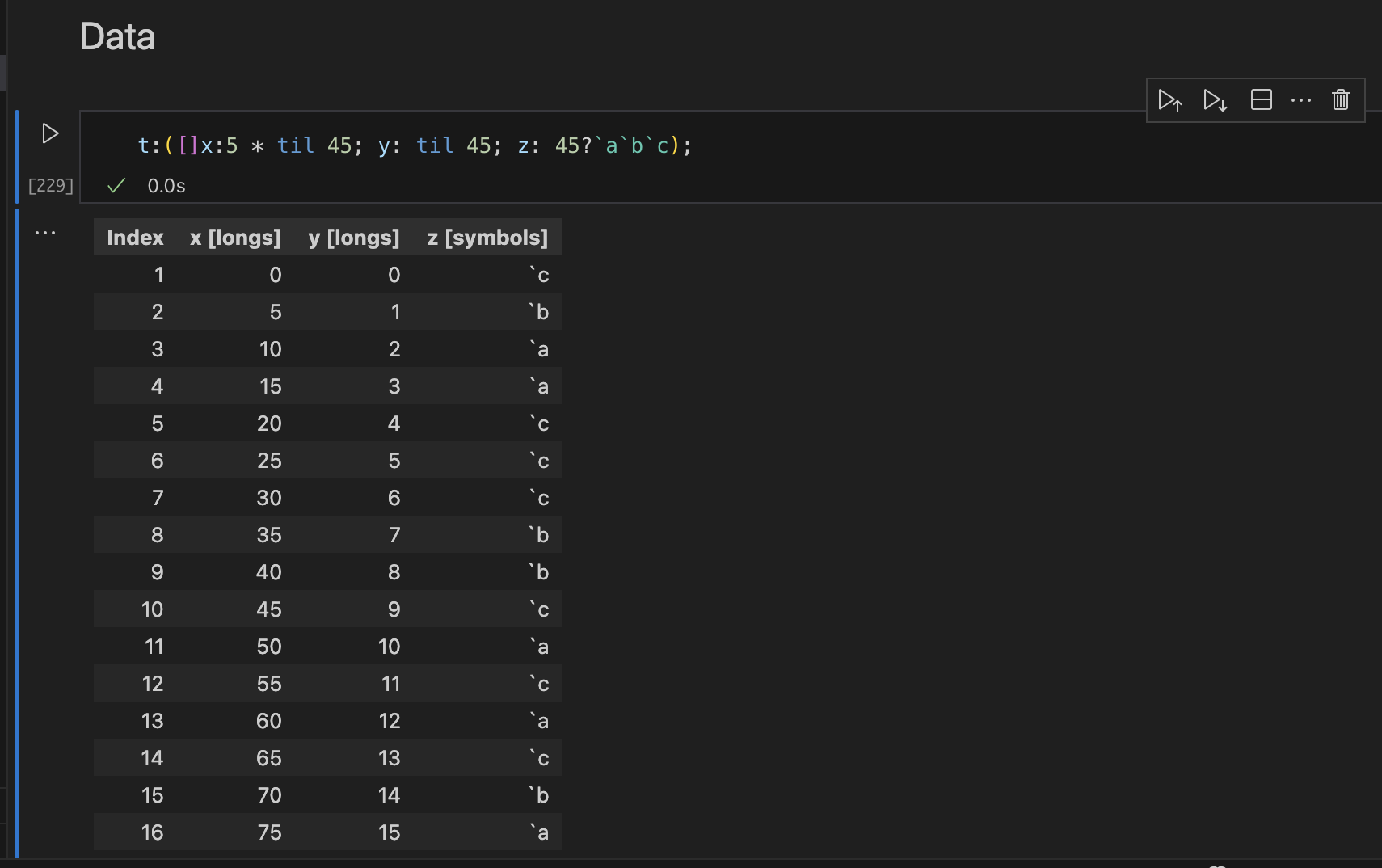
You can run SQL queries on a tier and populate the Scratchpad with the SQL results when using a kdb Insights Enterprise connection. This functionality connects to the qSQL endpoint and imports the data into the Scratchpad as a variable.
KX Notebooks detect GGPlot2 outputs. If the execution generates a plot, it is displayed inline for both q and PyKX.
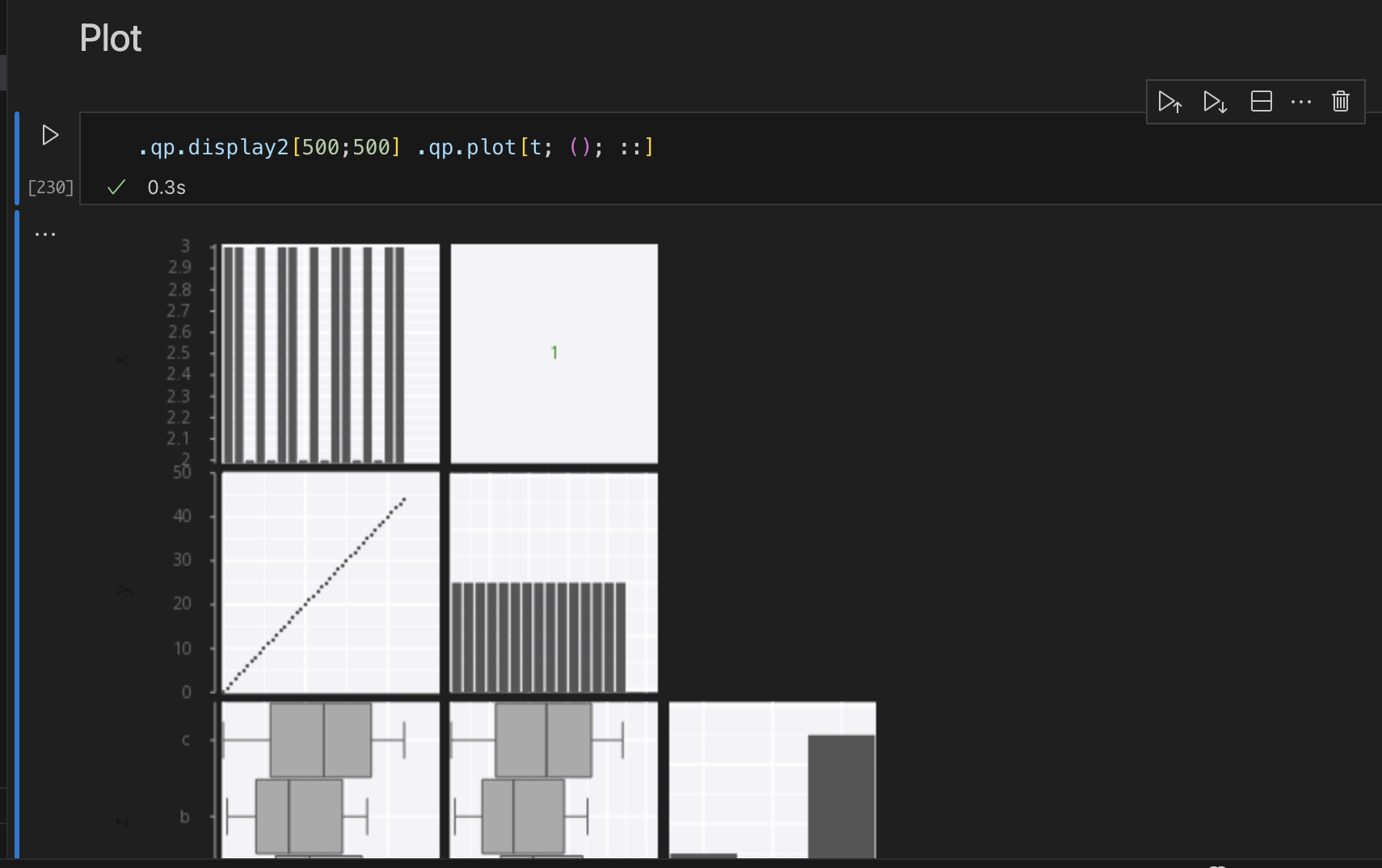
Refer to the Sample KX Notebooks for more detailed examples, or follow Plot with matplotlib to run the matplotlib.kxnb sample against a local q process.
Targets, Scratchpad options, and execution
Each code block in a KX Notebook includes controls that let you choose where the code runs, which language it uses, and whether the result should be stored as a variable. These settings appear at the bottom of every block and determine how the notebook interacts with your selected runtime.
Execution targets
The available execution targets depend on the type of connection in use.
- When using a REPL session, code runs only within that REPL process.
- When connected to a standalone My q process, blocks execute directly on that process.
- With a kdb Insights Enterprise connection, you can choose between the scratchpad process, any of the database tiers (RDB, IDB, or HDB), or specific DAP replicas.
When connected to Insights Enterprise, the target selector automatically updates to show the available tiers and replicas for the chosen connection.
Note
Scratchpad execution is only available for Insights Enterprise connections. REPL and My q connections do not include a scratchpad process.
Scratchpad options
For kdb Insights Enterprise connections, the target selector includes a Scratchpad option alongside the database tiers. Selecting Scratchpad directs execution to your personal scratchpad q process.
Scratchpad behavior differs from other execution targets. A query may run on a tier or replica, but its result is stored in your scratchpad when a variable name is provided.
Language selection
Next to the execution target, each block provides a language picker. You can switch the block to:
- q
- Python
- SQL
- Markdown
Selecting a language changes the syntax highlighting and determines how the block is executed.
Variable assignment
Each code block also supports optional variable assignment. By default, blocks use the value (none), meaning results are displayed inline but not stored.
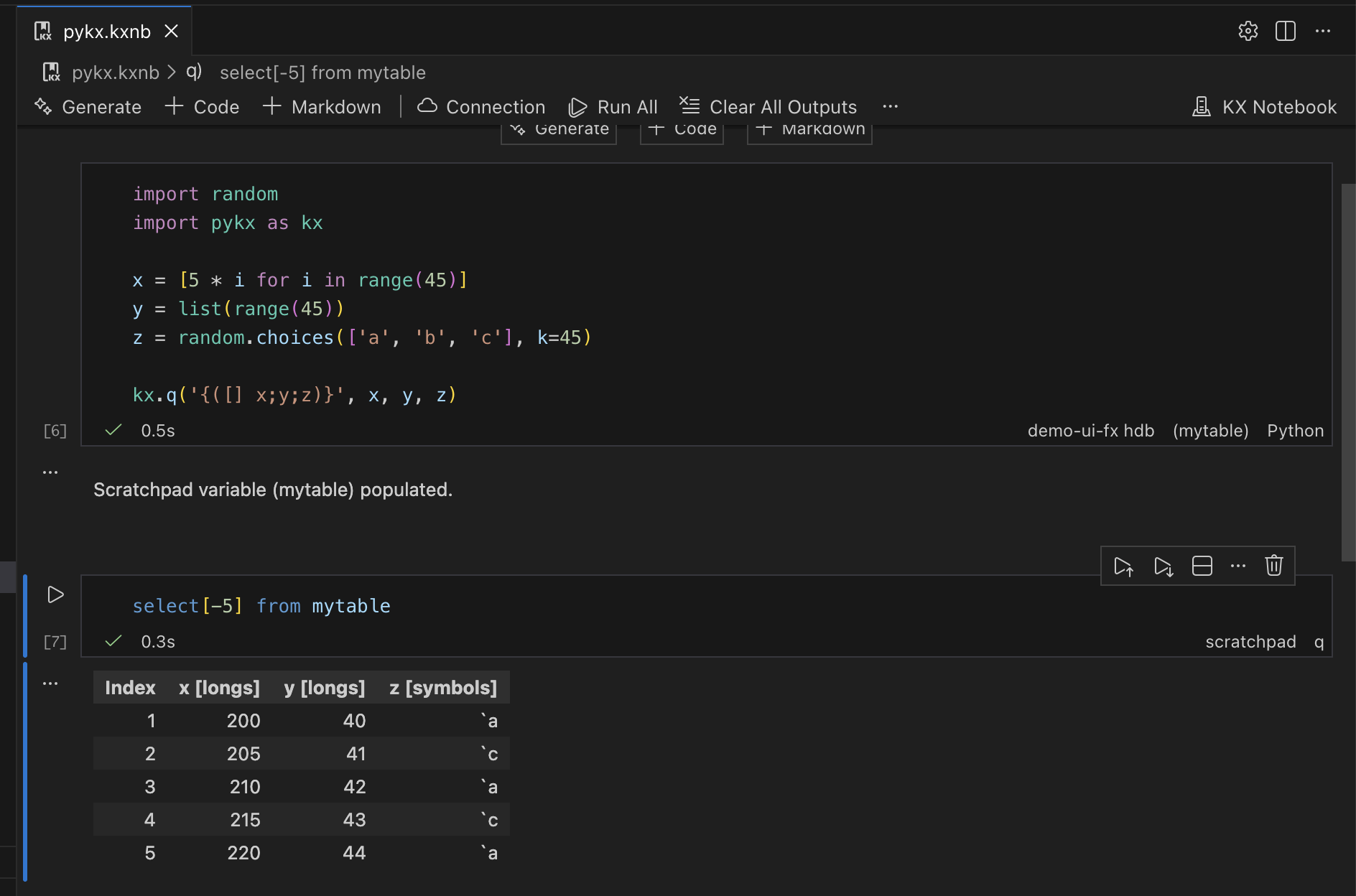
Assigning a variable name such as mytable, lets later blocks reference and build on earlier results, supporting incremental, notebook-style workflows.
For example, when you assign a variable name, mytable, while executing code against a DAP:
- The computation runs on the selected DAP process.
- The result is returned and explicitly assigned to
mytablein your Scratchpad process. - The
mytablevariable can then be referenced by later cells that execute against the Scratchpad.