Source files
This page explains how standard .q, .quke, .py, and .sql source files work in the kdb Visual Studio Code Extension and how they can be executed directly against kdb and kdb Insights Enterprise connections.
Source files behave like normal VS Code files but include built-in execution and connection capabilities. This allows you to write, test, and run q, Python and SQL code directly from the editor without switching file formats or using notebook-style interfaces. If no connection is associated with the file, source files execute on the active target. They can also execute code on standalone My q processes and on kdb Insights Enterprise targets.
With kdb Insights Enterprise connections, you can run code on your scratchpad process or directly on Data Access Processes (DAPs) such as RDB, IDB, or HDB.
How source files differ from workbooks
The standard source files:
- Are not listed in the WORKBOOKS sidebar.
- Do not require
.kdb.in the filename. - Are created using the EXPLORER like any other file, and stored anywhere in your workspace. Unlike Workbooks, they are not listed in the WORKBOOKS panel.
Key features
Key features of standard source files include:
- Run against the active target if no specific association is made.
- Can be explicitly associated with a connection using the Choose Connection code lens, which is available for
.q,.quke,.py, and.sqlfiles. - If associated with a kdb Insights Enterprise connection, allow execution against:
- Scratchpad (default for Insights)
- Any available DAPs (if the connection is an Insights type)
Associate a connection
For selecting connections and endpoints for unassociated files, consider the following:
- When a
.q,.quke,.py, or.sqlfile is not associated with a connection, it runs on the active target: the KX terminal that you started or focused most recently. - If you want to associate the file with a connection, click Choose Connection.
-
Once associated, the file only executes on that connection.
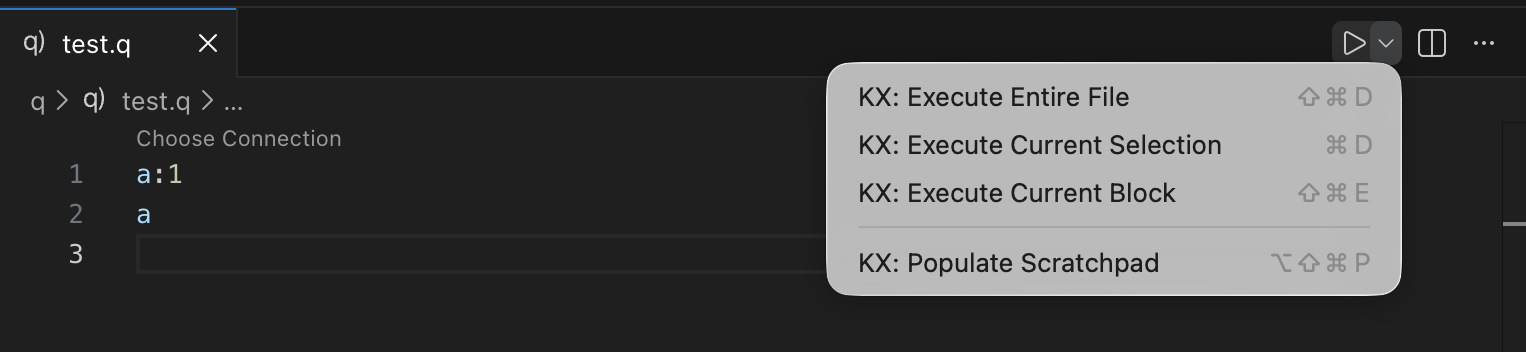
Run code against a kdb Insights Enterprise connection
When a file is associated with a kdb Insights Enterprise connection, a Choose Connection code lens appears.
Clicking this allows you to choose the execution endpoint:
- Scratchpad (default)
- Any available DAP (for example, RDB, HDB)