Connections in the kdb Visual Studio Code Extension
This page explains how to create, edit, and manage connections in the kdb Visual Studio Code Extension.
The kdb VS Code Extension supports multiple concurrent connections, allowing you to work against different q processes, KDB-X runtimes, or kdb Insights Enterprise deployments at the same time. Connections may be used for executing q, Python, or SQL code depending on the backend.
Add connections
To add a connection, follow the steps below:
-
Select the KX extension from the Activity Bar to display the CONNECTIONS view.
-
If this is your first time using the extension, the list will be empty. Click Add Connection to create your first connection. Otherwise, if you have previously created connections, click + for New KX Connection in the CONNECTIONS menu.
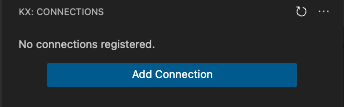
-
The opens the Add a new connection screen opens. It includes a tab for each of the connection types.
-
Configure the required properties for the selected connection type.
The connection form marks the fields that you must complete, and validation messages name the field they refer to, for example Port number is required. For an Insights connection, the address must be a secure
https://URL.
Once saved, the connection appears in the Connections list and becomes available as an execution target for scripts, REPL sessions, queries, and workbooks.
Edit connections
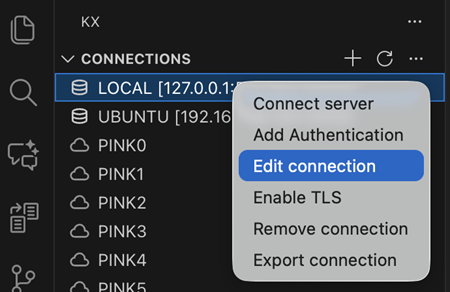
To edit an existing connection, right-click the connection you wish to edit and select the Edit connection option.
Note
If you edit a connection that is currently active, the extension may need to temporarily disconnect it. After saving your changes, you will be prompted to reconnect.
Next steps
- Add a q connection
- Configure an Insights connection