My q Connection
This page explains how to configure a My q connection to a standalone q process in the kdb Visual Studio Code Extension.
A My q connection is used to connect to an existing q process running locally or on a remote host. The extension does not manage or launch this q instance — it only connects to it. This is useful for connecting to development processes, local q sessions started manually, or remote kdb services.
Create a My q connection
When you select My q as the connection type, identify the remote location of a running process. You must provide the hostname and port, along with any authentication information.
Required and optional properties
Set the following properties:
| Property | Description |
|---|---|
| Server Name | The server name / alias. The server name cannot be InsightsEnterprise (reserved for use by Insights connections) or REPL (case-insensitive), can only contain alphanumeric characters and hyphens, cannot start with a space, and has a maximum length of 2048 characters. For example, dev. |
| The connection address | Set to the IP address of the kdb server. For example, localhost. |
| Port | Enter the port used by the kdb server; for example, 5001. Learn more about setting a q port. |
| Username | If authentication is needed, fill in the username. Otherwise, leave blank. |
| Password | If authentication is needed, fill in the password. Otherwise, leave blank. |
| Enable TLS Encryption | Check the box if TLS is enabled. Learn more about TLS encryption. |
| Label Name | Select the label you want to assign the connection to. |
Create the connection
-
After filling in the connection properties described above, click Create Connection. The connection appears under CONNECTIONS in the primary sidebar.
-
Right-click the My q connection listed under CONNECTIONS and select Connect server. This connects VS Code to the external q process running at the specified host and port.
Once the My q connection is established, it becomes available as an execution target for:
- Running q code from source files, Workbooks, and KX Notebooks
- Executing Python code (if the connected q process has PyKX loaded)
- Query History, which records all executed queries
- Viewing results in the Terminal and KDB RESULTS panels
Because My q connects to an existing, unmanaged q process, features like the scratchpad, replica targeting, and metadata exploration (that rely on kdb Insights Enterprise services) are not available.
Note
Closing VS Code will terminate the active session. Reopen the IDE and reconnect to restore access.
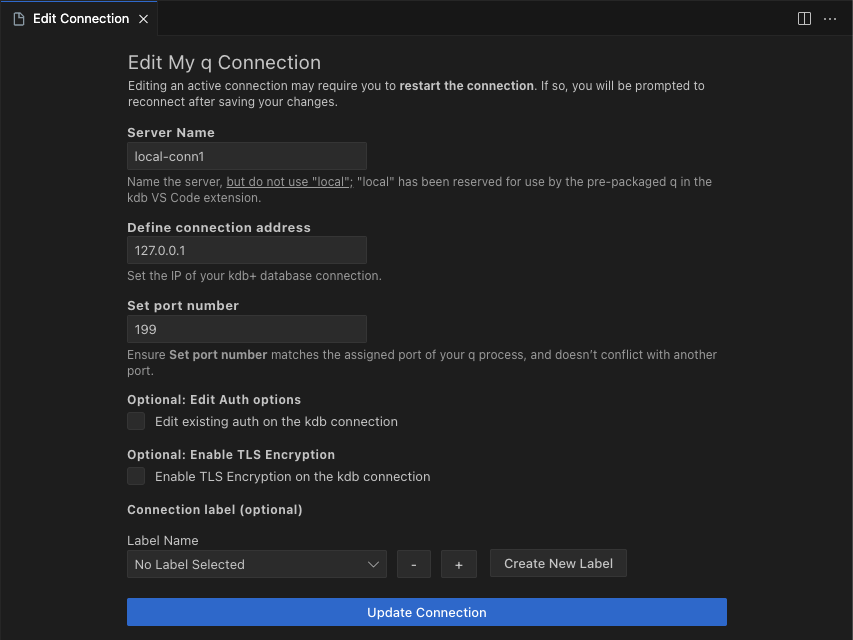
Edit My q connection
To modify an existing My q connection:
-
Right-click the connection in the sidebar.
-
Select Edit Connection.
You may update any of the following fields:
| Property | Description |
|---|---|
| Server Name | The server name / alias. The server name cannot be InsightsEnterprise (reserved for use by Insights connections) or REPL (case-insensitive), can only contain alphanumeric characters and hyphens, cannot start with a space, and has a maximum length of 2048 characters. For example, dev. |
| The connection address | Set to the IP address of the kdb server. For example, localhost. |
| Port | Enter the port used by the kdb server; for example 5001. Learn more about setting a q port. |
| Edit Auth options | Check the box if you wish to change Auth options. If you want to remove the Auth for this connection, select this checkbox and leave the Username and Password fields in blank. |
| Username | If authentication is needed, fill in the username. Otherwise, leave blank. |
| Password | If authentication is needed, fill in the password. Otherwise, leave blank. |
| Enable TLS Encryption | Check the box if TLS is enabled. Learn more about TLS encryption. |
| Label Name | Select the label to assign the connection to. |
Next steps
- Use a quick connection
- Add an Insights connection
- Learn about connection labels
- Import or export a connection