View Results
This page explains how query results are displayed in the kdb Visual Studio Code Extension.
Every query you run through the extension — from source files, Workbooks, Notebooks, Queries, or the REPL — runs remotely on a connected q process or, for kdb Insights Enterprise, on your user-specific scratchpad or the database tier you select. The extension returns the results to VS Code and displays them in one of two locations: the Output console or the KDB RESULTS view.
Terminal
The Terminal panel contains an output console for each connected connection and for each REPL session. Use it when you run code that produces text output, logs, or error messages.
Each console appears as a separate terminal with a database icon, named KX followed by the connection name. For example, the console for a connection named test is named KX test. REPL terminals are named KX REPL, followed by the folder that the REPL is rooted at, such as KX REPL (qplay). The consoles do not persist between VS Code sessions.
Output console
Each connected connection has its own output console in the Terminal panel. Query results, and the kdb Insights Enterprise scratchpad log, go to the console of the connection that produced them.
The output console gives you a text-based representation of query execution for a single connection, and displays results as the extension receives them. Each entry contains:
- The code or query that ran
- A timestamp
- Any returned text or diagnostic output
When you send results to the KDB RESULTS view instead, the console prints the line Query results are shown in kdb Results View ↗ in place of the results for that query. Select kdb Results View in that line to open the view.
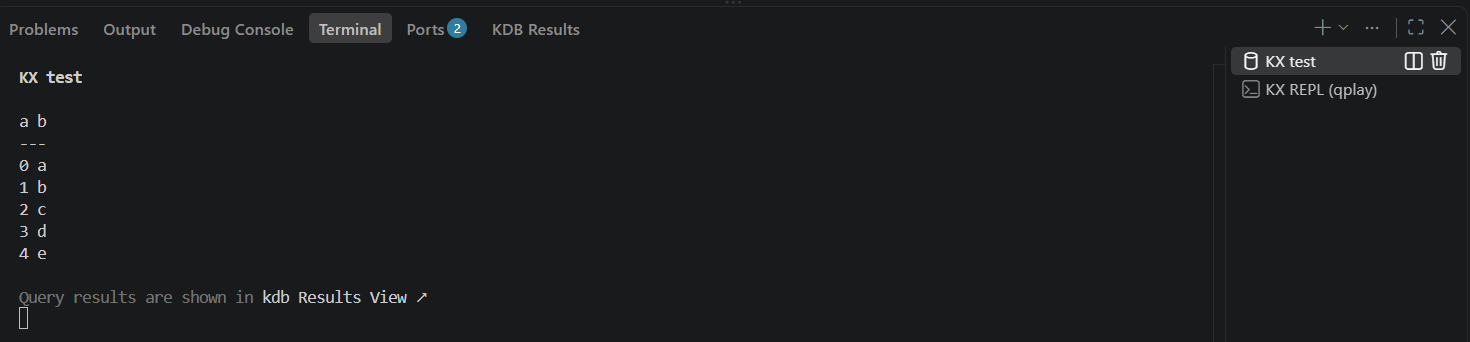
The console keeps as many lines of output as the VS Code terminal.integrated.scrollback setting allows. If you scroll up through earlier results, the console stays where you leave it when new output arrives.
Wide results are not cut off at the edge of the Terminal panel. The console renders output up to a maximum width, so you can scroll horizontally to read wide tables. Use the horizontal scrollbar, or hold Shift and scroll the mouse wheel.
For tables that are too wide to read in the Terminal, send the results to the KDB RESULTS view instead. Use the Output Destination icon in the editor title bar to switch.
Rows that exceed the maximum console width are truncated rather than wrapped onto the next line, which is consistent with q console behavior. A truncated row ends with ...
How much of each row you see depends on two things: the console size of your q process, and the console's own limit of roughly 500 to 1000 characters per row, depending on your terminal font size.
If results are cut off too early
The extension does not set the q console size, so widen it yourself. \c 2000 2000 sets 2000 rows by 2000 characters, and applies to your next query.
You can hide the full source expression that ran, which reduces clutter when you run frequent or long queries. In Settings, select Kdb: Hide Source Expressions. This setting is enabled by default.

Output destination
For .q, .quke, .py, .sql, and .kxquery files, you can choose where results appear:
-
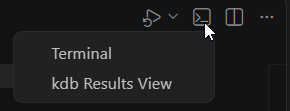
In the editor title bar, select the Output Destination icon. The icon shows the current destination: a terminal icon for the output console, or a table icon for the KDB RESULTS view.

-
Select Terminal to send results to the output console, or kdb Results View to send them to the KDB RESULTS view.
KDB RESULTS view
The KDB RESULTS view displays the tabular data returned from q, SQL, qSQL, or API queries. The extension formats the results as an interactive table, which makes it easier to:
- Inspect columns
- Sort or filter data
- Validate results before you continue your analysis

Next steps
- Learn more about the kdb Visual Studio Code Extension settings