Use Scratchpad Processes
This page explains how to run queries against your scratchpad, populate scratchpad variables, and reset the scratchpad within the kdb Visual Studio Code Extension.
Every kdb Insights Enterprise user has access to their own dedicated scratchpad q process. This process provides an isolated environment for running freeform q or Python code without affecting shared database tiers or production workloads. The scratchpad is especially useful for:
- Experimenting with queries
- Staging intermediate results
- Debugging data issues
- Developing custom analytics
Workbooks, source files, KX Notebooks, and Queries can all target the scratchpad.
Run vs. populate scratchpad
Run and populate scratchpad are two actions used to execute q code, allowing you to run queries and perform operations on your kdb Insights Enterprise database but they differ in how and where the output is stored and accessed.
You can execute a query in two ways:
- Run executes your query directly against the relevant API (getData, qSQL, SQL, or UDA) and displays the results in the extension.
- Populate Scratchpad executes your query through the scratchpad, which passes it to the relevant API, assigns the results to a variable of your choosing in your scratchpad process and then displays them in the kdb Visual Studio Code Extension.
Populate scratchpad
The scratchpad is a q process that provides a user-specific place to run q or Python code without querying the main database tiers directly.
Populating the scratchpad allows you to load a dataset into your scratchpad process and then run q, Python or SQL code against it. This is useful for building complex APIs and pipelines within VS Code and kdb Insights Enterprise.
Note
The Populate Scratchpad feature from queries is available only for kdb Insights Enterprise connections.
To populate the scratchpad from a query:
-
Create a query (
.kxqueryfile) with a kdb Insights Enterprise connection and execute it by clicking Populate Scratchpad.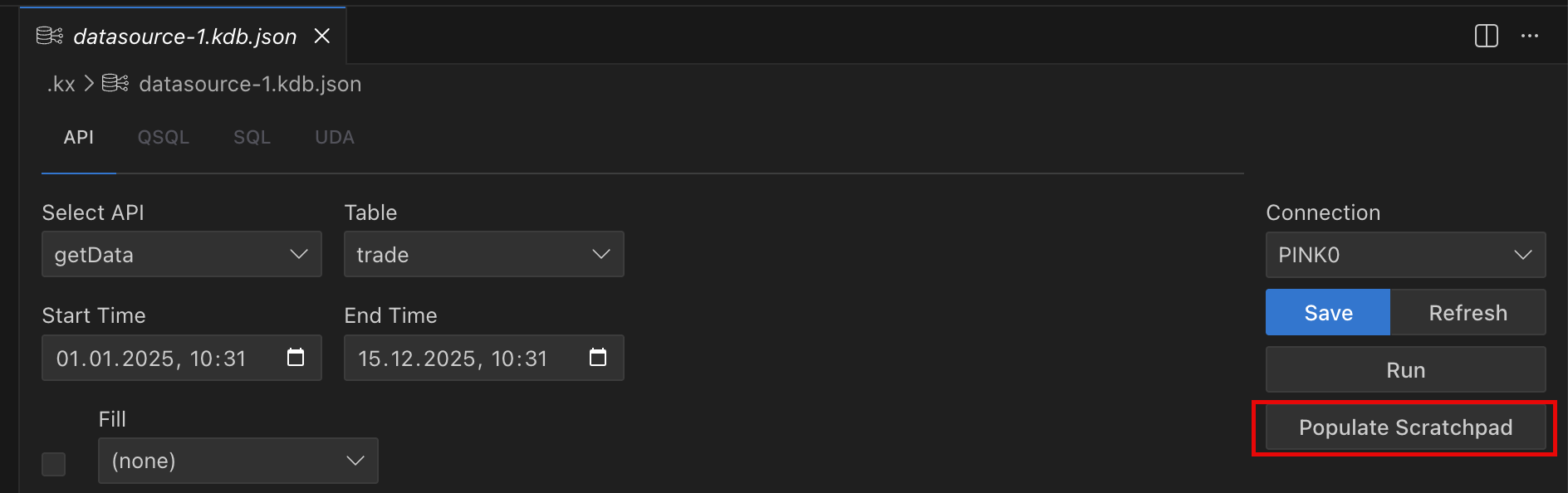
-
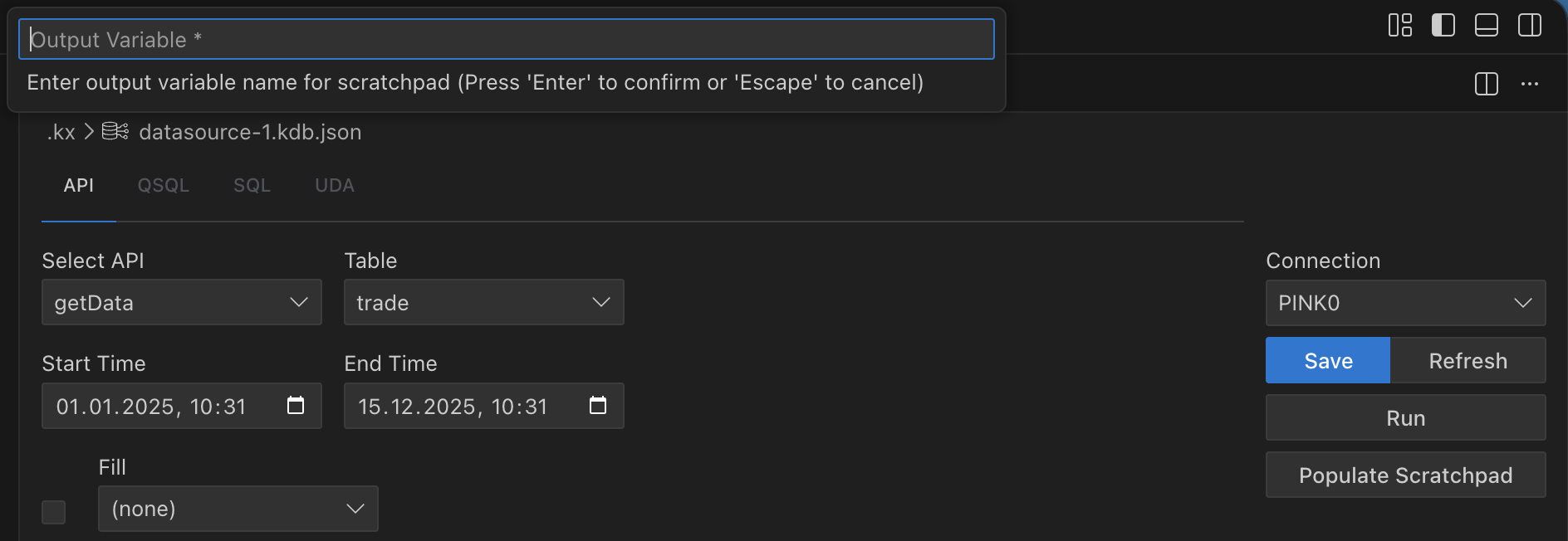
At the prompt, provide a variable name to populate your own scratchpad instance running in the connected kdb Insights Enterprise with the data.
-
The scratchpad process is populated and the data is shown in the kdb Visual Studio Code Extension.
-
Use a Workbook to execute q, Python or SQL code against the data in your scratchpad using the variable you provided.
You can also populate variables in your scratchpad with the results from your queries, and then run additional q or Python operations on those variables as needed.
Query timeouts
When running Scratchpad or database-backed queries from the kdb Visual Studio Code Extension against Insights Enterprise, execution is subject to a configurable query timeout.
Configuring timeouts
You can configure query timeouts as follows:
-
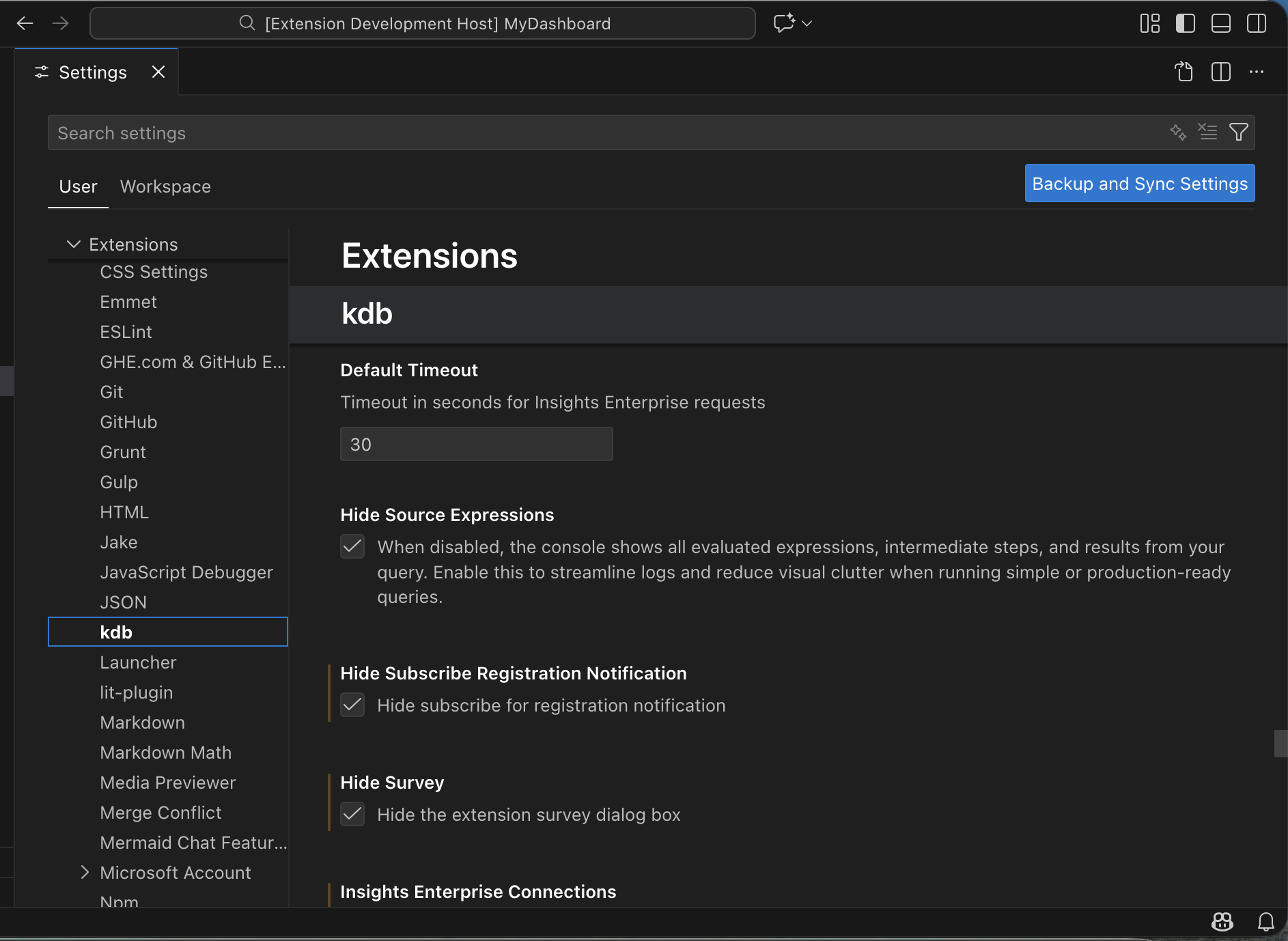
Default timeout. A default timeout can be configured in the VS Code settings under Extensions → kdb → Default Timeout. This value is used when no per-file timeout is set.
-
Per-file timeout. Each file can have its own timeout, selected directly from the VS Code status bar. This timeout applies only to the current file.
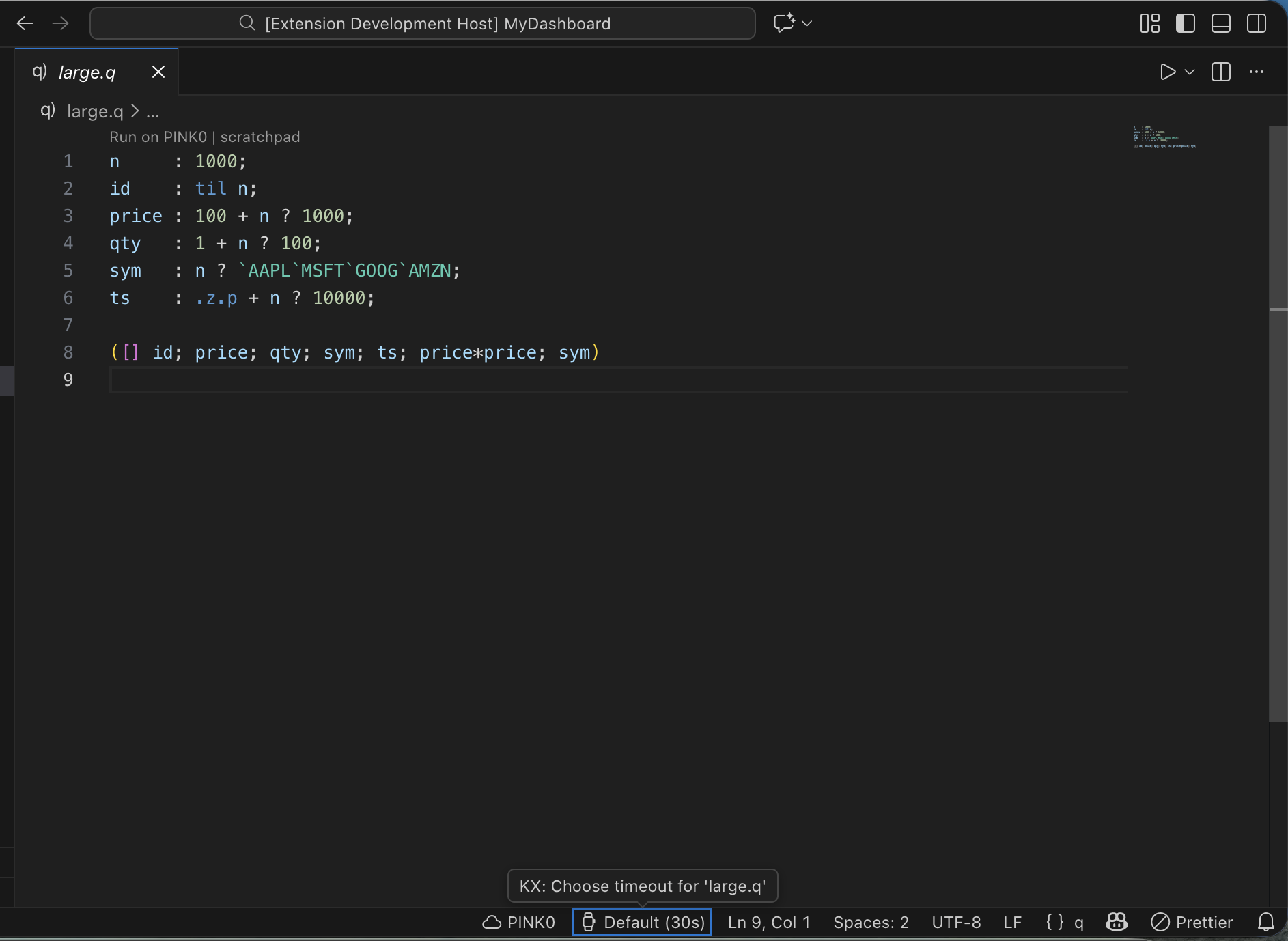
By default, the timeout is set to 30 seconds. You can customize this value to suit your workflows.
Cancelling queries
Cancelling a query in the kdb Visual Studio Code Extension stops the client-side request, but does not always stop execution on the backend.
To cancel a query, simply click the Cancel button while the query is running.
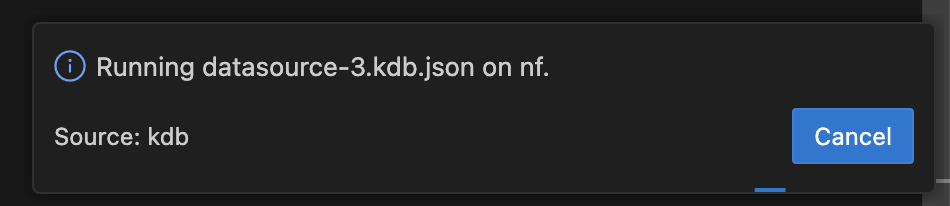
To cancel a q or Python query from a workbook or notebook, click the status bar. This displays a Cancel button that you can click to cancel the query.
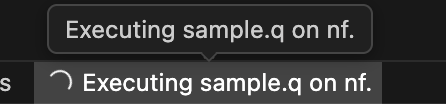
The message displayed depends on the type of query being cancelled:
-
q Scratchpad queries
Cancel request sent for [connection] -
Database queries
Cancel request sent, however, the query will continue running on the database until it finishes or times out -
Python queries
Cancel request sent, however, Python queries may ignore this
Reset scratchpad
The Reset Scratchpad option in the kdb Visual Studio Code Extension clears all variables and data stored in your scratchpad process, allowing you to restart your development from a clean state.
There are several ways to reset the scratchpad:
-
Right click on the appropriate connection on the left-hand side and select Reset Scratchpad. The connection can be either active or idle but it must be connected.
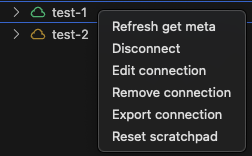
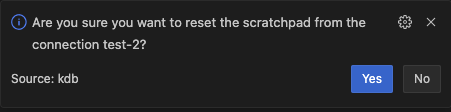
This displays a dialog box at the bottom right corner asking you to confirm your action.
-
Open the Command Palette (
Ctrl+Shift+Pon Windows orCmd+Shift+Pon MacOS). Start typing Reset Scratchpad and click on the option as it shows. This action resets the scratchpad for the active connection.
-
Use the MacOS or Windows shortcuts in the q file or in the workbook. Note that running the shortcuts in the q file resets the scratchpad for the active connection, while running them in the workbook resets the scratchpad for the connection chosen in the workbook.