kdb Visual Studio Code Extension Settings
This page explains the settings available for configuring the kdb Visual Studio Code Extension and how to update them.
You can access the extension’s settings in two ways:
- Open Preferences > Settings and search for kdb, or
- Right click the settings icon in kdb Visual Studio Code marketplace panel and choose Extension Settings.
Most settings can be toggled directly in the UI, while some require editing the JSON configuration.
Settings
The table below describes what each setting in the kdb Visual Studio Code Extension does:
| Setting | Action |
|---|---|
| Automatically focus the output console when running a query without an active results tab or receive log entry | Options of yes/no; default is yes |
| List of label names and color set | Edit JSON settings |
| Connection map for workspace files | Edit JSON settings |
| Hide source expressions | Options of yes/no; default is yes |
| Hide subscribe for registration notification | Options of yes/no; default is no |
| Hide survey | Options of yes/no; default is no |
| kdb Insights Enterprise connections for explorer | Edit JSON settings |
| Labels connection map | Edit JSON settings |
| Linting | Enable linting for q and quke files |
| Never show q install walkthrough again | Options of yes/no; default is no |
| QHOME directory for q runtime | Display location path of q installation |
| QHOME directory for q runtime for the workspace | Display location path of the q installation used to launch the REPL for the current workspace |
| Refactoring | Choose refactoring scope |
| kdb servers for explorer | Edit JSON settings |
| Target map for workspace files | Edit JSON settings |
| Default Timeout | Timeout expressed in seconds for Insights Enterprise requests. Default is 30 seconds. |
Refactoring
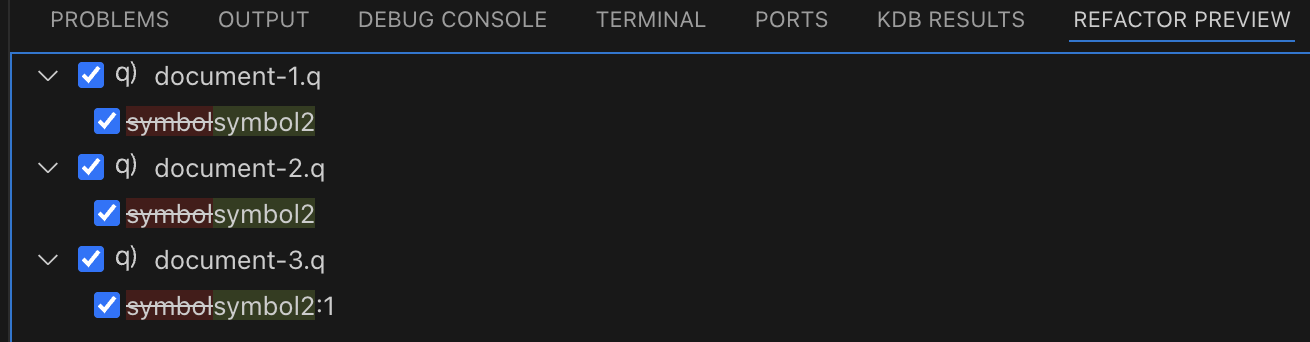
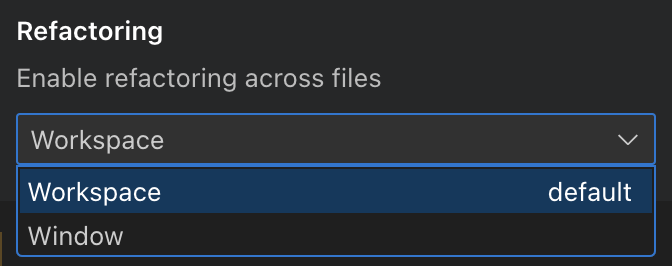
By default, refactorings like renaming are applied to all files in the workspace. You can preview the changes before applying them and select specific files to apply the refactoring by pressing the ctrl or command key before executing the action.
If you only want to apply the refactorings to the currently opened files only, select Window instead of Workspace for the refactoring option:
kdb Insights Enterprise Connections for Explorer
This section of settings manages kdb Insights Enterprise connections displayed in the Explorer.
Configuration is stored in JSON and looks similar to:
{
    "security.workspace.trust.untrustedFiles": "open",
    "editor.accessibilitySupport": "off",
    "workbench.colorTheme": "Default Dark+",
    "kdb.qHomeDirectory": "C:\\qhomedirectory",
    "kdb.hideInstallationNotification": true,
    "kdb.servers": {
        "23XdJyFk7hXb35Z3yw2vP87HOHFIfy0PDoo5+/G1o7A=": {
            "auth": true,
            "serverName": "127.0.0.1",
            "serverPort": "5001",
            "serverAlias": "5001",
            "managed": false
        }
    },
    "kdb.hideSubscribeRegistrationNotification": true,
    "kdb.insightsEnterpriseConnections": {

        "b61Z6R1TGF3vsudDAmo5WWDcGEmRQpmQKoWrluXJD9g=": {
            "auth": true,
            "alias": "servername.com",
            "server": "https://servername.com/"
        }
    }
}
For more information, refer to the VS Code settings documentation.
Servers
The kdb.servers setting defines locally managed or remote My q servers for the Explorer tree.
{
    "security.workspace.trust.untrustedFiles": "open",
    "editor.accessibilitySupport": "off",
    "workbench.colorTheme": "Default Dark+",
    "kdb.qHomeDirectory": "C:\\qhomedirectory",
    "kdb.hideInstallationNotification": true,
    "kdb.servers": {

        "23XdJyFk7hXb35Z3yw2vP87HOHFIfy0PDoo5+/G1o7A=": {
            "auth": true,
            "serverName": "127.0.0.1",
            "serverPort": "5001",
            "serverAlias": "5001",
            "managed": false
        }
    },
    "kdb.hideSubscribeRegistrationNotification": true,
    "kdb.insightsEnterpriseConnections": {
        "b61Z6R1TGF3vsudDAmo5WWDcGEmRQpmQKoWrluXJD9g=": {
            "auth": true,
            "alias": "servername.com",
            "server": "https://servername.com/"
        }
    }
}
For more information, refer to the VS Code settings documentation.
Double click selection
The following setting changes double click behavior to select the whole identifier including dots:
 "[q]": {
    "editor.wordSeparators": "`~!@#$%^&*()-=+[{]}\\|;:'\",<>/?"
  }
Auto focus output on entry
This setting automatically focuses the output console when running a query without an active results tab or receive log entry. This means that, when the setting is enabled, executing a query reveals the output console of the connection in the Terminal panel, even if that console is not the one currently in view.
You can disable this option at any time in Settings if you do not want to auto-focus.
Next steps
- Check out what shortcuts you can use in the kdb Visual Studio Code Extension
- Get help and provide feedback
- See the reference card for more details on Settings
- Refer to the developer wiki for specific notes