Query History
This page explains how the Query History view works in the kdb Visual Studio Code Extension and how it helps you review and re-run previously executed queries.
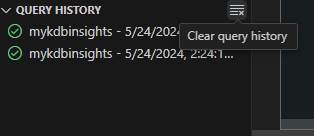
The Query History view, located in the primary sidebar, records each query execution performed through the extension. Whenever you run code - whether from a q file, Python file, Workbook, Notebook, or Query - the request appears as a new entry. The history starts empty and builds as you execute queries, with a separate row for every run. All history information is kept in memory only and is cleared when VS Code closes.
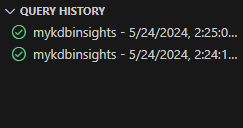
Each row represents a single execution and provides contextual information about what ran, where it ran, and whether it succeeded. This makes Query History useful for retracing steps, debugging issues, and quickly re-running previous operations without reopening files.
Row details
The following fields appear in each history row:
| Field | Description |
|---|---|
| Status icon | Shows if the code or query executed successfully or an error occurred. |
| Connection Name | The server name associated with the connection on which the query was executed |
| Connection Type | The connection type showing kdb, insights, or undefined. |
| Time | The time the query was executed. |
| Query/File/Workbook | The name of the file being executed. |
| Query | When you execute Code, the code is shown. |
| Query Type | When you run a query, the API type is displayed (for example, getData, qSQL, SQL, or the UDA name). |
| Duration | The total time the query took to run and return its results. |
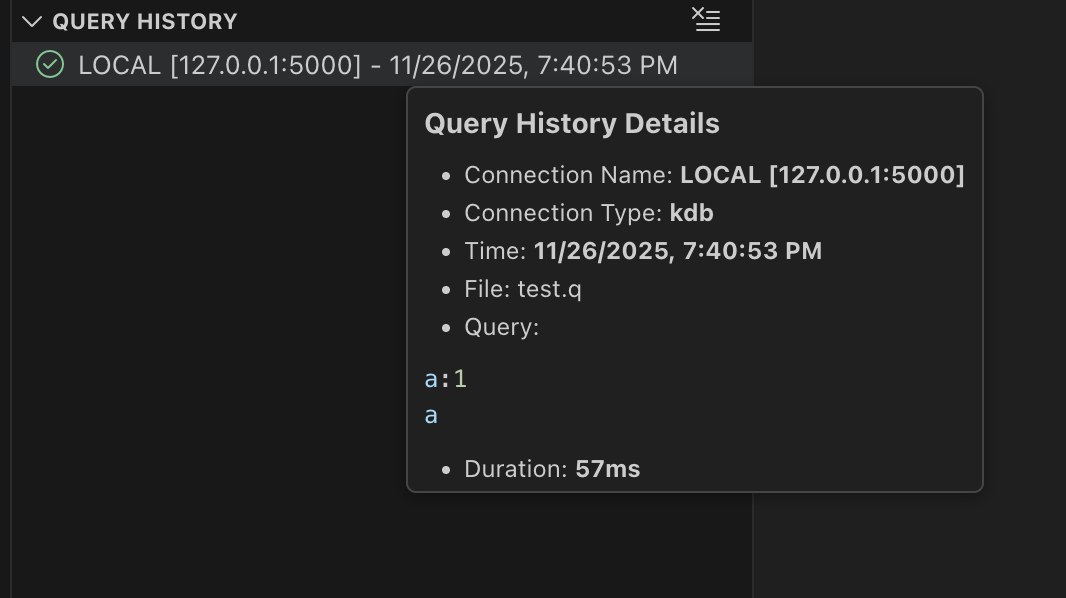
You can right-click any row to bring up a menu with the option to Rerun query. This makes it easy to iterate on logic or re-execute a prior command without navigating back to the original file.
Logs
Execution logs are written to the kdb tab in the OUTPUT window. These logs provide additional detail about query results, warnings, or failures and are helpful for troubleshooting.
To see the logs, select kdb in the Output window.
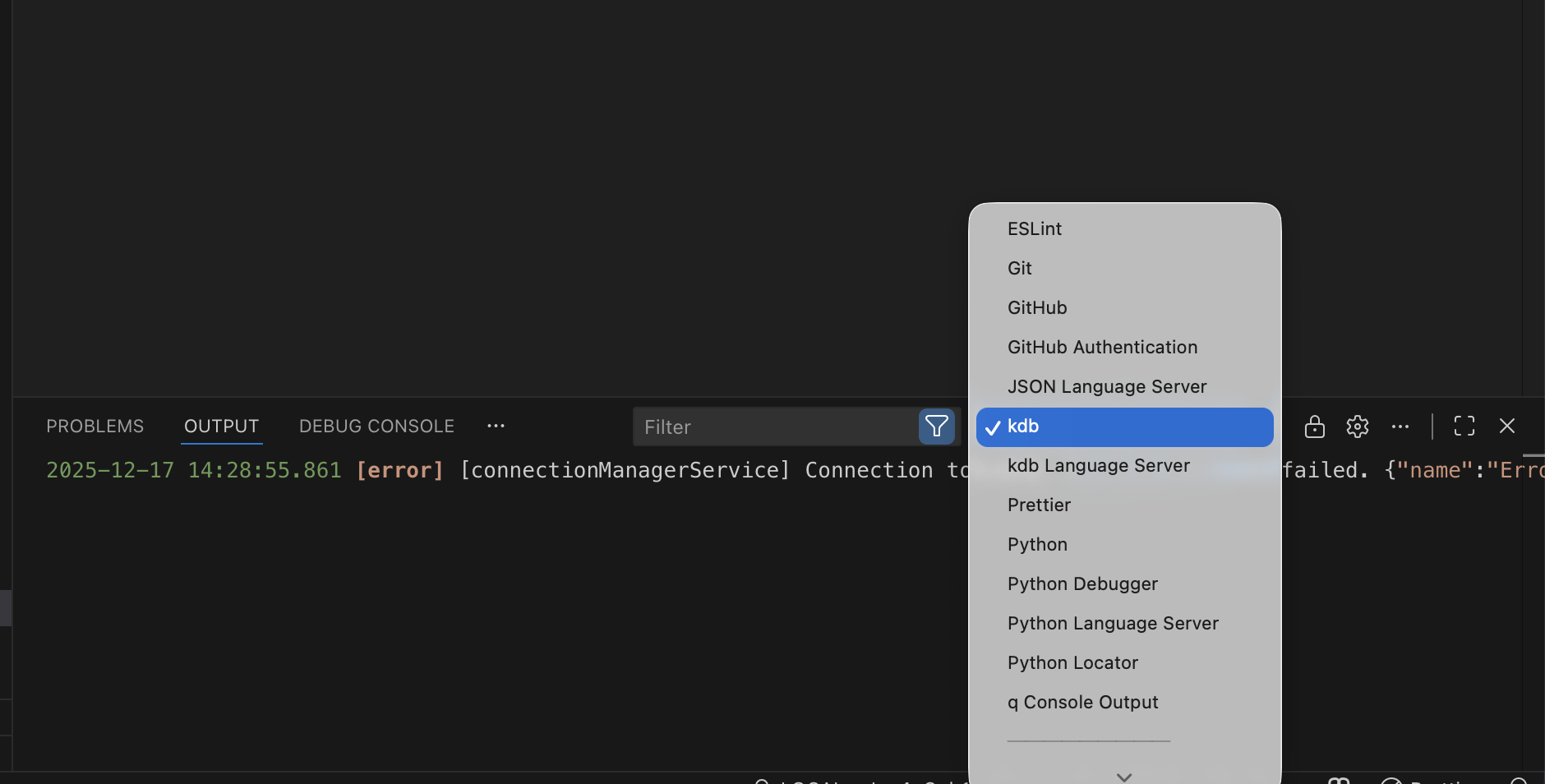
Log entries follow the format:
[DATE TIME] [INFO or ERROR] Message
Next steps
- Learn how to view results