Workbooks
This page explains how to create, configure, and use Workbooks in the kdb Visual Studio Code Extension.
Workbooks provide an interactive environment for developing q and Python code within kdb Insights Enterprise. They are similar to source files, and offer options for managing execution targets, and maintaining state across runs.
Workbooks support:
- q Workbooks (.kdb.q)
- Python Workbooks (.kdb.py)
- SQL Workbooks (.kdb.sql)
Workbooks can execute against Scratchpad or any available DAP in kdb Insights.
Key features
Workbooks include the following key features:
- Are listed in the WORKBOOKS view in the primary sidebar
- Can be associated with a connection
- Support the .kdb.q., kdb.py, and .kdb.sql extensions
- Are stored in a .kx folder at the root of your open folder
- You can have multiple Workbooks running against different connections at the same time
Create a Workbook
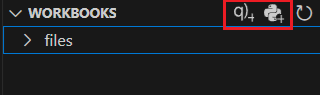
To create a Workbook, either create a .kdb.q, .kdb.py, or .kdb.sql file manually in the EXPLORER, or use the WORKBOOKS panel in the sidebar to quickly add one. Workbooks are listed in the WORKBOOKS view for convenient access.
Create a Workbook using the WORKBOOKS panel and run code against a specific connection, as follows:
- Ensure you have at least one folder open in VS Code.
-
In the WORKBOOKS view in the primary sidebar, click the + to create either a New q workbook, New Python workbook or New SQL workbook.
Run code in a Workbook
To run q, Python or SQL code in a Workbook:
-
Write the code you wish to execute.
-
Run the code. To run all the code in the file you can use one of the following methods:
-
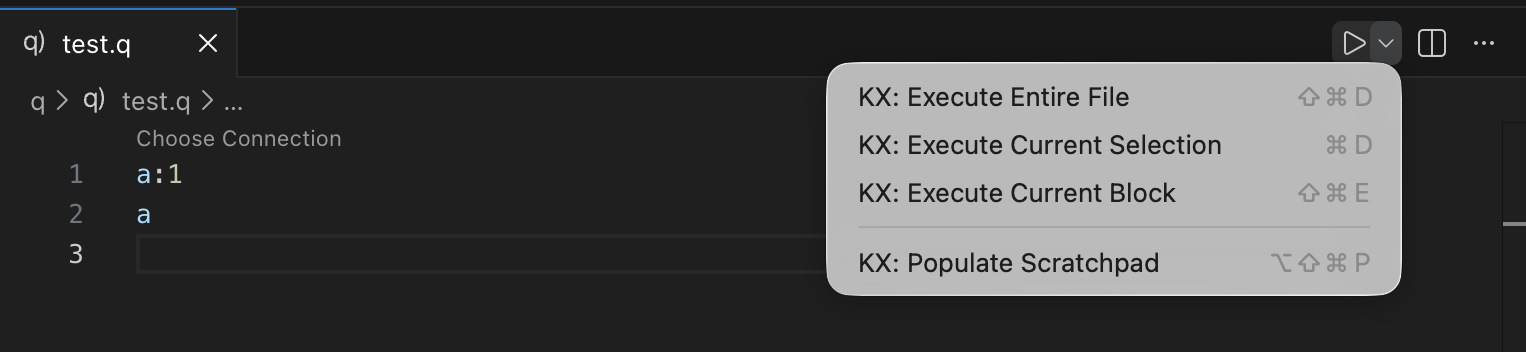
Select Run from the upper right of the editor. Using the dropdown next to the button you can choose any of the KX: menu items to run some, or all of the code in the workbook.
-
Right-click and choose KX: Execute Entire File from the menu.
Note
If you have not chosen a connection to associate with the workbook, it executes on the active target. Otherwise, you can still choose a connection if you wish. Choose connection for Workbook
-
-
The results are displayed in the output console of the connection that ran them, or in the KDB RESULTS view if you change the output destination.
Manage Workbook connections
When you save a workbook file, the code and the connection details are stored. The workbook icon is green when its associated connection is active, and grey when the connection is disconnected or no connection is associated.
You can change the connection associated with a workbook at any time by clicking on the connection from above the first line of code in the workbook file.

Note
Choosing a connection is not specific to Workbooks. The Choose Connection code lens and the status bar target are offered for any q, quke, py, or sql file. For more information, refer to where the code runs.