Add configuration objects
This page describes how to create new configuration object types in KXS, and how to override and look up existing ones.
There are two components to a new configuration object type: first you define the required metadata for the object in /meta, and then you define the actual values for this metadata in /config.
There are two types of configuration objects in KXS: list objects and dictionary objects. You use the list type when the order of elements is important; for example, in process.yaml, the first or default element defines the behavior of all other non-default elements. You use the dictionary type when the order is not important; for example, feed.yaml.
With dictionary type objects, each element naturally has a unique key. With list type objects, on the other hand, each element by default does not have a unique key, but you can add one by means of the m-keys property.
The meta file for a configuration object consists of the following meta properties:
| m-value | Description |
|---|---|
m-description |
A description for your configuration type. |
m-type |
list or dict. |
m-required |
If set to true, any config file based on this meta file must specify each element listed under the m-value property, even if the element or property is blank. |
m-keys |
The keys, if any, for the configuration type. |
m-overlay |
Your overlay rule: fill, first, last, discard, merge, union. If not specified, fill is the default. |
m-value |
The list of elements in the configuration type and their properties. |
The following example shows the m-value properties for process.yaml:
process:
  m-description: This configuration parameter stores the process wide level configurations, etc.
  values:
    m-type: list
    m-required: true
    m-keys: [ process, svcClass ]
    m-value:
      - element1:
        property1: xxx
        property2: yyy
The YAML formatting for each type also differs. List types are formatted as follows:
  m-value:
   - name: element1
     prop1: xxx
     prop2: yyy

   - name: element2
     prop1: zzz
     prop2: ttt
Dictionary types are formatted as follows:
  m-value:
    element1:
      prop1: xxx
      prop2: yyy

    element2:
      prop1: zzz
      prop2: ttt
Use case 1: Add a new configuration type and object
In this use case, you define a set of operational type jobs and specify their scheduling information. The job function itself has m-overlay: first, so the owner of the job is the one who controls what is executed, but the scheduling information can be overridden.
A new configuration type requires a new service class and a new enumeration for your new service class.
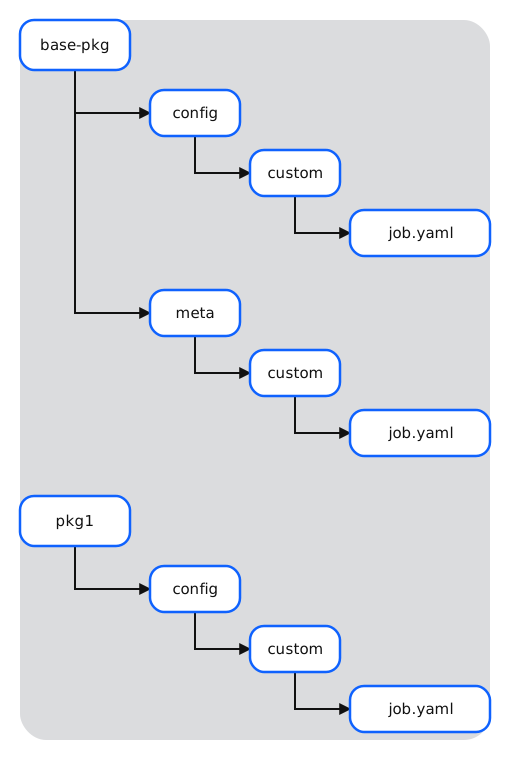
There are two packages required in this example: a base package (base-pkg) and an override package (pkg1).
- In
manifest.yaml, create a new service class calledjobfor your new configuration type. - In
svcClass.yaml, create a new enumeration for your new service class. - Create a new meta file,
job.yaml, and place it in themeta/custom/directory ofbase-pkg. This YAML file defines the properties of your configuration object. - Enter a description for your configuration type in the
m-descriptionproperty. - Enter a type in the
m-typeproperty. - If the elements are required in your config file for this configuration type, set the
m-requiredproperty totrue. - If required, enter an
m-overlayproperty. -
Enter the
m-valueproperty and list all the elements in your configuration type. For each element, you must define a data type (symbol,string, etc.) and a description.The following example shows the resulting
job.yamlmeta file:job: m-description: Defines set of periodic or manual operational jobs and their properties values: m-type: dict m-required: true m-value: fn: m-type: symbol m-description: Entry point function m-required: true m-overlay: first # function cannot be changed runTS: m-type: timestamp m-description: Specific time of day for job to run (otherwise manual) days: m-type: shorts m-description: "Days of week (starting from Sunday: 1) for job to run (otherwise everyday if runTS is set)" m-overlay: last timeout: m-type: long m-description: Timeout interval isEnabled: m-type: boolean m-description: Indicates whether job is enabled desc: m-type: string m-description: No functional purpose, only used to document config entries -
When you finish entering your properties, save your changes.
- Create a config file,
job.yaml, and place it in thebase-pkg/config/customdirectory. This YAML file represents the actual configuration object based on the definition from the previous steps. - Enter your values for each property.
-
Save your changes.
The following example shows the resulting
job.yamlconfig file:job: m-meta: custom/job.yaml values: <default>: timeout: 60000 isEnabled: true desc: Default job properties diskCheck: fn: .job.sys.diskCheck runTS: 23:00:00 days: [ 1, 4 ] desc: Checks disks every Sunday and Wednesday at 11pm
Use case 2: Override your new configuration type
In this use case, you override your job.yaml properties for a specific site or customer.
- Create the appropriate directories for your new package override; for example,
pkg1/config/custom. - In your custom directory, add your
job.yamlfile override. Only properties whose values differ from the values defined in your defaultjob.yamlfile need to be specified.
The following example shows the resulting job.yaml override:
job:
  values:
    diskCheck:
      days: []
      desc: Overrides disk check job to run everyday

    dailyReport:
      fn: .myjobs.dailyReport
      runTS: 06:00:00
      desc: Generates daily operations report
Use case 3: Look up your overrides
You can look up an in-memory representation of your job.yaml overrides by means of the following command:
.cfg.get`$"config/custom/job.yaml"
Before pkg1 is deployed, the in-memory representation contains only the base diskCheck job:
| name | fn | runTS | days | timeout | isEnabled |
|---|---|---|---|---|---|
diskCheck |
.job.sys.diskCheck |
2000.01.01D23:00:00.000000000 |
1 4 |
60000 |
1 |
After pkg1 is deployed, diskCheck's days override takes effect and the new dailyReport job appears:
| name | fn | runTS | days | timeout | isEnabled |
|---|---|---|---|---|---|
diskCheck |
.job.sys.diskCheck |
2000.01.01D23:00:00.000000000 |
`short$() |
60000 |
1 |
dailyReport |
.myjobs.dailyReport |
2000.01.01D06:00:00.000000000 |
`short$() |
60000 |
1 |
Use case 4: Override an existing configuration object
In this use case, you create an overlay for process.yaml.
- Make a copy of
process.yamlinconfig/and place it in theconfig/folder of your custom package. -
Edit
process.yamlby deleting all properties that remain unchanged from a lower-level directory, and then setting the new values for the remaining properties.The following example shows the resulting
process.yamloverride, with new values forrdbandhdb:process: values: - process: rdb libraries: libraryOverride.q - process: hdb init: .init.override -
Save your changes.