Analytic functions
Analytics are functions defined in q – the programming language for kdb+. Analytics have the following characteristics:
- Consist of the q code, a description and a set of parameters
- Can be grouped; and an analytic can be a member of more than one analytic group
- Some analytic groups have special meanings. If an analytic is part of that group, then it can be used in certain places throughout the system. For example, if an analytic is a member of
DxConfigValidationAnalytics, then it can be used to validate a configuration parameter - Analytics and analytic groups starting
Dxare core delta and should not be modified. They should be duplicated instead. - It’s a good idea to define a naming convention – try to stick with the analytic having the same prefix as its group
- Some example analytics are supplied, and implement some of the core functionality for each of the process templates
- HTML documentation can be automatically created from analytic group
- An analytic can be marked as “Private” or "Public". Analytics must be public to be available as Connect API
An analytic definition consists of the analytic group membership, a description, a set of parameters, and code. When analytics are in the same group and have common parameters, it’s easier to duplicate them rather than starting over. However, duplicating an analytic doesn’t duplicate its permissions.
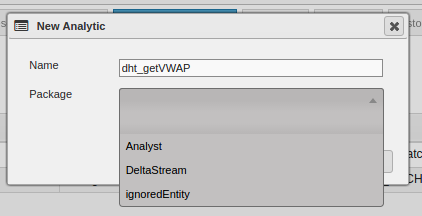
The Analytic Editor interface in KX Control allows the creation and editing of Analytics. A number of tabs allow the user to define the meta, function and parameters of an Analytic. A new Analytic can be created via File > New Analytic
The ability to write functions, and Instructions (i.e. scripts), in python was introduced in version 5.1.0. They mostly have the same characteristics as q analytics, however:
- The Parameters tab is not available, you simply type the parameters in the function header
- They cannot be used as dependent analytics of other Control entities e.g. as process init scripts or configuration validation scripts
- They must consist of one top-level python function definition. Multiple functions can be defined in one script as an Instruction.
- You can place comments above the function definition and use
importstatements inside the function definition. - Dependent helper functions called by the main function must be defined in Python Scratchpad by the time you call the function.
- Pressing Push, or calling either
.al.getfunction`func_nameor.al.loadgroupfunctions`AG_namein q Scratchpad, will load the function in Python Scratchpad. To load solely using Python Scratchpad, either push, or surround those.alcommands as a string argument insidepykx.qe.g.pykx.q('.al.getfunction`func_name'). - The same applies to
.al.loadinstructionfor Python Instructions
Analytic details
After giving the analytic a name and selecting a package to include the analytic in, you can modify the analytic details
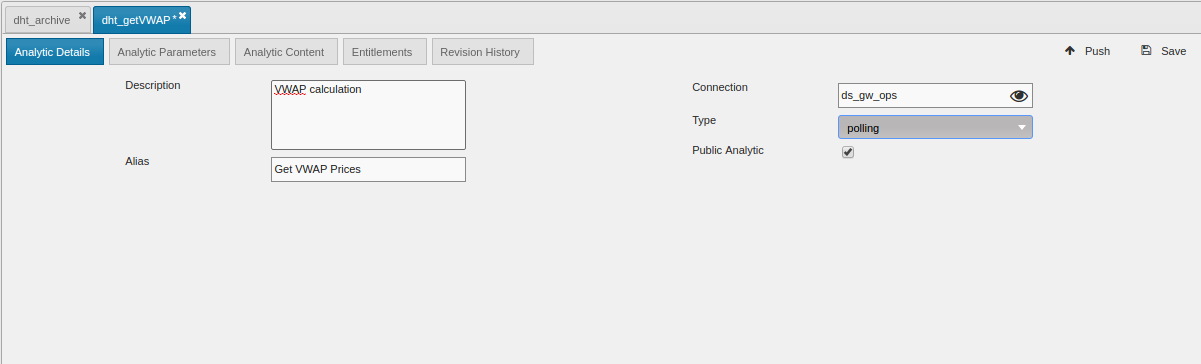
| field | description |
|---|---|
| Description | Description of the analytic |
| Alias | A short name for the analytic |
| Connection | Allows the definition of default connection where the analytic would be executed |
| Type | Polling/streaming analytic |
| Public Analytic | Allows an analytic to be marked for external use, i.e. to be available as Connect API |
Connection, Type and Public Analytic options are not effective for python analytics
Analytic parameters
You cannot modify the parameters for an analytic in the code editor, you must add/remove/update them in the Parameters tab. You can also change the order using the up/down controls.
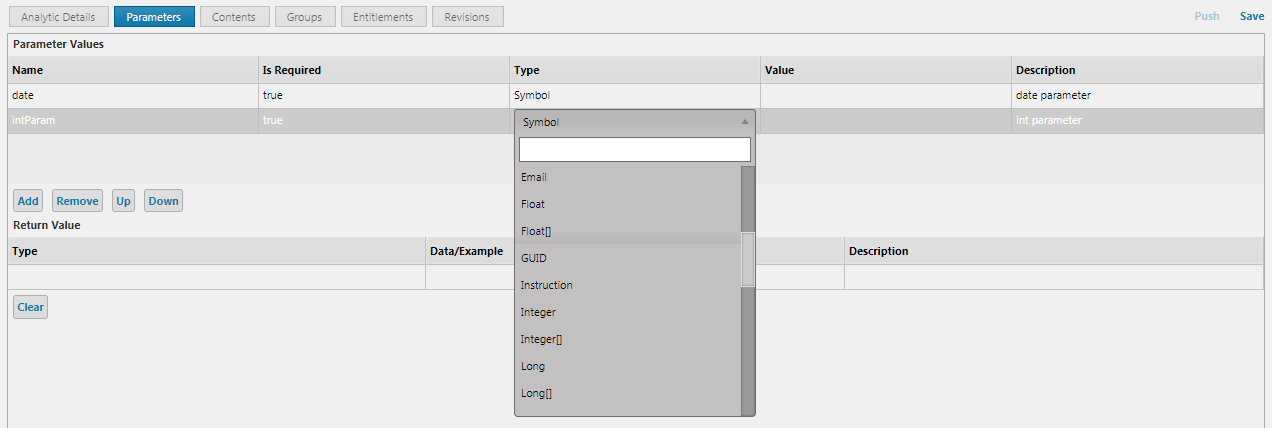
The changes made in the Parameters tab will be reflected in the parameters shown in the Contents tab.

Parameters tab not available for python analytics
Code editing features
The code editors in Analytics, Instructions and Process Templates share some common features.
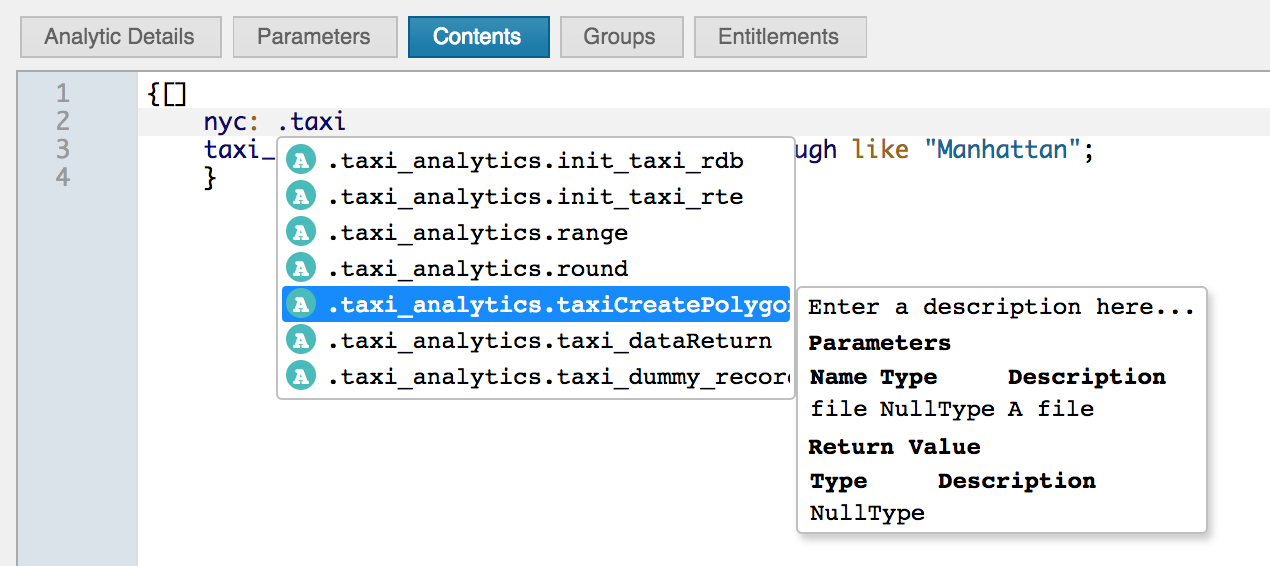
Content assist
There is content assist using Ctrl+Space. This provides a list of common q keywords, the available Process Template APIs, any analytics or instructions installed, plus schemas and parameters.
Hover help
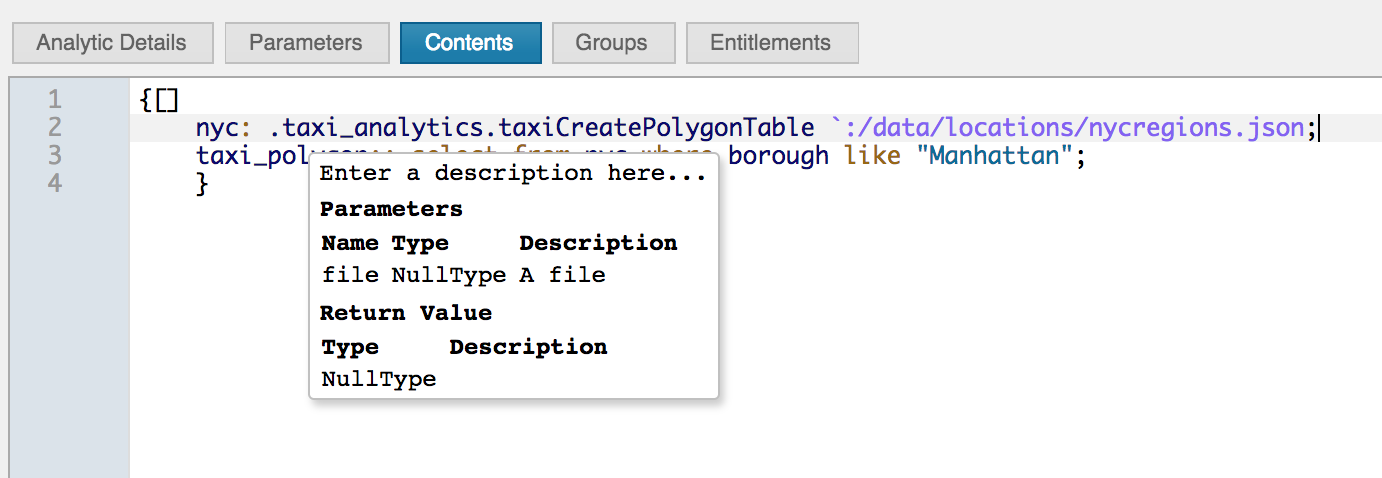
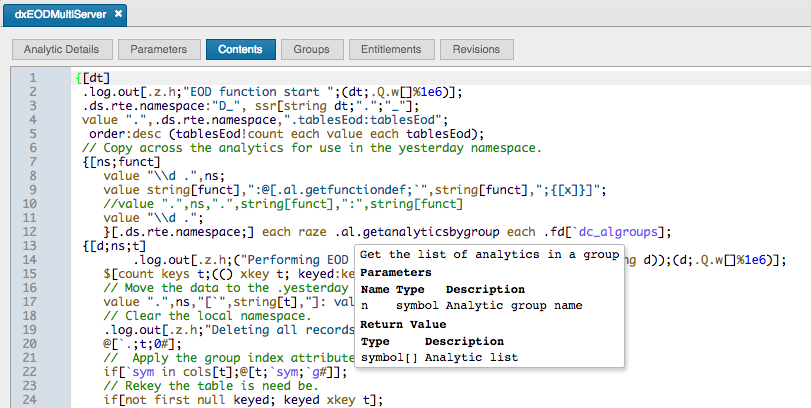
There is hover help for the same list of entities. Hover over a function or schema to see the details. This screenshot is of an analytic defined by the user.
The following screenshot shows a function from the Process Template API.
F3 to navigate to entity
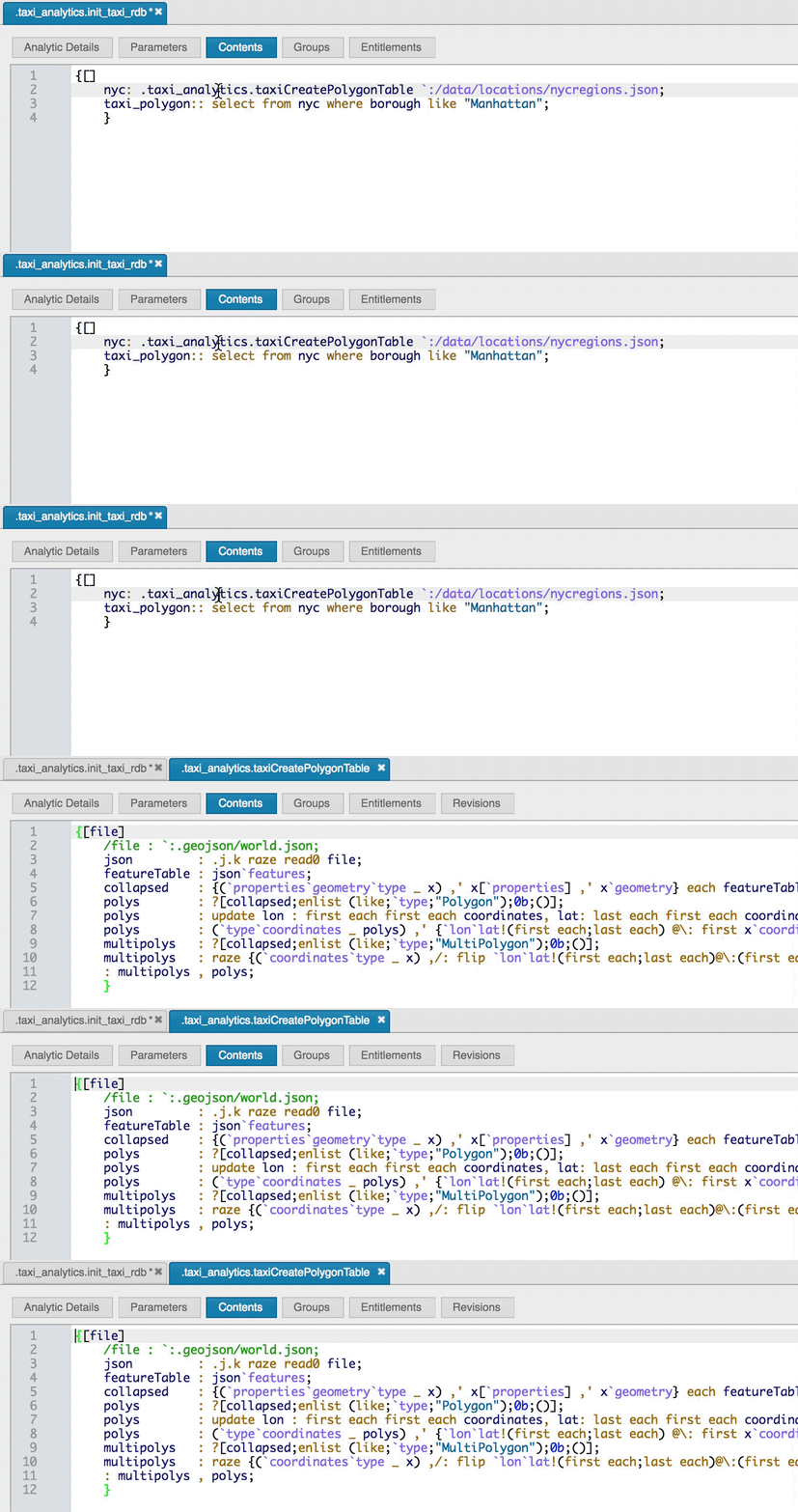
Press F3 to navigate to a supported entity. In the example below, placing the cursor in the function and pressing F3 results in the function being opened in a new viewer.
Keyboard shortcuts
The code area supports the following keyboard shortcuts
| shortcut | description |
|---|---|
| Ctrl-F / Cmd-F | Start searching |
| Ctrl-G / Cmd-G | Find next |
| Shift-Ctrl-G / Shift-Cmd-G | Find previous |
| Shift-Ctrl-F / Cmd-Option-F | Replace |
| Shift-Ctrl-R / Shift-Cmd-Option-F | Replace all |
| Alt-G | Jump to line |
| Ctrl-P / Cmd-P | Open Push Analytic Dialog |
Regex search
When using search within the code editor the search expression can optionally be a regex string. For example, if the code contents had both the words test and Test then the search expression /test/ would only find the first lowercase version but /test/i would find them all ignoring case.
Features are either not available for python analytics, or assume the code is q. There is no ability to write a Process Template in python.
Analytic push
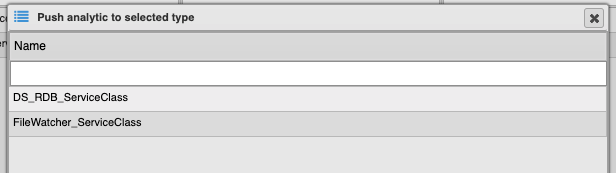
Once an analytic is edited the changes made can be applied to a running instance, task, template, or service class. The analytic editor will remember a previously selected instance, template, task or service class which was pushed to, and it will appear selected when the push analytic window is reopened. The keyboard shortcuts Ctrl-P / Cmd-P will open the dialog as well.
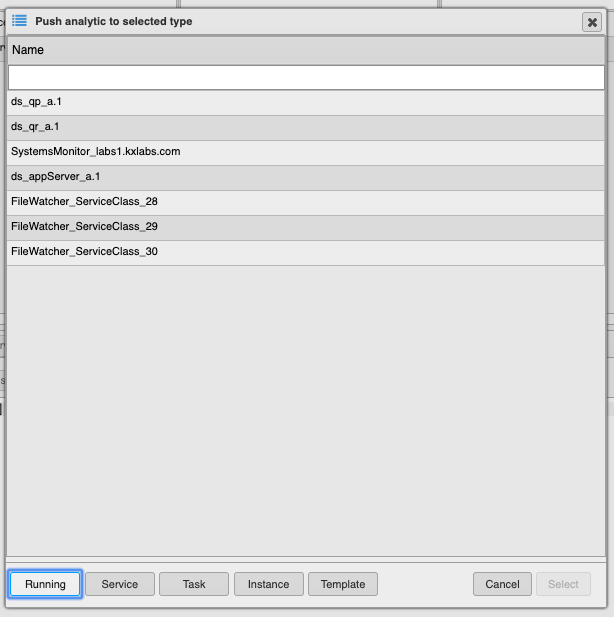
Push to any running instances created from a template
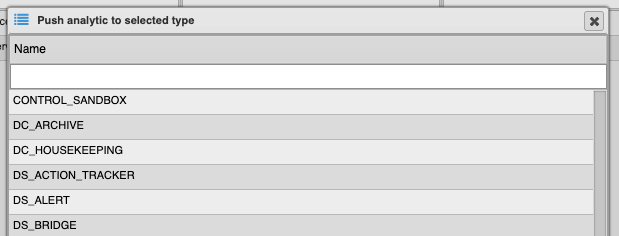
Push to the running instance of a particular process instance
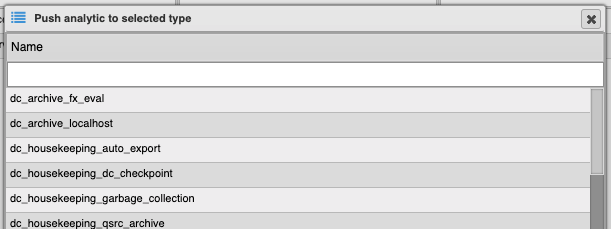
Push to the running task of a particular task
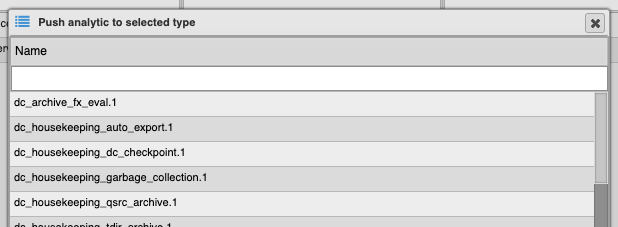
Push to any running instances of a particular service class
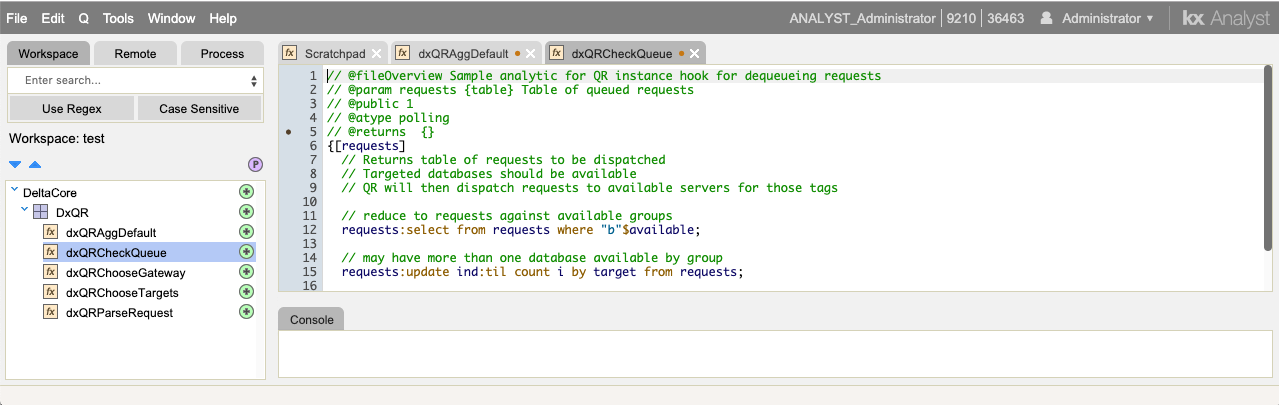
Analytic editing in KX Analyst
Analytics can be maintained in KX Control's Interactive Development Environment (IDE) - KX Analyst and exported into KX Control.
Python analytics can also be edited in Analyst. However, once you close the tab that displayed the function definition, any changes you made now only exist in-memory and you cannot re-view them. When you re-open the tab to view the function definition, the version as it exists in Control UI will be shown, even if that is not the active/in-memory version. The advice is not to have important code changes solely in that tab but to additionally paste them out to Python Scratchpad so that browser caching will keep them in the event of being signed out or a URL refresh in your browser.
Analytic groups
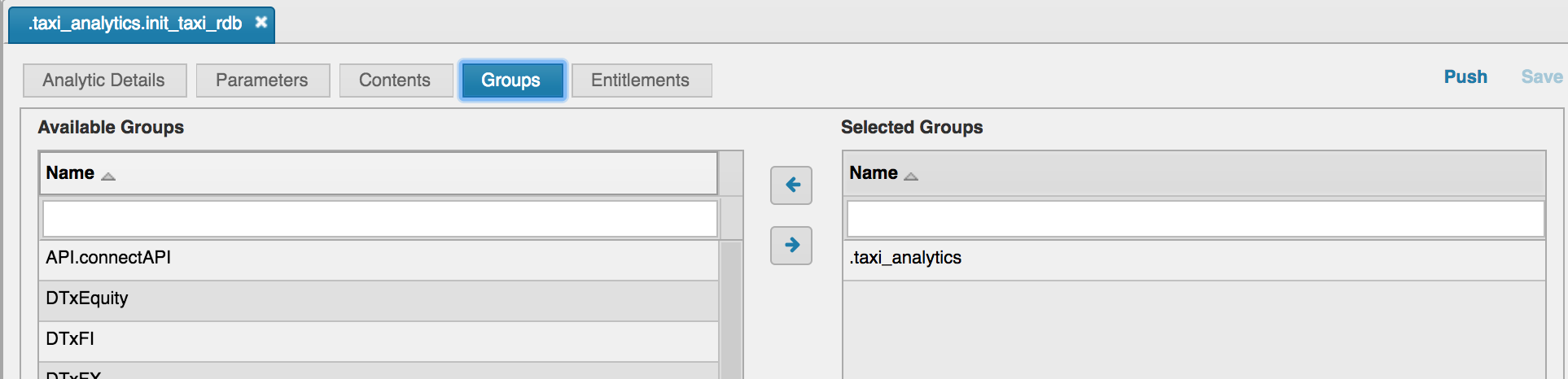
The Groups tab allows modification of which analytic groups an analytic is in. Use the arrows or double-click to move between available and assigned groups.