Schema and Infrastructure
This page covers defining the telemetry data schema and configuring the three foundational infrastructure components: the messaging server, the config parameter group, and the metrics plant.
Complete the following sections to define the telemetry schema and configure the infrastructure required for telemetry collection.
Create schemas
Create a schema group
Schema groups organize related schemas. Even though this system has only one table, grouping it now simplifies future integration.
- Right-click
airTelPackagein the package tree and select New > Schema Group. -
In the new dialog box:
- Enter the name
airTelSchemaGroup. - Select the package,
airTelPackage. - Click Add.
- Enter the name
Create the telemetry schema
Next, add the airTelTelemetry table (schema) to the schema group.
- Right-click
airTelSchemaGroupand select New > Schema. -
In the new dialog box:
- Enter the name
airTelTelemetry. - Select the package,
airTelPackage. - Click Add.
- Enter the name
-
Enter a description into the text field under the Schema Details tab in the schema editor.
- Switch to the Groups tab and confirm that
airTelTelemetryis associated withairTelSchemaGroup. -
Column names and ordering are important. In the Columns tab, define the following columns:
Column Name Column Type Description Default Value Key Column Attribute timestampTimestamp Event time (assigned at ingestion) Leave empty falsenone aircraftIdSymbol Unique aircraft identifier Leave empty falsenone altitudeInteger Altitude (feet) Leave empty falsenone speedInteger Airspeed (knots) Leave empty falsenone temperatureInteger External air temperature (°C) Leave empty falsenone pressureInteger Atmospheric pressure (hPa) Leave empty falsenone -
Verify all column names and types are correct, then click Save.
Create a messaging server
The KX Delta Platform Messaging Server is a discovery service. Processes register with it to publish or subscribe to data on named channels. While a system can run without one, the messaging server makes it significantly more flexible and resilient.
Steps:
- Right-click
airTelPackagein the package tree and select New > Process Instance. -
In the new dialog box:
- Enter the name
airTelMessagingServer. - Select the package,
airTelPackage. - Select the template,
DS_DMSERVER. - Click Add.
- Enter the name
-
In the Instance Details tab, add a description.
-
In the Reserved Params tab, set:
- Host:
localhost - Port:
8000
Leave all other Reserved Params blank.
- Host:
-
In the Instance Params tab, set the following:
Parameter Type Value Description initialStateFunctAnalytic dxEmptyFunctionNullSpecifies initial state tasks and sets call backs. useUnixDomainSocketsBoolean falseUse Unix Domain Sockets for localhost connections. broadcastPublishBoolean falseEnables publishers to use broadcast messaging. heartbeatFrequencyInteger Leave empty Specifies the interval for client-to-MS heartbeats. Leave empty for disabled. serverClusterConfig DS_MESSAGING_SERVERDefines the messaging server cluster processes. -
Click Save.
Checking port availability (Linux)
Run ss -ltnp | grep :8000. If the command returns nothing, the port is free. If it returns a result, choose a different port.
Test the messaging server
- In the Process Instance Library, filter the Instance field by
airTel. - Right-click
airTelMessagingServerand select Run. - Right-click again and select Show Partial Log.
- Confirm the log contains
### normal ###lines. This indicates healthy operation.
Create config parameters
Before defining additional instances, create a configuration parameter group (airTelParameterGroup) and a reusable configuration parameter linked to the shared messaging process instance (airTelMessagingServer), as described below.
All instances use the airTelMessagingServer parameter to communicate through the same messaging server. This approach centralizes the configuration, so if the messaging server changes later, only the parameter reference needs updating instead of modifying every process instance individually, improving flexibility and modularity.
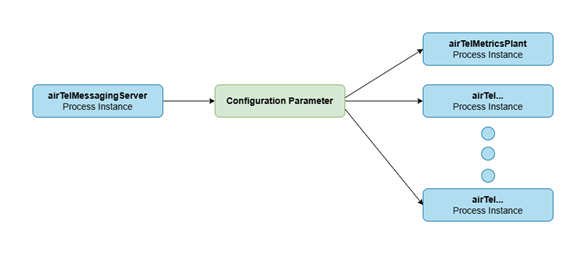
Create a parameter group
- Right-click
airTelPackageand select New > Parameter Group. -
In the new dialog box:
- Enter the name
airTelParameterGroup. - Select the package,
airTelPackage. - Click Add.
- Enter the name
-
Click Save.
Create the parameter
- Right-click
airTelParameterGroupand select New Parameter Override. -
In the new dialog box:
- Select the parameter as
DS_MESSAGING_SERVER. - Enter the override as
airTelMessagingServer. - Select the package,
airTelPackage. - Click Add.
- Select the parameter as
-
Add a description in the Parameter Details tab.
- In Attribute Values, click Add and enter
airTelMessagingServeras the instance, then click Add again in the dialog box. -
Confirm there are no blank lines in the config before saving — nothing except the filter text row.

-
Click Save.
Create a metrics plant (ticker plant)
The aircraft metrics plant receives all incoming records, writes them to a log file for recovery purposes, and pushes all data to a real-time database and any other processes. It uses KX Delta Platform's built-in ticker plant (DS_TP) template.
What is a "tick"?
The term originates in financial data systems, where a tick is the smallest price movement an instrument can make. In telemetry, a tick is the smallest discrete change a sensor can register and transmit.
Steps:
- Right-click the Process Library folder inside
airTelPackageand select New Process Instance. -
In the new dialog box:
- Enter the process instance name as
airTelMeticsPlant. - Select the package,
airTelPackage. - Choose template
DS_TP. - Click Add.
- Enter the process instance name as
-
In the Instance Details tab, add a description.
- In Reserved Params, set:
- Host:
localhost - Port:
8001
- Host:
- Leave all other Reserved Params blank. Click Save.
-
In Instance Params, set the following:
Parameter Type Value Description Notes messagingServerConfig DS_MESSAGING_SERVER:airTelMessagingServerDelta Messaging server This is the overridden parameter configured earlier. publishChannelSymbol metricsplantChannel to publish all tables on subscriptionChannelSymbol datafeedChannel to subscribe to logDirectorySymbol /path/to/kxinstall/delta-data/airTelData/logsDirectory to log data to, set to NO_DIRfor no log file.
If you do not have a log directory, you will be unable to replay logs into the RDB at a later stage.Replace /path/to/kxinstallwith your actual installation path. Ensure the directory exists. -
In the Schemas section, ensure
airTelSchemaGroupis added.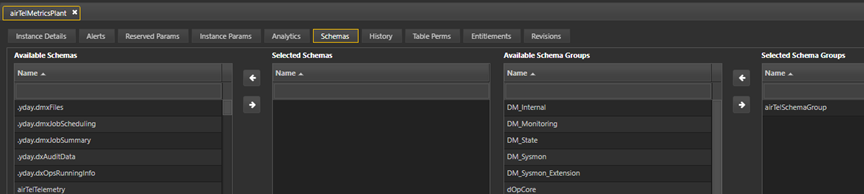
-
Click Save.
Next step
Proceed to Databases and workflow to create the HDB and RDB, and to wire all the components together in a workflow.