Databases and Workflow
This page covers managing process instances, creating the historical and real-time databases, and wiring everything together in a workflow.
Manage process instances
Before building the databases, it is helpful to understand how to manage running instances. You will use these actions throughout the rest of the tutorial.
Restart after changes
Most configuration changes only take effect after the affected process is restarted. Exceptions include:
- Analytic changes (can be pushed manually to running processes)
- Some configuration parameter changes (pushed automatically)
- Entitlement changes (pushed automatically)
Stop a process instance
From the Process Library Status viewer or the tree: right-click the instance and select Stop > Shut Down Q Process. From the process editor, click the Stop button.
Kill an instance
To force-terminate a process: right-click and select Stop > Kill-9. If automated restarts are configured, the process will restart automatically. You will see a message in the status bar.
Revert an instance
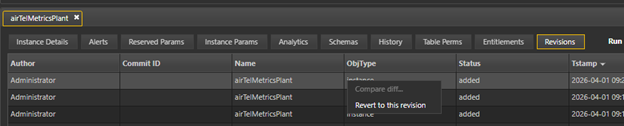
Open the entity and select the Revision History subtab. Right-click on the ObjType and choose Revert to this revision.
You can access the KX Control process directly to view Control logs or set and revert to checkpoints.
- View the process, check logs, open the IDE, and more: Select File > Open KX Control process…
- Set a checkpoint: Select File > Set KX Control Checkpoint…
- Revert to a checkpoint: Select File > Revert to KX Control Checkpoint…
- Automated checkpoints: Configure the
dc_housekeeping_dc_checkpointprocess. See DC_HOUSEKEEPING for details.
Create a historical database (HDB)
The HDB provides access to all on-disk historical data - typically anything captured before the current day. You must configure the HDB first as the RDB requires the HDB directory path on startup.
Steps:
- Right-click the Process Library folder inside
airTelPackageand select New Process Instance. -
In the new dialog box:
- Enter the process instance name as
airTelHDB. - Select the package,
airTelPackage. - Select the template,
DS_HDB. - Click Add.
- Enter the process instance name as
-
In Instance Details, add a description.
-
In Reserved Params, set:
- Host:
localhost - Port:
8002
Leave all other Reserved Params blank.
- Host:
-
In Instance Params, set the following:
Parameter Type Value Description directorySymbol /path/to/kxinstall/delta-data/airTelData/hdbDataHDB Directory — see note below gatewayQueryAnalytic dxQuery_basicSpecifies which analytic handles gateway queries initialStateFuncAnalytic dxEmptyFunctionNullSpecifies initial state tasks messagingServerConfig DS_MESSAGING_SERVERDelta messaging server Warning
Replace
/path/to/kxinstallwith your actual installation path before saving. Navigate to that path and create thehdbDatadirectory if it does not already exist. The HDB process will fail to start if the directory is missing. -
Click Save.
Create a real-time database (RDB)
The RDB captures all data arriving from the metrics plant and stores it in memory. At the end-of-day event, it writes all data to the HDB and reloads. To configure the RDB, provide it with the usual parameters and connect it to the message server, metrics plant and HDB.
Although the RDB supports extensive customization, this setup uses a simplified configuration.
Steps:
-
Right-click the Process Library folder inside
airTelPackageand select New Process Instance. -
In the new dialog box:
- Enter the process instance name as
airTelRDB. - Select the package,
airTelPackage. - Select the template,
DS_RDB. - Click Add.
- Enter the process instance name as
-
In Instance Details, add a description.
-
In Reserved Params, set:
- Host:
localhost - Port:
8003
Leave all other Reserved Params blank.
- Host:
-
In Instance Params, configure:
subscriptionChanneltometricsplantmessagingServertoDS_MESSAGING_SERVER:airTelMessagingServerhdbProcesstoairTelHDB
-
In the Schema subtab, associate
airTelSchemaGroup. - Click Save.
Create a workflow
A workflow ties the individual process instances (messaging server, metrics plant, RDB and HDB) together into a system that can be started and stopped as a unit.
Key workflow behaviors:
- Processes in a workflow can be started and stopped together.
- Startup dependencies are enforced — a process only starts once all its parent processes have started successfully.
- Conditions based on return values can be added to control startup logic. For example, an RTE only starts up if its parent starts up and returns a specific value.
- Each process in a workflow is represented as a task (a scheduled instance of a process instance).
Create the workflow
- Right-click the Process Library and select New Workflow.
- Name it
airTelWorkflow, selectairTelPackageas the Package and click Add. - The workflow editor appears in the bottom half of the screen.
Add tasks
Add the following tasks using the New Task button, selecting each from airTelPackage:
airTelMessagingServerairTelMetricsPlantairTelRDBairTelHDB
See the image below for an example:
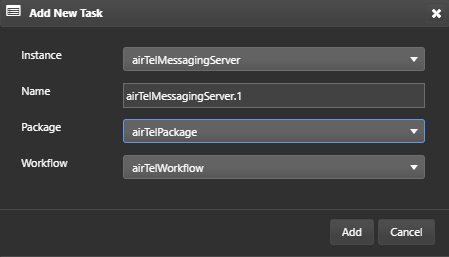
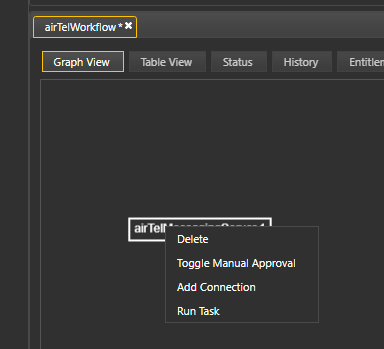
After adding each task, right-click it in the workflow editor and select Toggle Manual Approval. This removes startup dependencies temporarily, giving you full control during configuration.
Add connections (Dependencies)
Once all tasks are added, define the startup order:
- Click Add Connection and highlight
airTelMessagingServer.1withairTelMetricsPlant.1, then click Add. - Repeat the process highlighting
airTelMetricsPlant.1withairTelRDB.1.

Start and verify
-
Click Run task either from the Process Library or by right-clicking each task. Start the tasks in the following order:
airTelMessagingServer.1airTelMetricsPlant.1airTelRDB.1
Warning
Do not start
airTelHDB.1at this stage. -
Press the Refresh button in the Process Library view or click outside the task in the process editor. Running tasks should appear in green.
- Review the partial log for each of the three tasks and confirm there are no errors.
- Check that
airTelMetricsPlant.1has subscribed toairTelRDB.1and connected toairTelMessagingServer.1.
Enable automatic startup order
Once you are satisfied everything is running correctly:
- Stop all tasks using the Stop button in the workflow editor.
- In the Status tab, right-click each value under the Manual column and click Toggle Manual Approval to set them all to
false. - Return to the Graph View tab and click Run. After a moment, click the refresh icon — all tasks should be green, including
airTelHDB.1.
Next step
Proceed to Analytics to inspect the RDB, write q analytics in KX Analyst, and create the real-time engine that will publish data into the system.