Deploy the ACTIV Market Data Feed Handler in standalone mode
This page details how to run the KX ACTIV Market Data Feed Handler with a single kdb+ process in Docker Compose and query the data with q or PyKX.
The ACTIV Feed Handler streams real-time market data from the ACTIV One Platform. In standalone mode, it publishes directly to a single kdb+ process without the kdb Insights SDK or kdb Insights Enterprise.
ACTIV standalone process overview
To configure and deploy the feed handler and query the data it publishes, complete the following tasks:
- Prerequisites
- Log in to the Docker registry
- Download the ACTIV standalone example
- Configure the ACTIV standalone example
- File permissions
- Deploy the ACTIV standalone example
- Query the data with q
- Query the data with PyKX
- View the logs
- Tear down the ACTIV standalone example
Architecture
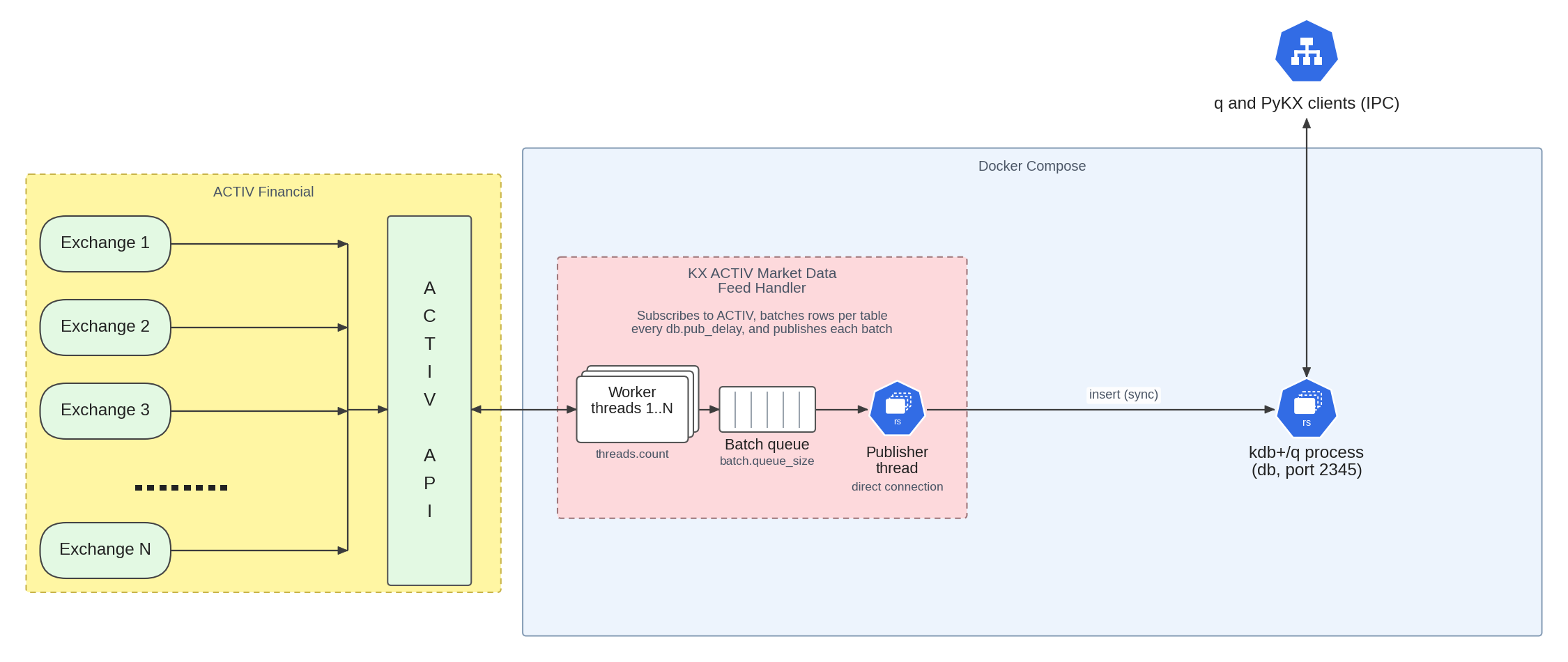
The deployment runs two containers in Docker Compose: the ACTIV feed handler and a kdb+ process. The feed handler connects to ACTIV, subscribes to your symbols, and publishes the updates directly to the q process.
The following diagram shows how the feed handler writes to the q process:
Prerequisites
Before running the standalone version of the ACTIV Feed Handler, make sure you have the following:
- Docker is installed.
- Docker Compose is installed.
- You have login credentials for the ACTIV feed (host, user ID, and password).
- You have login credentials for the Docker registry at portal.dl.kx.com.
- You have a kdb+ installation for Linux (64-bit), with a license file.
- You have a local installation of PyKX or q, depending on how you want to access the data the ACTIV feed publishes.
Log in to the Docker registry
To access the images needed for this walkthrough, log in to the KX Docker registry:
docker login portal.dl.kx.com -u <insert registry username> -p <insert registry password>
Download the ACTIV standalone example
Download the ACTIV standalone example by running the following command:
export BEARER=<your bearer token>;\
version=1.15.3;\
curl -L --oauth2-bearer "$BEARER" https://portal.dl.kx.com/assets/raw/kxi-activ-fh/${version}/activ-standalone-q-example-${version}.tar.gz -o activ-standalone-q-example.tgz
Portal login
Downloads from the KX portal need a login. Sign in at portal.dl.kx.com, select your email address in the top right to open Token Management, and select Add New Bearer Token. Set BEARER to that token before you run the command. Use the token for downloads from your own machine only, not in a deployment.
Extract the contents and go to the resulting directory:
tar -xvzf activ-standalone-q-example.tgz;\
cd activ-standalone-q-example
The directory contains:
| Path | Purpose |
|---|---|
docker-compose-q-proc.yaml |
The Docker Compose file for the feed handler and the q process. |
env |
The settings for both containers. |
cfg/kxfeed_config.json |
The database connection settings. |
cfg/schema.xml |
The tables published by the feed handler. |
cfg/eventToTable.json |
The mapping of ACTIV event types to tables. |
cfg/symbols.txt |
The symbols to subscribe to, separated by spaces or newlines. |
q/ |
Place your kdb+ installation here (it must contain l64/q and q.k). |
lic/ |
Place your kdb+ license file here. |
log/ |
The feed handler writes its log here. |
Configure the ACTIV standalone example
Within the activ-standalone-q-example directory, copy your kdb+ installation into q/ and your license file into lic/:
cp -r <path to your kdb+ install>/. q/
cp <path to your license file> lic/
Update the env file with the following:
- Set
KXFEED_ACTIV_AOP_HOST,KXFEED_ACTIV_AOP_USERID, andKXFEED_ACTIV_AOP_PASSWORDto your ACTIV host, user ID, and password. - Add the symbols you want to subscribe to in
cfg/symbols.txt, separated by spaces or newlines. To use wildcards such assymbol=GOOGL*, turn on query mode as described in Subscriptions.
Set the kxfeed_activ and kxfeed_activ_version variables if you are using an image other than the default.
Note
To enable direct publishing to a kdb+ process, ensure "isDirectConnect": 1 is set in the dbConfigFile. This setting is present in this example configuration, along with "directConnectHost": "db" and "directConnectPort": 2345.
Note
KXFEED_ACTIV_DB_SEND_SCHEMA is set to true in the env file, so the feed handler creates the tables in the q process when it starts.
File permissions
To avoid permission issues with containers mounting directories, run the following command in the activ-standalone-q-example directory (you might need sudo access):
chmod -R 777 */
or with sudo:
sudo chmod -R 777 */
Deploy the ACTIV standalone example
After you update the configuration, load the settings and deploy the ACTIV standalone example:
source ./env
docker compose -f docker-compose-q-proc.yaml up
Warning
Use source ./env, not source env. In most shells env also names a system command, which can be loaded instead of your file.
Query the data with q
To access data published by the ACTIV feed, start a q session locally and connect to the kdb+ process that captures the ACTIV data:
q)h:hopen 2345
You can then query the data by running the following:
-
For the
quotetable:q)h"select from quote" -
For the
tradetable:q)h"select from trade"
To list all the tables:
q)h"tables[]"
Query the data with PyKX
To query ACTIV data using PyKX, the KX Python library for kdb+, open the Python interpreter and import pykx:
import pykx as kx
Open a connection to the q process that captures the ACTIV data:
q = kx.SyncQConnection('localhost', 2345)
Then query the data by running the following:
-
For the
quotetable:q('select from quote') -
For the
tradetable:q('select from trade')
View the logs
To validate that everything started successfully, check the logs using the following command in the activ-standalone-q-example directory:
docker compose -f docker-compose-q-proc.yaml logs | less
If the feed handler started correctly, the log shows the connection to the q process, the ACTIV login, and a Subscribed to <symbol> message for each symbol, or Query subscribed to <query> if enableQueries is true. It also shows Assigning symbol <symbol> to <thread> for each subscription, followed by Distributed <n> symbols across <m> worker threads. The env file in the example sets the log level to debug, which also logs REFRESH received for <symbol> for each initial snapshot.
Note
Logs are also visible during the docker compose up command, but they can scroll quickly. Using docker compose logs lets you read and search the logs.
If the tables stay empty, check that the market is open for the symbols in cfg/symbols.txt. A subscription returns an initial snapshot at any time, but trades and quotes arrive only while the market is trading.
Replay accounts
The env file in the example sets KXFEED_ACTIV_AOP_HOST to an ACTIV replay environment. The data is a recorded earlier session that is replayed at the same time of day as the original, so you receive updates only during the market hours of the recorded session.
Tear down the ACTIV standalone example
To tear down and delete the containers of the ACTIV standalone example, run this command within the activ-standalone-q-example directory:
docker compose -f docker-compose-q-proc.yaml down