Deploy the Bloomberg Market Data Feed Handler Standalone
This page details how to install and run the KX Bloomberg Market Data Feed Handler standalone, publishing to a singular vanilla kdb+/q process.
Bloomberg standalone process overview
To successfully configure, deploy and query the data feed handler, the following tasks must be completed:
- Prerequisites
- Login to Docker registry
- Download the B-PIPE Standalone example
- Configure the B-PIPE Standalone example
- File permissions
- Deploy the B-PIPE Standalone example
- Query the data with kdb+/q
- Query the data with pykx
- View the logs
- Tear down the B-PIPE Standalone example
- B-PIPE EMRS
Note
Both the BPIPE and EMRS feeds are needed for a compliant solution — BPIPE to stream market data, and the stream from EMRS to control access.
Architecture
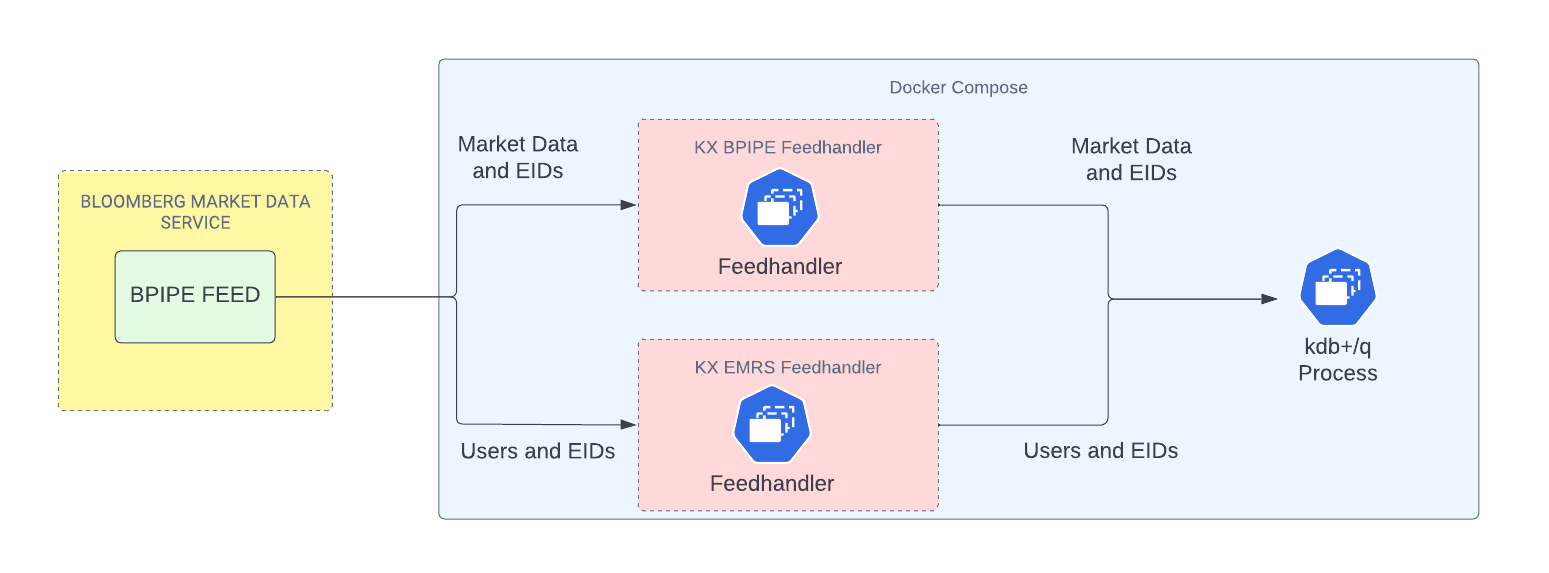
The deployment includes two Bloomberg feed handlers — BPIPE and EMRS — running in Docker Compose. Both publish market data and entitlement IDs (EIDs) to a downstream kdb+ process.
Prerequisites
Ensure the following prerequisites are met before running the standalone version of the KX Bloomberg Market Data Feed Handler:
- docker is installed
- docker-compose is installed
- You have login credentials for the Bloomberg Market Data Feed
- You have login credentials for Docker registry at portal.dl.kx.com
- You have a kdb Insights license file (
kc.lic) - You have a local installation of pykx or kdb+/q, depending on your preferred method of accessing the data published by the B-PIPE feed.
Login to Docker registry
To access the images needed for this walkthrough, log in to the KX Docker registry:
docker login portal.dl.kx.com -u <insert registry username> -p <insert registry password>
Download the B-PIPE Standalone example
Download the B-PIPE standalone example by running the following command:
version=1.0.1;\
curl -L  https://portal.dl.kx.com/assets/raw/kxi-bpipe-fh/${version}/bpipe-standalone-q-example-${version}.tar.gz -o bpipe-standalone-q-example.tgz
Extract the contents and navigate to the resultant directory:
tar -xvzf bpipe-standalone-q-example.tgz;\
cd bpipe-standalone-q-example
Configure the B-PIPE Standalone example
Within the bpipe-standalone-q-example directory, find the docker-compose-q-proc.yaml file and the env file. Update the env file with the following:
- Set
q_install_dirto the path of your kdb+/q license directory. - Set
KXFEED_BPIPE_HOST,KXFEED_BPIPE_PORT, andKXFEED_BPIPE_APP_NAMEwith your B-PIPE host, port and application name.
Note
To enable direct publishing to a kdb+/q process, ensure "isDirectConnect":1 is set in the dbConfigFile. This setting should be present in this example configuration.
File permissions
To avoid permission issues with containers mounting directories, run the following command in the bpipe-standalone-q-example directory (you may need sudo access):
chmod -R 777 */
or with sudo:
sudo chmod -R 777 */
Deploy the B-PIPE Standalone example
Once the configuration has been updated, the B-PIPE standalone example can be deployed:
docker-compose --env-file env -f docker-compose-q-proc.yaml up
Query the data with kdb+/q
To access data published by the B-PIPE feed, start a kdb+/q session locally and connect to the q process that captures the B-PIPE data:
q)h: hopen 2345
You can then query the data by running the following:
-
For the
quotetable:q)h"select from quote" -
For the
tradetable:q)h"select from trade"
Query the data with pykx
To query B-PIPE data using pykx, launch the Python interpreter and import pykx:
import pykx as kx
Open a connection to the q process that captures the B-PIPE data:
q = kx.SyncQConnection('localhost', 2345)
Then query the data by running the following:
-
For the
quotetable:q('select from quote') -
For the
tradetable:q('select from trade')
View the logs
To validate that everything started successfully, check the logs using the following command in the bpipe-standalone-q-example directory:
docker-compose --env-file env -f docker-compose-q-proc.yaml logs | less
Note
Logs are also visible during the docker-compose up command, but they may scroll quickly. Using docker-compose logs makes it easier to read and search through the logs.
Tear down the B-PIPE Standalone example
To tear down and delete the containers of the B-PIPE standalone example, run this command within the bpipe-standalone-q-example directory:
docker-compose --env-file env -f docker-compose-q-proc.yaml down
B-PIPE EMRS configuration
The B-PIPE EMRS (Entitlements Management and Reporting System) feed handler is responsible for fetching and validating user-level entitlements. It connects to Bloomberg's EMRS service to determine:
- Whether a user is valid
- What EIDs the user has access to
This allows us to enforce data access controls in real time. Bloomberg user IDs need to be associated with your kdb user IDs. EIDs on data recorded from the B-PIPE feed can then be compared with EIDs associated with the kdb (and so Bloomberg) user, and only correctly entitled data returned to them.
kdb+ does not have built-in row-based data entitlements. These must be built into your data access APIs by joining the kdb+ username to Bloomberg/EMRS IDs to determine if a user has the right data entitlement, by comparing their authorized EID list with the EIDs on any queried market data.
The system continuously monitors for any changes in user entitlements, such as gaining or losing access. If any changes occur, the system automatically updates the entitlement information in the snapshot.
The entitlement data is stored in a snapshot and can be published to either a KDB+ table or through KX Reliable Transport (RT), depending on the deployment configuration.
The USERSENTITLEMENTS table includes the following fields:
userID: The user's identifier.IP: The user's IP address.valid: Indicates whether the user's entitlements are valid.received: The timestamp when the entitlement data was received.permissionedEIDs: A list of entitlement IDs the user is authorized for.
Here's an example of how the data looks in the KDB+ table:
q)USERSENTITLEMENTS
userID         IP         valid received                      permissionedEIDs
--------------------------------------------------------------------------------
\\KX\USER1     172.17.0.6 TRUE  2025.08.07D10:33:33.344901880 35009 40066 41095i
\\KX\USER2     172.17.0.5 TRUE  2025.08.07D10:33:33.344901880 35009 40066 41095i
\\KX\USER3     172.17.0.4 FALSE 2025.08.07D10:33:33.344901880 `int$()
\\KX\USER4     172.17.0.2 TRUE  2025.08.07D10:33:33.344901880 35009 40066 41095i
\\KX\USER5     172.17.0.3 TRUE  2025.08.07D10:33:33.344901880 35009 40066 41095i
The table below outlines optional configuration settings available when using the B-PIPE EMRS feed handler. These settings can be provided through command-line flags or as environment variables.
| Command line | Environment variable | Description |
|---|---|---|
--logging.file |
BPIPE_LOGGING_LEVEL |
Logging level; for example info, debug, trace |
--logging.level |
BPIPE_LOGGING_AUTO_FLUSH |
Flush buffers after every message |
--logging.rotation_size |
BPIPE_LOGGING_ROTATION_SIZE |
Rotate feed log file when it reaches this size (in bytes) |
--bpipe.app.name |
BPPE_APP_NAME |
Application name used for authentication |
--bpipe.host |
BPIPE_HOST |
Host to connect to |
--bpipe.port |
BPIPE_PORT |
Port to use in connection |
--bpipe.queue.size |
BPIPE_QUEUE_SIZE |
Maximum size of the B-PIPE incoming event queue |
--bpipe.auto.restart |
BPIPE_AUTO_RESTART |
If set to true, it should try to reconnect in the event of a B-PIPE disconnection |
--bpipe.num.startAttempts |
BPIPE_NUM_STARTATTEMPTS |
Number of attempts at start/restart before terminating |
--bpipe.userIdIP.pairs |
BPIPE_USERID_IP_PAIRS |
UserID and IP pair in format UserID1:IP1;UserID2:IP2 |
--bpipe.eids |
BPIPE_EIDS |
All EIDs to be verified by the application. EIDs are comma separated |
--comm.socket.port |
BPIPE_COMM_SOCK_PORT |
Socket port for communication to get userID and IP from any other process |
--max.socket.connections |
BPIPE_MAX_SOCKET_CONNECTIONS |
Maximum number of sockets that can be opened to get userID and IP |
--socket.connection.timeout |
BPIPE_SOCKET_CONNECTION_TIMEOUT |
Socket connection timeout in seconds |
--db.config.file |
BPIPE_DB_CONFIG_FILE |
Path to database connection configuration file |
--db.schema.file |
BPIPE_DB_SCHEMA_FILE |
Path to database schema file |
Summary
You have now deployed the Bloomberg Market Data Feed Handler in standalone mode, successfully publishing real-time market data to a local kdb+/q process.
This setup provides a working example of how KX can interface with Bloomberg B-PIPE and allows you to explore integration in a controlled, standalone environment.