Filter rules & condition code management
Filter rules are named sets of trade or quote condition-code inclusion criteria that cleanse the data the Finance API returns. A filter rule maps exchange/condition-code pairs to boolean flags. When a query specifies a rule, the API returns only the records whose exchange and condition code the rule flags as true.
The Administration platform lets you manage the available filter rules and the unique condition codes within them. You can add, remove, and customize filter rules, manually add and remove unique condition codes, and manage new unique condition codes that Refinery detects in the feed.
Condition code table
Each filter rule is a boolean column keyed on exchange and condition code. The following table shows a typical trade filter configuration for an exchange:
exch  cond  default  auction  a12
----------------------------------
LSE   O|A   true     true     false
LSE   R|N   true     false    false
LSE   R|O   true     false    false
LSE   A|U   true     true     false
LSE   O|M   true     false    false
LSE   8835  true     false    true
LSE   A     true     true     false
LSE   O     true     true     false
Compound condition codes (for example, O|A) occur when a single event sends more than one condition. Refinery treats each compound code independently, so you must set inclusion criteria for each one.
Configuration
Refinery stores filter rules in the .daas.cfg.filterRuleConfig config parameter. Each entry records an exchange (exch), a condition code (cond), and one boolean column per named filter rule.
At startup, Refinery loads these entries into two in-memory dictionaries:
| Dictionary | Contents |
|---|---|
.daas.cfg.filterRulesDict |
`trade`quote → (filterRule → valid condition codes per exchange) |
.daas.cfg.filterRuleOptionsDict |
`trade`quote → set of valid filter rule names |
Separate config parameters hold the per-asset-class overrides for statistics queries (.daas.cfg.statsFilterRules, with overrides for equity, future, fixedIncome, foreignExchange, and index).
When you change the filter rule configuration through the Administration UI, Refinery rebuilds .daas.cfg.filterRulesDict and .daas.cfg.filterRuleOptionsDict live, without a process restart.
Viewing the filter rules and configuration
Two tables hold the existing filter rules: one for trade filter rules and one for quote filter rules. They appear as the first and second tabs on the Filter Rule and Condition Code Management dashboard.
By default, the table groups and collapses rows by exchange. To the right of each exchange name, a count shows how many condition codes that exchange contains. To the left, click the "+" to expand the exchange and view its contents.
To group a table by column, drag the column header to the row directly above the table. To ungroup the table, click the "x" next to the column name in this row.
How to edit filter rules
To edit existing filter rules, click Edit in the top-right of the table. You can then click any cell in the table to change it.
-
To set a cell to true, select it and check the box.
-
To set a cell to false, select it and uncheck the box.
-
To save changes, click out of the most recently changed cell, then click Submit changes. Note: If you don't click out of the most recently changed cell before you click Submit Changes, the change to that cell isn't saved.
-
To cancel your changes, click Cancel Changes.
Setting a cell to true for an exchange/condition code combination includes the ticks with that combination whenever you use the filter.
Note
You can edit only the Boolean filter columns here. You can't edit the exch or cond columns.
How to add a new filter rule
You can add a new filter in the Manage Filter Rules tab.
Select the filter type at the top of this tab. If you select neither trade nor quote, the tab uses trade by default.
Enter the name of the new filter in the text box within the Add Filter Rule widget. Click Add Filter to add a filter with this name to the chosen table. The log table at the bottom of the tab shows whether the addition succeeded.
The name must not contain blank spaces, begin with a number, or contain special characters, for example: - + /! \| \# = \* & \^ % \< \> \$ : ; @ \~ ? ,.
For example, test\$filter is invalid because it contains a $, so Refinery doesn't create it.
testFilter is valid because it meets all the criteria above.
To customize this filter, go to the Filter Rules Viewer tab and follow the procedure in How to edit filter rules.
Note
Refinery doesn't add a column if another column with the same name already exists in the chosen table.
How to remove a filter rule
You can remove a filter in the Manage Filter Rules tab.
Select your table type at the top of this tab. If you select neither trade nor quote, the tab uses trade by default.
Select the filter to remove from the dropdown of existing filters within the Remove Filter Rule widget. Click Remove Filter to remove the selected filter from the chosen table. The log table at the bottom of the tab shows whether the removal succeeded.
Note
Removing a filter permanently deletes any customizations to that filter. Adding a filter with the same name doesn't re-create the customizations you made to an earlier filter of that name.
How to manually add a condition code
You can manually add condition code/exchange combinations in the Manage Filter Rules tab.
Select your table type at the top of this tab. If you select neither trade nor quote, the tab uses trade by default.
The Add Condition Code widget has two text boxes—one for the exchange name and one for the condition code—and a multi-select dropdown of available filter rules. Refinery sets every filter rule you select in this dropdown to true for the new unique condition code. After you complete these three items, click Add Condition Code. The log table at the bottom of the tab shows whether the addition succeeded.
How to manually remove a condition code
You can manually remove condition code/exchange combinations in the Manage Filter Rules tab.
Select your table type at the top of this tab. If you select neither trade nor quote, the tab uses trade by default.
The Remove Condition code widget has two dropdowns, one for exchange and one for condition code. When you select an exchange, the condition code dropdown reloads to show only the condition codes that appear for that exchange, and vice versa.
After you select an exchange and a condition code, click Remove Condition Code. The log table at the bottom of the tab shows whether the removal succeeded.
Detection of new condition codes
As new market data enters Refinery, condition codes that the system hasn't seen before can appear.
Refinery detects when new condition codes appear in the market data feed, so an administration user can decide how to add them to the current filtering configuration. Refinery doesn't add the condition codes to the filtering configuration until a user acknowledges them.
The Filter Rule Management dashboard has a tab called New Condition Code Management:

The left panel is for new trade condition codes and the right panel is for new quote condition codes.
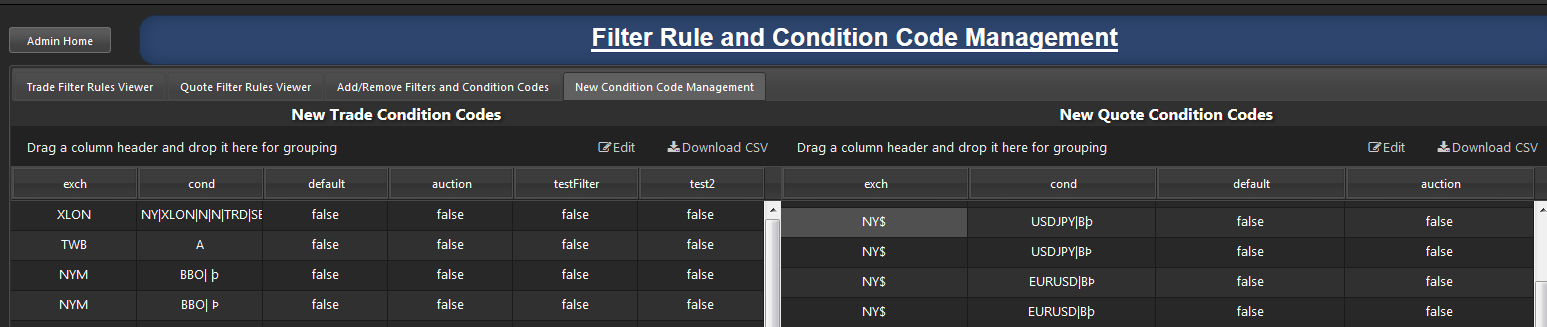
To add the condition codes to the filtering configuration, click Edit at the top-right of the relevant data grid.
In Edit mode, click the checkboxes to set the condition codes to true for particular filter rules, the same way you edit filter rules. After you complete your changes, click Submit Changes.
Then select the rows you edited and click Acknowledge above the relevant table. You can also acknowledge condition codes whose configuration you don't want to change.

Using filter rules in API queries
The filterRule parameter
Key         **filterRule**      optional
Value       filter rule name as a symbol atom or 2-element vector
Default     \`nofilter (no filtering applied)

Examples    \`default
            \`auction
            \`default\`nofilter     / trade filter ; quote filter (taq/taqWide only)
getTicks, getBars, and getStats accept filterRule. It isn't valid for openInterest or non-trade/quote data types.
Passing ` (null symbol) or `nofilter, or omitting the parameter entirely, all produce the same result: Refinery applies no condition-code filtering and returns all records, regardless of exchange or condition.
Two-element form (taq/taqWide only)
When you query taq or taqWide data types, filterRule can be a 2-element symbol vector. Refinery applies the first element to the trade side and the second to the quote side.
getTicks .[!]flip(
    (`symList    ; `BARC.L);
    (`dataType   ; `taq);
    (`startDate  ; 2016.05.24);
    (`endDate    ; 2016.05.24);
    (`startTime  ; 06:00:00.000);
    (`endTime    ; 09:00:00.000);
    (`timeZone   ; `Europe/London);
    (`assetClass ; `equity);
    (`temporality; `slice);
    (`filterRule ; `default`nofilter)
  )
How a filter rule is applied
1. Normalization — Refinery normalizes both ` and `NOFILTER to `nofilter. If the parameter is absent, Refinery sets it to `nofilter.
2. Validation — Refinery checks the supplied filter rule name against .daas.cfg.filterRuleOptionsDict for the relevant data type. Refinery returns an error if:
- The name doesn't exist in the current configuration.
- You supply more than one value for a non-
taq/taqWidedata type. - You supply more than two values for any data type.
You can disable validation per function with the doNotValidate parameter. See Parameter Validation.
3. Where-clause injection — For getTicks, Refinery injects the filter rule into the query where-clause. For each record, Refinery resolves the symbol's exchange (falling back to the ricInfo table for any symbol with a missing exchange mapping), then checks that the record's condition codes fall within the allowed set for the given filter rule and exchange. Refinery excludes records that fail this check from the results.
4. getBars — Refinery passes the filter rule as the dataTypeFilter argument into the bar aggregation functions. It normalizes missing or null values to `nofilter before aggregation begins.
5. getStats — getStats maps its tradeFilter and quoteFilter arguments to filterRule when building the underlying sub-queries for each stats calculation.
Examples
Apply the default filter to trade data:
getTicks .[!]flip(
    (`symList    ; `BARC.L);
    (`dataType   ; `trade);
    (`startDate  ; 2016.05.24);
    (`endDate    ; 2016.05.24);
    (`startTime  ; 06:00:00.000);
    (`endTime    ; 09:00:00.000);
    (`timeZone   ; `Europe/London);
    (`assetClass ; `equity);
    (`temporality; `slice);
    (`filterRule ; `default)
  )
Apply the auction filter to trade data:
getTicks .[!]flip(
    (`symList    ; `BARC.L);
    (`dataType   ; `trade);
    (`startDate  ; 2016.05.24);
    (`endDate    ; 2016.05.24);
    (`startTime  ; 06:00:00.000);
    (`endTime    ; 09:00:00.000);
    (`timeZone   ; `Europe/London);
    (`assetClass ; `equity);
    (`temporality; `slice);
    (`filterRule ; `auction)
  )
Apply no filter (all three forms are equivalent):
getTicks .[!]flip(
    (`symList    ; `BARC.L);
    (`dataType   ; `trade);
    (`startDate  ; 2016.05.24);
    (`endDate    ; 2016.05.24);
    (`startTime  ; 06:00:00.000);
    (`endTime    ; 09:00:00.000);
    (`timeZone   ; `Europe/London);
    (`assetClass ; `equity);
    (`temporality; `slice);
    (`filterRule ; `)
  )
Note
Omitting filterRule entirely is equivalent to passing ` or `nofilter.